Sissejuhatus
The Insignia USB Dual Hard Drive Docking Station provides a convenient and efficient solution for connecting 2.5-inch and 3.5-inch SATA hard drives (HDDs) and solid-state drives (SSDs) to your computer. This docking station supports high-speed data transfer and offers plug-and-play functionality, making it ideal for data recovery, backups, and expanding storage capacity.
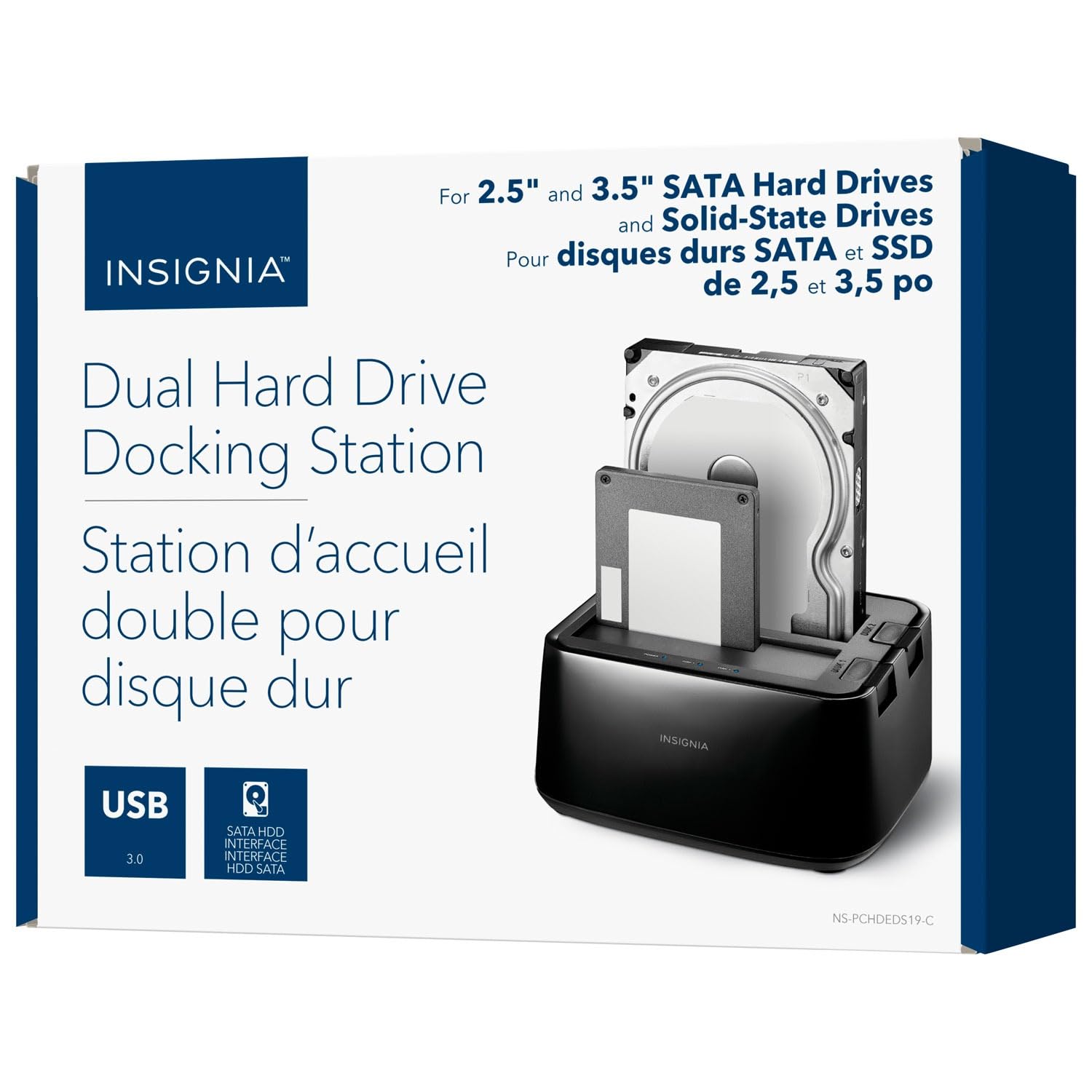
Pilt: Esikülg view of the Insignia USB Dual Hard Drive Docking Station packaging, showing the product and its compatibility with 2.5" and 3.5" SATA drives.
Pakendi sisu
Palun kontrollige, kas pakis on kõik esemed olemas:
- Insignia USB Dual Hard Drive Docking Station
- Toiteadapter (12V/3A)
- USB 3.0 kaabel
- Kiire seadistusjuhend
Toote omadused
- Mitmekülgne ühilduvus: Supports both 2.5-inch and 3.5-inch SATA I/II/III HDDs and SSDs. Compatible with Windows 11, 10, macOS, ChromeOS, iPadOS, and Android systems.
- Kiire jõudlus: Utilizes USB 3.0 technology for data transfer speeds up to 5 Gbps.
- Kahe lahe disain: Allows simultaneous access to two hard drives.
- Plug & Play Simplicity: Installimiseks pole draivereid vaja.
- Kuumalt vahetatav: Drives can be inserted and removed without restarting the computer.
- LED indikaatorid: Provides visual feedback for power and data activity.
- Vastupidav konstruktsioon: Crafted with robust plastic materials for long-lasting use.
Seadistamine
Follow these steps to set up your Insignia USB Dual Hard Drive Docking Station:
- Ühendage toide: Plug the included 12V/3A power adapter into the DC IN port on the back of the docking station, then plug the adapter into a power outlet.
- Sisestage kõvakettad: Gently slide your 2.5-inch or 3.5-inch SATA HDD/SSD into an available drive bay (Disk 1 or Disk 2) until it is firmly seated. Ensure the SATA connector on the drive aligns with the connector in the bay.
- Ühendage arvutiga: Connect one end of the USB 3.0 cable to the USB 3.0 IN port on the docking station and the other end to an available USB port on your computer.
- Toide sisse: Flip the power switch on the back of the docking station to the ON position. The power LED indicator will illuminate.
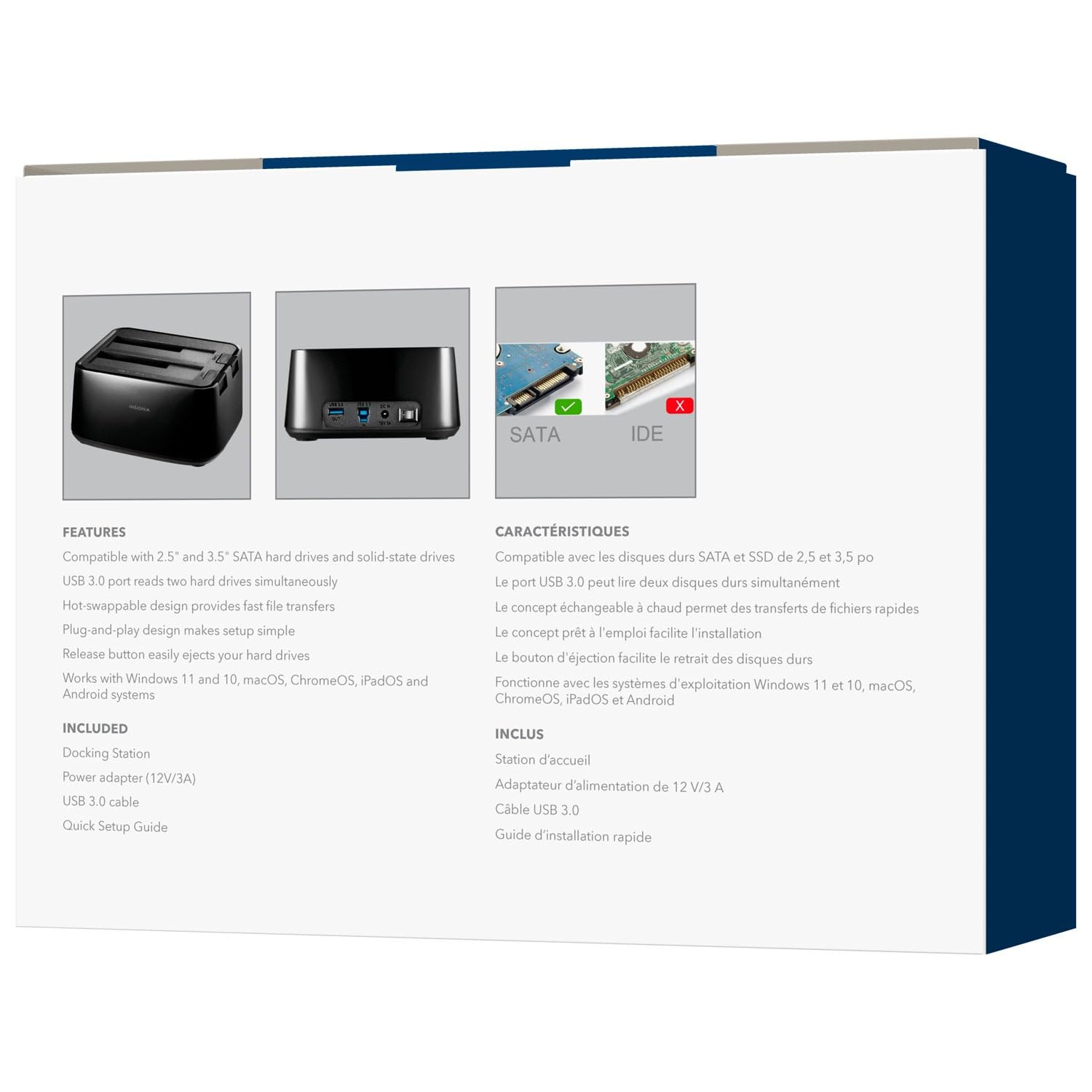
Pilt: Tagumine view of the docking station, highlighting the USB 3.0 IN/OUT ports, DC IN power port, and power switch.
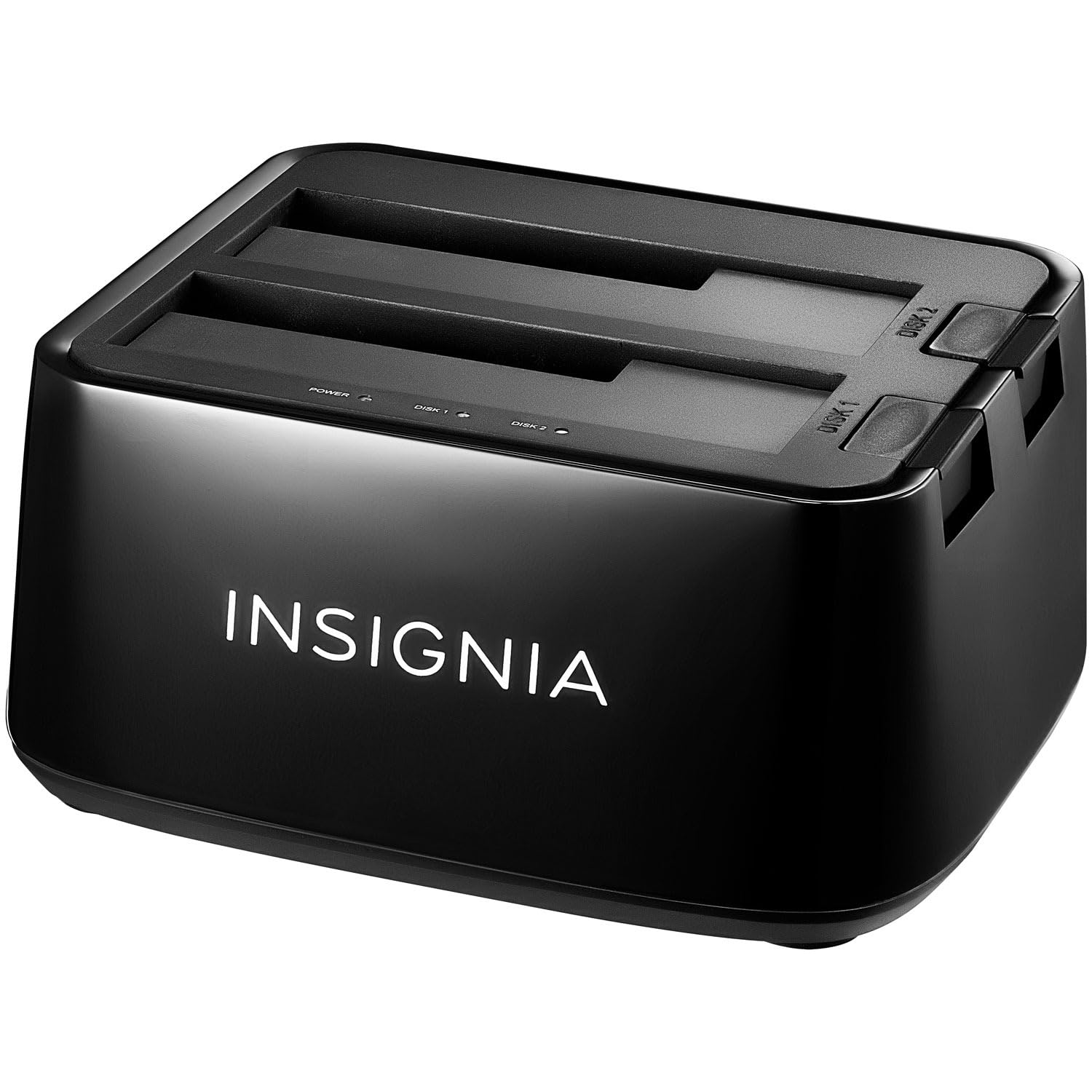
Pilt: Ülevalt-eest view of the docking station with a 2.5-inch SSD and a 3.5-inch HDD correctly inserted into their respective bays.
Kasutusjuhised
Inserting and Removing Drives
- Sisestamiseks: Align the SATA connector of your HDD/SSD with the slot in the docking station bay and gently push down until the drive is securely seated.
- Eemaldamiseks: Ensure no data transfer is active. Safely eject the drive from your operating system (e.g., "Safely Remove Hardware" on Windows, "Eject" on macOS). Then, press the release button next to the drive bay and carefully pull the drive upwards to remove it.
Andmeedastus
Once connected and powered on, your operating system should automatically detect the inserted drives. They will appear as removable storage devices. You can then drag and drop files, copy, paste, or use backup software as you would with any other external storage device.
LED indikaatorid
- Toite LED: Illuminates when the docking station is powered on.
- Activity LEDs (Disk 1, Disk 2): Blink when data is being accessed or transferred to/from the corresponding drive.
Hooldus
- Puhastamine: Dokkimisjaama välispinna puhastamiseks kasutage pehmet ja kuiva lappi. Ärge kasutage vedelaid puhastusvahendeid ega lahusteid.
- Hoiustamine: Kui dokkimisjaama ei kasutata, hoidke seda jahedas ja kuivas kohas, eemal otsesest päikesevalgusest ja äärmuslikest temperatuuridest.
- Käitlemine: Vältige seadme maha kukkumist või tugevate löökide saamist, kuna see võib sisemisi komponente kahjustada.
Veaotsing
Draivi ei tuvastatud
- Veenduge, et toiteadapter on kindlalt ühendatud ja dokkimisjaam on sisse lülitatud.
- Verify that the USB cable is firmly connected to both the docking station and your computer.
- Proovige ühendada USB-kaabel arvuti mõnda teise USB-porti.
- Ensure the hard drive is properly seated in the docking station bay.
- Kontrollige kettahalduse (Windows) või ketta utiliidi (macOS) alt, kas draiv on tuvastatud, kuid vormindamata või jaotamata.
- Test with a different known-good hard drive to rule out a drive issue.
Aeglane andmeedastuskiirus
- Ensure you are connected to a USB 3.0 port on your computer for optimal speeds. Connecting to a USB 2.0 port will result in slower transfer rates.
- Verify the hard drive itself is capable of high speeds. Older HDDs may have slower performance.
- Vältige paljude väikeste osade ülekandmist files samaaegselt, kuna see võib vähendada üldist edastuskiirust.
Docking Station Not Powering On
- Check that the power adapter is correctly plugged into both the docking station and a working power outlet.
- Ensure the power switch on the back of the docking station is in the ON position.
- Proovige teist pistikupesa.
Tehnilised andmed
| Kaubamärk | BADGE |
| Mudel | B0FWFVTZ9W |
| Riistvara liides | USB 3.0 |
| Ühilduvad draivitüübid | 2.5" and 3.5" SATA I/II/III HDD/SSD |
| Andmeedastuskiirus | Kuni 5 Gbps (USB 3.0) |
| Riistvara platvorm | Universaalne |
| Materjal | Plastikust |
| Toiteadapter | 12V/3A |
Garantii ja tugi
For warranty information and technical support, please refer to the documentation included with your product or visit the official INSIGNIA website. You may also contact INSIGNIA customer service directly for assistance.


