Sissejuhatus
Thank you for choosing the ProtoArc KM310 Wireless Mechanical Keyboard and Mouse. This combo offers a responsive typing experience with low-profile linear red switches and versatile multi-device connectivity. The ergonomic mouse is designed for comfort and precision. This manual provides detailed instructions for setup, operation, maintenance, and troubleshooting to ensure optimal performance.
Mis on karbis

Image: Contents of the ProtoArc KM310 package, including the keyboard, mouse, charging cable, and user manual.
- ProtoArc KM310 Wireless Mechanical Keyboard
- ProtoArc Wireless Mouse
- USB-C laadimiskaabel
- Kasutusjuhend
Toode läbiview
Klaviatuuri funktsioonid

Pilt: Lähivõte view of the ProtoArc KM310 keyboard, highlighting its low-profile keys and linear red switches.
- Madal-Profile Mehaanilised võtmed: Equipped with linear red switches for a smooth, quiet, and responsive typing experience.
- Aluminum Top Case: Provides durability and a sleek, modern aesthetic.
- Reguleeritava kaldega jalad: Ergonomically designed with 2-stage foot mats offering 6° and 9° tilt options for comfortable typing.
- Täissuuruses paigutus: A 108-key layout suitable for office and business use.
Hiire omadused

Image: The ProtoArc KM310 mouse being held, showcasing its ergonomic design for a natural grip.
- 63G Ultra-Lightweight: Reduces hand fatigue during extended use and enhances portability.
- Ergonoomiline disain: Contoured shape for a comfortable and natural grip.
- Reguleeritav DPI: Three DPI levels (1000/1600/2400) for tailored control and precision.
- Vaikne klõps: Mõeldud vaikseks tööks.
- Edasi/tagasi nupud: Integrated for seamless browsing.
Ühenduvus ja toide
- Mitme seadme ühenduvus: Connects up to 3 devices via 2.4G USB receiver or Dual Bluetooth (BT1, BT2).
- Laetav: Both keyboard and mouse feature Type-C charging. The mouse's USB receiver is stored on its bottom.
- Pikk aku tööiga: Up to 150-200 days standby time; 2-3 hours for a full charge.
Seadistusjuhised
1. Seadmete laadimine

Image: The keyboard and mouse are shown connected to power sources via USB-C cables for charging.
- Connect the provided USB-C charging cable to the charging port on the keyboard (located on the top edge) and the mouse (located on the front edge).
- Plug the other end of the cable into a USB power source (e.g., computer USB port, USB wall adapter).
- The indicator lights will show charging status. Allow 2-3 hours for a full charge.
2. Seadmetega ühenduse loomine

Image: A desk setup showing the ProtoArc KM310 keyboard and mouse connected to a laptop, monitor, and tablet, illustrating multi-device capability.
The KM310 combo supports three connection modes: 2.4G wireless via USB receiver, Bluetooth 1 (BT1), and Bluetooth 2 (BT2).
2.1. 2.4G traadita ühendus
- Leidke hiire allosas olevast sahtlist USB-vastuvõtja.
- Ühendage USB-vastuvõtja arvuti vabasse USB-porti.
- Lülitage klaviatuur ja hiir vastavate toitelülitite abil sisse.
- The devices should connect automatically.
2.2. Bluetooth-ühendus (BT1 / BT2)
- Lülitage klaviatuur ja hiir sisse.
- Vajutage klaviatuuril nuppu BT1 or BT2 key (usually located on the number pad, indicated by orange keycaps) to select the desired Bluetooth channel. The indicator light will flash.
- On your device (computer, tablet, etc.), go to Bluetooth settings and search for "ProtoArc KM310 Keyboard" and "ProtoArc KM310 Mouse".
- Select the devices to pair. The indicator light will stop flashing once connected.
- Repeat for a second Bluetooth device using the other BT channel.
2.3. Seadmete vahel vahetamine
To switch between connected devices, simply press the corresponding connection key on the keyboard (2.4G, BT1, or BT2) and the channel switch button on the bottom of the mouse.
Kasutusjuhised
Klaviatuuri kasutamine
- Tippimine: Madala professionaalsusegafile linear red switches provide a responsive and quiet typing experience.
- Operatsioonisüsteemi ühilduvus: The keyboard is compatible with Windows and Mac OS. Keys like 'Win' and 'Alt' also show 'Option' and 'Cmd' for Mac users.
- Kalde reguleerimine: Use the adjustable tilt legs on the underside of the keyboard to set your preferred typing angle (6° or 9°).
Hiire kasutamine
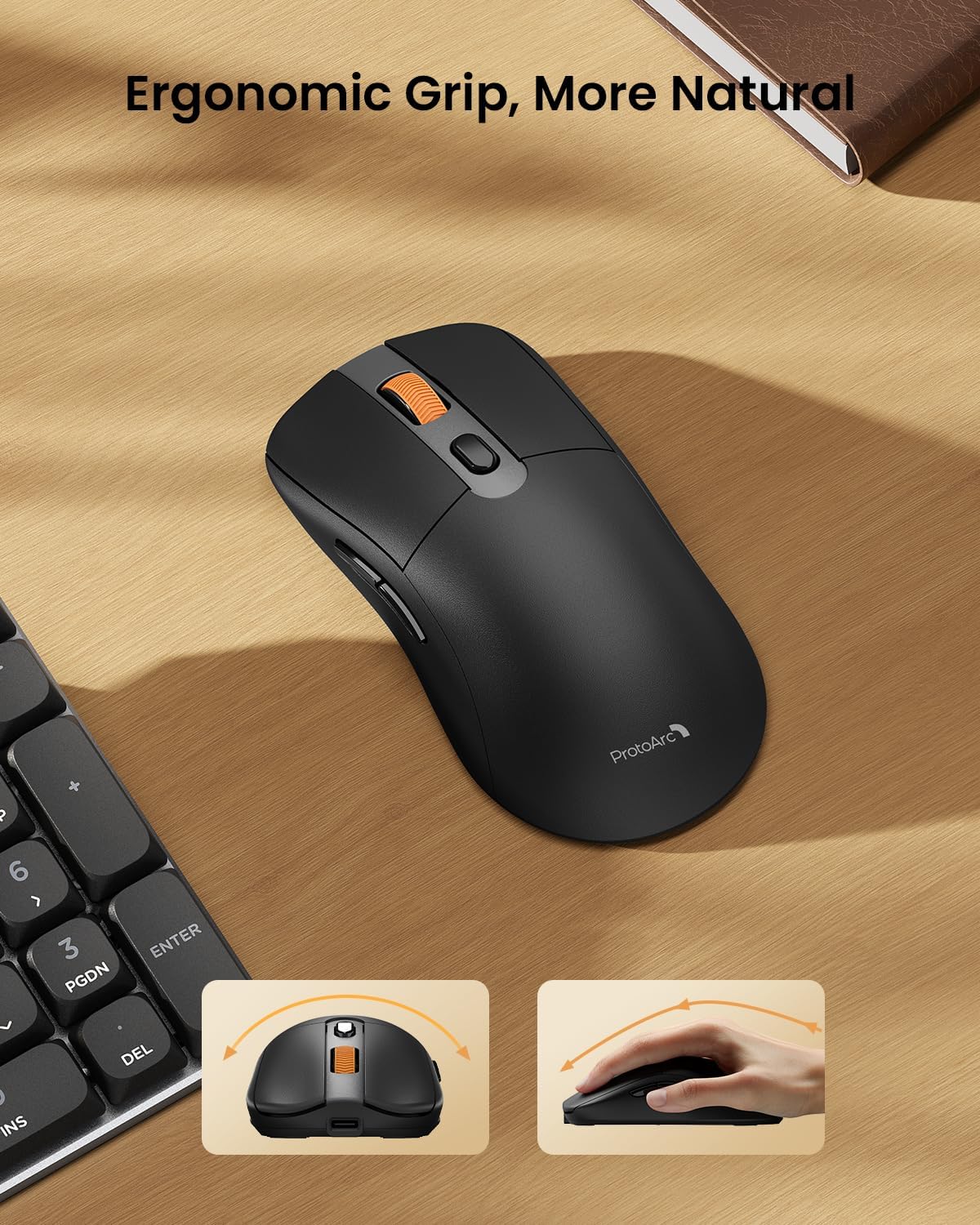
Image: A close-up of the ProtoArc KM310 mouse, illustrating the three adjustable DPI settings (1000, 1600, 2400).
- DPI reguleerimine: Press the DPI switch button (usually located near the scroll wheel) to cycle through the 3 DPI levels (1000/1600/2400) to match your preference for cursor speed and precision.
- Navigeerimisnupud: Kiireks navigeerimiseks kasutage hiire küljel olevaid edasi- ja tagasiliikumisnuppe. web brauserid või file uurijad.
- Vaiksed klõpsud: The mouse features silent click buttons for a quiet working environment.
Hooldus
- Puhastamine: Klaviatuuri ja hiire pühkimiseks kasutage pehmet ja kuiva lappi. Kangekaelse mustuse korral kasutage kergelt kuiva lappi.amp Võib kasutada õrnatoimelist lappi ja seepi, veendudes, et vedelik seadmesse ei satuks.
- Aku hooldus: Recharge the devices when the battery indicator is low. Avoid prolonged exposure to extreme temperatures.
- Hoiustamine: When not in use for extended periods, turn off the devices to conserve battery life. Store the USB receiver inside the mouse to prevent loss.
Veaotsing
Keyboard/Mouse Not Turning On or Stopping Working
- Kontrollige akut: Ensure both the keyboard and mouse are sufficiently charged. Connect them to a power source using the USB-C cable.
- Seadmete uuesti sidumine:
- For 2.4G connection, ensure the USB receiver is securely plugged in and the devices are set to 2.4G mode.
- For Bluetooth connection, ensure the devices are set to the correct BT channel (BT1 or BT2) and re-pair them through your device's Bluetooth settings.
- Proovige teist kaablit: If charging issues persist, try using a different USB-C cable to rule out a faulty cable.
- Häired: Move the devices closer to your computer or away from other wireless devices that might cause interference.
- Võtke ühendust tugiteenusega: If the issue persists, please contact ProtoArc customer support for further assistance.
Tehnilised andmed
| Mudeli number | KM310 |
| Kaubamärk | ProtoArc |
| Värv | Ruumihall |
| Ühenduvustehnoloogia | Bluetooth, USB (2.4G traadita ühendus) |
| Eriomadused | Madal Profile Keys, Linear Red Switches, Ergonomic Design, Ultra-Light Mouse, Ergonomic Mouse |
| Ühilduvad seadmed | Laptop, Personal Computer, Tablet (Windows 7/8/10, Mac OS X 10.12, Android 4.3 or higher) |
| Kauba kaal | 2.31 naela |
| Pakendi mõõtmed | 17.68 x 8.07 x 2.05 tolli |
Garantii ja tugi
The ProtoArc KM310 Mechanical Keyboard and Mouse combo comes with a 2-aastane garantii.
For any questions, technical support, or warranty claims, please contact ProtoArc customer service:
- E-post: support@protoarc.com
- Telefon: +1 866-287-8188
Ametlik tootevideo
Video: ametlik tootevideo esitlusasing the features and design of the ProtoArc KM310 Aluminum Mechanical Keyboard and Mouse.


