1. Sissejuhatus
This manual provides detailed instructions for the installation, configuration, and operation of your ASRock X870 Taichi Creator Motherboard. This high-performance ATX motherboard is designed to support AMD Ryzen 9000, 8000, and 7000 Series Processors with an AM5 socket, offering advanced features for creators and enthusiasts.
2. Ohutusalane teave
Please read the following safety guidelines carefully before installing or operating your motherboard to prevent damage to the product or injury to yourself.
- Enne mis tahes komponentide puudutamist eemaldage alati toitejuhe seinakontaktist.
- Wear an anti-static wrist strap to prevent electrostatic discharge (ESD) when handling components.
- Ülekuumenemise vältimiseks tagage arvuti korpuses korralik ventilatsioon.
- Hoidke emaplaati niiskuse ja äärmuslike temperatuuride eest.
- Refer to the CPU and other component manuals for specific installation instructions.
3. Pakendi sisu
Veenduge, et teie emaplaadi pakendis on kõik allpool loetletud esemed. Kui mõni ese puudub või on kahjustatud, võtke ühendust edasimüüjaga.
- ASRock X870 Taichi Creator emaplaat
- Kiirpaigaldusjuhend
- Regulatiivne teade
- SATA andmekaablid
- WiFi-antenn
- M.2 kruvid ja vahetükid
- ASRock Graphics Card Holder
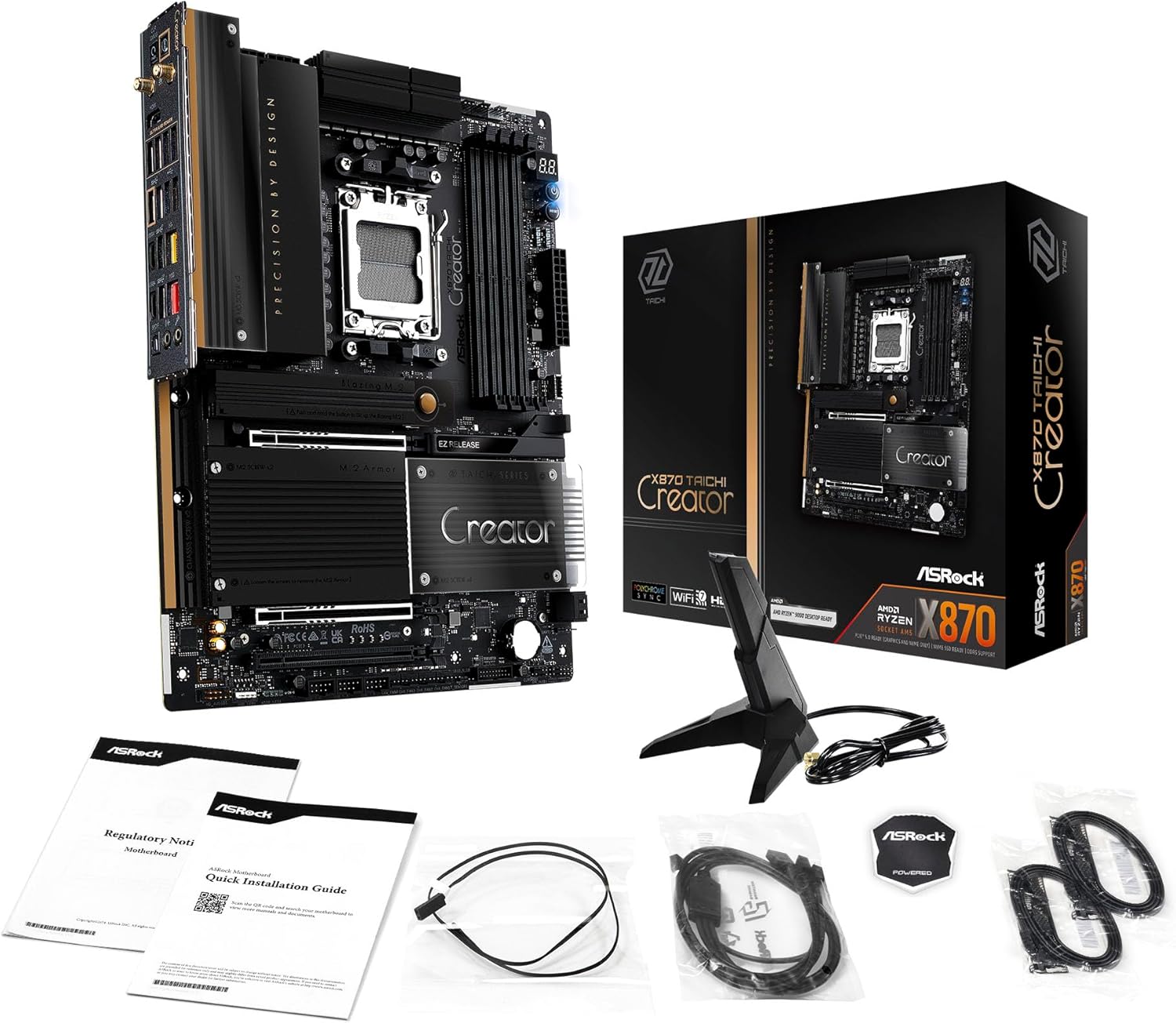
Image: The ASRock X870 Taichi Creator Motherboard shown alongside its retail packaging and various accessories, including cables, documentation, and a graphics card holder.
4. Seadistamine ja installimine
Emaplaadi ja selle komponentide korrektseks paigaldamiseks järgige neid samme.
4.1. Protsessori paigaldamine (pesa AM5)
- Leidke emaplaadil AM5 protsessori pesa.
- Gently lift the CPU retention lever.
- Align the triangular mark on your AMD Ryzen processor with the corresponding mark on the socket.
- Carefully place the CPU into the socket without applying force.
- Lower the retention lever until it clicks into place, securing the CPU.

Pilt: Ülalt-alla vaade view of the ASRock X870 Taichi Creator Motherboard, highlighting the central AM5 CPU socket and surrounding components like VRMs and RAM slots.
4.2. Mälu (RAM) paigaldamine
The motherboard supports 4 x DDR5 DIMM slots for dual-channel memory technology.
- Avage DIMM-pesa mõlemas otsas olevad klambrid.
- Joondage DDR5-mälumooduli sälk DIMM-pesa võtmega.
- Sisestage mälumoodul kindlalt pessa, kuni klambrid oma kohale klõpsavad.
- For dual-channel configuration, refer to your motherboard manual for recommended slot pairing.
4.3. Salvestusseadme paigaldamine
The motherboard features M.2 slots and SATA3 ports for storage.
4.3.1. M.2 SSD paigaldamine
The board includes 1 Ultra M.2 (PCIe Gen3x4), 1 Hyper M.2 (PCIe Gen4x4), and 2 Blazing M.2 (PCIe Gen5x4) slots.
- Locate the desired M.2 slot and remove the M.2 heatsink if present.
- Sisestage M.2 SSD pessa 30-kraadise nurga all.
- Gently push down the SSD and secure it with the provided M.2 screw or standoff.
- Optimaalse soojusjõudluse tagamiseks kinnitage M.2 jahutusradiaator uuesti.
4.3.2. SATA-seadme paigaldamine
Connect SATA storage devices (HDDs/SSDs) to the 4 SATA3 ports using SATA data cables.
4.4. PCIe-kaardi paigaldamine
The motherboard provides 2 PCIe 5.0 x16 (x8/x8) slots and 1 PCIe 3.0 x16 slot.
- Select an available PCIe slot.
- Eemaldage arvuti korpuselt vastav laienduspesa kate.
- Align your PCIe card with the slot and press down firmly until it is seated correctly.
- Kinnitage kaart kruviga arvuti korpuse külge.
4.5. Toiteühendused
Ühenda toiteploki (PSU) 24-pin ATX-toitepistik ja 8-pin (või 4+4-pin) protsessori toitepistik emaplaadi vastavate portidega.
4.6. Esipaneeli ja tagumised I/O-ühendused
Connect your PC case's front panel connectors (power button, reset button, USB ports, audio jacks) to the appropriate headers on the motherboard. Connect peripherals to the rear I/O panel.

Pilt: Lähivõte view of the rear I/O panel of the ASRock X870 Taichi Creator Motherboard, showing various ports including USB, HDMI, Ethernet, and audio jacks.
5. Kasutusjuhised
5.1. Esialgne käivitamine ja BIOS/UEFI seadistamine
- Pärast arvuti kokkupanekut ühendage monitor, klaviatuur ja hiir.
- Lülitage süsteem sisse. Käivitamise ajal vajutage korduvalt nuppu Del or F2 klahvi BIOS/UEFI seadistusutiliidi sisenemiseks.
- Konfigureerige alglaadimisjärjekord, lubage mälu jaoks XMP/EXPO ja kohandage vastavalt vajadusele muid sätteid.
- Salvesta muudatused ja välju BIOS-ist/UEFI-st. Süsteem taaskäivitub.
5.2. Draiveri installimine
After installing your operating system, install the necessary drivers for the motherboard components. These can typically be found on the ASRock support website or the included driver CD/USB drive.
- Kiibistiku draiverid
- LAN Drivers (10Gbps, 5Gbps)
- Wi-Fi 7 + Bluetooth Drivers
- Helidraiverid (Realtek ALC4082)
- USB-draiverid
6. Hooldus
6.1. Puhastamine
Regularly clean your PC to prevent dust buildup, which can lead to overheating. Use compressed air to remove dust from fans, heatsinks, and other components. Ensure the system is powered off and unplugged before cleaning.
6.2. BIOS-i värskendused
Kontrollige ASRocki regulaarselt website for BIOS/UEFI updates. Updates can improve system stability, add support for new CPUs, or fix bugs. Follow the instructions provided by ASRock carefully when performing a BIOS update.
7. Veaotsing
Probleemide korral vaadake järgmisi levinud tõrkeotsingu samme.
- Toide puudub: Ensure all power cables (24-pin ATX, 8-pin CPU) are securely connected. Check your PSU and wall outlet.
- Kuvarit pole: Verify that your monitor is connected to the correct graphics output (dedicated GPU or integrated graphics). Reseat your graphics card and RAM modules.
- Süsteemi ebastabiilsus: Check CPU and GPU temperatures. Ensure RAM is properly seated and configured (XMP/EXPO settings). Update drivers and BIOS.
- BIOS-i tagasivaade: The motherboard features a BIOS Flashback button on the rear I/O panel. This allows you to update the BIOS without a CPU or RAM installed. Refer to the ASRock webSelle funktsiooni kasutamise kohta leiate üksikasjalikke juhiseid veebisaidilt.
- Tühjenda CMOS: If your system fails to boot after changing BIOS settings, you can clear the CMOS to reset BIOS settings to default. Locate the 'CLR CMOS' button or jumper on the motherboard (often near the rear I/O).
8. Tehnilised andmed
| Funktsioon | Spetsifikatsioon |
|---|---|
| Kaubamärk | ASRock |
| Mudeli nimi | X870 |
| Kauba mudeli number | 90-MXBTE0-A0UAYZ |
| CPU pesa | Pistikupesa AM5 |
| Ühilduvad protsessorid | AMD Ryzen 9000, AMD Ryzen 8000, AMD Ryzen 7000 seeria |
| Kiibistiku tüüp | AMD X870 |
| RAM-mälu tehnoloogia | DDR5 |
| mälupesasid | 4 x DDR5 DIMM Slots (Dual Channel, up to 8000+(OC), 256GB max) |
| Graafika väljund | 2 x USB4 Type-C (up to 8K 30Hz), 1 x HDMI 2.1 (up to 4K 120Hz) |
| PCIe Slots | 2 x PCIe 5.0 x16 (x8/x8), 1 x PCIe 3.0 x16 |
| Säilitamine | 4 x SATA3, 1 x Ultra M.2 (PCIe Gen3x4), 1 x Hyper M.2 (PCIe Gen4x4), 2 x Blazing M.2 (PCIe Gen5x4) |
| LAN | 10Gbps LAN, 5Gbps LAN |
| Juhtmeta LAN | 802.11be Wi-Fi 7 + Bluetooth |
| Heli | Realtek ALC4082 7.1 kanaliga HD-helikoodek, Nahimic Audio |
| USB-pordid (taga) | 2 x USB 2.0, 6 x USB 3.2 Gen1, 2 x USB 3.2 Gen2, 2 x USB4 Type-C |
| USB-pordid (ees) | 6 x USB 2.0, 4 x USB 3.2 Gen1, 1 x USB 3.2 Gen2x2 Type-C |
| Vormitegur | ATX |
| Power Phase Design | 18+2+1 Power Phase, 80A SPS |
9. Garantii teave
ASRock motherboards typically come with a limited manufacturer's warranty. The duration and terms of the warranty may vary by region and retailer. Please retain your proof of purchase for warranty claims. For detailed warranty information, refer to the official ASRock websaidilt või võtke ühendust oma ostukohaga.
10. Tehniline tugi
For technical assistance, driver downloads, BIOS updates, and further product information, please visit the official ASRock support websait:
Samuti võite otse ASRocki klienditeenindusega ühendust võtta nende kaudu. websait isikupärastatud toe saamiseks.


