1. Sissejuhatus
This user manual provides essential information for the setup, operation, and maintenance of your HP 24-inch FHD IPS Monitor. Designed for clarity and user comfort, this monitor features a 1920x1080 resolution, 5ms response time, anti-glare coating, flicker-free technology, and a low blue light mode to reduce eye strain. It includes HDMI and VGA connectivity options and integrated 2W speakers.
2. Ohutusalane teave
- Veenduge, et monitor oleks asetatud stabiilsele ja tasasele pinnale, et vältida juhuslikku kukkumist.
- Ärge blokeerige ventilatsiooniavasid. Ülekuumenemise vältimiseks on oluline korralik õhuvool.
- Use only the power adapter and cables provided or approved by HP.
- Avoid exposing the monitor to moisture, rain, or extreme temperatures.
- Disconnect the power cable from the outlet before cleaning or if the monitor will be unused for an extended period.
- Ärge proovige monitori ise hooldada. Jätke kogu hooldus kvalifitseeritud hooldustöötajatele.
3. Pakendi sisu
Veenduge, et pakendis on kõik esemed olemas:
- HP 24-inch FHD IPS Monitor
- Monitori alus (alus ja kael)
- Toitekaabel
- HDMI kaabel
- VGA kaabel
- Docztorm USB Port Expander (Special Edition Portable Docztorm Data Hub)
- Dokumentatsioon (kiirjuhend, garantiiteave)
4. Toote lõppview
4.1 Esiosa View
The front of the monitor features the 24-inch IPS display with a sleek, thin-and-light profile and a 3-sided borderless design.

Joonis 1: Esiosa view of the HP 24-inch FHD IPS Monitor, showcasing oma ekraani ja õhukeste raamidega.
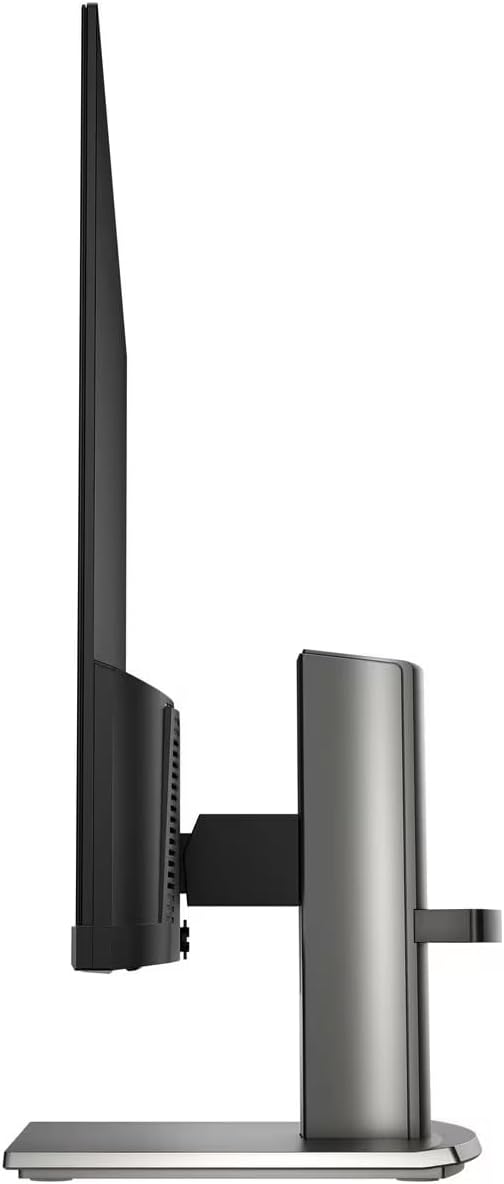
4.2 külg View
Külg view highlights the monitor's slim design and the adjustable stand.

Joonis 2: Külg view of the HP 24-inch FHD IPS Monitor, illustrating its thin profile ja seisa.
4.3 Tagumine View ja sadamad
The rear of the monitor provides access to various input and output ports for connectivity.
Joonis 3: Tagumine view of the HP 24-inch FHD IPS Monitor, displaying the HDMI, VGA, and audio ports.
Available ports include:
- 1 x HDMI-port
- 1 x VGA-port
- Input/Output Audio Jack ports
- Toite sisend
5. Seadistusjuhised
5.1 Aluse kokkupanek
- Eemaldage monitori ja aluse komponendid ettevaatlikult pakendist.
- Kinnitage statiivi kael monitoripaneeli külge, joondades sakid ja lükates, kuni see klõpsuga oma kohale lukustub.
- Attach the stand base to the stand neck, securing it with the captive screw at the bottom of the base.
- Place the assembled monitor on a stable, level surface.

Figure 4: The HP 24-inch monitor fully assembled on its stand.
5.2 Ühenduskaablid
- Toiteühendus: Ühendage toitekaabel monitori toitesisendisse ja seejärel seinakontakti.
- Video ühendus:
- HDMI puhul: Ühendage HDMI-kaabli üks ots monitori HDMI-porti ja teine ots arvuti HDMI-väljundisse.
- VGA puhul: ühendage VGA-kaabli üks ots monitori VGA-porti ja teine ots arvuti VGA-väljundisse.
- Audioühendus: Välise kõlari või kõrvaklappide kasutamisel ühendage need monitori heliväljundi pesaga.
- Docztorm USB Port Expander: Connect the Docztorm USB Port Expander to an available USB port on your computer for additional connectivity.
6. Kasutusjuhised
6.1 Sisse-/väljalülitamine
Monitori sisse- või väljalülitamiseks vajutage monitori alumises paremas nurgas asuvat toitenuppu. Toiteindikaator süttib, kui monitor on aktiivne.
6.2 Monitori sätete muutmine
Use the OSD (On-Screen Display) menu buttons, typically located on the bottom bezel, to navigate and adjust settings such as:
- Heledus ja kontrastsus: Kohandage neid vastavalt oma viewkeskkonda.
- Värviseaded: Valige erinevate hulgast viewing modes or customize color temperature and saturation.
- Sisend valik: Manually switch between HDMI and VGA inputs if auto-switch is off.
- HP Eye Ease (Low Blue Light): This monitor features an always-on low blue light filter that reduces blue light emission without impacting color accuracy, promoting eye comfort.
- Virvendusvaba tehnoloogia: The monitor is designed to eliminate screen flickering, further reducing eye strain during prolonged use.

Figure 5: Illustration of the HP Eye Ease feature, demonstrating reduced blue light for eye comfort.
6.3 Monitori asendi reguleerimine
The monitor stand allows for ergonomic adjustments:
- Kallutuse reguleerimine: The screen can be tilted from -5 to +25 degrees to find your optimal viewnurk.
- Kõrguse reguleerimine: The stand offers 3.9 inches of height adjustment for personalized comfort.
7. Hooldus
7.1 Monitori puhastamine
- Enne puhastamist lülitage monitor alati välja ja eemaldage toitejuhe pistikupesast.
- Kasutage kergelt pehmet ebemevaba lappi dampveega või mitteabrasiivse ekraanipuhastusvahendiga.
- Ärge pihustage puhastusvahendit otse ekraanile.
- Vältige karmide kemikaalide, lahustite või abrasiivsete materjalide kasutamist, kuna need võivad ekraani või korpust kahjustada.asing.
7.2 Üldine hooldus
- Hoidke monitori otsese päikesevalguse ja soojusallikate eest.
- Tagage monitori ümber piisav ventilatsioon.
- Manage cables to prevent tangles and damage.
8. Veaotsing
| Probleem | Võimalik põhjus | Lahendus |
|---|---|---|
| Ekraanil pole pilti |
|
|
| Halb pildikvaliteet (udune, moonutatud) |
|
|
| Kõlaritest ei kosta heli |
|
|
9. Tehnilised andmed
| Funktsioon | Detail |
|---|---|
| Toote mõõtmed | 7.9 x 21.09 x 18.1 tolli |
| Kauba kaal | 7.7 naela |
| Tootja | HP |
| Kauba mudeli number | HP 24" FHD Monitor |
| Seisuva ekraani suurus | 24 tolli |
| Kuvasuhe | 16:9 |
| Resolutsioon | 1920 x 1080 pikslit (FHD 1080p) |
| Pildi heledus | 300 niti |
| Ekraani pinna kirjeldus | Matt |
| Reageerimisaeg | 5 ms |
| Ühenduvus | 1 x HDMI, 1 x VGA, Audio Jack |
| Reguleeritav kalle | -5 kuni + 25 kraadi |
| Eriomadused | Anti Glare, Flicker Free, Low Blue Light, Built-in 2W Speakers |
10. Garantii ja tugi
Your HP 24-inch FHD IPS Monitor is covered by a standard manufacturer's warranty. For detailed warranty terms and conditions, please refer to the warranty documentation included in your product package or visit the official HP support websaidile.
For technical assistance, troubleshooting, or to contact customer support, please visit the HP support portal or contact your local HP service center. Ensure you have your monitor's model number and serial number ready when seeking support.