1. Sissejuhatus
This manual provides essential information for the safe and efficient use of your LG 34U530A-W UltraWide WFHD IPS Computer Monitor. Please read this manual thoroughly before operating the product and retain it for future reference.
The LG 34U530A-W monitor features a 34-inch 21:9 UltraWide Full HD (2560 x 1080) IPS display, offering a wide viewing experience. Key features include a 100Hz refresh rate, VESA DisplayHDR 400, up to sRGB 99% color coverage, and versatile connectivity options including HDMI, DisplayPort, and USB Type-C. It also integrates Waves MaxxAudio speakers and includes features like Reader Mode and the LG Switch App for enhanced productivity and comfort.
2. Ohutusalane teave
Observe the following safety precautions to prevent hazards or damage to the product.
- Ärge asetage monitori soojusallikate lähedale ega otsese päikesevalguse kätte.
- Tagada monitori ümber korralik ventilatsioon.
- Kasutage ainult monitoriga kaasasolevat toitejuhet ja adapterit.
- Do not attempt to disassemble or modify the monitor.
- Keep liquids away from the monitor to prevent electric shock or fire.
- Unplug the monitor from the wall outlet during lightning storms or when unused for long periods.
3. Mis on karbis
Verify that all components are included in your product package:
- Monitori üksus
- Toitekaabel
- HDMI kaabel
- Aluse alus
- Seisa kael
- Kasutusjuhend (see dokument)
4. Seadistamine
4.1 Aluse kokkupanek
- Kriimustuste vältimiseks asetage monitori ekraan ekraaniga allapoole pehmele ja puhtale pinnale.
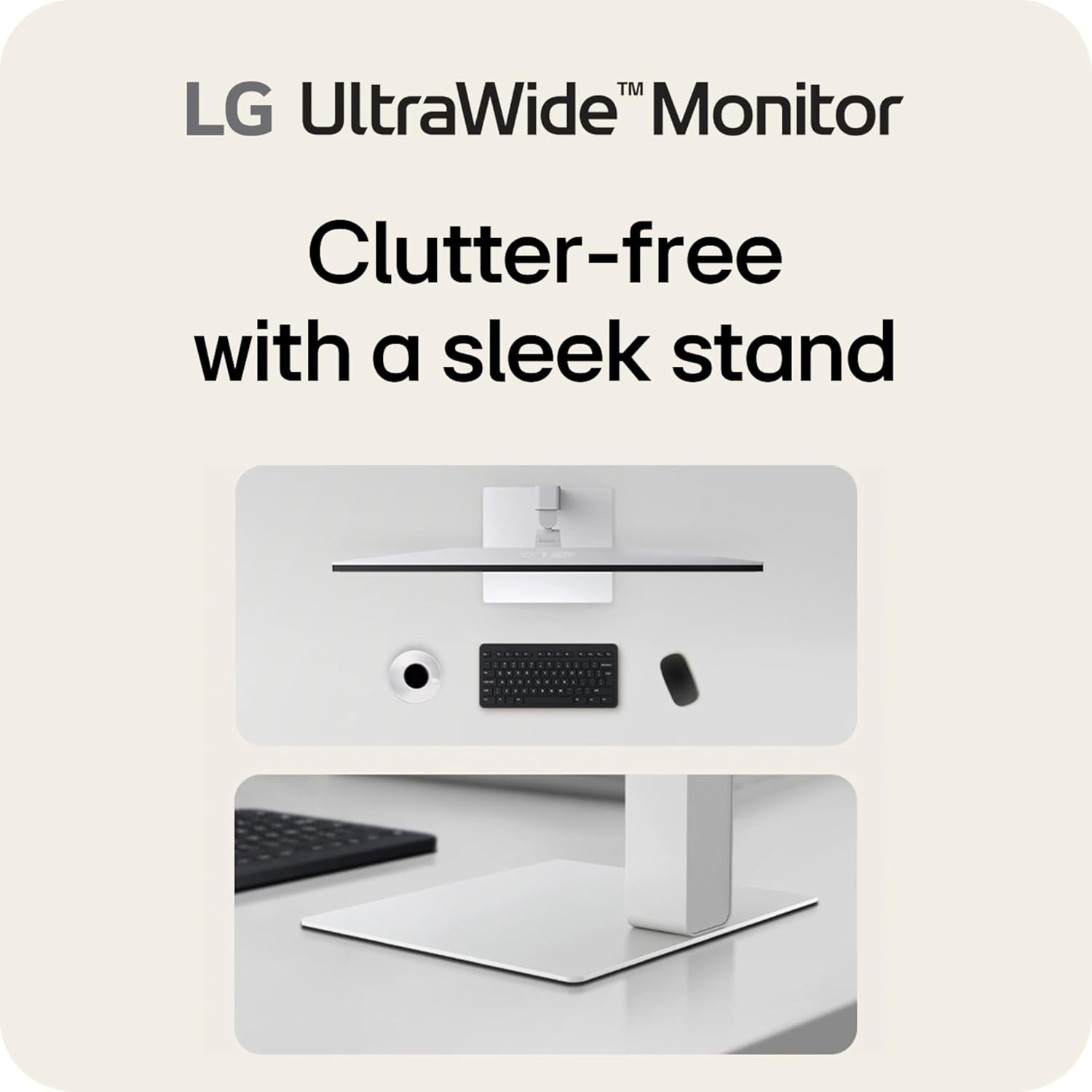
- Kinnitage statiivi kael monitori tagaküljele, kuni see klõpsuga oma kohale lukustub.
- Kinnitage statiivi alus statiivi kaela külge kaasasoleva kruviga.
- Tõstke monitor ettevaatlikult üles ja asetage see stabiilsele ja tasasele pinnale.
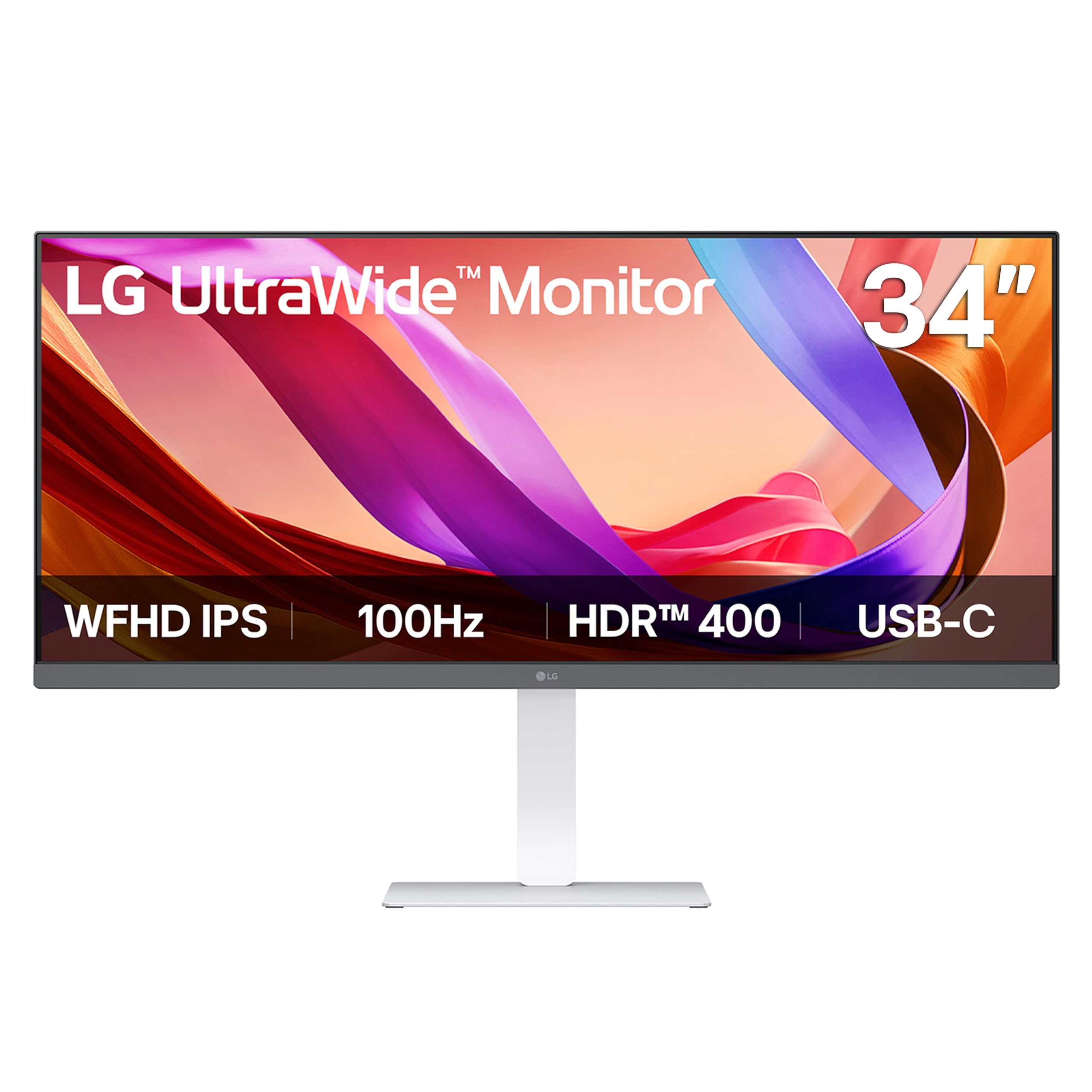
Pilt: Esikülg view of the LG 34U530A-W monitor with its stand assembled.
4.2 Monitori ühendamine
Ühendage monitor arvutiga ühel järgmistest meetoditest:
- HDMI ühendus: Use the supplied HDMI cable to connect the HDMI port on the monitor to the HDMI port on your computer.
- DisplayPorti ühendus: Use a DisplayPort cable (not supplied) to connect the DisplayPort on the monitor to the DisplayPort on your computer.
- C-tüüpi USB-ühendus: Use a USB Type-C cable (not supplied) to connect the USB Type-C port on the monitor to the USB Type-C port on your computer. This connection supports both display output and data transfer.
Pilt: Tagumine view of the LG 34U530A-W monitor showing the various input ports including HDMI, DisplayPort, and USB Type-C.
4.3 Sisselülitamine
- Connect the power cable to the monitor and then to a wall outlet.
- Monitori sisselülitamiseks vajutage selle allosas keskel asuvat toitenuppu.
5. Monitori kasutamine
5.1 Ekraanimenüü (OSD) juhtnupud
The OSD menu allows you to adjust various settings of the monitor. Access the OSD menu by pressing the joystick button located on the bottom center of the monitor.
- Move the joystick up/down/left/right to navigate through the menu options.
- Vajuta juhtkangi valiku tegemiseks või sätte kinnitamiseks.
5.2 Kuvaseadete muutmine
OSD-menüüs saate muuta järgmisi sätteid:
- Heledus: Reguleerige ekraani üldist heledust.
- Kontrast: Control the difference between the brightest and darkest areas of the screen.
- Värv: Fine-tune color temperature, gamma, and individual RGB values. The monitor supports up to sRGB 99% color coverage for accurate color reproduction.
Video: Demonstrates the LG UltraWide Monitor's sRGB 99% color feature, highlighting vivid and accurate color display.
5.3 Using Productivity Features
- LG Switch App: This software allows you to effortlessly split the screen into up to 6 sections, customize display layouts, and manage multiple windows for efficient multitasking. Software installation is required; visit LG.com alla laadida.
- Lugeja režiim: Adjusts the display to warmer tones and optimized brightness, reducing blue light emission for comfortable reading during extended sessions.
Video: Illustrates the 21:9 UltraWide screen of the LG monitor, showcasing its expanded workspace for multitasking.
5.4 Helisätted
The monitor includes built-in stereo speakers with Waves MaxxAudio. You can adjust the volume and other audio settings through the OSD menu.
6. Hooldus
6.1 Monitori puhastamine
- Enne puhastamist eemaldage monitor alati vooluvõrgust.
- Kasutage kergelt pehmet ebemevaba lappi dampveega või õrna, mitteabrasiivse puhastusvahendiga, mis on spetsiaalselt ekraanide jaoks mõeldud.
- Ärge pihustage puhastusvahendit otse ekraanile.
- Kriimustuste vältimiseks pühkige ekraani õrnalt.
7. Veaotsing
Kui teil tekib monitoriga probleeme, vaadake järgmisi levinud probleeme ja lahendusi.
| Probleem | Võimalik põhjus | Lahendus |
|---|---|---|
| Pole jõudu | Toitekaabel pole ühendatud või pistikupesa on vigane. | Veenduge, et toitejuhe on kindlalt ühendatud. Testige pistikupesa teise seadmega. |
| Ekraanil pole pilti | Videokaabel pole ühendatud või on valitud vale sisend. | Check video cable connections. Select the correct input source via the OSD menu. |
| Pilt on udune või moonutatud | Vale eraldusvõime või värskendussagedus. | Set the display resolution to 2560 x 1080. Ensure the refresh rate is set to 100Hz. |
| Kõlaritest ei kosta heli | Volume too low or muted, or audio cable not connected (if using external audio source). | Adjust volume via OSD or computer settings. Check audio cable connections. |
8. Tehnilised andmed
| Funktsioon | Spetsifikatsioon |
|---|---|
| Mudeli number | 34U530A-W.AUS |
| Ekraani suurus | 34 tolli |
| Paneeli tüüp | IPS |
| Resolutsioon | 2560 x 1080 (WFHD) |
| Kuvasuhe | 21:9 |
| Värskendussagedus | 100 Hz |
| HDR tugi | VESA DisplayHDR 400 |
| Värvigamma | sRGB 99% (Typical) |
| Ühenduvus | HDMI, DisplayPort, USB Type-C |
| Sisseehitatud kõlarid | Yes (with Waves MaxxAudio) |
| Aluse korrigeerimine | Kõrgus, kalle, pöörlemine |
| Mõõdud (PxLxK) | 32.1 x 9.1 x 21 tolli |
| Kaal | 19.4 naela |
9. Garantii ja tugi
Garantiiteabe saamiseks vaadake tootega kaasasolevat garantiikaarti või külastage LG ametlikku veebilehte. websait. Tehnilise toe, toote registreerimise või teenustega seotud küsimuste korral külastage palun veebilehte LG tugi or contact LG customer service directly.