1. Sissejuhatus
Welcome to the user manual for your new XIAOMI Redmi 15C smartphone. This guide provides essential information to help you get started, operate, maintain, and troubleshoot your device. Please read this manual carefully to ensure optimal performance and longevity of your smartphone.
Peamised omadused:
- Massive 6000mAh (typ) battery with 33W fast charging support.
- Immersive 6.9-inch display with up to 120Hz refresh rate.
- Powerful octa-core processor for smooth performance.
- 50MP AI dual camera system for high-quality photos.
- Sleek and refined design.
2. Seadistusjuhend
2.1 Mis on karbis
Upon unboxing your Redmi 15C, verify that the following items are included:
- XIAOMI Redmi 15C nutitelefon
- USB kaabel
- SIM-kaardi väljutamise tööriist (võib piirkonniti erineda)
- Kiirjuhend (see dokument)
Note: A charger is not included with this device and must be purchased separately. For optimal charging, use a 33W compatible charger.
2.2 SIM-kaardi sisestamine
- Leidke seadme küljelt SIM-kaardi salv.
- Sisestage SIM-kaardi väljutustööriist salve kõrval asuvasse väikesesse auku ja vajutage kindlalt, kuni salv välja hüppab.
- Place your Nano-SIM card(s) and/or microSD card into the tray with the gold contacts facing down. Ensure they are correctly aligned.
- Lükake salv ettevaatlikult tagasi pessa, kuni see on seadmega ühetasane.
2.3 Esmane sisselülitamine ja seadistamine
- Vajutage ja hoidke toitenuppu all, kuni ilmub XIAOMI logo.
- Keele ja piirkonna valimiseks, WiFi-ühenduse loomiseks ja Google'i konto seadistamiseks järgige ekraanil kuvatavaid juhiseid.
- You will be guided through setting up security features like a PIN, pattern, fingerprint, or face unlock.
2.4 Seadme laadimine
Enne esmakordset kasutamist on soovitatav seade täielikult laadida.
- Ühendage USB-kaabel telefoni laadimisporti.
- Connect the other end of the USB cable to a compatible 33W power adapter (sold separately) and plug it into a power outlet.
- Laadimise indikaator ilmub ekraanile.
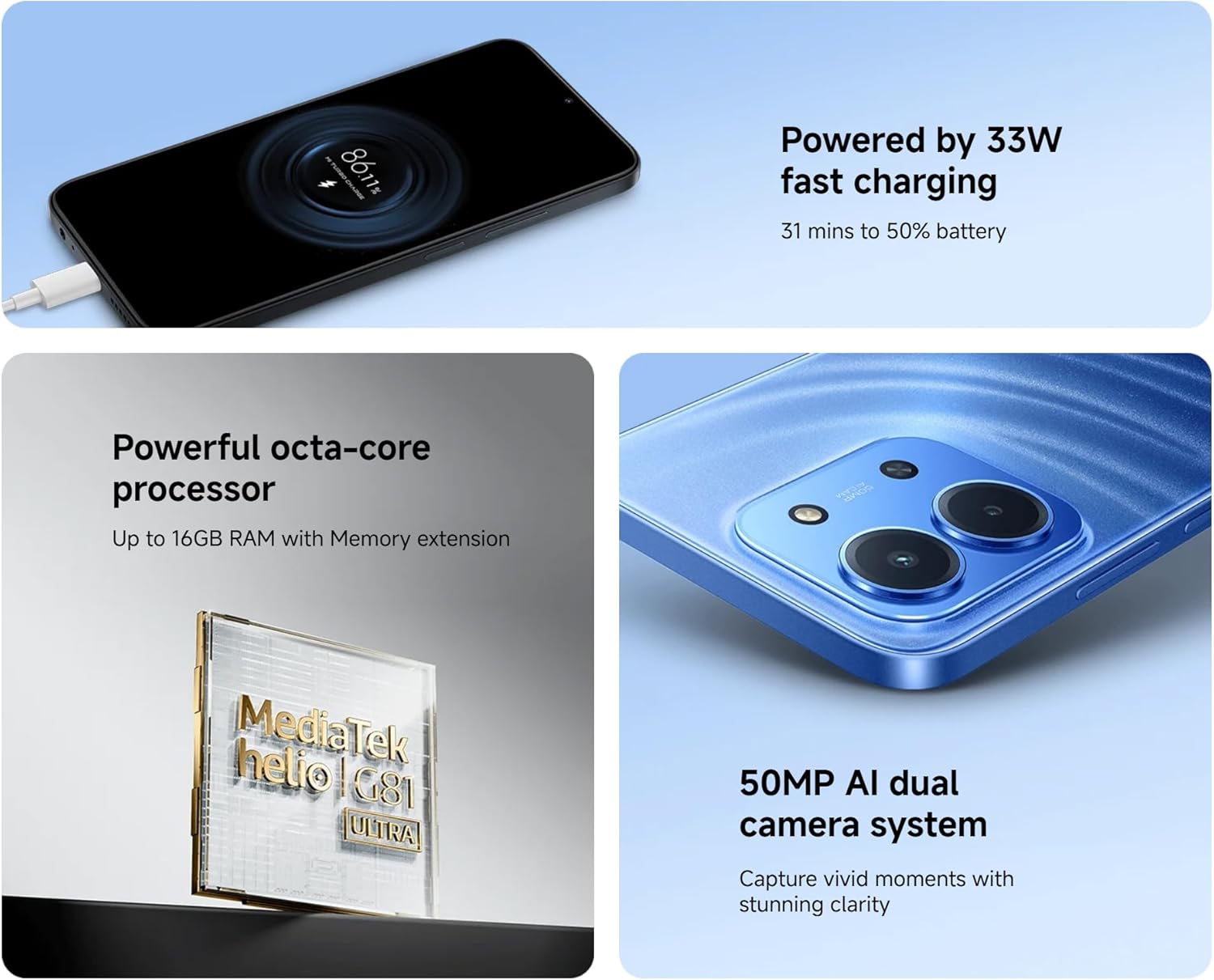
Image: The Redmi 15C connected to a charger, displaying a charging animation indicating 33W fast charging capability.
3. Seadme kasutamine
3.1 Lihtne navigeerimine
- Puutetundliku ekraani žestid: Swipe, tap, pinch-to-zoom are standard.
- Toitenupp: Vajutage ekraani äratamiseks/unerežiimi lülitamiseks. Vajutage ja hoidke all toite väljalülitamiseks või taaskäivitamiseks.
- Helitugevuse nupud: Reguleerige meedia helitugevust, kõne helitugevust või helina helitugevust.
3.2 Kõnede tegemine ja sõnumite saatmine
- Open the 'Phone' app to dial numbers or select contacts.
- Open the 'Messages' app to compose and send SMS/MMS messages.
3.3 Kaamera kasutamine
Your Redmi 15C features a 50MP AI dual camera system.
- Avage rakendus „Kaamera”.
- Valige soovitud režiim (foto, portree, video jne).
- Pildistamiseks või video salvestamise alustamiseks/peatamiseks puudutage katiku nuppu.

Pilt: Lähivõte view of the XIAOMI Redmi 15C's dual camera module, highlighting its 50MP AI capabilities.
3.4 Ekraani funktsioonid
The 6.9-inch immersive display offers a smooth visual experience with up to a 120Hz refresh rate.
- Adjust display settings (brightness, color scheme, refresh rate) in 'Settings > Display'.
- AdaptiveSync technology automatically adjusts the refresh rate for optimal viewing and battery efficiency.

Image: The XIAOMI Redmi 15C's large 6.9-inch display, showcasing its immersive viewkogemusi.
3.5 Akuhaldus
6000 mAh aku tagab pikema kasutusea. Aku tööea optimeerimiseks toimige järgmiselt.
- Use 'Battery Saver' mode when needed.
- Vähendage ekraani heledust ja ekraani ajalõpu.
- Sulgege taustal töötavad kasutamata rakendused.
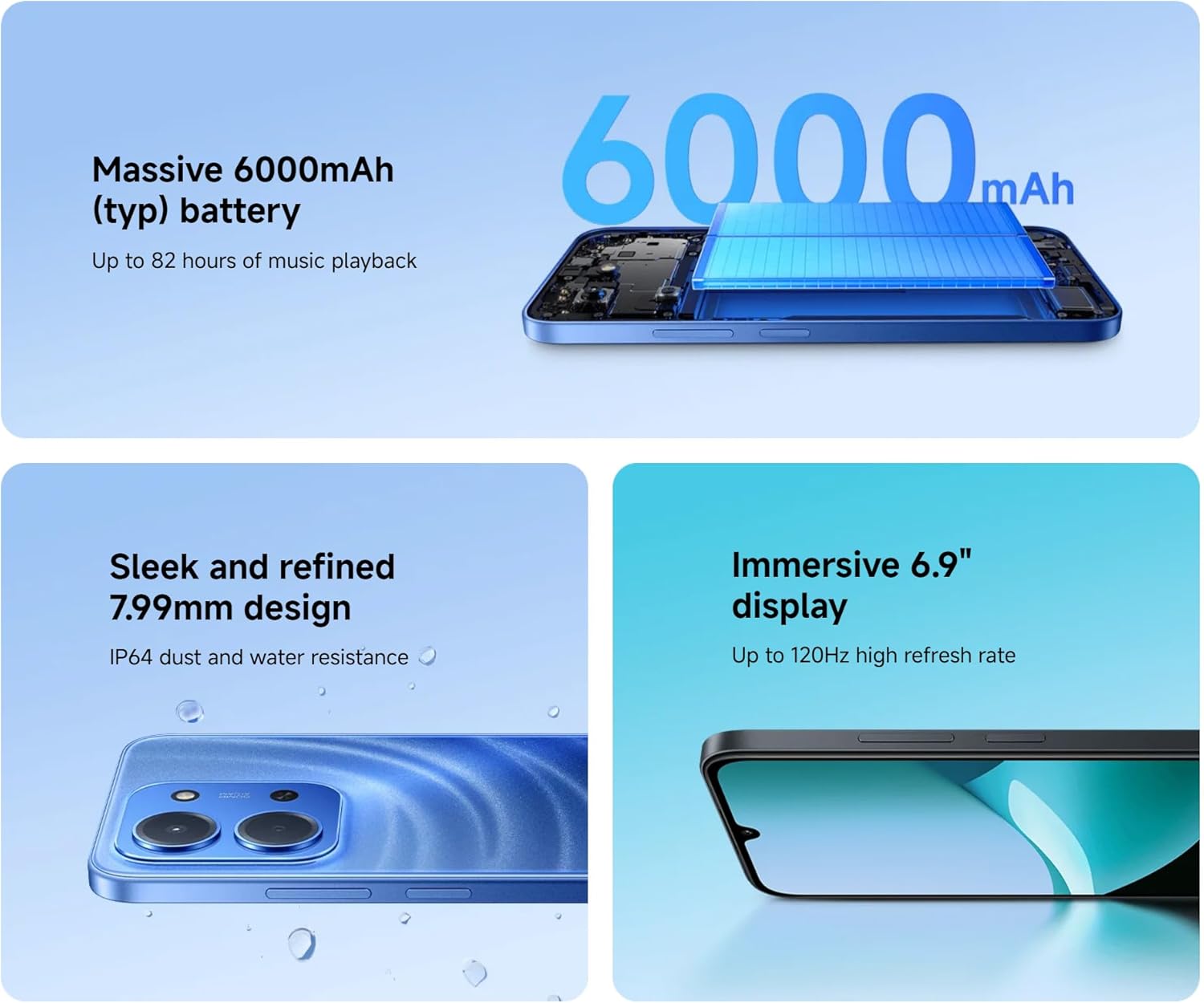
Image: An illustration of the XIAOMI Redmi 15C's internal structure, highlighting its massive 6000mAh battery.
3.6 Protsessori jõudlus
The powerful octa-core processor ensures smooth multitasking and efficient app performance.

Image: A visual representation of the MediaTek Helio G81-Ultra octa-core processor, emphasizing its power and efficiency.
3.7 Google Gemini Integration
The Redmi 15C integrates with Google Gemini, your AI assistant from Google, to enhance productivity and creativity. Use Gemini for writing, brainstorming, learning, and more.
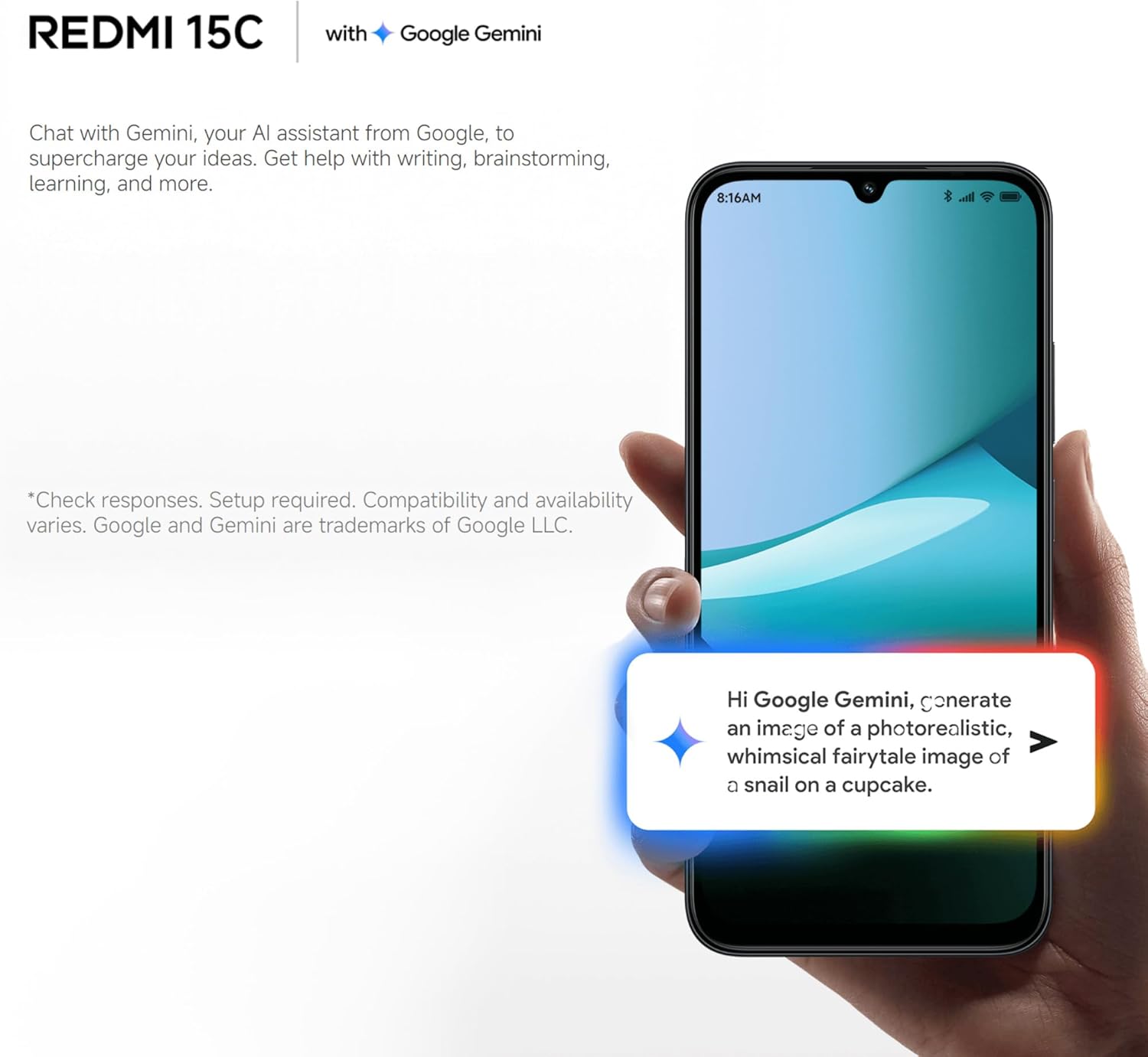
Image: A Redmi 15C displaying a chat interface with Google Gemini, demonstrating its AI capabilities.
4. Hooldus
4.1 Seadme puhastamine
- Ekraani ja korpuse pühkimiseks kasutage pehmet, ebemevaba lappi.
- Vältige karmide kemikaalide, abrasiivsete puhastusvahendite või suruõhu kasutamist.
- Hoidke pordid tolmust ja prahist vabad.
4.2 Tarkvaravärskendused
Regularly check for and install system updates to ensure your device has the latest features, security patches, and performance improvements. Go to 'Settings > About phone > MIUI version' to check for updates.
4.3 Aku hooldus
- Vältige äärmuslikke temperatuure, kuna need võivad aku tööiga lühendada.
- Ärge jätke telefoni pärast täielikku laadimist pikaks ajaks laadima.
- Use only original or certified compatible chargers and cables.
4.4 Salvestushaldus
To maintain optimal performance, regularly manage your device's storage:
- Kustuta mittevajalik files, fotod ja videod.
- Desinstallige kasutamata rakendused.
- Tühjendage rakenduste vahemälu andmed.
5. Veaotsing
Selles jaotises käsitletakse levinud probleeme, millega Redmi 15C telefoniga kokku puutuda võib.
| probleem | Võimalik lahendus |
|---|---|
| Seade ei lülitu sisse | Ensure the battery is charged. Connect to a charger for at least 30 minutes. If it still doesn't turn on, try a forced restart by holding the Power button for 10-15 seconds. |
| Slow performance / Apps freezing | Close background apps. Clear app caches. Restart the device. Check for system updates. If issues persist, consider a factory reset (back up data first). |
| Aku tühjeneb kiiresti | Reduce screen brightness. Disable unused features like GPS, Bluetooth, Wi-Fi when not needed. Check battery usage in settings to identify power-hungry apps. |
| Cannot connect to Wi-Fi / Mobile Data | Toggle Wi-Fi/Mobile Data off and on. Restart the device. Forget the Wi-Fi network and reconnect. Ensure SIM card is properly inserted and activated. |
| Kaamera ei tööta | Restart the device. Clear the Camera app's cache and data in 'Settings > Apps'. Ensure no other app is using the camera. |
5.1 Tehase lähtestamine (viimane abinõu)
If you experience persistent software issues, a factory reset can resolve them. Warning: This will erase all data on your device. Back up all important information before proceeding.
- Go to 'Settings > About phone > Factory reset'.
- Lähtestamise kinnitamiseks järgige ekraanil kuvatavaid juhiseid.
6. Tehnilised andmed
Below are the detailed technical specifications for the XIAOMI Redmi 15C:
| Funktsioon | Spetsifikatsioon |
|---|---|
| Mudeli nimi | Redmi 15C |
| Operatsioonisüsteem | Hyper OS 2 |
| Protsessor | MediaTek Helio Octa-core (20 GHz CPU speed) |
| RAM | 4 GB |
| Salvestusmaht | 256 GB |
| Ekraani suurus | 6.9 tolli |
| Ekraani eraldusvõime | 720 x 1560 |
| Värskendussagedus | 120 Hz |
| Aku mahutavus | 6000 mAh |
| Laadimine | 33W Fast Charging compatible |
| Tagumine kaamera | 50 MP tehisintellektiga topeltkaamera |
| Ühenduvus | 4G LTE, WiFi, Bluetooth, GPS |
| Mõõtmed | 0.82 x 8.1 x 17.3 cm |
| Kaal | 200 g |
| Eriomadused | Dual SIM, International Functionality, Wi-Fi Hotspot, Integrated GPS |
7. Garantii ja tugi
Täpsema garantiiteabe saamiseks vaadake tootega kaasasolevat garantiikaarti või külastage ametlikku XIAOMI veebisaiti. website. XIAOMI provides customer support for product inquiries, technical assistance, and service requests.
You can find support resources, FAQs, and contact information on the official XIAOMI support page. Please have your device's model number and purchase details ready when contacting support.
Esitatud andmete hulgast ei leitud ametlikke tootevideoid.


