1. Sissejuhatus
Thank you for choosing the Darmoshark M5PRO Mini Wireless Gaming Mouse. This manual provides detailed instructions for setting up, operating, and maintaining your new gaming mouse. The M5PRO features a tri-mode connection (2.4G wireless, Bluetooth, wired), a high-precision PAW3950 optical sensor, and a lightweight design for optimal performance.
2. Toote lõppview
The Darmoshark M5PRO is designed for competitive gaming, offering versatile connectivity and advanced sensor technology. Its ergonomic shape is ideal for finger grip players, providing responsive control and comfort during extended use.

Image: Darmoshark M5PRO Mini Wireless Gaming Mouse in various colors, highlighting its design.
Peamised omadused:
- Kolme režiimiga ühenduvus: Seamlessly switch between 2.4G wireless, Bluetooth 5.0, and wired USB connections.
- PAW3950 optiline andur: Provides up to 30000 DPI, 750 IPS tracking speed, and 50G acceleration for precise and responsive tracking.
- 8 kHz küsitlussagedus: Experience ultra-low latency with an 8KHz polling rate in 2.4G wireless mode, ensuring rapid response times.
- Ülikerge disain: Weighing approximately 38 grams, the mouse reduces hand fatigue during long gaming sessions.
- 5 programmeeritavat nuppu: Customize button functions via the dedicated software.
- Sisseehitatud liitiumaku: High-capacity rechargeable battery for extended wireless usage.
- Lai ühilduvus: Compatible with Windows and Apple Mac operating systems.
3. Pakendi sisu
Palun kontrollige pakendilt järgmisi esemeid:
- Darmoshark M5PRO Mini Wireless Gaming Mouse
- 2.4G traadita vastuvõtja (USB-adapter)
- USB-C–USB-A kaabel (laadimiseks ja juhtmega ühenduse loomiseks)
- Kasutusjuhend (see dokument)
- Grip Tape (optional accessory, if included)
4. Seadistamine ja ühenduvus
4.1. Juhtmega režiim
- Ühenda kaasasoleva kaabli USB-C ots hiirega.
- Ühendage kaabli USB-A-ots arvuti vaba USB-porti.
- Hiir lülitub automaatselt juhtmega režiimi ja hakkab laadima.
4.2. 2.4G Wireless Mode (with 8KHz Receiver)
- Locate the 2.4G wireless receiver (USB dongle) in the package.
- Ühendage 2.4G traadita vastuvõtja arvuti vabasse USB-porti.
- On the bottom of the mouse, locate the tri-mode switching key. Switch it to the 2.4G wireless icon (usually indicated by a small antenna or 'G' symbol).
- The mouse should automatically connect. If not, press and hold the pairing button (if available, refer to the diagram) on the mouse until the indicator light flashes, then release.

Image: M5PRO mouse with its 8KHz wireless receiver for 2.4G connectivity.
4.3. Bluetooth-režiim
- On the bottom of the mouse, switch the tri-mode switching key to the Bluetooth icon.
- The mouse's indicator light will start flashing, indicating it is in pairing mode.
- Avage oma arvutis või seadmes Bluetoothi seaded.
- Otsi new devices and select "Darmoshark M5PRO" from the list.
- Sidumisprotsessi lõpuleviimiseks järgige ekraanil kuvatavaid juhiseid.
5. Hiire kasutamine
5.1. Nuppude funktsioonid
The M5PRO mouse features 5 programmable buttons and a scroll wheel.
- Vasak klõps: Standardne esmane klõps.
- Paremklõps: Standardne teisene klõps.
- Track Roller Key (Scroll Wheel): Kerib üles/alla ja toimib keskmise hiireklõpsu nupuna.
- DPI reguleerimise võti: Liigub läbi eelseadistatud DPI tasemete.
- Edasi nupp: Default function for navigating forward in web brauserid või file uurijad.
- Tagasilükkenupp: Default function for navigating backward in web brauserid või file uurijad.

Pilt: Plahvatanud view of the M5PRO mouse showing internal components and button layout.
5.2. Rasterpunkti reguleerimine
Press the DPI Adjustment Key (located on the underside of the mouse, refer to the product diagram) to cycle through different DPI sensitivity levels. The default DPI settings can be customized using the Darmoshark software.
5.3. Hiire laadimine
When the battery is low, the mouse's indicator light will typically flash red. Connect the mouse to your computer using the provided USB-C cable to charge it. The indicator light will show charging status and turn off or change color when fully charged.
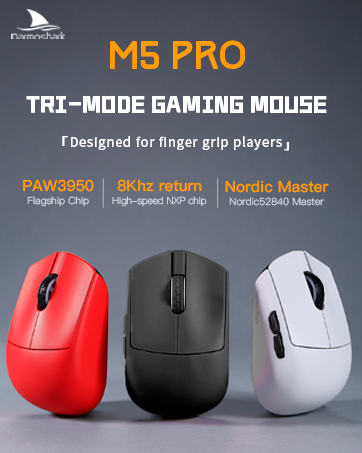
Image: Darmoshark M5PRO mouse charging via USB-C cable, highlighting its built-in lithium battery.
6. Tarkvara kohandamine
To unlock the full potential of your Darmoshark M5PRO mouse, download and install the official Darmoshark driver software from the manufacturer's websait. Tarkvara võimaldab teil:
- Customize DPI settings and create multiple profiles.
- Programmi nuppude funktsioonid ja makrod.
- Reguleerige küsitluste sagedust.
- Toiteseadete ja aku tööea haldamine.
- Värskendage püsivara.

Image: Darmoshark proprietary driver software interface for mouse customization.
7. Tehnilised andmed
| Mudel | M5PRO |
| Andur | PAW3950 optiline andur |
| DPI | Kuni 30000 DPI |
| Jälgimiskiirus | 750 IPS |
| Kiirendus | 50G |
| Küsitluse määr | 8KHz (2.4G Wireless), 1KHz (Wired/Bluetooth) |
| Ühenduvus | 2.4G traadita, Bluetooth 5.0, USB-C juhtmega |
| Nupud | 5 programmeeritavat nuppu |
| Kaal | u. 38 g |
| Mõõdud (P x L x K) | 91.7 mm x 57.4 mm x 35.7 mm |
| Aku | Sisseehitatud liitiumaku (300mAh) |
| Ühilduvus | Windows, Apple Mac |
Image: Product parameter diagram with mouse dimensions.
8. Hooldus
- Puhastamine: Hiire puhastamiseks kasutage pehmet ja kuiva lappi. Vältige karmide kemikaalide või abrasiivsete materjalide kasutamist.
- Hoiustamine: Hoidke hiirt jahedas ja kuivas kohas, eemal otsesest päikesevalgusest ja äärmuslikest temperatuuridest.
- Aku hooldus: Aku tööea pikendamiseks vältige hiire sagedast täielikku tühjendamist. Laadige seda, kui ilmub aku tühjenemise indikaator.
9. Veaotsing
9.1. Hiir ei reageeri
- Juhtmega režiim: Veenduge, et USB-kaabel on kindlalt ühendatud nii hiire kui ka arvutiga. Proovige mõnda teist USB-porti.
- 2.4G traadita režiim: Ensure the 2.4G receiver is plugged in and the mouse is switched to 2.4G mode. Try re-pairing the mouse with the receiver. Ensure the mouse battery is charged.
- Bluetooth-režiim: Ensure Bluetooth is enabled on your device and the mouse is in Bluetooth pairing mode. Try re-pairing the mouse in your device's Bluetooth settings. Ensure the mouse battery is charged.
9.2. Kursori liikumine on ebakorrapärane või ebatäpne
- Puhastage hiire allosas asuv optiline andur pehme ja kuiva lapiga.
- Veenduge, et kasutate hiirt sobival pinnal (nt hiirematil). Vältige tugevalt peegeldavaid või läbipaistvaid pindu.
- Adjust the DPI settings using the DPI Adjustment Key or the software.
- Check for any software conflicts or outdated drivers. Update mouse drivers if necessary.
9.3. Traadita ühenduse probleemid
- Vähendage hiire ja vastuvõtja/seadme vahelist kaugust.
- Avoid placing the receiver near other wireless devices or sources of interference (e.g., Wi-Fi routers, cordless phones).
- Veenduge, et hiir oleks täielikult laetud.
10. Ametlik tootevideo
Watch the official product video for a visual guide on the Darmoshark M5PRO Mini Wireless Gaming Mouse.
Video: Üleview Darmoshark M5PRO juhtmevaba mänguhiire esitlusestasing its design and features in various colors.
11. Garantii ja tugi
For warranty information and technical support, please refer to the warranty card included with your product or visit the official Darmoshark websaidile.
Tootja: Darmoshari
Websait: Darmoshark Official Store


