1. Sissejuhatus
This manual provides essential information for the proper setup, operation, and maintenance of your MUNBYN IRT12 Rugged Windows Tablet. Please read this manual thoroughly before using the device to ensure optimal performance and longevity.
1.1 Toode on üleview
The MUNBYN IRT12 is a rugged 10.1-inch Windows tablet designed for demanding environments. It features a sunlight-readable display, Wi-Fi 6 connectivity, and a robust design to withstand challenging conditions.

Figure 1.1: The MUNBYN IRT12 Rugged Windows Tablet, shown with an included stylus and an attached hand strap.
2. Mis on karbis
Veenduge, et pakendis on kõik esemed olemas:
- MUNBYN IRT12 Rugged Windows Tablet
- Käerihm
- Vahelduvvoolu adapter
- Vahelduvvoolu kaabel
- Tahvelarvuti pliiats
- TYPE-C OTG Cable
- Kandekang

Figure 2.1: All components included with the MUNBYN IRT12 Rugged Windows Tablet.
3. Seadme paigutus ja omadused
Familiarize yourself with the physical layout and key features of your IRT12 tablet.

Joonis 3.1: Eesmine, tagumine ja külgmine views of the IRT12 tablet with labels for all external components.
3.1 Põhifunktsioonid
- 1000-nit Sunlight Readable Display: The 10.1-inch display offers high brightness for clear visibility in direct sunlight.
- Wi-Fi 6 ühenduvus: Supports faster and more stable wireless network connections with data transfer rates up to 1800Mbps.
- Windows 11 Pro: Equipped with the latest Windows operating system for professional needs.
- Intel Alder Lake N100 Processor: Provides enhanced computing power and efficient multitasking.
- 8 GB muutmälu + 128 GB ROM-mälu: Sufficient memory and storage for multiple applications and data.
- IP65 Rating & MIL-STD-810H Certified: Designed for durability, offering dust-tight and water-resistant protection, and tested against military standards for extreme conditions.
- 5000mAh Removable Battery: Provides up to 6.5 hours of battery life, with a removable design for easy replacement.
- Integreeritud GPS: For navigation and location-based services.
4. Seadistamine ja esmane kasutamine
4.1 Attaching the Hand-Strap
The included hand-strap can be attached to the back of the tablet for secure handling, especially during mobile use.
Video 4.1: Demonstration of attaching the hand-strap to the MUNBYN IRT12 tablet for improved grip and security.
4.2 Aku paigaldamine
The IRT12 tablet features a removable 5000mAh battery. To install or replace the battery:
- Locate the battery cover on the back of the tablet.
- Unlock the battery cover using the designated latch or screws (if applicable).
- Insert the battery into the compartment, ensuring proper alignment of the contacts.
- Kinnitage aku kate.
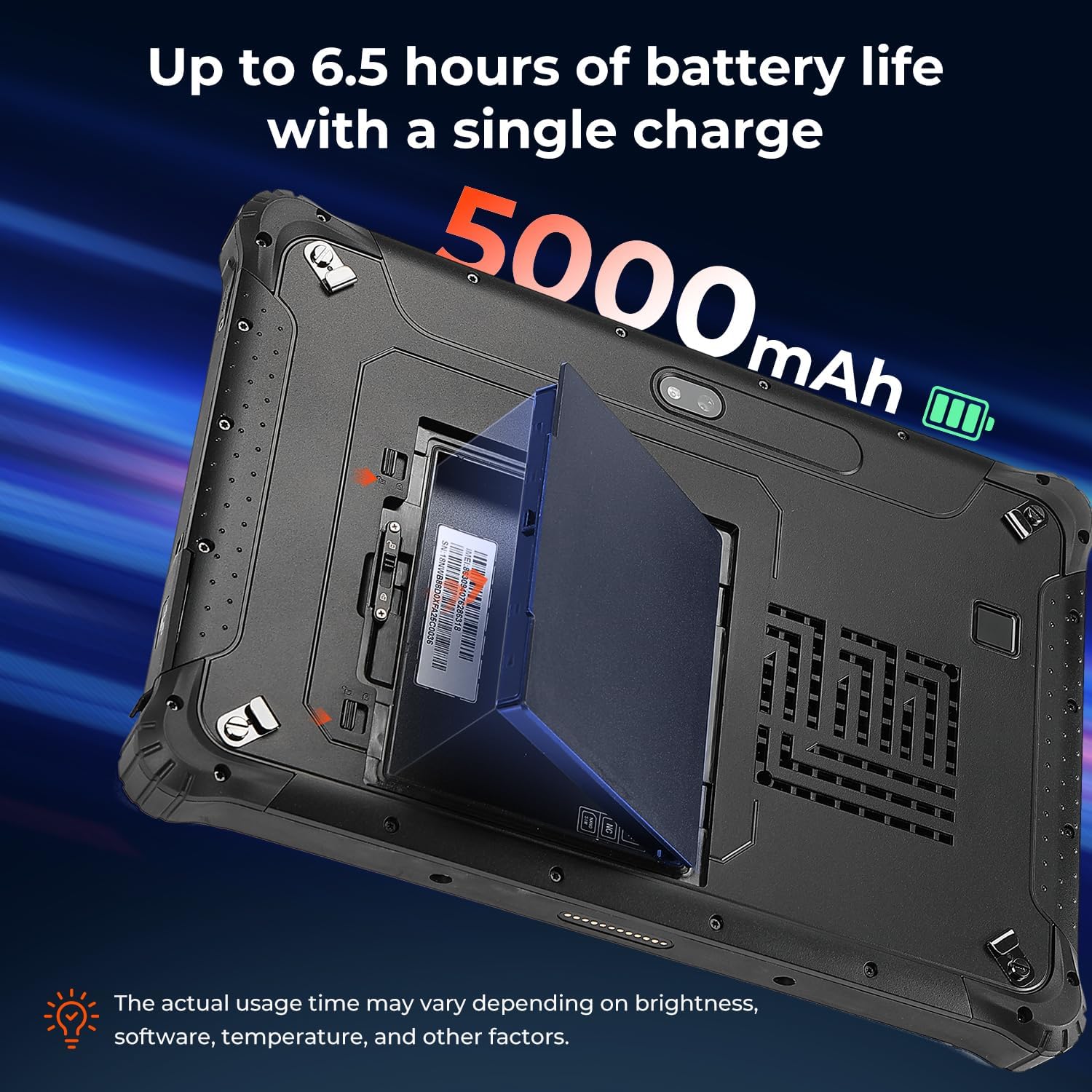
Figure 4.2: The removable 5000mAh battery being installed into the tablet.
4.3 SIM -kaardi paigaldamine
If you intend to use cellular data, install a Nano SIM card:
- Locate the SIM card slot, typically under the battery cover or a protective flap.
- Insert the Nano SIM card into the slot labeled "NANO SIM." Do not use the slot marked "NC."
- Veenduge, et SIM-kaart oleks täielikult paigas.
4.4 Sisse-/väljalülitamine
To power on the tablet, press and hold the power button until the MUNBYN logo appears. To power off, press and hold the power button, then select 'Shut down' from the on-screen options.
5. Tahvelarvuti kasutamine
5.1 Display and Brightness
The 10.1-inch display is designed for readability in various lighting conditions, including direct sunlight, with a brightness of over 1000 nits.

Figure 5.1: The tablet's screen remains clear and readable even in bright outdoor conditions.
5.2 Sõrmejäljega avamine
For enhanced security and quick access, the tablet supports fingerprint unlocking.

Figure 5.2: Using the fingerprint reader for secure tablet access.
5.3 Wireless Connectivity (Wi-Fi 6 & Bluetooth 5.2)
The IRT12 supports Wi-Fi 6 for high-speed internet access and Bluetooth 5.2 for connecting wireless peripherals.

Figure 5.3: The tablet's advanced wireless capabilities.
5.4 GPS-i funktsionaalsus
The integrated GPS allows for accurate location tracking and navigation, useful for field operations.

Figure 5.4: The tablet being used for GPS navigation in a vehicle.
6. Vastupidavus ja kaitse
The MUNBYN IRT12 is built to withstand harsh conditions, featuring an IP65 rating and MIL-STD-810H military standard certification.
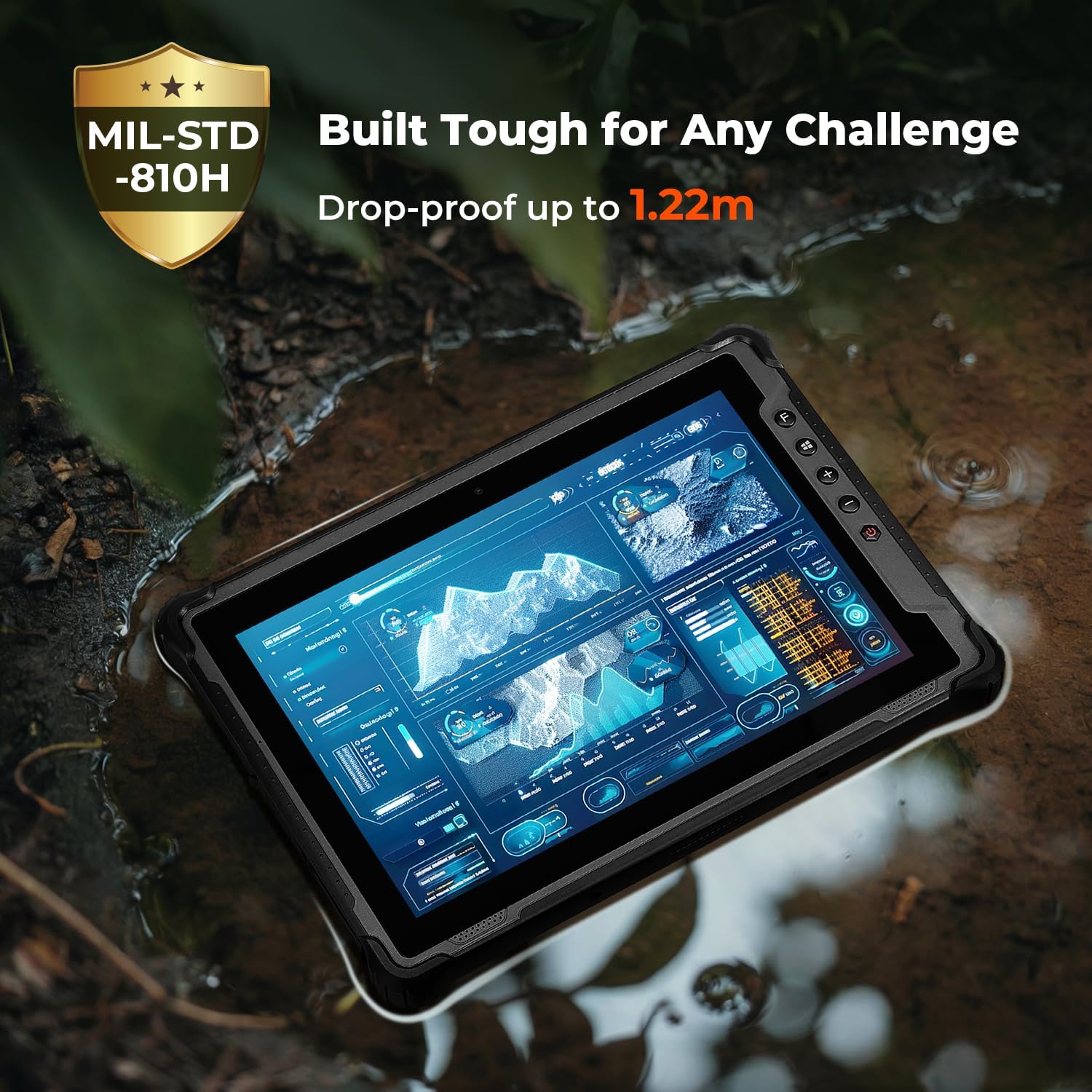
Figure 6.1: The tablet's robust construction allows it to operate in challenging environments.
7. Hooldus
To ensure the longevity and optimal performance of your MUNBYN IRT12 tablet, follow these maintenance guidelines:
- Puhastamine: Kasutage pehmet, damp Ekraani ja välispinna puhastamiseks kasutage lappi. Vältige tugevatoimelisi kemikaale või abrasiivseid materjale.
- Sadamakaitse: Ensure all port covers are securely closed when not in use to maintain the IP65 rating against dust and water ingress.
- Aku hooldus: Avoid extreme temperatures when charging or storing the battery. If the tablet will not be used for an extended period, store it with a partial charge (around 50%).
- Tarkvaravärskendused: Süsteemi stabiilsuse ja turvalisuse tagamiseks kontrollige ja installige regulaarselt Windowsi värskendusi.
8. Veaotsing
If you encounter issues with your tablet, refer to the following common troubleshooting steps:
- Tahvelarvuti ei lülitu sisse: Ensure the battery is properly installed and charged. Connect the tablet to the AC adapter and try again.
- Ekraan ei reageeri: Perform a soft reset by holding the power button for 10-15 seconds. If the issue persists, ensure the screen is clean and dry.
- WiFi-ühenduse probleemid: Check if Wi-Fi is enabled in Windows settings. Restart the tablet and your Wi-Fi router. Ensure you are within range of a Wi-Fi signal.
- Aeglane jõudlus: Close unnecessary applications. Check for available storage space and free up space if needed. Ensure Windows is up to date.
- SIM-kaarti ei tuvastatud: Verify the SIM card is correctly inserted into the "NANO SIM" slot. Restart the tablet.
For further assistance, please contact MUNBYN customer support.
9. Tehnilised andmed
| Funktsioon | Spetsifikatsioon |
|---|---|
| Kaubamärk | MUNBYN |
| Mudeli number | IRT12 |
| Operatsioonisüsteem | Windows 11 Professional |
| Protsessor | Intel Alder Lake N100 |
| RAM | 8 GB |
| Säilitamine | 128 GB |
| Ekraani suurus | 10.1 tolli |
| Ekraani eraldusvõime | 1920 x 1200 pixels (Max 1200*1920 Pixels) |
| Ekraani heledus | 1000 nits (Sunlight Readable) |
| Traadita ühenduvus | Wi-Fi 6, Bluetooth 5.2 |
| Aku mahutavus | 5000mAh (eemaldatav) |
| Keskmine aku tööiga | 6.5 Hours (up to) |
| Vastupidavushinnang | IP65, MIL-STD-810H Certified |
| Kauba kaal | 4.47 naela |
| Toote mõõtmed | 10.83 x 0.87 x 7.43 tolli |
10. Garantii ja tugi
The MUNBYN IRT12 Rugged Windows Tablet comes with a 2-year protection plan, ensuring support for your device.

Figure 10.1: MUNBYN offers a 2-year protection plan and continuous online support.
10.1 Klienditeenindus
MUNBYN provides 24/7 customer service to assist with any inquiries or technical issues. Support options include remote setup assistance, how-to videos, and local tech support.

Figure 10.2: Available customer support services.