1. Sissejuhatus
The FIREBAT X3 Wired RGB Gaming Mouse is designed for precision and comfort, suitable for various computing tasks including gaming, office work, and general use. This manual provides detailed instructions for setting up, operating, and maintaining your mouse.

Läbiview of the FIREBAT X3 Wired RGB Gaming Mouse highlighting its main features.
2. Seadistamine
2.1 Hiire ühendamine
The FIREBAT X3 Gaming Mouse features a simple plug-and-play design for easy setup.
- Locate an available USB-A port on your computer or laptop.
- Insert the USB connector of the mouse into the USB-A port.
- Your operating system will automatically detect and install the necessary drivers. No additional software installation is required for basic functionality.

The FIREBAT X3 mouse connects via a standard USB-A port for immediate use.
3. Operatsioon
3.1 Nuppude funktsioonid
The FIREBAT X3 Gaming Mouse is equipped with 6 programmable buttons for enhanced control.
- Vasak nupp: Standardne klõpsamisfunktsioon.
- Parem nupp: Standardne paremklõpsu funktsioon.
- Kerimisratas: Scrolls up and down. Can also be pressed for a middle-click function.
- DPI reguleerimise võti: Changes the mouse sensitivity (DPI).
- Edasi nupp: Liigub edasi web brauserid või file uurijad.
- Tagasi nupp: Liigub tagasi web brauserid või file uurijad.

Illustration of the 6-button layout on the FIREBAT X3 Gaming Mouse.
3.2 DPI (tundlikkuse) reguleerimine
The mouse features 4 adjustable DPI levels to suit different tasks and preferences.
- Vajutage nuppu DPI reguleerimise võti (located behind the scroll wheel) to cycle through the preset DPI settings.
- The default DPI levels are 1200, 1800, 2400, and 3600.
- Each press will switch to the next DPI level, allowing you to find the optimal sensitivity for your current activity.

The DPI adjustment key allows for quick changes in mouse sensitivity.
3.3 RGB valgustusrežiimi
The FIREBAT X3 mouse features 7 dynamic RGB backlit modes to enhance your setup.
- The RGB lighting automatically cycles through its 7 distinct modes.
- There is no manual button to change the RGB mode; the mouse will continuously display various lighting effects.
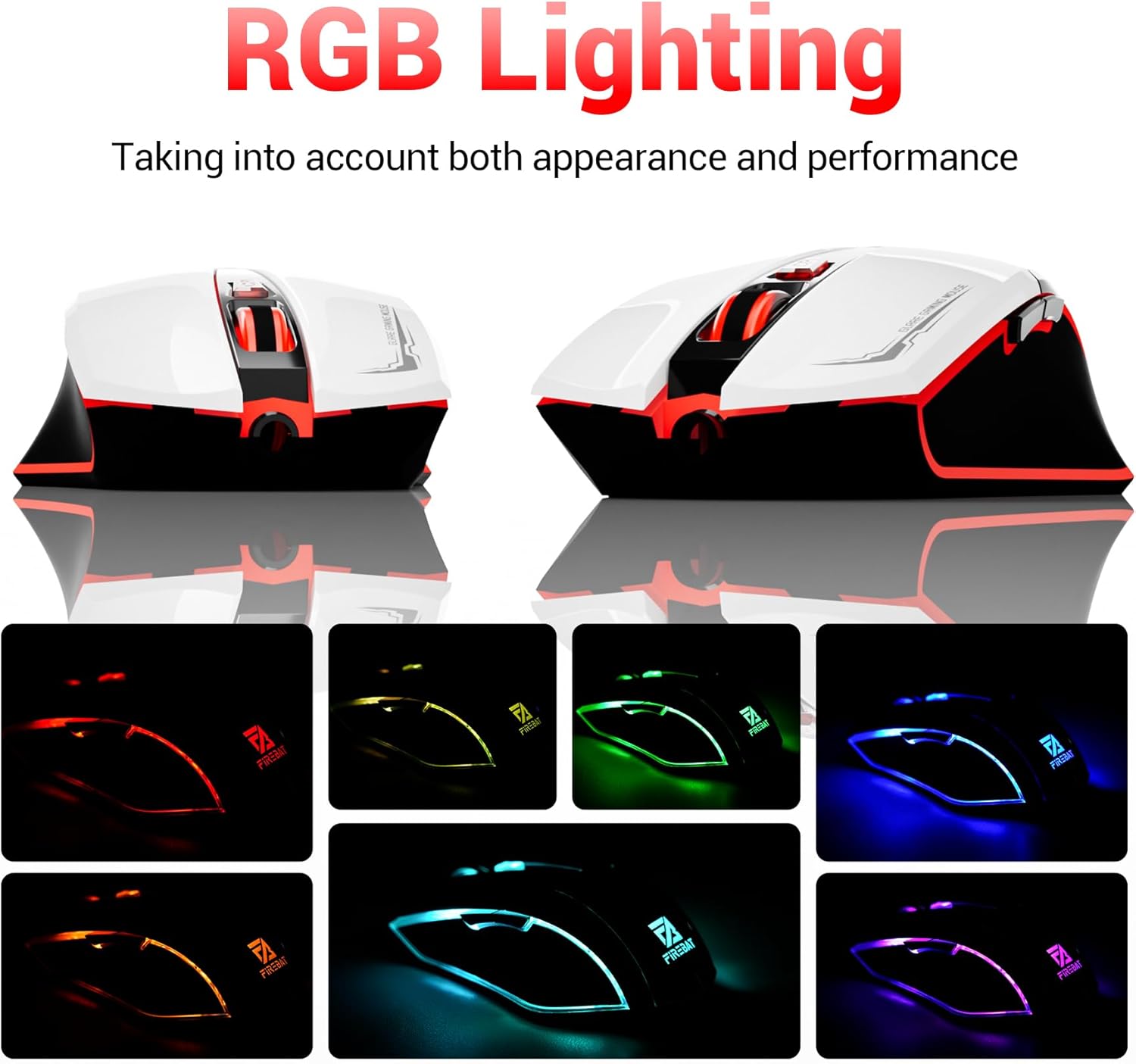
The mouse features vibrant RGB lighting with multiple dynamic modes.
3.4 Ergonomic Design and Comfort
The mouse is designed with an ergonomic shape to provide a comfortable grip and reduce hand fatigue during extended use, suitable for both right and left-hand users.

The ergonomic design ensures comfort during prolonged use.
3.5 Quiet Click Feature
The mouse incorporates a 'Heavy Bass Design' for its key sounds, ensuring soft clicks without excessive noise, which is beneficial in quiet environments.

The mouse features quiet clicks, minimizing noise during use.
4. Hooldus
4.1 Puhastamine
To ensure optimal performance and longevity, keep your mouse clean.
- Enne puhastamist ühendage hiir arvutist lahti.
- Kasutage kergelt pehmet ebemevaba lappi dampHiire pinna pühkimiseks loputage veega või õrna puhastuslahusega.
- Vältige karmide kemikaalide, abrasiivsete puhastusvahendite ja liigse niiskuse kasutamist, kuna need võivad hiirt kahjustada.
- For the optical sensor, use a cotton swab to gently remove any dust or debris.
4.2 Säilitamine
Kui hiirt ei kasutata, hoidke seda puhtas ja kuivas kohas, eemal äärmuslikest temperatuuridest ja otsesest päikesevalgusest.
5. Veaotsing
5.1 Hiir ei reageeri
- Kontrollige USB-ühendust: Veenduge, et USB-kaabel oleks kindlalt arvuti töötavasse USB-porti ühendatud. Proovige mõnda teist USB-porti.
- Taaskäivitage arvuti: Mõnikord võib lihtne taaskäivitamine lahendada ühenduvusprobleemid.
- Test teises arvutis: Võimaluse korral testi hiirt teises arvutis, et teha kindlaks, kas probleem on hiires või arvuti seadistuses.
5.2 Kursori liikumine on ebakindel või hüplik
- Puhas optiline andur: Dust or debris on the optical sensor can cause erratic movement. Refer to the cleaning instructions in the Maintenance section.
- Use a Mouse Pad: Ensure you are using the mouse on a suitable surface. Reflective, transparent, or uneven surfaces can interfere with the optical sensor.
5.3 RGB-valgustus ei tööta
- Kontrollige USB toidet: Ensure the mouse is receiving sufficient power through the USB connection.
- Manuaalset juhtimist pole: Remember that the RGB lighting cycles automatically and does not have a manual control button. If the mouse is functioning otherwise, the lighting should be active.
6. Tehnilised andmed
| Funktsioon | Detail |
|---|---|
| Mudeli number | X3 Gaming Mouse |
| Kaubamärk | FIREBAT |
| Ühenduvustehnoloogia | USB juhtmega |
| Liikumise tuvastamine | Optiline |
| DPI tasemed | 1200/1800/2400/3600 |
| Nuppude arv | 6 (programmeeritav) |
| Taustvalgus | 7 RGB režiimi |
| Toote mõõtmed | 5 x 3 x 0.1 tolli (12.7 x 7.6 x 0.25 cm) |
| Kauba kaal | 5.1 untsi (144.6 grammi) |
| Ergonoomika | Right or Left Hand Use |
| Tootja | FIREBAT |
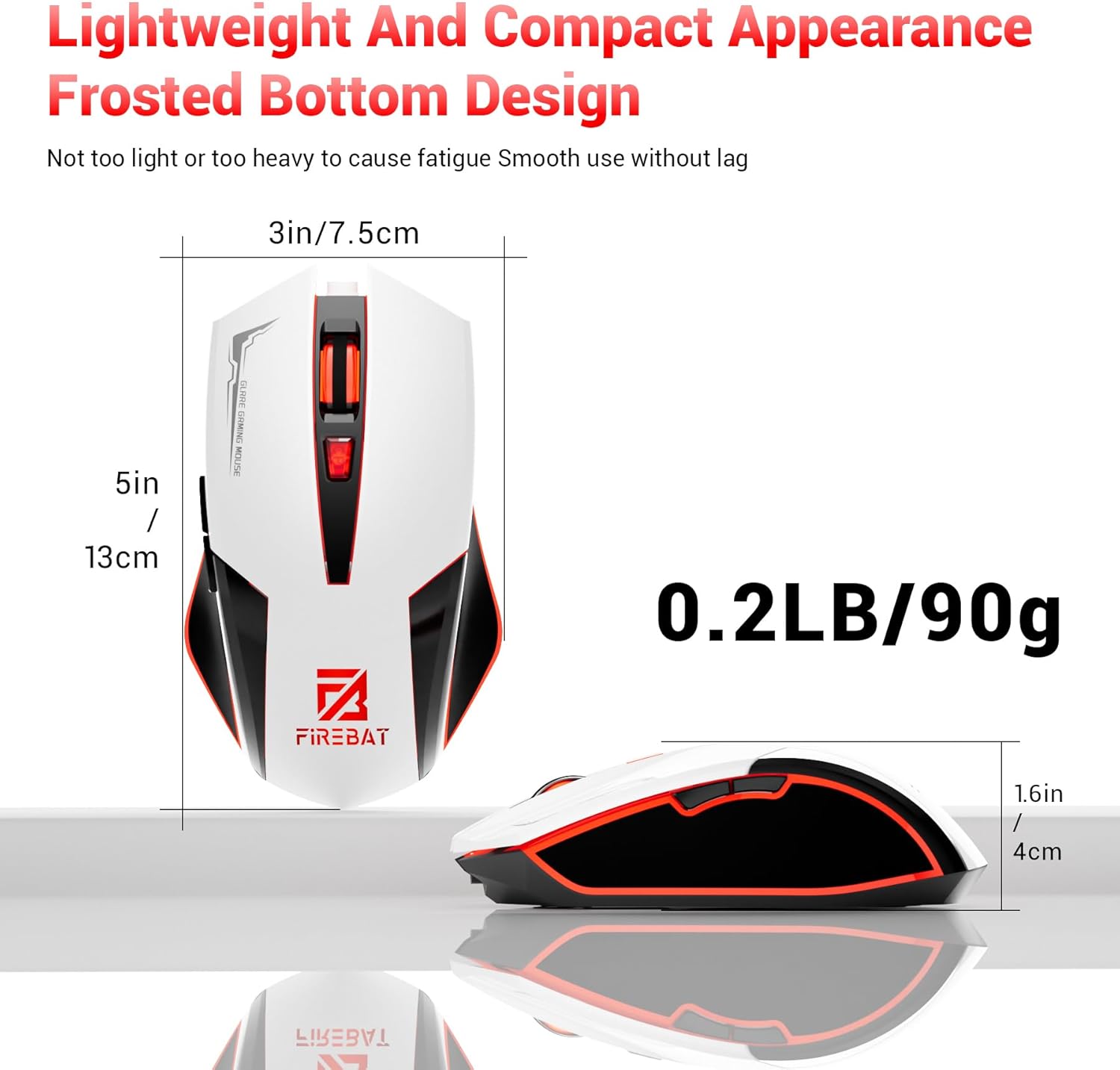
Physical dimensions and weight of the FIREBAT X3 Gaming Mouse.
7. Garantii ja tugi
7.1 Garantii teave
FIREBAT products are manufactured to high-quality standards. For specific warranty details, please refer to the warranty card included with your product or visit the official FIREBAT website. Typically, products come with a limited warranty covering manufacturing defects.
7.2 Klienditugi
If you encounter any issues or have questions regarding your FIREBAT X3 Gaming Mouse, please contact our customer support team:
- E-post: support@firebatpc.com
- Websait: www.firebatpc.com
Please provide your product model number (X3 Gaming Mouse) and a detailed description of your issue when contacting support for faster assistance.