1. Sissejuhatus
This manual provides detailed instructions for the installation, operation, and maintenance of your Leadfan Android Car Stereo, specifically designed for Toyota Sienna models from 2011 to 2014 equipped with the original JBL sound system. Please read this manual thoroughly before installation and use to ensure proper function and safety.
2. Toote lõppview
The Leadfan Android Car Stereo is an advanced head unit featuring a 9-inch IPS touch screen, 4-core CPU, 2GB RAM, and 32GB ROM. It offers seamless integration with your vehicle's existing JBL system and provides a range of modern functionalities for enhanced driving experience.
Peamised omadused:
- Juhtmeta Apple CarPlay ja Android Auto
- 9-inch IPS Touch Screen (1280*720 Resolution)
- Built-in GPS Navigation (Online/Offline Maps)
- Bluetooth 5.1 for Hands-Free Calling & Audio Streaming
- 5G WiFi Connectivity & Hotspot Support
- Jagatud ekraani funktsionaalsus
- Mirror Link for iOS/Android devices
- FM/RDS-raadio
- Steering Wheel Control (SWC) Support
- Includes IP68 AHD Rear Camera
- Ühenda ja kasuta juhtmestik
Mis on karbis:
- 9-tollise IPS-i puutetundliku ekraaniga Androidi raadiopeaseade
- Radio Kit Frame for Toyota Sienna 2011-2014
- AHD Backup Camera + Reversing Camera Input Cable
- GPS antenn
- WiFi ja Bluetooth signaali võimenduskaabel
- Ühenda ja kasuta toitejuhet
- CanBusi dekooder
- Väline mikrofon
- USB-kaablid (x2)
- RCA kaabel
- Kasutusjuhend
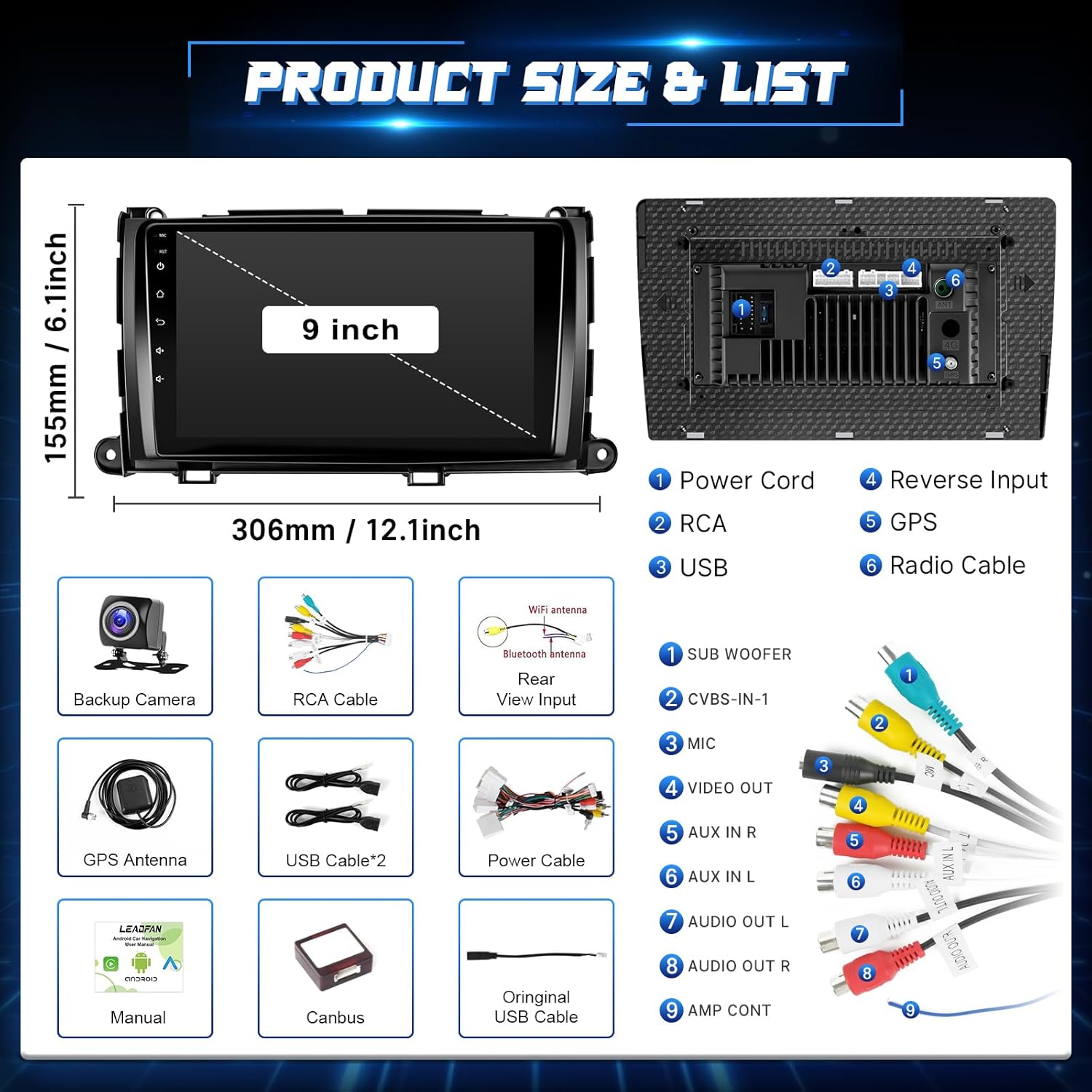
Image: Product dimensions and a detailed list of included components such as the head unit, backup camera, GPS antenna, USB cables, power cable, Canbus, and user manual.
3. Ohutusalane teave
- Enne paigaldus- või juhtmestikutöid veenduge alati, et sõiduk on välja lülitatud ja aku lahti ühendatud.
- Improper installation can lead to vehicle damage or personal injury. If unsure, seek professional assistance.
- Ärge kasutage seadet viisil, mis teie tähelepanu juhtimiselt hajutab. Eelistage alati liiklusohutust.
- Hoidke seadet vee ja liigse kuumuse eest.
4. Paigaldusjuhend
This head unit is designed for a plug-and-play installation for Toyota Sienna 2011-2014 models with the original JBL system. It includes a custom frame and wiring harness to simplify the process.
Paigalduseelne kontroll:
- Verify your car model, year, and the shape of your vehicle's center console to ensure compatibility.
- Confirm your vehicle has the original JBL sound system.
Üldised installietapid:
- Aku lahtiühendamine: Ohutuse tagamiseks ühendage auto aku negatiivne klemm lahti.
- Eemaldage originaalpeaüksus: Carefully remove the trim panels and screws securing the factory radio.
- Ühendage juhtmestik: Connect the provided plug-and-play wiring harness to your vehicle's existing connectors and to the new head unit. Ensure all connections are secure.
- GPS-antenni paigaldamine: Paigaldage GPS-antenn kohta, kus on vaba view taevast, tavaliselt armatuurlaual või esiklaasi all.
- Install Rear Camera (Optional but Recommended): Route the camera cable from the rear of the vehicle to the head unit. Connect the camera's power to the reverse light circuit and the video signal to the 'Reverse Input' on the head unit.
- Uue peakomplekti paigaldamine: Secure the new head unit into the dashboard using the provided frame and screws.
- Ühendage aku uuesti: Ühendage auto aku uuesti ja testige seadet.

Image: Visual comparison showing the original Toyota Sienna dashboard radio and the new Leadfan Android Car Stereo installed, highlighting compatibility with JBL systems.

Image: Detailed wiring diagram for connecting the backup camera, including connections to the reverse trigger and power supply.
5. Algseadistus
Upon first power-on, the system may guide you through initial setup steps such as language selection, time zone, and Wi-Fi connection. Follow the on-screen prompts.
- Wi-Fi ühendus: Navigate to Settings > Network & Internet > Wi-Fi to connect to an available network. This is essential for online maps, app downloads, and certain CarPlay/Android Auto functionalities.
- Kuupäev ja kellaaeg: Ensure the date and time are correctly set, either manually or by enabling network time synchronization.
6. Kasutusjuhised
6.1. Juhtmevaba CarPlay ja Android Auto
Connect your iPhone or Android device wirelessly for a seamless in-car experience.
- Bluetoothi ja WiFi lubamine: Veenduge, et teie nutitelefonis on nii Bluetooth kui ka Wi-Fi lubatud.
- Siduge seade: On the car stereo, go to the CarPlay/Android Auto application. Follow the on-screen instructions to pair your phone via Bluetooth.
- Automaatne ühendus: Once paired, the system will automatically connect via Wi-Fi for full CarPlay/Android Auto functionality.

Image: Displays the user interfaces for Apple CarPlay, Android Auto, and Mirror Link, illustrating their respective connection methods (USB/WiFi/Bluetooth).
6.2. Ekraani peegeldamine
Project your mobile phone's screen onto the head unit for a larger display of content.
- Access Mirror Link App: Open the Mirror Link application on the car stereo.
- Järgige juhiseid: The app will provide instructions for connecting your iOS or Android device, typically involving Wi-Fi or a USB connection.

Image: Shows the Mirror Link feature, detailing connection options for Android (WiFi, USB) and Apple (WiFi, Bluetooth) devices, with a phone screen mirrored to the head unit.
6.3. GPS-navigatsioon
The unit supports both offline and online navigation.
- Võrguühenduseta kaardid: North American offline maps are pre-installed. Access them via the Navigation app without an internet connection.
- Veebikaardid: Connect to Wi-Fi (via hotspot or local network) to use online navigation apps like Google Maps, Waze, etc., which can be downloaded from the Application Store.

Image: Highlights GPS navigation with online and offline map options, Wi-Fi functionality, the Android 11 operating system, and the 4-core CPU architecture.
6.4. Bluetoothi funktsionaalsus
Enjoy hands-free calling and wireless audio streaming.
- Sidumine: Go to the Bluetooth app on the stereo, enable Bluetooth on your phone, and search for the head unit. Select it to pair.
- Käed-vabad kõned: Once paired, you can make and receive calls directly from the stereo screen using the built-in microphone or the external microphone.
- Heli voogesitus: Esita oma telefonist muusikat auto kõlarite kaudu.
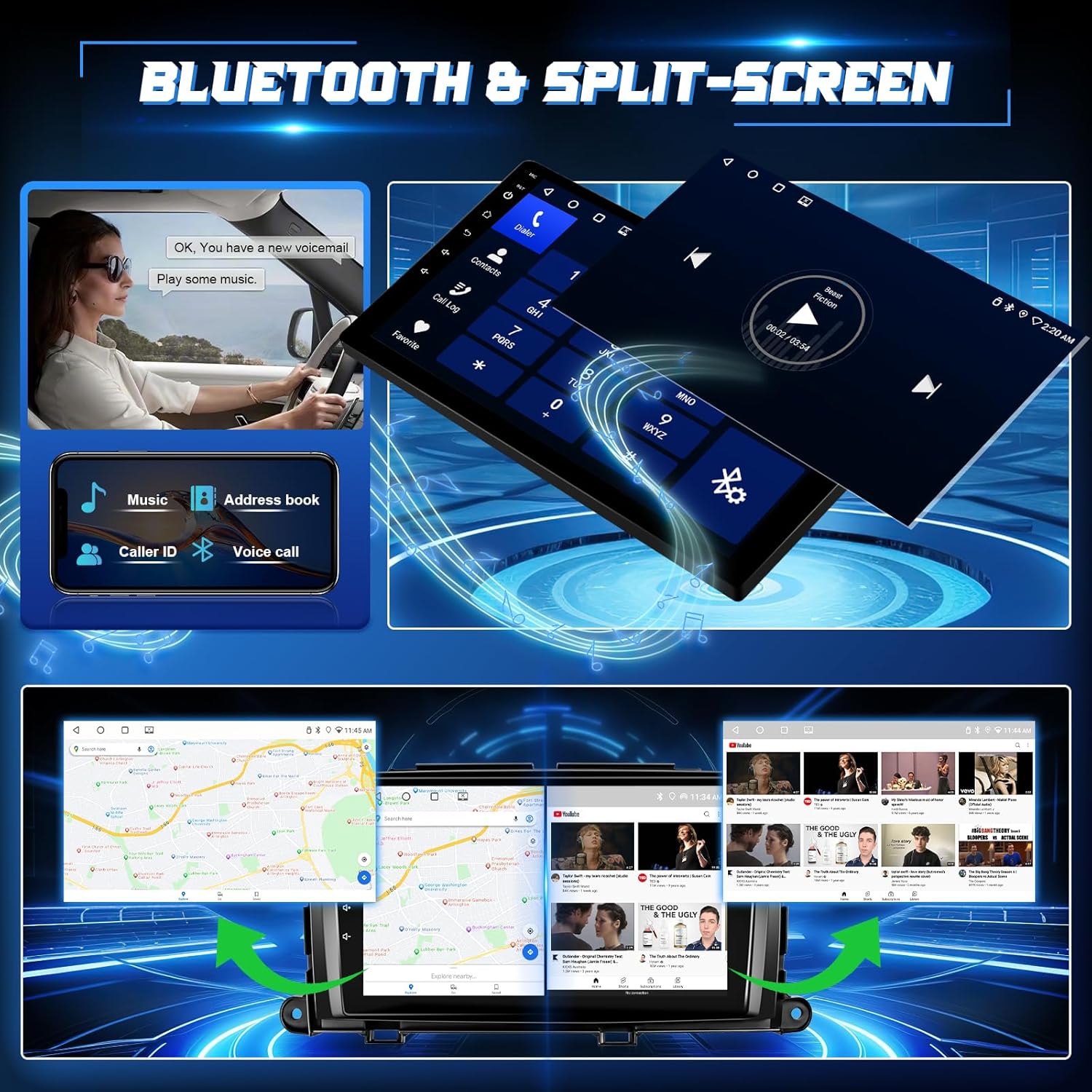
Image: Illustrates Bluetooth 5.1 features for hands-free calling and music playback, along with the split-screen capability showing two applications running simultaneously.
6.5. FM Radio & EQ Settings
Access your favorite radio stations and customize audio output.
- FM-raadio: Open the FM Radio app. You can manually search for stations or use the automatic scan function to find and save presets.
- EQ seaded: The unit features a 32-band equalizer. Access the EQ settings to adjust audio frequencies, balance, and fader to optimize sound quality.
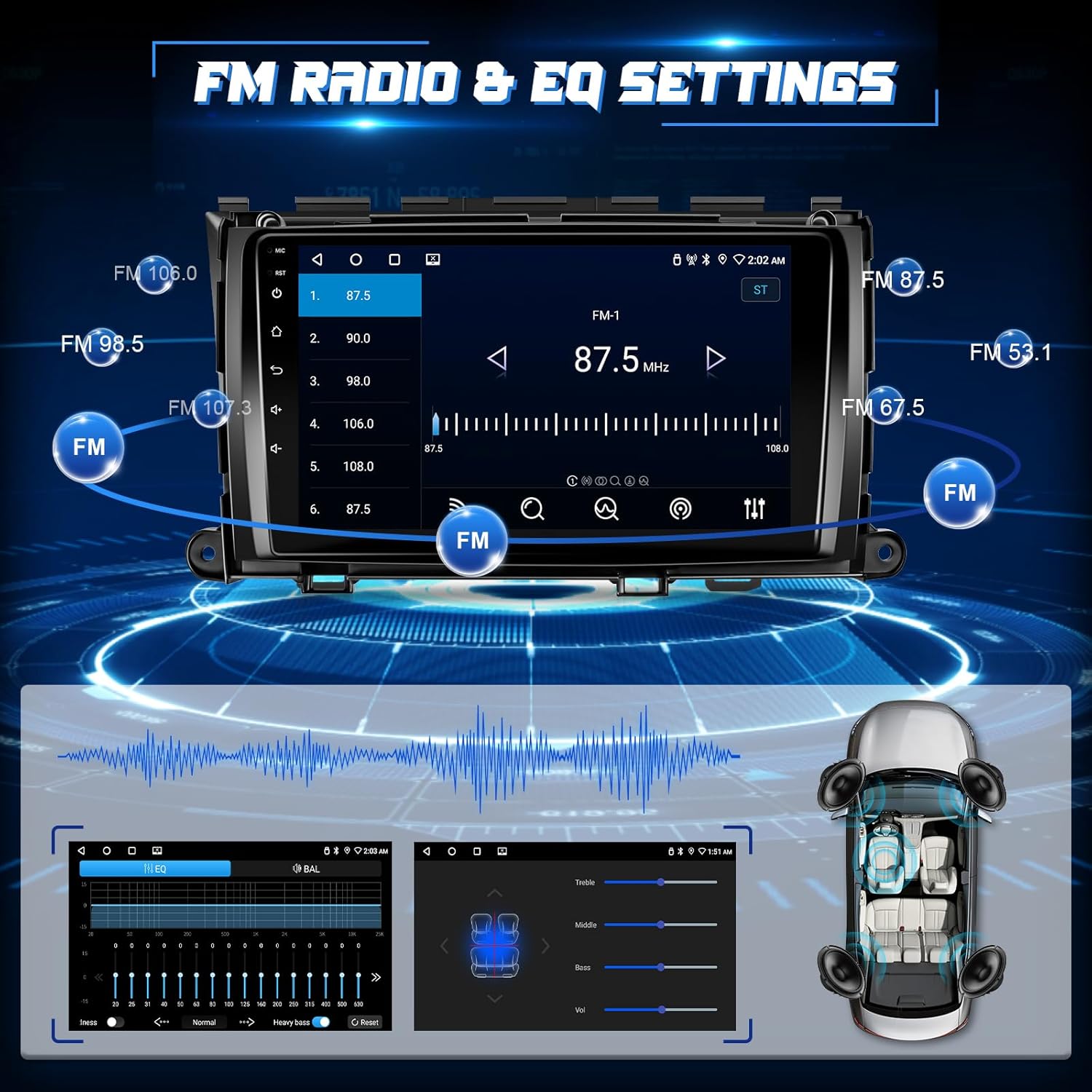
Image: Shows the FM radio interface with frequency display and preset options, alongside the audio equalizer settings for fine-tuning sound output.
6.6. Jagatud ekraani funktsionaalsus
Käivita 9-tollisel ekraanil korraga kaks rakendust.
- Activate Split-Screen: While an app is open, press and hold the recent apps button or drag an app to one side of the screen (method may vary slightly based on Android version).
- Select Second App: Choose another app from the recent apps list or app drawer to occupy the other half of the screen.

Image: Demonstrates the split-screen feature, displaying navigation on one side and a media player or phone interface on the other.
6.7. Reverse Image & Steering Wheel Control (SWC)
Enhance safety and convenience with these integrated features.
- Tagurduskaamera: When the vehicle is shifted into reverse, the IP68 AHD rear camera automatically displays a 1280*720P image with a 170-degree ultra-wide angle on the touch screen.
- Rooli juhtimine: The unit supports your original car's steering wheel controls. Use the SWC harness to configure buttons for hands-free calling, music switching, and volume control. Access the SWC learning function in the settings to map your vehicle's buttons.

Image: Features the reverse camera display with parking guidelines and an interface for mapping steering wheel control buttons for various functions.
7. Hooldus
- Puhastamine: Ekraani ja seadme puhastamiseks kasutage pehmet ja kuiva lappi. Vältige abrasiivseid puhastusvahendeid ega lahusteid.
- Tarkvaravärskendused: Optimaalse jõudluse ja uutele funktsioonidele juurdepääsu tagamiseks kontrollige süsteemiseadete kaudu perioodiliselt tarkvarauuendusi (nõuab WiFi-ühendust).
- Andmete varundamine: If you store important data on the unit, consider backing it up regularly.
8. Veaotsing
Probleemide korral vaadake järgmisi levinud probleeme ja lahendusi.
| Probleem | Võimalik lahendus |
|---|---|
| Seade ei lülitu sisse | Kontrollige toiteühendusi ja sõiduki kaitsmekarpi. Veenduge, et auto aku on korralikult ühendatud. |
| Ei mingit heli | Verify speaker wiring, volume settings, and ensure the unit is not muted. Check ampLifteri ühendused, kui need on olemas. |
| GPS-signaal on kadunud või ebatäpne | Veenduge, et GPS-antenn on õigesti paigaldatud ja sellel on vaba ühendus. view taevast. Kontrollige antenni ühendust. |
| Bluetooth/Wi-Fi connection issues | Restart both the head unit and your mobile device. Ensure Bluetooth/Wi-Fi is enabled on both. Re-pair devices if necessary. |
| Tagumine kaamera ei kuva | Check camera wiring, especially the reverse trigger connection. Ensure the camera is receiving power. |
| Rooliratta juhtnupud ei tööta | Ensure the SWC harness is correctly connected. Access the SWC learning function in settings to re-map buttons. |
For further technical or installation assistance, please contact Leadfan customer support. You can typically find their contact information by navigating to the seller's page on the platform where you purchased the product and clicking 'Ask a question'.

Image: Illustrates the steps to contact customer service by clicking on the seller's name and then 'Ask a question' on the product page.
9. Tehnilised andmed
| Funktsioon | Detail |
|---|---|
| Mudeli number | B0FC2L6R4B |
| Ühilduvad sõidukid | Toyota Sienna 2011, 2012, 2013, 2014 (with Original JBL & Large Screen) |
| Operatsioonisüsteem | Android 11 (or similar Android version) |
| CPU | 4-CORE |
| RAM | 2 GB |
| ROM | 32 GB |
| Ekraani suurus | 9 tolli |
| Kuva tüüp | IPS puutetundlik ekraan |
| Resolutsioon | 1280*720 |
| Ühenduvus | Wireless CarPlay, Wireless Android Auto, Bluetooth 5.1, 5G WiFi, USB, RCA |
| Heliväljundi režiim | Stereo |
| Ruumilise heli kanal | 5.0 |
| Video kodeerimine | H.264, H.265/HEVC, MPEG-4 |
| Kauba kaal | 3.23 naela |
| Pakendi mõõtmed | 14.76 x 11.06 x 4.41 tolli |
10. Garantii ja tugi
For warranty information and customer support, please refer to the documentation included with your product or contact the seller directly through the platform of purchase. The manufacturer, Leedfan, is committed to providing customer assistance for any technical or installation queries.


