Sissejuhatus
This manual provides comprehensive instructions for the setup, operation, maintenance, and troubleshooting of your KOORUI GN10 27-inch QHD 240Hz Mini-LED Gaming Monitor. Please read this manual thoroughly before using the product to ensure proper functionality and to prevent damage.
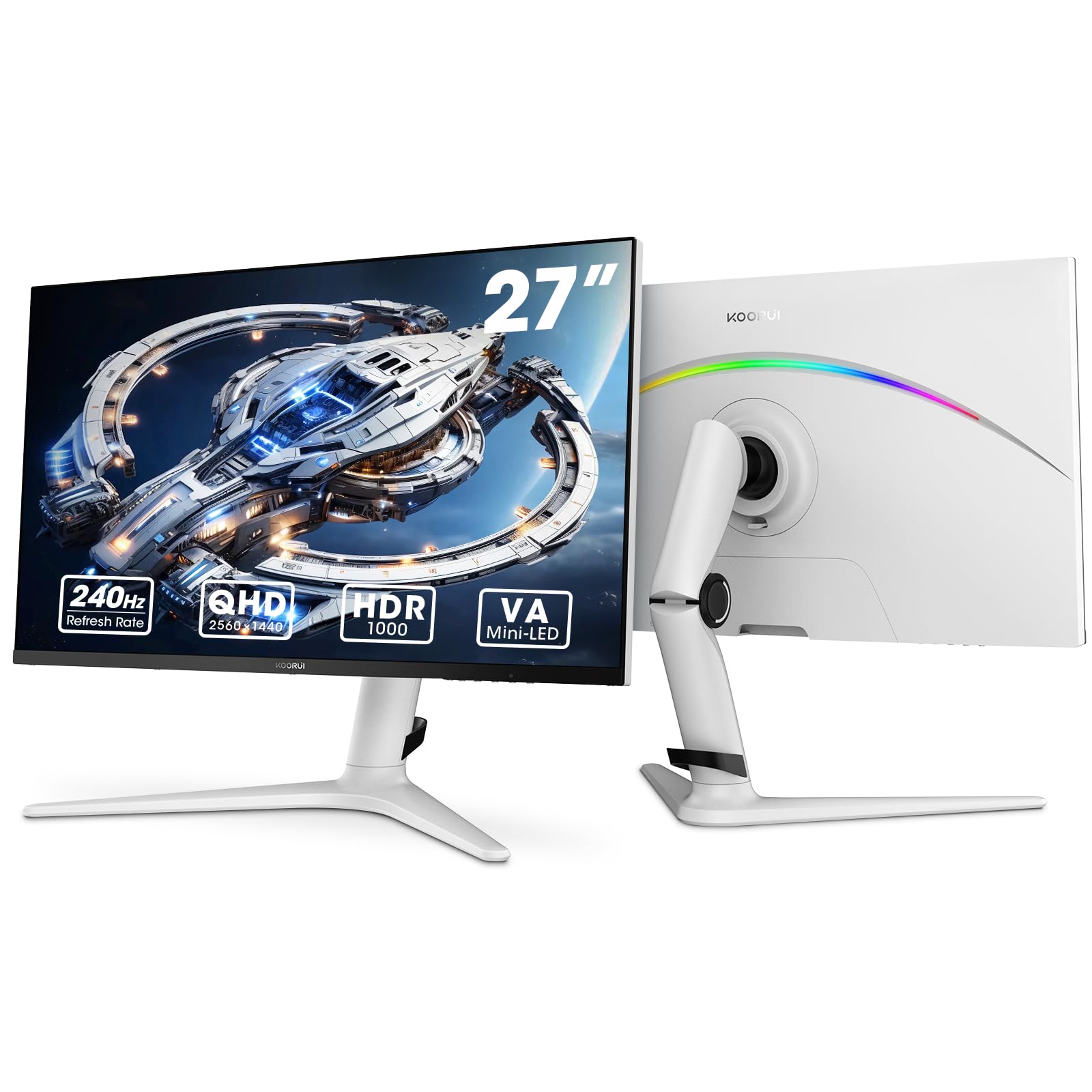
Figure 1: KOORUI GN10 27-inch QHD 240Hz Mini-LED Gaming Monitor.
1. Seadistamine
1.1 Karbist väljavõtmine ja pakendi sisu
Eemaldage pakendist ettevaatlikult kõik komponendid. Veenduge, et kõik allpool loetletud esemed on olemas:
- KOORUI GN10 Monitor
- Monitori alus (alus ja tugivars)
- Toitekaabel
- HDMI-kaabel (x2)
- DisplayPort (DP) kaabel
- Kasutusjuhend (see dokument)
1.2 Aluse kokkupanek
Monitori aluse kokkupanekuks toimige järgmiselt.
- Attach the stand arm to the monitor panel. Ensure it clicks securely into place or is fastened with screws if provided.
- Connect the stand base to the stand arm. Tighten any screws to secure the base.
- Asetage kokkupandud monitor stabiilsele ja tasasele pinnale.

Figure 2: Monitor stand showing height, tilt, swivel, and pivot adjustments.
The ergonomic stand allows for height, tilt, swivel, and pivot adjustments to optimize your viewnurk.

Figure 3: Monitor dimensions for placement planning.
1.3 Seadmetega ühendamine
The monitor supports multiple input sources. Connect your computer or gaming console using the provided cables.
- DisplayPort (DP): For optimal performance, especially at 240Hz refresh rate and QHD resolution, use the DisplayPort cable.
- HDMI: Two HDMI 2.0 ports are available for connecting other devices such as gaming consoles (PS5, Xbox, Switch) or additional computers.
- Heliväljund: Ühendage välised kõlarid või kõrvaklapid 3.5 mm heliväljundi pesaga.

Joonis 4: Tagumine view of the monitor showing available ports (Audio Out, DP 1.4, HDMI 2.0 x2) and VESA mount points.
1.4 Esmane sisselülitamine
- Ühendage toitekaabel monitoriga ja seejärel pistikupessa.
- Press the power button, usually located on the back or bottom of the monitor, to turn it on.
- The monitor will automatically detect the input source. If not, use the OSD menu to select the correct input.
2. Kasutusjuhised
2.1 Ekraanimenüü (OSD)
The OSD menu allows you to adjust various monitor settings. Access the OSD menu using the joystick or buttons typically located on the back or bottom of the monitor.
Levinumad OSD menüü valikud on järgmised:
- Pildi seaded: Heledus, kontrastsus, teravus, gamma.
- Värviseaded: Color Temperature, Hue, Saturation, Color Space (sRGB, DCI-P3).
- Sisendi valimine: DisplayPort- ja HDMI-sisendite vahel käsitsi vahetamine.
- Heli: Volume control for the audio output.
- Mängufunktsioonid: Adaptive Sync, Response Time (Overdrive), Game Modes.
- OSD seaded: Language, OSD Timeout, Transparency.
2.2 Ekraani seaded
The KOORUI GN10 monitor offers advanced display features for an enhanced visual experience.
- Resolutsioon: The native resolution is QHD (2560 x 1440). Ensure your connected device is set to this resolution for optimal clarity.
- Värskendussagedus: Supports up to 240Hz. Configure your graphics card settings to utilize this high refresh rate for smoother motion.
- Reageerimisaeg: Features a 1ms (GtG) response time, reducing motion blur and ghosting in fast-paced content.
- HDR 1000: High Dynamic Range 1000 provides superior contrast and color depth. Enable HDR in your operating system and monitor settings for compatible content.

Figure 5: Visual comparison illustrating the enhanced contrast and detail with HDR 1000 enabled.

Figure 6: Comparison of QHD (2560x1440) and FHD (1920x1080) resolutions, highlighting increased detail with QHD.
2.3 Mängufunktsioonid
The monitor includes features designed to enhance your gaming experience:
- Adaptive Sync (G-Sync Compatible): Synchronizes the monitor's refresh rate with your GPU's frame rate to eliminate screen tearing and stuttering. Ensure this feature is enabled in both the monitor OSD and your graphics card control panel.
- Game Display Modes: Access specific on-screen overlays via the OSD menu, such as:
- Rist: Pakub ekraanile sihikut paremaks sihtimiseks.
- Taimer: Displays a countdown timer.
- FPS-i loendur: Shows your current frames per second.
- RTS Counter: A specific counter for Real-Time Strategy games.

Figure 7: Illustration of various exclusive game display modes and Adaptive Sync functionality.

Figure 8: Visual representation of smooth gaming experience with 240Hz refresh rate and 1ms response time.
2.4 RGB-valgustus
The monitor features a crescent RGB light strip on the back. This lighting can be customized through the OSD menu to match your preference or gaming setup.

Joonis 9: Tagumine view of the monitor highlighting the customizable RGB light strip.
3. Hooldus
3.1 Monitori puhastamine
To maintain the monitor's appearance and performance, follow these cleaning guidelines:
- Enne puhastamist lülitage monitor alati välja ja eemaldage toitejuhe pistikupesast.
- Kasutage kergelt pehmet ebemevaba lappi dampveega või mitteabrasiivse ekraanipuhastusvahendiga.
- Ärge pihustage puhastusvahendit otse ekraanile. Kandke see kõigepealt lapile.
- Vältige alkoholi, ammoniaagi või abrasiivsete puhastusvahendite kasutamist, kuna need võivad ekraani pinda kahjustada.
- Pühkige ekraani õrnalt tolmu ja plekkide eemaldamiseks.
- Puhastage monitor casing pehme ja kuiva lapiga.
3.2 Üldine hooldus
- Vältige raskete esemete asetamist monitorile või selle kaablitele.
- Ärge jätke monitori otsese päikesevalguse, liigse kuumuse ega äärmise külma kätte.
- Hoidke monitori vedelike ja kõrge õhuniiskusega keskkondade eest.
- Tagage monitori ümber piisav ventilatsioon, et vältida ülekuumenemist.
4. Veaotsing
Kui teil tekib monitoriga probleeme, vaadake järgmisi levinud probleeme ja lahendusi.
| Probleem | Võimalik põhjus | Lahendus |
|---|---|---|
| Ekraanil pole pilti |
|
|
| Virvendav või moonutatud pilt |
|
|
| Heli väljundist ei tule heli |
|
|
| Adaptiivne sünkroonimine ei tööta |
|
|
Kui probleem püsib ka pärast nende lahenduste proovimist, võtke ühendust klienditoega.
5. Tehnilised andmed
| Funktsioon | Detail |
|---|---|
| Kaubamärk | KOORUI |
| Mudeli number | GN10 |
| Ekraani suurus | 27 tolli |
| Resolutsioon | QHD Wide 1440p (2560 x 1440) |
| Kuvasuhe | 16:9 |
| Ekraani pind | Matt |
| Kontrastsuse suhe | 20,000,000:1 |
| Värskendussagedus | 240 Hz |
| Kuvamistehnoloogia | Mini-LED |
| Viewing | 178 kraadi |
| Heledus | 350 kandela |
| Värvigamma | 100% sRGB, 95% DCI-P3 |
| Reageerimisaeg | 1 Millisecond (GtG) |
| HDMI pordid | 2 2.0 (HDMI XNUMX) |
| DisplayPort | 1 (DP 1.4) |
| Heliväljund | Jah |
| Adaptiivne sünkroonimine | Ühildub G-Synciga |
| Lisafunktsioonid | Flicker-Free, Frameless, Height Adjustable, Tilt Adjustable, Swivel Adjustable, Rotatable |
| Värv | Valge/hall |
| Paigaldustüüp | Desk Mount, VESA 75x75mm compatible |
6. Garantii ja tugi
6.1 Garantii teave
The KOORUI GN10 monitor comes with a 3-aastane piiratud garantii. The display screen is backed for 1 year, and other accessories for 3 years. A 12-month replacement service is also provided for eligible issues.
See garantii katab tootmisdefektid ja normaalse kasutamise korral esinevad rikked. See ei kata kahjustusi, mis on tekkinud väärkasutuse, õnnetuste, volitamata muudatuste või väliste tegurite tagajärjel.
6.2 Klienditugi
For technical assistance, warranty claims, or inquiries regarding missing accessories, please contact KOORUI customer support. Have your product model (GN10) and purchase information ready when contacting support.
Contact information can typically be found on the KOORUI official webveebisaidi või oma jaemüüja tugikanalite kaudu.
7. Toote videodemonstratsioon
Video 1: Ametlik tootevideo esitlusasing the KOORUI GN10 Gaming Monitor's features and design.


