1. Sissejuhatus
This manual provides detailed instructions for the ATTACK SHARK X68PRO HE Mechanical Wireless Gaming Keyboard and the ATTACK SHARK X3 Wireless Gaming Mouse Combo. Please read this manual carefully before using the products to ensure proper functionality and to maximize your gaming experience.
2. Toote lõppview
2.1 ATTACK SHARK X68PRO HE Keyboard
The X68PRO HE is a 60% layout mechanical gaming keyboard featuring Hall Effect magnetic switches, an 8000Hz polling rate, and multi-mode connectivity. It is designed for high-performance gaming with adjustable actuation and rapid trigger capabilities.

Image: ATTACK SHARK X68PRO HE Keyboard. This image displays the keyboard's overall design, highlighting its BT/2.4G/Wired 3 modes connection, magnetic switches, 0.01mm RT accuracy, DKS support, full RGB backlit, PBT keycaps, MAC/WIN compatibility, and web driver. Dimensions are shown as 12.80 inches length, 4.645 inches width, 1.57 inches height, and a weight of 0.78 KG.
Peamised omadused:
- 8000 Hz küsitlussagedus: Ensures ultra-low 0.125ms latency in wired mode for instant keystroke registration.
- Halli efekti magnetlülitid: Self-developed switches with adjustable actuation from 0.1mm to 3.4mm, offering 0.01mm sensitivity.
- Kiire käivitus: Eliminates debounce delay, allowing keys to reset instantly for faster, more precise movements.
- Dual-Action Key Function: Assign two different actions to a single key based on pressure.
- Kompaktne 60% paigutus: Space-saving design with an aircraft-grade anodized aluminum frame.
- Ühenduvus: Supports Bluetooth, 2.4GHz wireless, and wired (USB-C) connections.
- RGB-taustvalgustus: Full RGB with multiple lighting effects.
- PBT-klahvistikud: Durable, side-engraved PBT keycaps.
- Web Juht: Customizable settings via a dedicated web autojuht.

Image: Keyboard highlighting 8000Hz Polling Rate. This image emphasizes the keyboard's lightning-fast response with an 8000Hz polling rate in wired mode and ultra-low 0.125ms latency.

Image: Linear Magnetic Switch. This image provides a close-up of the linear magnetic switch, detailing its specifications: Total Travel 3.8±0.3mm, Operation Force 40±5gf, Initial Magnetic Flux 95±15GS, Bottom Magnetic Flux 580±50GS, and a Lifespan of 100 Million clicks.

Image: Gasket Structure. This diagram illustrates the internal gasket structure of the keyboard, showing components such as side engraving PBT keycaps, thick rubber top case, ATTACK SHARK magnetic switch, aluminum alloy plate, PORON foam, PCB positioning board, custom silicone mold, and thick rubber bottom case.
2.2 ATTACK SHARK X3 Mouse
The X3 is an ultra-lightweight wireless gaming mouse equipped with a Pixart PAW3395 optical sensor and Kailh GM8.0 switches. It offers tri-mode connectivity and high DPI settings for precise control.

Image: ATTACK SHARK X3 Mouse. This image presents the X3 mouse in red, along with its USB receiver, highlighting its ultra-lightweight design, tri-mode connectivity, PixArt PAW 3395 sensor, up to 26000 DPI, and Kailh GM 8.0 switches.
Peamised omadused:
- Pixart PAW3395 Sensor: Flagship optical sensor with 6-level adjustable DPI (800/1600/2400/3200/5000/26000), 650 IPS tracking speed, 1000Hz response speed, and 50G acceleration.
- Kailh GM8.0 Switches: High-end micro switches with an 80 million click lifespan, providing crisp clicks and fast rebound.
- TTC Encoder: Scroll wheel encoder for precise positioning.
- Ülikerge disain: Weighs approximately 49g for effortless action.
- Kolme režiimiga ühenduvus: Supports 2.4GHz wireless, Bluetooth 5.0, and wired (USB-C) connections.

Image: Kailh GM 8.0 Switches & TTC Encoder. This image shows a cutaway view of the mouse, highlighting the Kailh GM 8.0 switches with an 80 million click lifespan and the TTC encoder for well-defined scroll steps, designed to eliminate unintended double clicks.

Image: Ultra-Light Design. This image illustrates the lightweight nature of the X3 mouse, stating it weighs only 49±4g (1.72oz).
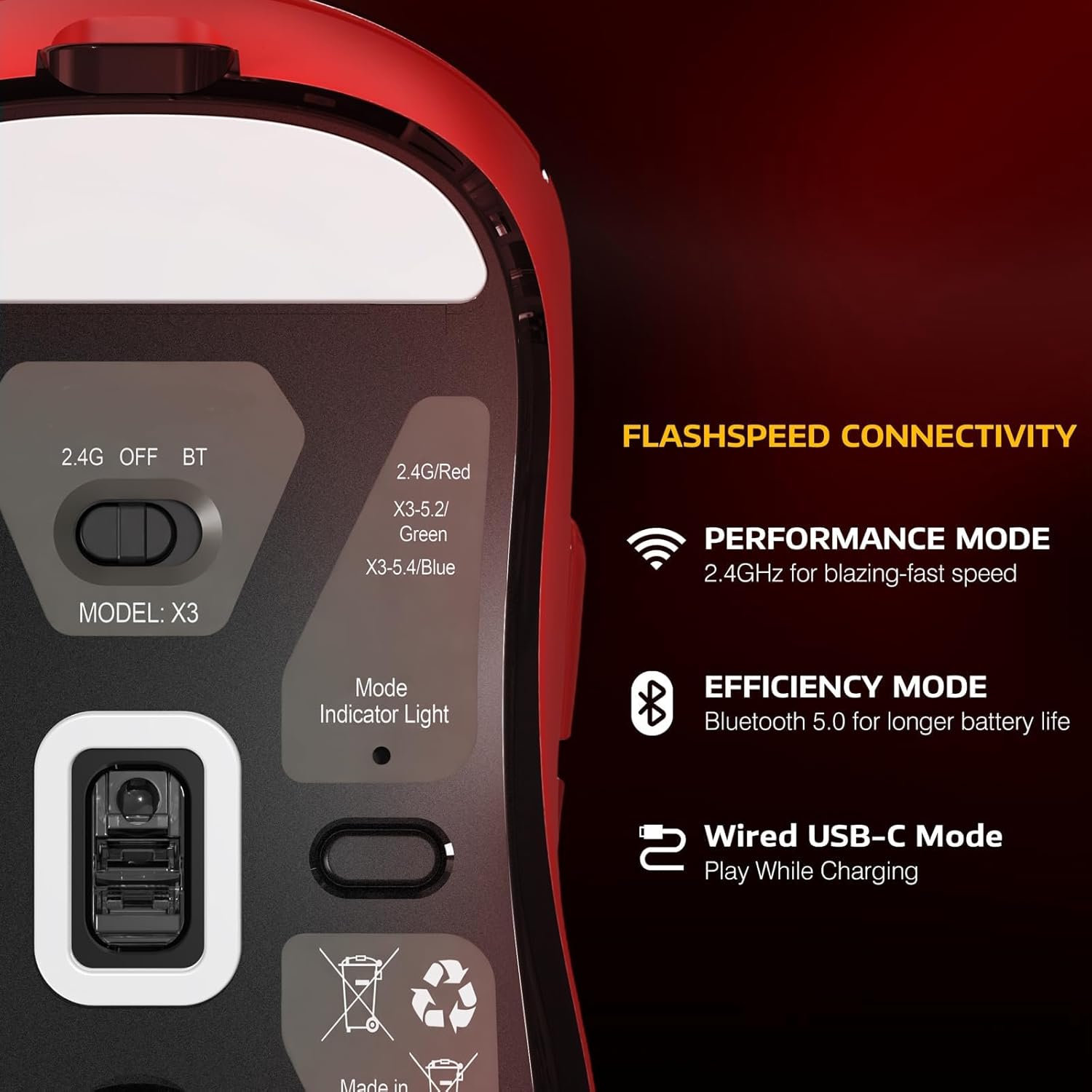
Image: Flashspeed Connectivity. This image shows the bottom of the X3 mouse, detailing its connectivity options: a switch for 2.4G, OFF, and BT modes, and a mode indicator light. It also describes Performance Mode (2.4GHz for blazing-fast speed), Efficiency Mode (Bluetooth 5.0 for longer battery life), and Wired USB-C Mode (play while charging).
3. Seadistusjuhised
3.1 Connecting the Keyboard (X68PRO HE)
- Juhtmega režiim: Connect the provided USB-C cable from the keyboard to an available USB port on your computer. The keyboard will be recognized automatically.
- 2.4 GHz traadita režiim:
- Leidke 2.4 GHz USB-vastuvõtja.
- Ühendage vastuvõtja arvuti vabasse USB-porti.
- On the keyboard, switch the mode selector to '2.4G'. The keyboard should connect automatically.
- Bluetooth-režiim:
- Lülitage klaviatuuri režiimivalija asendisse „BT”.
- Luba oma arvutis või seadmes Bluetooth ja otsi uusi seadmeid.
- Select 'ATTACK SHARK X68PRO HE' from the list of available devices to pair.
3.2 Connecting the Mouse (X3)
- Juhtmega režiim: Connect the provided USB-C cable from the mouse to an available USB port on your computer. The mouse will function immediately and charge simultaneously.
- 2.4 GHz traadita režiim:
- Locate the 2.4GHz USB receiver (usually stored in a compartment on the mouse's underside).
- Ühendage vastuvõtja arvuti vabasse USB-porti.
- On the mouse's underside, switch the mode selector to '2.4G'. The mouse should connect automatically.
- Bluetooth-režiim:
- On the mouse's underside, switch the mode selector to 'BT'.
- Luba oma arvutis või seadmes Bluetooth ja otsi uusi seadmeid.
- Select 'ATTACK SHARK X3' from the list of available devices to pair.
3.3 Draiveri installimine
For advanced customization of both the keyboard and mouse, download the official web driver from the ATTACK SHARK website. This driver allows for actuation adjustment, key remapping, macro creation, and RGB lighting control.
4. Kasutusjuhised
4.1 Keyboard Operation (X68PRO HE)
- Käivitamise reguleerimine: Kasutage web driver software to precisely adjust the actuation point of each magnetic switch from 0.1mm to 3.4mm with 0.01mm sensitivity.
- Kiire käivitus: This feature is enabled and configured via the web driver. It allows keys to register a reset immediately upon release, without needing to return to the full up position.
- Dual-Action Key Function: Configure this feature through the web driver. Assign a primary action for a light press and a secondary action for a deeper press on the same key.
- RGB valgustuse juhtimine: Adjust lighting effects, brightness, and color patterns using the web driver or specific keyboard shortcuts (refer to the driver software for default key combinations).
- Režiimi vahetamine: Use the physical switch on the keyboard to toggle between Wired, 2.4G, and Bluetooth modes.
- MAC/WIN Compatibility: The keyboard supports both operating systems. Use the web driver to switch layouts or specific key functions if needed.
4.2 Mouse Operation (X3)
- DPI reguleerimine: The mouse features 6 adjustable DPI levels (800/1600/2400/3200/5000/26000). Use the dedicated DPI button (usually located behind the scroll wheel) to cycle through these settings. The current DPI level may be indicated by an LED color or pattern.
- Režiimi vahetamine: Use the physical switch on the underside of the mouse to select between 2.4G, OFF, and Bluetooth modes.
- Laadimine: Connect the mouse to your computer using the USB-C cable to charge. The mouse can be used in wired mode while charging.
- Aku indikaator: The mouse typically has an LED indicator that shows battery status (e.g., blinking for low battery, solid for charging, off for full charge).
5. Hooldus
- Puhastamine: Use a soft, dry cloth to wipe down the keyboard and mouse. For deeper cleaning, use a cotton swab lightly dampened with isopropyl alcohol for hard-to-reach areas. Avoid excessive moisture.
- Keycap Removal (Keyboard): Keycaps can be carefully removed using a keycap puller for cleaning or replacement. Be gentle to avoid damaging the switches.
- Aku hooldus: For wireless devices, avoid fully discharging the battery frequently. Charge regularly. If storing for an extended period, charge the battery to about 50% to prolong its lifespan.
- Hoiustamine: Hoidke seadmeid jahedas, kuivas ja otsese päikesevalguse ning äärmuslike temperatuuride eest kaitstud kohas.
6. Veaotsing
6.1 Klaviatuuri tõrkeotsing
- Klaviatuur ei reageeri:
- Ensure the keyboard is charged if in wireless mode.
- Check the mode switch (Wired/2.4G/BT) is set correctly.
- 2.4G puhul veenduge, et USB-vastuvõtja on kindlalt ühendatud.
- For Bluetooth, ensure it's paired correctly and your device's Bluetooth is active. Try re-pairing.
- Traadita ühenduse probleemide välistamiseks proovige ühendust luua juhtmega režiimis.
- Võtmed ei registreeru või sisestatakse topelt:
- Check for debris under the keycap.
- If using Rapid Trigger, ensure settings in the web driver are appropriate for your use.
- Consider resetting keyboard settings via the web autojuht.
- RGB valgustus ei tööta:
- Ensure lighting is enabled in the web autojuht.
- Check brightness settings.
6.2 Hiire tõrkeotsing
- Mouse not moving or erratic cursor:
- Ensure the mouse is charged if in wireless mode.
- Check the mode switch (2.4G/BT) is set correctly.
- 2.4G puhul veenduge, et USB-vastuvõtja on kindlalt ühendatud.
- For Bluetooth, ensure it's paired correctly and your device's Bluetooth is active. Try re-pairing.
- Puhastage hiire alumisel küljel asuv optiline andur.
- Try connecting in wired mode.
- DPI ei muutu:
- Veenduge, et DPI nupp töötab.
- Check if any software is overriding DPI settings.
- Ühenduvusprobleemid:
- Ensure the mouse is within range of the receiver/Bluetooth device.
- Vältige teiste traadita seadmete tekitatud häireid.
7. Tehnilised andmed
7.1 ATTACK SHARK X68PRO HE Keyboard
- Küsitluse määr: 8000 Hz (juhtmega režiim)
- Latentsus: 0.125 ms
- Lülitid: Halli efekti magnetlülitid
- Käivitamise reguleerimine: 0.1mm - 3.4mm (0.01mm sensitivity)
- Paigutus: 60%
- Raami materjal: Lennukikvaliteediga anodeeritud alumiinium
- Klahvikatted: Side-Engraved PBT
- Ühenduvus: Bluetooth, 2.4 GHz juhtmevaba, USB-C juhtmega
- Taustvalgustus: Täis RGB
- Operatsioonisüsteemi ühilduvus: Windows, macOS
- Mõõdud: Ligikaudu 12.80 x 4.645 x 1.57 tolli
- Kaal: Ligikaudu 0.78 kg
7.2 ATTACK SHARK X3 Mouse
- Andur: Pixart PAW3395 Optical Sensor
- DPI: 800/1600/2400/3200/5000/26000 (Adjustable)
- Jälgimiskiirus: 650 IPS
- Reageerimiskiirus: 1000 Hz
- Kiirendus: 50G
- Lülitid: Kailh GM8.0 Micro Switches (80 Million Clicks Lifespan)
- Kodeerija: TTC kerimisratta kodeerija
- Kaal: Umbes 49 g
- Ühenduvus: Bluetooth 5.0, 2.4 GHz juhtmevaba, USB-C juhtmega
- Operatsioonisüsteemi ühilduvus: Windows, macOS, Linux
8. Garantii ja tugi
ATTACK SHARK products typically come with a limited manufacturer's warranty. Please refer to the warranty card included with your product or visit the official ATTACK SHARK website for detailed warranty terms and conditions. For technical support, driver downloads, or further assistance, please visit the ATTACK SHARK support page or contact their customer service.
Ametlik Websait: www.attackshark.com (Ntamplink, palun kontrollige selle tegelikkust websait)


