Sissejuhatus
This manual provides essential information for the proper setup, operation, maintenance, and troubleshooting of your KTC H27T27 27-inch WQHD IPS Flat Monitor. Please read this manual thoroughly before using the product to ensure optimal performance and safety.
The KTC H27T27 monitor features a 27-inch WQHD (2560x1440) IPS panel with a 100Hz refresh rate, designed to deliver clear and detailed images with smooth motion. It includes FreeSync technology for enhanced visual fluidity during dynamic content. The IPS panel ensures vivid colors and wide viewnurgad.

Figure 1: KTC H27T27 27-inch WQHD IPS Flat Monitor Front View
Seadistamine
1. Lahtipakkimine
Carefully remove all components from the packaging. Ensure all items listed in the packing list are present and undamaged. Retain the original packaging for future transport or service needs.
2. Statiivi kokkupanek
- Kriimustuste vältimiseks asetage monitor ekraaniga allapoole pehmele ja puhtale pinnale.
- Kinnitage statiivi alus statiivi kaela külge kaasasolevate kruvide abil.
- Align the assembled stand with the mounting slot on the back of the monitor and secure it firmly.
3. VESA kinnitus (valikuline)
The monitor supports VESA 100x100mm mounting. If using a VESA mount, remove the stand and attach the VESA compatible bracket to the monitor's rear panel using appropriate screws.
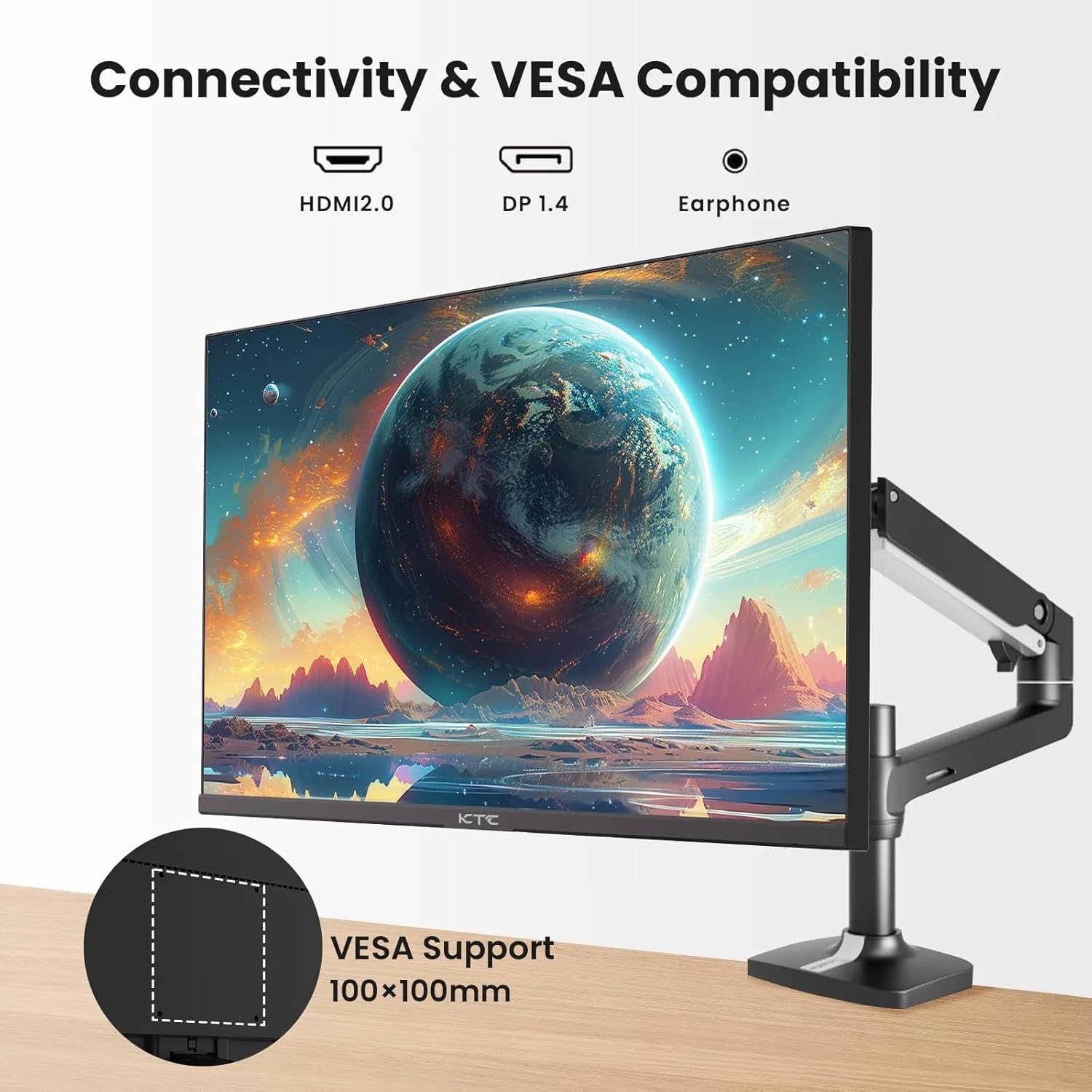
Figure 2: VESA Compatibility and Connectivity Ports
4. Ühenduskaablid
Ühendage monitori ja arvuti või muude seadmetega vajalikud kaablid. Veenduge, et kõik ühendused oleksid kindlad.
- Toitekaabel: Ühendage toiteadapter monitori alalisvoolu sisendporti ja seejärel ühendage toitekaabel pistikupessa.
- Videokaabel: Connect either an HDMI cable (HDMI 2.0) or a DisplayPort cable (DP 1.4) from your computer's graphics card to the corresponding input port on the monitor.
- Heliväljund: If desired, connect headphones or external speakers to the 3.5mm audio output jack.

Figure 3: Monitor Input Ports
5. Esialgne sisselülitamine
Press the power button on the monitor. The power indicator light will illuminate. If no image appears, ensure your computer is powered on and the correct input source is selected on the monitor.
Töötavad
1. Toide sisse/välja
Press the power button located on the monitor to turn it on or off. The power indicator will show the monitor's status.
2. Ekraanikuva (OSD) menüü
OSD-menüü võimaldab teil reguleerida monitori erinevaid sätteid. Menüüs navigeerimiseks kasutage juhtnuppe (tavaliselt asuvad need monitori tagaküljel või allosas).
- Vajutage nuppu, et aktiveerida ekraanimenüü (OSD).
- Menüüvalikute vahel liikumiseks kasutage navigeerimisnuppe.
- Press a selection button to enter a sub-menu or confirm a setting.
- Press an exit button to close the OSD menu.
3. Seadete reguleerimine
Common adjustable settings include:
- Heledus/kontrastsus: Reguleerige üldist heledust ja heledate ning tumedate alade erinevust.
- Värviseaded: Värvitemperatuuri, gamma ja individuaalsete RGB-väärtuste muutmine.
- Sisendallikas: Valige käsitsi sisendite HDMI 1, HDMI 2 või DisplayPort vahel.
- Pildirežiim: Select predefined display modes (e.g., Standard, Game, Movie).
4. Värskendussagedus
The KTC H27T27 supports a 100Hz refresh rate, providing smoother motion compared to standard 60Hz displays. Ensure your graphics card and operating system are configured to output at 100Hz for the best experience.

Figure 4: 100Hz Refresh Rate Benefit
5. FreeSync Technology
This monitor is compatible with AMD FreeSync technology, which synchronizes the monitor's refresh rate with your graphics card's frame rate. This helps eliminate screen tearing and stuttering for a smoother gaming and video experience. Ensure FreeSync is enabled in both the monitor's OSD menu and your graphics card's control panel.
Joonis 5: FreeSynci tehnoloogia tegevuses
Hooldus
1. Ekraani puhastamine
- Lülitage monitor välja ja eemaldage toitejuhe.
- Pühkige ekraani õrnalt pehme ebemevaba lapiga.
- Kangekaelsete plekkide korral dörtsige kergeltampLoputage lappi veega või spetsiaalse ekraanipuhastusvahendiga (ärge pihustage otse ekraanile).
- Vältige abrasiivsete puhastusvahendite, alkoholi või ammoniaagipõhiste lahuste kasutamist, kuna need võivad ekraani pinda kahjustada.
2. Üldhooldus
- Hoidke monitori otsese päikesevalguse, liigse kuumuse ja niiskuse eest.
- Tagage monitori ümber piisav ventilatsioon, et vältida ülekuumenemist.
- Vältige raskete esemete asetamist monitorile või selle kaablitele.
Veaotsing
Kui teil tekib monitoriga probleeme, vaadake järgmisi levinud probleeme ja lahendusi.
- Toide puudub:
- Ensure the power cable is securely connected to both the monitor and the power outlet.
- Veenduge, et pistikupesa on töökorras. - Signaali pole:
- Check that the video cable (HDMI or DisplayPort) is securely connected to both the monitor and your computer.
- Ensure your computer is powered on and not in sleep mode.
- Select the correct input source via the monitor's OSD menu. - Virvendav või moonutatud pilt:
- Check the video cable for damage or loose connections.
- Adjust the refresh rate settings on your computer.
- Disable or enable FreeSync in the OSD menu and graphics card settings to test. - Valed värvid:
- Reset color settings to factory defaults in the OSD menu.
- Adjust color temperature or individual RGB values.
Kui probleem pärast nende lahenduste proovimist püsib, võtke ühendust klienditoega.
Tehnilised andmed
| Funktsioon | Spetsifikatsioon |
|---|---|
| Kaubamärk | CTC |
| Mudeli number | H27T27 |
| Ekraani suurus | 27 tolli |
| Resolutsioon | 2560 x 1440 (WQHD) |
| Värskendussagedus | 100 Hz |
| Kuva tüüp | IPS |
| Reageerimisaeg | 7 millisekundit |
| Adaptiivne sünkroonimine | FreeSync |
| Ühenduvus | 2x HDMI 2.0, 1x DisplayPort 1.4, 1x 3.5mm Audio Out |
| Kuvasuhe | 1.78:1 |
| Ekraani pind | Matt |
| Kauba mõõtmed (P x L x K) | 1.85" P x 24.25" L x 14.33" K |
| Kauba kaal | 4 kilogrammi |
Garantii ja tugi
Garantii teave
This KTC monitor is covered by a manufacturer's warranty. Please refer to the warranty card included in your product packaging for specific terms, conditions, and duration of coverage. Keep your purchase receipt as proof of purchase for warranty claims.
Klienditugi
For technical assistance, warranty service, or any product-related inquiries, please contact KTC customer support. Contact details can typically be found on the official KTC webveebilehel või garantiikaardil.
When contacting support, please have your monitor's model number (H27T27) and serial number ready.


