Sissejuhatus
This manual provides detailed instructions for the TECKNET Wireless Mouse (Model B0DP2DCC6N). It covers setup, operation, maintenance, and troubleshooting to ensure optimal performance and user experience. This mouse offers dual connectivity (2.4G USB A and Bluetooth 5.0/3.0) and adjustable DPI settings for versatile use across various devices and operating systems.

Figure 1: TECKNET Wireless Mouse (Pink)
Pakendi sisu
- TECKNET juhtmevaba hiir
- USB A Receiver (stored inside the mouse)
- Kasutusjuhend (see dokument)
Märkus. 2 AAA batteries are not included and must be purchased separately.
Toote omadused
- Dual Device Connection: Bluetooth (5.0/3.0) and 2.4G USB A.
- 6 Adjustable DPI Levels: 800/1200/1600/2400/3200/4800.
- Silent Click Operation: Designed for quiet environments.
- Ergonomic Design: Shaped for comfortable use.
- Automatic Sleep Technology: Extends battery life.
- Wide Compatibility: Supports Windows, macOS, Chrome, Linux. (Side buttons are not compatible with macOS).

Figure 2: Dual Connection Modes (2.4G USB A and Bluetooth)

Figure 3: Adjustable DPI Settings for Precise Control
Seadistusjuhised
1. Aku paigaldamine
- Leidke hiire alumisel küljel akupesa.
- Avage aku kaas.
- Sisestage kaks AAA-patareid, jälgides õiget polaarsust (+/-).
- Sulgege aku kaas kindlalt.
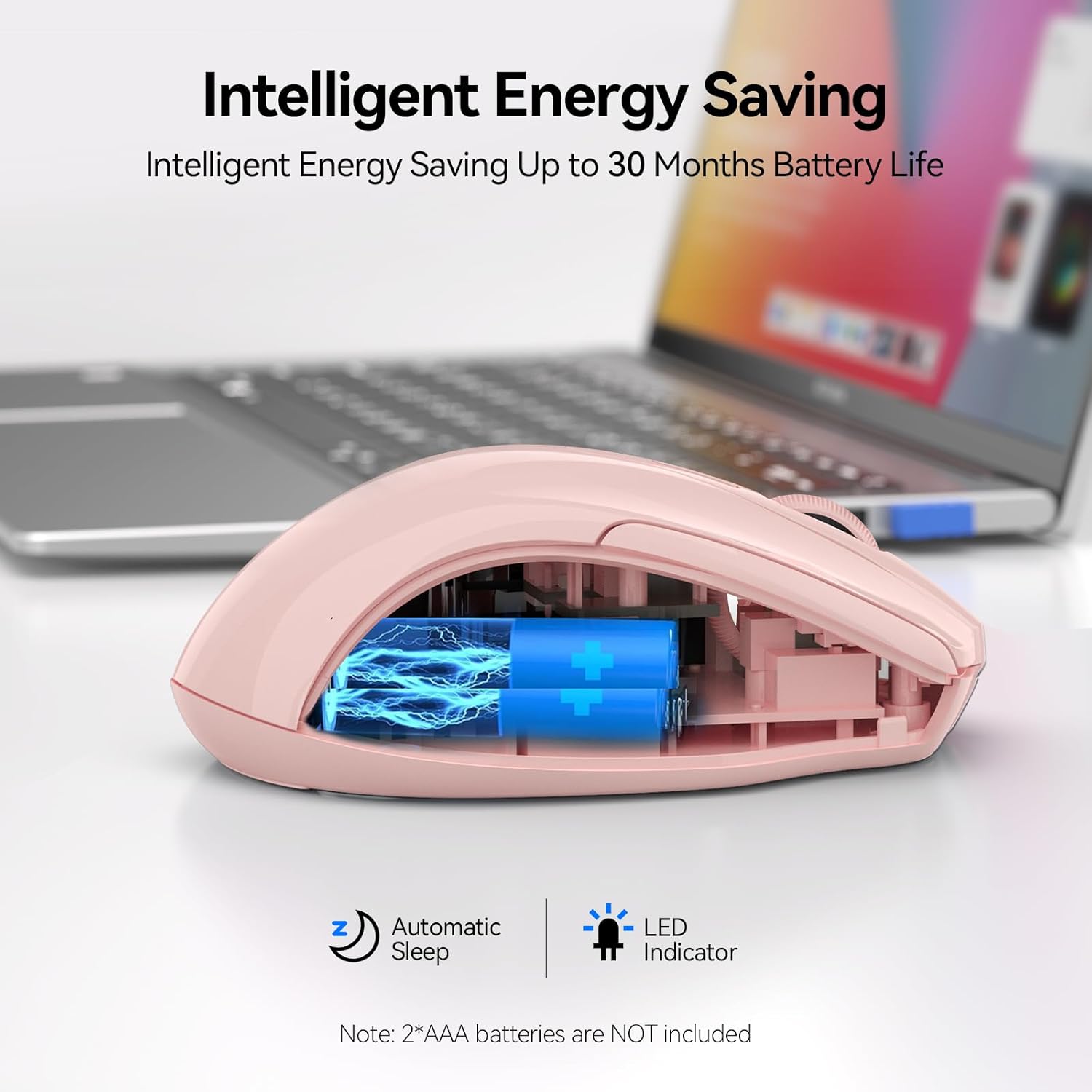
Figure 4: Battery Compartment (2 AAA batteries required)
2. Hiire ühendamine
The TECKNET Wireless Mouse offers two connection methods: 2.4G USB A and Bluetooth.
2.1. 2.4G USB A Connection
- Locate the USB A receiver stored in the battery compartment of the mouse.
- Remove the USB A receiver.
- Plug the USB A receiver into an available USB port on your computer.
- Slide the power switch on the bottom of the mouse to the "2.4G" position.
- Hiir peaks automaatselt ühenduma.
Figure 5: 2.4G USB A Connection
2.2. Bluetooth-ühendus
- Slide the power switch on the bottom of the mouse to the "BT" position.
- Press and hold the Bluetooth pairing button (usually a small button near the power switch) until the LED indicator light starts blinking (blue).
- Avage oma arvutis või seadmes Bluetoothi seaded.
- Otsi new devices and select "TECKNET Mouse" (or similar) from the list.
- Sidumisprotsessi lõpuleviimiseks järgige ekraanil kuvatavaid juhiseid.

Joonis 6: Bluetooth-ühendus
Video 1: Demonstration and setup of the Bluetooth wireless mouse.
Kasutusjuhised
1. DPI-tundlikkuse reguleerimine
The mouse features a DPI switch button, typically located near the scroll wheel. Press this button to cycle through 6 adjustable DPI settings (800/1200/1600/2400/3200/4800) to match your preference for cursor speed and precision.
Figure 7: DPI Switch Button for Sensitivity Adjustment
2. Hääletu klõpsu funktsioon
This mouse is designed with silent click buttons, providing a quiet user experience. This is particularly beneficial in environments where noise reduction is desired, such as libraries or shared offices.

Joonis 8: Vaikne klõps
Video 2: Uuestiview highlighting the silent click feature and ease of pairing.
3. Energiasäästurežiimid
The mouse incorporates automatic sleep technology to conserve battery life. After a period of inactivity, the mouse will enter a sleep mode. To reactivate, simply click any button.

Figure 9: Automatic Sleep Technology for Power Saving
Hooldus
- Puhastamine: Hiire puhastamiseks kasutage pehmet ja kuiva lappi. Vältige karme kemikaale ega abrasiivseid materjale.
- Patarei vahetus: Replace batteries when the low battery indicator lights up or when performance degrades. Refer to the "Battery Installation" section for instructions.
- Hoiustamine: When not in use for extended periods, turn off the mouse to further conserve battery life.
Veaotsing
1. Hiir ei reageeri
- Kontrollige, kas hiir on sisse lülitatud.
- Veenduge, et patareid on õigesti paigaldatud ja mitte tühjad. Vajadusel vahetage need välja.
- For 2.4G connection, ensure the USB A receiver is securely plugged into a working USB port.
- For Bluetooth connection, verify that Bluetooth is enabled on your device and the mouse is paired. Try re-pairing if connection is lost.
- Try connecting the mouse to a different USB port or another device to rule out port or device issues.
2. Cursor Movement is Erratic or Slow
- Puhastage hiire allosas asuv optiline andur.
- Ensure you are using the mouse on a suitable surface. Optical mice perform best on non-reflective, uniform surfaces.
- Adjust the DPI sensitivity using the DPI switch button on the mouse.
3. Side Buttons Not Working on macOS
- As noted in the product features, side buttons are not compatible with macOS. This is expected behavior.
Tehnilised andmed
| Funktsioon | Detail |
|---|---|
| Mudel | BM307 (Internal Model) / B0DP2DCC6N (ASIN) |
| Ühenduvustehnoloogia | Bluetooth (5.0/3.0), 2.4G Wireless (USB A) |
| DPI tasemed | 800, 1200, 1600, 2400, 3200, 4800 |
| Liikumise tuvastamise tehnoloogia | Optiline |
| Eriomadused | Ergonomic Design, Silent Click, Automatic Sleep |
| Toiteallikas | 2 x AAA patareid (ei kuulu komplekti) |
| Kauba kaal | 3.52 untsi |
| Pakendi mõõtmed | 4.49 x 3.23 x 1.73 tolli |
| Ühilduvus | Windows, macOS (side buttons not compatible), Chrome, Linux |
Garantii ja tugi
TECKNET pakub 36-kuuline garantii for registered products. If you encounter any problems using the product, please contact our professional customer service team for assistance.
Kontaktandmed: Refer to the product packaging or the official TECKNET webkõige ajakohasemate tugiteenuste kontaktandmete saamiseks külastage veebisaiti.


