Sissejuhatus
Thank you for choosing the TECKNET Wireless Mouse. This manual provides detailed instructions for setting up, operating, and maintaining your mouse to ensure optimal performance. This mouse offers versatile connectivity options, precise control, and a comfortable, silent user experience.
Toode läbiview
Familiarize yourself with the components of your TECKNET Wireless Mouse.

Image: Front and bottom view of the TECKNET Wireless Mouse, highlighting the scroll wheel, left/right buttons, forward/backward buttons, DPI switch, Bluetooth pairing button, USB receiver storage, and battery compartment.
- Vasak/parem nupud: Standardsed hiireklõpsu funktsioonid.
- Kerimisratas: Vertikaalse kerimise ja keskmise nupu klõpsu funktsiooni jaoks.
- Edasi/tagasi nupud: Navigeerige web pages or documents. (Note: Side buttons are not compatible with macOS).
- DPI vahetamise nupp: Adjusts mouse sensitivity (4800/3200/2400/1600/1200/800 DPI).
- Bluetoothi sidumisnupp: Käivitab Bluetoothi sidumisrežiimi.
- 2.4G/Off/BT Switch: Selects connection mode or turns off the mouse.
- USB vastuvõtja: Stores securely within the mouse for 2.4G wireless connection.
- Akupesa: Mahutab 2 AAA patareid (ei kuulu komplekti).
- LED indikaator: Displays connection status and low battery warning.
Seadistamine
1. Patareide paigaldamine
- Avage hiire allosas asuv patareipesa kate.
- Sisestage 2 AAA patareid (ei kuulu komplekti), jälgides õiget polaarsust (+/-).
- Sulgege patareipesa kaas.

Image: The underside of the mouse with the battery cover removed, showing two AAA batteries correctly inserted.
2. Hiire ühendamine
The TECKNET Wireless Mouse supports two connection modes: 2.4G Wireless (via USB receiver) and Bluetooth.
2.1. 2.4G Wireless Connection (USB Receiver)
- Leidke hiire patareipesast USB-vastuvõtja.
- Ühendage USB-vastuvõtja arvuti vabasse USB-A-porti.
- Lükake hiire allosas olev lüliti asendisse "2.4G".
- Hiir peaks automaatselt arvutiga ühenduse looma.

Image: A green TECKNET Wireless Mouse positioned between a laptop with a USB-A receiver plugged in and a tablet, illustrating dual connectivity options.
Text Description for Video: This video demonstrates the process of installing AAA batteries into the TECKNET Wireless Mouse and connecting it via the 2.4G USB receiver. It shows the location of the battery compartment and the USB receiver, as well as the power/mode switch on the underside of the mouse. The video also highlights the forward/backward buttons and DPI switch on the top of the mouse.
2.2. Bluetooth-ühendus
- Lükake hiire allosas olev lüliti asendisse "BT".
- Press and hold the Bluetooth pairing button (usually located near the mode switch) for 3-5 seconds until the LED indicator starts blinking blue, indicating pairing mode.
- Ava oma arvutis või seadmes Bluetoothi seaded ja otsi uusi seadmeid.
- Select "TECKNET Mouse" (or similar name) from the list of available devices to pair.
- The LED indicator will stop blinking and remain solid blue once connected.
Text Description for Video: This video provides a detailed demonstration of how to set up and pair the TECKNET Wireless Mouse using its Bluetooth functionality. It shows the user switching the mouse to Bluetooth mode, pressing the pairing button, and then connecting it to a computer. The video also briefly showcases the silent click feature and the ergonomic design of the mouse.
Text Description for Video: This video highlights the silent click feature of the TECKNET Wireless Mouse and demonstrates its easy pairing process via Bluetooth. The user shows the mouse's underside, including the battery compartment and the mode switch, and then performs a silent click to emphasize the quiet operation. The video also briefly mentions the convenience of using AAA batteries.
Kasutusjuhised
DPI reguleerimine
Press the DPI switch button located on the top of the mouse to cycle through 6 adjustable DPI settings: 800, 1200, 1600, 2400, 3200, and 4800. This allows you to customize cursor speed and precision to your preference.

Image: The TECKNET Wireless Mouse with an overlay showing the 6 adjustable DPI settings, emphasizing precise control.
Silent Click Feature
The mouse is designed for silent operation, providing whisper-quiet clicks. This feature is ideal for environments where noise reduction is important, such as libraries, offices, or late-night use.

Image: A person using the TECKNET Wireless Mouse in a quiet environment, with text indicating "Silent Click" and "Inaudible click sound, quiet and focused, without disturbing others."
Automaatne puhkerežiim
To conserve battery life, the mouse will automatically enter sleep mode after approximately 5 minutes of inactivity. To wake the mouse, simply click any button.
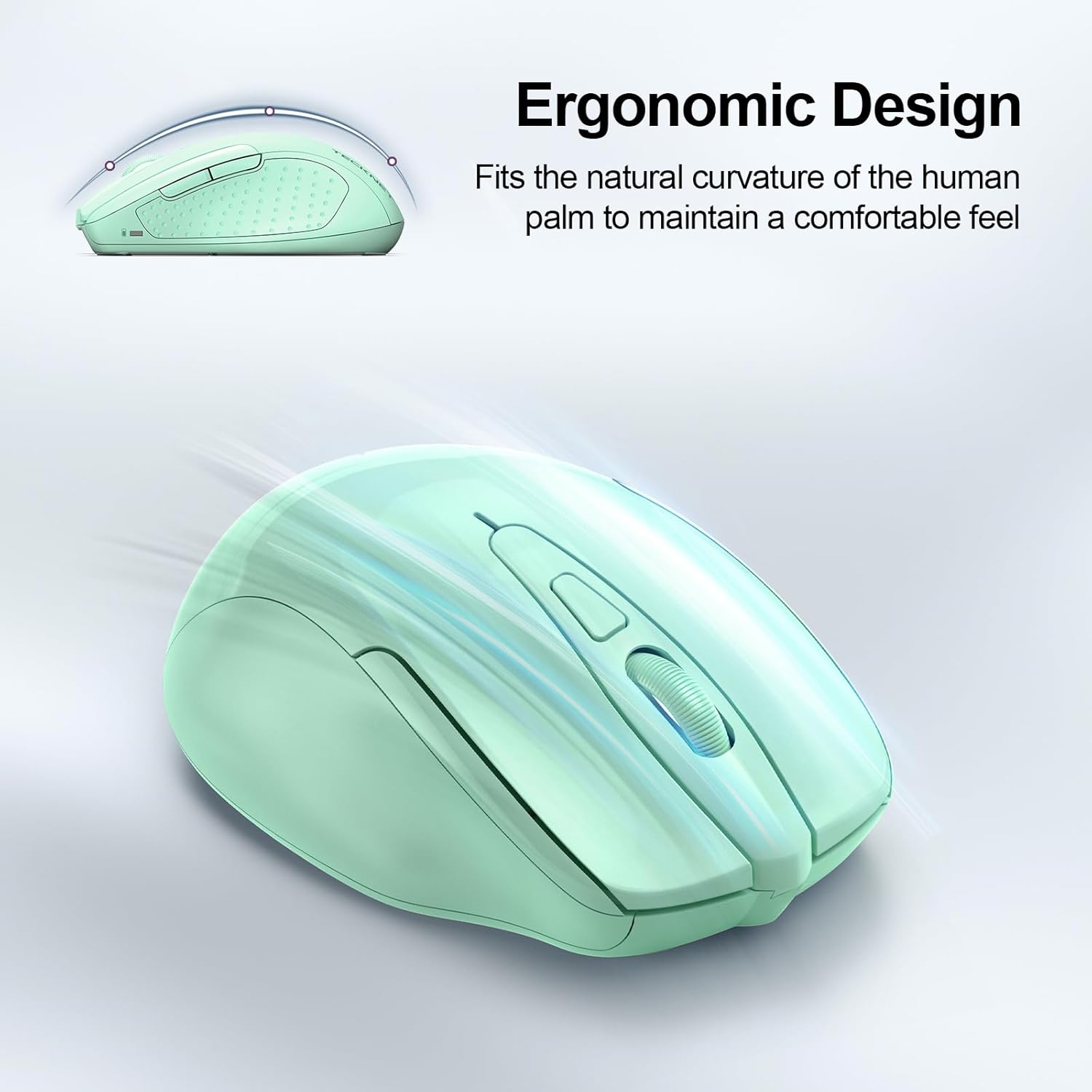
Image: A visual representation of the mouse's power states: Working, Stand-by, Auto-sleep, and how to activate it by pressing a button.
Hooldus
- Puhastamine: Hiire puhastamiseks kasutage pehmet ja kuiva lappi. Vältige karmide kemikaalide või abrasiivsete materjalide kasutamist.
- Patarei vahetus: Replace batteries when the LED indicator shows a low battery warning (red light).
- Hoiustamine: When not in use for extended periods, turn off the mouse using the switch on the bottom to further conserve battery life.
Veaotsing
| Probleem | Lahendus |
|---|---|
| Hiir ei reageeri. |
|
| Kursori liikumine on ebaühtlane või aeglane. |
|
| Bluetooth-ühendus katkeb sageli. |
|
| Side buttons not working on macOS. | Side buttons are not compatible with macOS. This is a known limitation. |
Tehnilised andmed
| Funktsioon | Detail |
|---|---|
| Mudel | BM307 |
| Ühenduvus | 2.4G Wireless (USB-A receiver), Bluetooth 5.0/3.0 |
| DPI tasemed | 800, 1200, 1600, 2400, 3200, 4800 (Adjustable) |
| Nupud | 6 Buttons (Left/Right, Scroll Wheel, Forward/Backward, DPI Switch, Bluetooth Pairing) |
| Toiteallikas | 2 x AAA patareid (ei kuulu komplekti) |
| Eriomadused | Silent Click, Ergonomic Design, Automatic Sleep Mode |
| Ühilduvus | Windows, macOS (side buttons not compatible), Chrome OS, Linux |
| Mõõtmed | 4.53 x 3.15 x 1.85 tolli |
| Kaal | 3.52 untsi |
Garantii ja tugi
TECKNET pakub 36-kuuline garantii (Registered Only) for this product. If you encounter any problems or have questions regarding the use of your TECKNET Wireless Mouse, please contact our professional customer service team for assistance.
Kontaktandmed leiate tavaliselt TECKNETi ametlikult veebisaidilt. websaidi või oma ostuplatvormi kaudu.


