1. Sissejuhatus
Thank you for choosing the EvoFox Ronin Wired Mechanical Gaming Keyboard. This manual provides detailed instructions for setting up, operating, and maintaining your keyboard to ensure optimal performance and longevity. The EvoFox Ronin is designed for a superior typing and gaming experience, featuring advanced sound dampening, customizable switches, and dynamic RGB lighting.

Image 1.1: EvoFox Ronin Wired Mechanical Gaming Keyboard (Black)
Peamised omadused:
- 9-Layer Gasket Structure: Advanced design for reduced noise, improved stability, and enhanced tactile feedback.
- Hot-Swappable Outemu Red Silent Switches: Customizable, durable, and smooth typing experience with included switch puller.
- Klahvipõhine RGB-taustvalgustus: 21 effects and Audio Sync Mode for personalized and immersive lighting.
- Dedicated Volume Knob: Convenient control over audio levels.
- Powerful Windows Software: Program keys, create macros, control backlighting, and manage profiles with onboard memory.
- Platvormidevaheline ühilduvus: Easily switch between Windows and Mac modes.
- Detachable Braided USB-C Cable: Robust 1.5m cable with EMI ring for reliable connection and portability.
2. Pakendi sisu
Palun kontrollige, kas pakis on kõik esemed olemas:
- 1 x EvoFox Ronin Mechanical Gaming Keyboard
- 1 x võtmekorgi tõmbaja
- 4 x Outemu Red Switches (Spare)
- 1 x kasutusjuhend
3. Toote lõppview
3.1 Tihendi struktuur
The EvoFox Ronin features an advanced 9-layer gasket structure. This design incorporates silicone gaskets, a mounting plate, and multiple layers of vibration and sound dampening materials to provide a stable, quiet, and comfortable typing experience by minimizing unwanted noise and resonance.
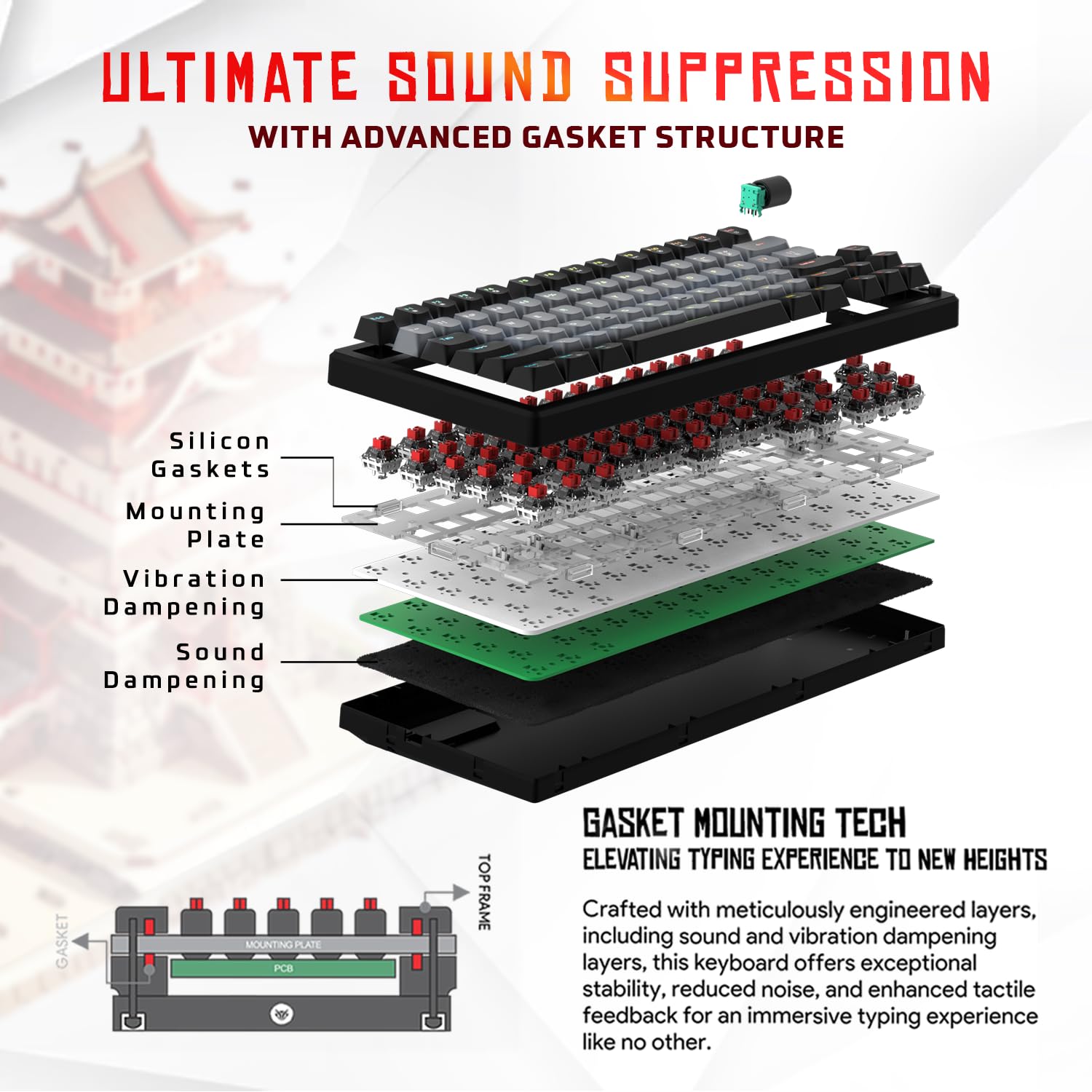
Pilt 3.1: Lõhkekujuline view of the 9-layer gasket structure, showing silicone gaskets, mounting plate, and dampkihid.
3.2 Outemu Red Silent Switches
The keyboard is equipped with Outemu Red Dust Proof Switches, known for their linear and silent operation. These switches are hot-swappable, allowing users to easily replace them with other compatible 3-pin mechanical switches without soldering, enabling full customization of the typing feel.
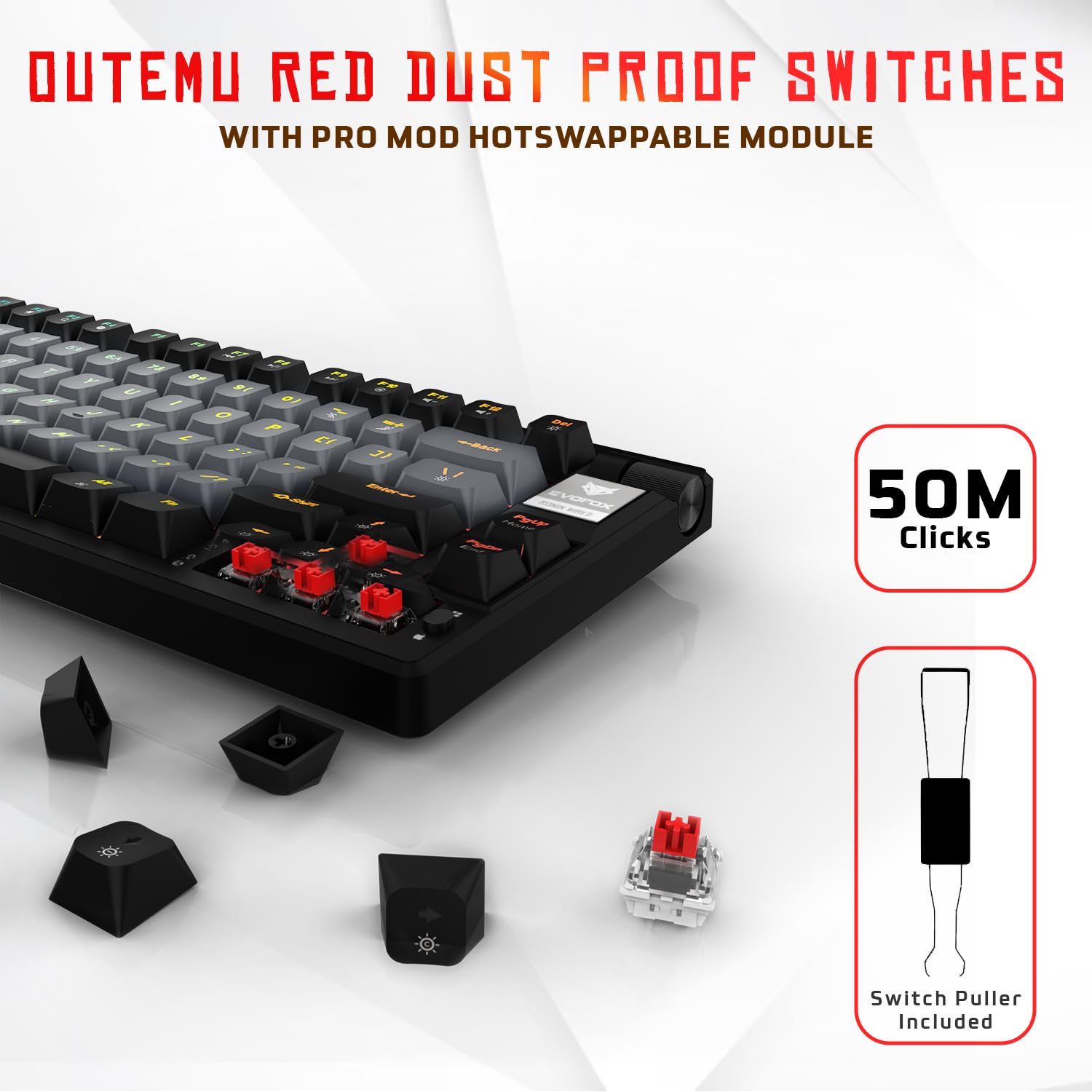
Image 3.2: Close-up of Outemu Red switches and the included switch puller, demonstrating hot-swappable functionality.
3.3 Per-Key RGB Backlighting
Each key on the EvoFox Ronin features individual RGB backlighting, offering 16 million colors and 21 pre-set lighting effects. The lighting can be customized directly on the keyboard or through the dedicated software, including an Audio Sync Mode that reacts to sound.

Image 3.3: The EvoFox Ronin keyboard showcasing its customizable per-key RGB backlighting.
3.4 Dedicated Volume Knob
A metal volume knob is integrated into the keyboard for quick and precise audio adjustments. Rotate to change volume, and press to mute/unmute.
3.5 Detachable USB-C Cable
The keyboard connects via a robust 1.5-meter braided USB-C cable, which is detachable for easy portability and storage. The cable includes an EMI ring to minimize signal interference.

Image 3.4: Features of the EvoFox Ronin, including the volume knob, detachable USB-C cable, and double-height adjustable legs.
4. Seadistusjuhised
Follow these steps to set up your EvoFox Ronin keyboard:
- Pakkige klaviatuur lahti: Eemaldage klaviatuur ja kõik lisatarvikud ettevaatlikult pakendist.
- Ühendage USB-C-kaabel: Insert the USB-C end of the provided cable into the port on the back of the keyboard.
- Ühendage arvutiga: Plug the USB-A end of the cable into an available USB port on your computer (PC or Mac).
- Draiveri installimine: Klaviatuur on plug-and-play tüüpi. Teie operatsioonisüsteem peaks vajalikud draiverid automaatselt tuvastama ja installima.
- Valikuline tarkvara installimine: For advanced customization, download the dedicated Windows software from the official EvoFox websaidile.
5. Kasutusjuhised
5.1 Põhifunktsioonid
The EvoFox Ronin functions as a standard TKL (Tenkeyless) keyboard. All keys perform their labeled functions. The keyboard supports N-Key Rollover, ensuring every key press is registered accurately, even during rapid input.
5.2 Multimeedia- ja funktsiooniklahvid
Access multimedia and additional functions by pressing the Fn key in combination with the designated F-keys or other keys. Refer to the keycap legends for specific functions (e.g., Fn + F1 for media player, Fn + F2 for volume down).
5.3 RGB valgustuse juhtimine
You can control the RGB lighting directly from the keyboard:
- Muuda efektid: Kasutage Fn + \| to cycle through 21 different lighting effects.
- Heleduse reguleerimine: Kasutage Fn + ülesnool heleduse suurendamiseks ja Fn + allanool heleduse vähendamiseks.
- Kiiruse reguleerimine: Kasutage Fn + vasaknool to decrease effect speed and Fn + paremnool efekti kiiruse suurendamiseks.
- Audio Sync Mode: Activate specific modes that react to audio input.
5.4 Tarkvara kohandamine
The dedicated Windows software allows for comprehensive customization:
- Võtme programmeerimine: Mistahes klahvi ümberkaardistamine teisele funktsioonile.
- Makro loomine: Record and assign complex key sequences to a single key.
- Backlighting Effects: Fine-tune RGB colors, effects, brightness, and speed.
- Profile Juhtimine: Loo ja salvesta mitu profiilifiles erinevate rakenduste või mängude jaoks.
- Küsitluse määr: Adjust the polling rate up to 1000Hz.

Image 5.1: Screenshot of the EvoFox Ronin's dedicated software, showing options for light settings, button settings, and macro management.
5.5 Cross-Platform Compatibility
The keyboard supports both Windows and Mac operating systems. Use the designated key combination (typically Fn+Win or similar, refer to keycap legends) to switch between modes, ensuring correct key mapping for your OS.
6. Hooldus
6.1 Klaviatuuri puhastamine
Klaviatuuri välimuse ja funktsionaalsuse säilitamiseks toimige järgmiselt.
- Enne puhastamist ühendage klaviatuur arvutist lahti.
- Klahvikatete vahelt tolmu ja prahi eemaldamiseks kasutage suruõhupurki.
- Pühkige klahvikatteid ja klaviatuuri pinda pehme, kergelt kuiva lapigaamp lapiga. Vältida liigset niiskust.
- Ärge kasutage tugevaid kemikaale ega abrasiivseid puhastusvahendeid.
6.2 Lülitite vahetamine
The EvoFox Ronin features hot-swappable switches, allowing for easy replacement without soldering:
- Ühendage klaviatuur arvutist lahti.
- Kasutage soovitud klahvikatte õrnalt eemaldamiseks kaasasolevat klahvikatte tõmmitsat.
- Kasutage kaasasolevat lüliti tõmmitsat, et ettevaatlikult haarata lüliti ülemisest ja alumisest klambrist ning tõmmata see otse üles.
- Align the pins of the new switch with the holes on the PCB and gently press it down until it clicks into place. Ensure the pins are not bent.
- Vaheta klahvikate tagasi.

Image 6.1: A keycap being removed from the keyboard using a keycap puller.
7. Veaotsing
If you encounter issues with your EvoFox Ronin keyboard, refer to the following common solutions:
- Klaviatuur ei reageeri:
- Veenduge, et USB-C-kaabel oleks kindlalt ühendatud nii klaviatuuri kui ka arvutiga.
- Proovige klaviatuur ühendada arvuti teise USB-porti.
- Arvutipõhise probleemi välistamiseks testige klaviatuuri teises arvutis.
- Taaskäivitage arvuti.
- RGB-valgustus ei tööta/on vale:
- Check the on-board lighting controls (Fn key combinations) to ensure brightness is not set to zero or an effect is not disabled.
- If using the software, ensure it is running and the correct profile on aktiivne.
- Reinstall the keyboard software if issues persist.
- Võtmed ei registreeru:
- Veenduge, et klahvikaane või lüliti alla ei oleks prahti kinni jäänud.
- If a specific key is not working, try replacing its switch (refer to Section 6.2).
- Check for bent pins on the switch if you recently replaced one.
- Software Issues (e.g., Antivirus Flagging):
- Ensure you download the software from the official EvoFox website to avoid unofficial versions.
- If your antivirus flags the software, you may need to add an exception for the software's executable file. Proceed with caution and only if you trust the source.
- Contact EvoFox support for the latest software version or assistance.
8. Tehnilised andmed
| Funktsioon | Detail |
|---|---|
| Kaubamärk | EvoFox |
| Mudeli nimi | EvoFox Ronin TKL Wired |
| Klaviatuuri kirjeldus | Mehaaniline |
| Ühenduvustehnoloogia | USB-C (juhtmega) |
| Lülitid | Outemu Red Silent Dust Proof Switches (Hot-Swappable) |
| Taustvalgustus | Per-Key RGB (16 Million Colors, 21 Effects, Audio Sync Mode) |
| Küsitluse määr | Kuni 1000 Hz |
| Klahvi pööramine | N-Key Rollover (All Anti-Ghosting Keys) |
| Eriomadused | Advanced Gasket Structure, Compact TKL Design, Multimedia Keys, Pro Mod Hotswap Module, Powerful Windows Software, Dedicated Volume Controller |
| Ühilduvad seadmed | Sülearvuti, arvuti |
| Riistvara platvorm | PC/Mac/Linux/Unix |
| Kaabli pikkus | 1.5m Detachable Braided Type-C with EMI Ring |
| Materjal | Plastikust |
| Toote mõõtmed | 32 x 13.5 x 2.6 cm |
| Kauba kaal | 640 g |
| Päritoluriik | Hiina |
9. Garantii ja tugi
The EvoFox Ronin Mechanical Gaming Keyboard comes with a standard manufacturer's warranty. Please refer to the warranty card included in your package for specific terms and conditions, including warranty period and coverage details.
For technical support, troubleshooting assistance, or warranty claims, please contact EvoFox customer support. You can find contact information on the official EvoFox website or through the manufacturer, Allied Electronics & Magnetics Private Limited.
Tootja: Allied Electronics & Magnetics Private Limited
Aadress: C-64/4, Okhla Phase - 2, New Delhi - 110020


