1. Toote lõppview
The SCULPFUN S30 Pro is a high-performance 10W diode laser engraver designed for precision engraving and cutting of various materials. It features an automatic air assist system for enhanced cutting performance and comes bundled with the SCULPFUN TS1 Touch Screen for offline control and Wi-Fi connectivity. This machine is suitable for engraving and cutting wood, MDF, bamboo, cardboard, plastic, leather, PCB board, aluminum oxide, 304 stainless steel, ceramic, and dark stone.
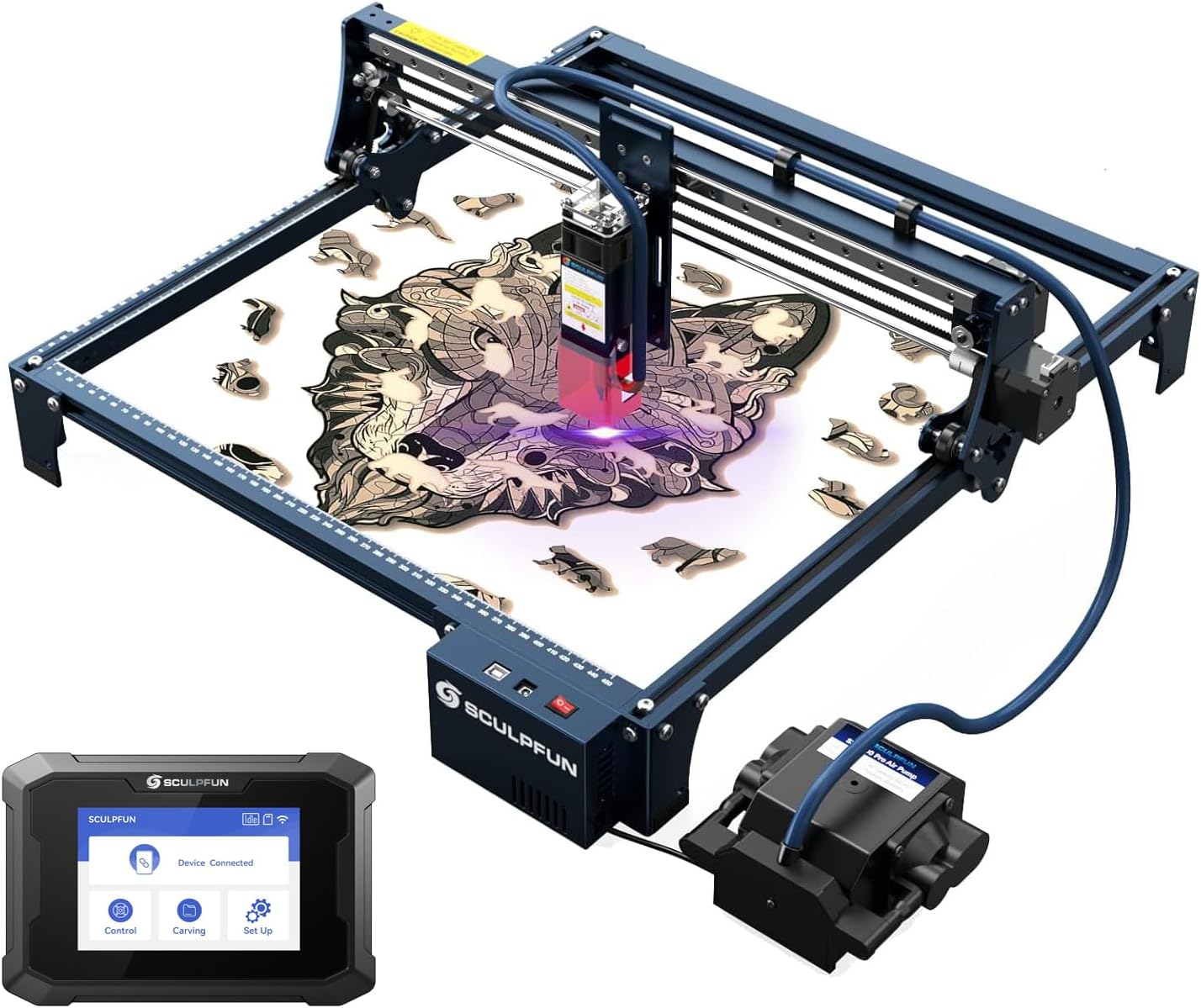
Figure 1: SCULPFUN S30 Pro Laser Engraver with TS1 Touch Screen. This image shows the complete laser engraving system, including the main engraver unit, the external air pump, and the TS1 touch screen.
Peamised omadused:
- 10W Diode Laser Output: Capable of cutting 10mm wood or 5mm acrylic in a single pass with a 0.06x0.08mm ultra-fine compression spot for detailed engraving.
- Automatic Air Assist: Mainboard-controlled air pump (12V, 30L/min) with an advanced high-pressure metal nozzle, intelligently controlled via LightBurn software (M8 command) to significantly improve cutting speed and performance.
- SCULPFUN TS1 Touch Screen: 3.5-inch capacitive touch screen (480x320 resolution) for offline engraving, Wi-Fi connectivity, and real-time slicing via the SCULPFUN mobile app.
- Expandable Working Area: Standard 410x400mm engraving area, expandable up to 935x905mm with optional extension kits.
- Tugev konstruktsioon: Features an industrial-grade linear rail for high precision and durability.
- Silmade kaitse: Equipped with a detachable laser protection cover.
2. Ohutusalane teave
Operating a laser engraver involves potential hazards. Always adhere to the following safety guidelines to prevent injury or damage.
- Silmade kaitse: Always wear the provided laser safety goggles when the laser is operating. Never look directly at the laser beam.
- Ventilatsioon: Operate the machine in a well-ventilated area to dissipate fumes and smoke produced during engraving/cutting. Consider an exhaust system.
- Tuleoht: Laser engraving/cutting can ignite flammable materials. Do not leave the machine unattended during operation. Keep a fire extinguisher nearby.
- Materjali ühilduvus: Only engrave or cut materials specified in the product description. Avoid materials that produce toxic fumes or can easily catch fire (e.g., PVC, vinyl).
- Lapsed ja lemmikloomad: Hoidke lapsed ja lemmikloomad tööpiirkonnast eemal.
- Elektriohutus: Veenduge, et toiteallikas on õigesti ühendatud ja maandatud. Ärge kasutage seadet märgade kätega egaamp tingimused.
- Hädapeatus: Tutvuge toitelüliti asukohaga, et hädaolukorras seade kohe välja lülitada.
3. Seadistamine ja kokkupanek
Before operating the SCULPFUN S30 Pro, careful assembly is required. Refer to the included "Step 1-6 Installation package" and the physical manual for detailed visual instructions. The following outlines the general steps.
3.1 Lahtipakkimine ja ülevaatus
Pakkige kõik komponendid ettevaatlikult lahti ja kontrollige pakkimisnimekirja alusel:
- 1 x S30 Pro laser
- 1 x Laser repair kit
- 1 x 12V Automatic air pump
- 3 x A4 size 3mm wood board
- 2 x Limit switches
- 1 x 12V 5A Power adapter
- 1 x toitejuhe
- 1x USB kaabel
- 1 x Air pipe
- 1 x Installation toolkit
- 1 x Laser goggles
- 1 x A4 Metal backing plate
- Step 1-6 Installation package
- 1x manuaal
- 1 x X-axis assembly
- 2 x X Profiles
- 2 x Y Profiles
- 1 x Control box assembly
- 3 x tugijalad
- 1 x Touch screen (SCULPFUN TS1)
- 1 x Power cord (for TS1)
- 1 x SD card (for TS1)
- 1 x Card reader (for TS1)
- 1 x Manual (for TS1)
3.2 Mehaaniline koost
Follow the step-by-step instructions in the provided installation package to assemble the frame, X-axis, Y-axis, and control box. Ensure all screws are tightened securely.

Joonis 2: Üleview of SCULPFUN S30 Series components and innovative technologies. This diagram highlights the industrial-grade linear rail, S30 Pro 10W dual-laser, air assist, automatic air assist pump, X&Y axis expansion kit compatibility, replaceable lens, and 32-bit air assist mainboard.
3.3 Lasermooduli paigaldamine
Install the S30 Pro laser module onto the X-axis assembly. Ensure it is securely fastened and the laser protection cover is in place.
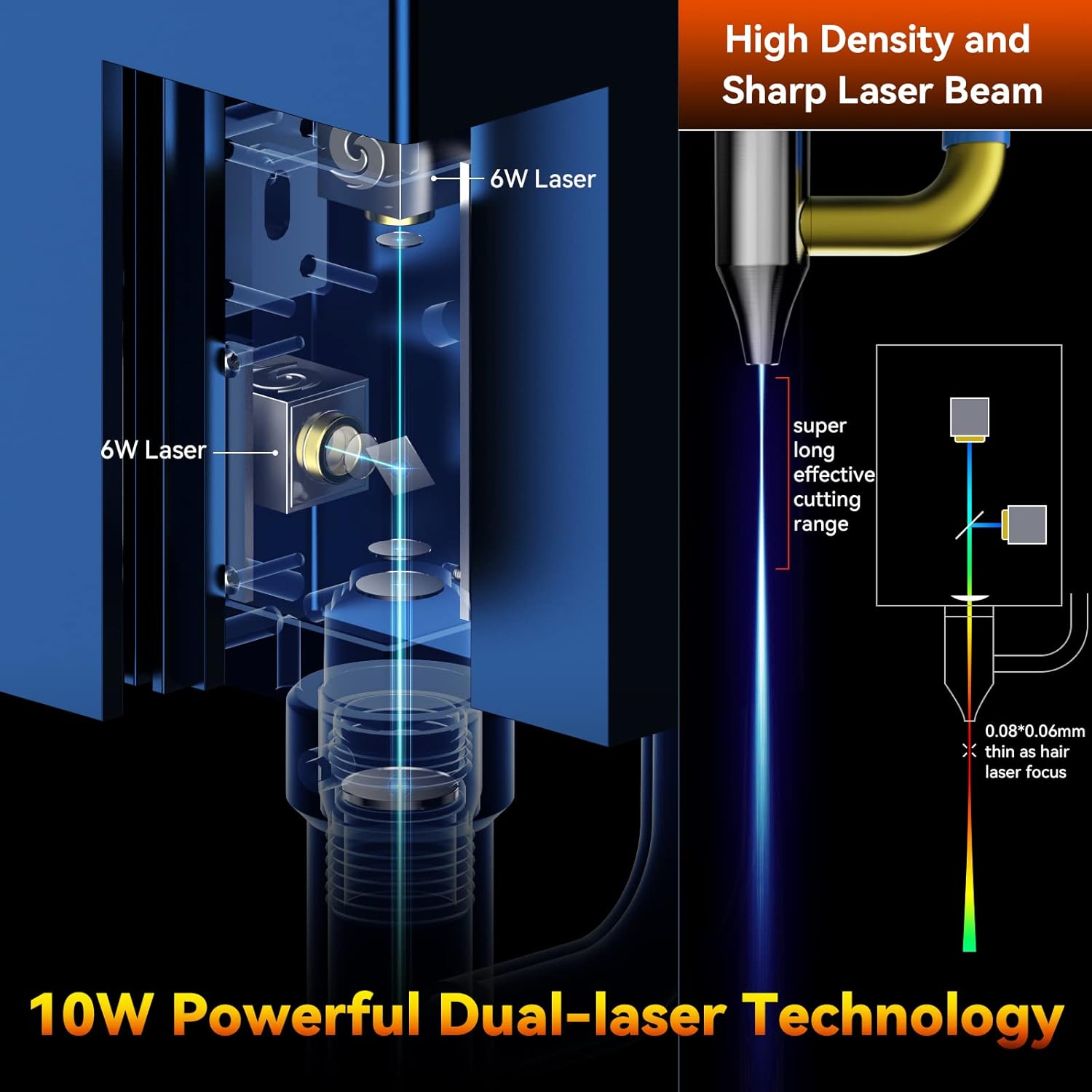
Figure 3: Illustration of the 10W Powerful Dual-laser Technology. This image demonstrates how two 6W lasers are combined to achieve a 10W output with a super long effective cutting range and a fine 0.06x0.08mm laser focus.
3.4 Air Assist System Connection
Connect the air pipe from the 12V automatic air pump to the air assist nozzle on the laser module. Ensure the air pump is connected to the mainboard's designated port.

Figure 4: Close-up of the Built-in High Pressure Air Assist Nozzle. This image illustrates the advanced fluid mechanics design of the S30 Pro nozzle, which enhances airflow for improved cutting performance.
3.5 SCULPFUN TS1 Touch Screen Connection
Connect the SCULPFUN TS1 touch screen to the laser engraver using the provided USB cable. Power on the TS1 using its dedicated power cord.

Figure 5: SCULPFUN TS1 Touch Screen for Laser Engravers. This image highlights the TS1's WiFi function, 3.5-inch capacitive screen, and wide compatibility with S30 series machines.

Figure 6: SCULPFUN TS1 WiFi Functionality. This image shows the TS1 connected to the engraver and interacting with the SCULPFUN mobile phone app for wireless control and file looming.
3.6 Tarkvara installimine
The S30 Pro supports various operating software:
- LightBurn (recommended, with air assist function M8)
- LaserGRBL
- Benbox
- GrblController
- LiteFire
These software packages support Windows and MAC systems. Supported file formats include NC, BMP, JPG, PNG, DXF, and other image formats. Install your preferred software and configure it for the S30 Pro.
4. Kasutusjuhised
4.1 Graveerimiseks/lõikamiseks ettevalmistumine
- Materjali paigutus: Place the material to be engraved or cut on the metal backing plate. Ensure it is flat and securely positioned within the working area.
- Fookuse reguleerimine: Adjust the laser focus using the fixed focus column and sliding device to achieve the optimal focal point for your material.
- Tarkvara häälestus: Ava valitud graveerimistarkvara (nt LightBurn). Importi või loo oma kujundus.
- Parameetri seaded: Set the appropriate laser power, speed, and passes based on the material type and desired outcome. Refer to material test guides for optimal settings.
- Air Assist Control: For cutting operations, ensure the automatic air assist is enabled in your software (e.g., M8 command in LightBurn). For engraving, air assist may be turned off for finer details or specific material requirements.

Figure 7: Automatic Controlled Air Assist in LightBurn. This image demonstrates how the air assist can be intelligently controlled (ON/OFF) via the LightBurn software's M8 button, showing its effect on cutting and engraving.
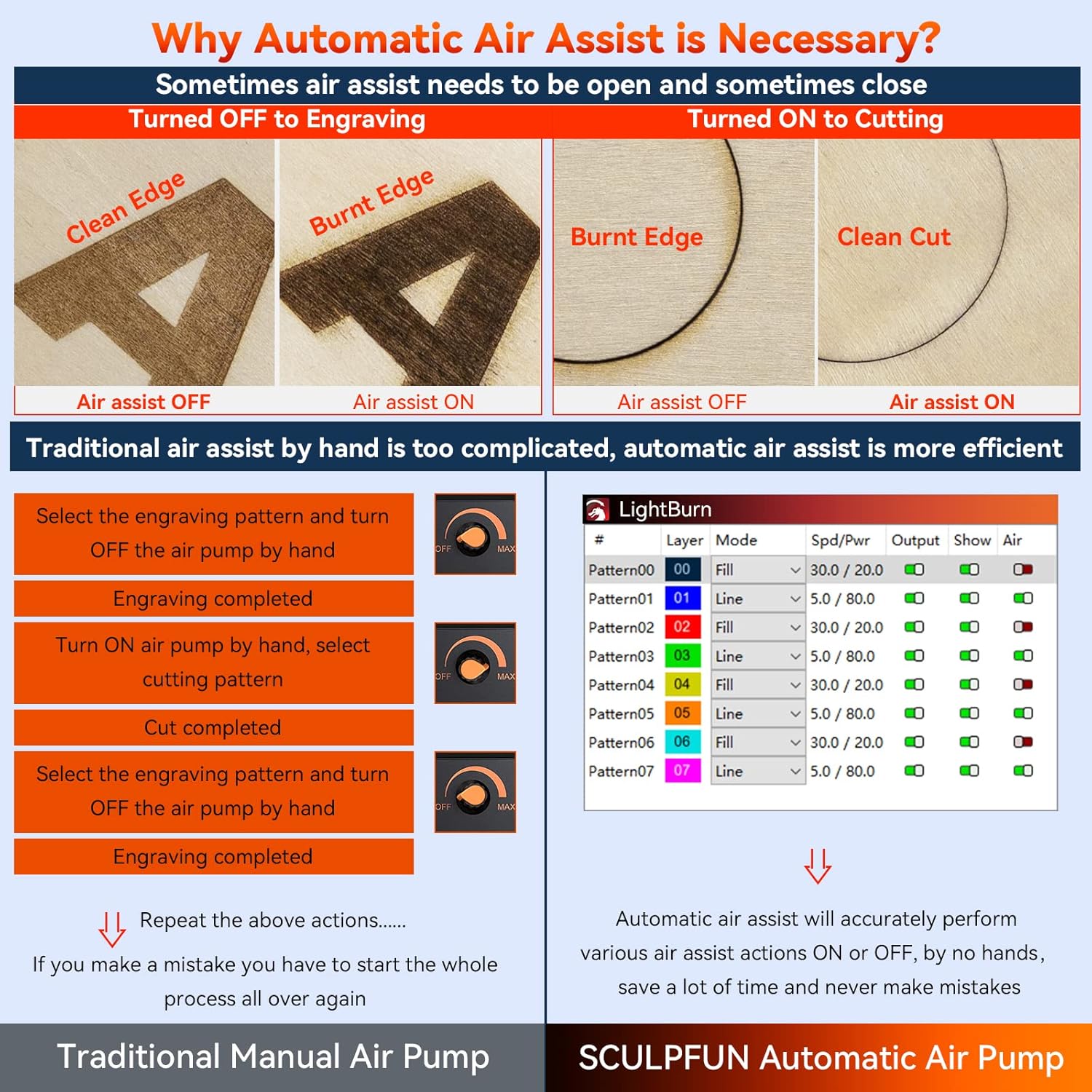
Figure 8: Comparison of Manual vs. Automatic Air Assist. This image illustrates the difference in results (clean edge vs. burnt edge) when air assist is ON or OFF for cutting and engraving, emphasizing the efficiency of automatic control.
4.2 Starting an Operation (PC/Mac Connected)
- Veenduge, et graveerija oleks arvutiga USB kaudu ühendatud.
- In your software, click the "Start" or "Run" button to begin the laser operation.
- Jälgige protsessi tähelepanelikult.
4.3 Offline Operation (SCULPFUN TS1 Touch Screen)
The TS1 touch screen enables engraving without a direct computer connection.
- Valmistage ette File: Save your engraving file (e.g., G-code) to the SD card provided with the TS1.
- Sisestage SD-kaart: Insert the SD card into the TS1 touch screen.
- Valige File: On the TS1 interface, navigate to the "Carving" or "Files" section and select your desired file.
- Alusta graveerimist: Follow the on-screen prompts to initiate the engraving process.
4.4 Wi-Fi Connectivity (SCULPFUN TS1 and Mobile App)
For advanced control and real-time slicing, connect the TS1 to Wi-Fi and use the SCULPFUN mobile app.
- Connect TS1 to Wi-Fi: On the TS1, go to "Set Up" and configure Wi-Fi settings to connect to your local network.
- Laadige rakendus alla: Download the SCULPFUN mobile app on your smartphone.
- Siduge seade: Open the app and follow instructions to pair with your TS1.
- Control and Slice: Use the app for wireless control, file management, and real-time slicing functions.
5. Hooldus
Regular maintenance ensures optimal performance and extends the lifespan of your SCULPFUN S30 Pro.
- Puhas laserlääts: Periodically clean the laser lens using a soft, lint-free cloth and lens cleaning solution. A dirty lens can reduce laser power and engraving quality.
- Clean Air Assist Nozzle: Ensure the air assist nozzle is free from debris and residue to maintain optimal airflow.
- Lubricate Linear Rails: Apply a small amount of lubricant to the industrial-grade linear rails occasionally to ensure smooth movement of the laser module.
- Clean Machine Frame: Wipe down the machine frame to remove dust and debris.
- Kontrollige ühendusi: Periodically inspect all electrical and air pipe connections for looseness or damage.
- Laser Repair Kit: Utilize the provided laser repair kit for minor maintenance or replacement of specific laser components as instructed in the detailed manual.
6. Veaotsing
See jaotis käsitleb levinud probleeme, millega võite kokku puutuda.
| Probleem | Võimalik põhjus | Lahendus |
|---|---|---|
| Laser ei sütti või on nõrk väljund | Dirty laser lens; Incorrect focus; Low power setting; Loose connection. | Clean the laser lens; Adjust focus; Increase laser power in software; Check all cable connections. |
| Graveerimise/lõikamise kvaliteet on halb | Incorrect speed/power settings; Material not flat; Air assist not optimized; Dirty lens. | Adjust speed and power settings; Ensure material is flat; Verify air assist is ON for cutting and OFF for engraving if needed; Clean lens. |
| Machine not responding to software | USB cable disconnected; Driver issue; Incorrect COM port selected. | Check USB connection; Reinstall drivers; Select correct COM port in software. |
| Õhuabi ei tööta | Air pump not connected; Air pipe kinked/blocked; M8 command not sent. | Check air pump connection to mainboard; Inspect air pipe for blockages; Ensure M8 command is enabled in LightBurn. |
| TS1 Touch Screen not connecting to engraver | USB cable loose; TS1 not powered on. | Ensure USB cable is firmly connected between TS1 and engraver; Verify TS1 is powered on. |
7. Tehnilised andmed
7.1 SCULPFUN S30 Pro Laser Engraving Machine
- Tootemudel: SCULPFUN S30 Pro
- Diode Laser Output Power: 10W (light energy)
- Laseri fookus: 0.06x0.08mm
- Laseri lainepikkus: 455 ± 5 nm
- Fokuseerimise meetod: Fixed focus column + sliding device
- Laser Protection Cover: Eemaldatav, reguleeritav
- Toite sisend: 100-240V AC, 50/60Hz
- Väljundvõimsus: 12V 7A
- Graveerimise täpsus: 0.005 mm
- Engraving Area Size: Standard 410x400mm (expandable to 935x400mm or 935x905mm)
- Machine Electric Power: Umbes 60 W
- Air Pump Type: Mainboard-controlled, 12V, flow 30L/min
- Air Hose Inner Diameter: 7.5 mm
- Põhiplaat: 32-bit air-assisted, reserved for Bluetooth and SD card offline control (upgrade package sold separately)
- Kasutustarkvara: LightBurn (M8 air assist), LaserGRBL, LightBurn, Benbox, GrblController, LiteFire
- Toetatud OS: Windows, MAC
- Toetatud File Vormingud: NC, BMP, JPG, PNG, DXF jne.
- Andmeedastus: USB connection or Bluetooth wireless connection
- Toote mõõtmed: 18.11 x 18.11 x 6.69 tolli
- Paki kaal: 6.85 kg
- Sertifikaadid: CE, FCC, RoHS, FDA, ICE
7.2 SCULPFUN TS1 Touch Screen
- Toote materjal: ABS+PC
- Ekraani suurus: 3.5 tolli
- Ekraani materjal: Mahtuvuslik puutetundlik ekraan
- Ekraani eraldusvõime: 480x320
- Toote suurus: 126x89x25 mm
- Toote kaal: 130 g
8. Garantii ja tugi
For warranty information, technical support, or service inquiries, please refer to the official SCULPFUN webveebisaidilt või võtke otse ühendust nende klienditeenindusega. Hoidke ostutšekk ostutõendina alles.
Tootja: SKULFUN
Esmakordse saadavaloleku kuupäev: 3. september 2024
Täiendava abi saamiseks külastage aadressi SCULPFUN Store on Amazon.


