1. Sissejuhatus
This manual provides detailed instructions for the setup, operation, maintenance, and troubleshooting of your NIIMBOT B1 Portable Thermal Label Printer. Please read this manual thoroughly before using the device to ensure proper function and longevity.

Image 1.1: The NIIMBOT B1 Label Maker shown with examples of printed labels for various applications.
2. Toote lõppview
2.1 Pakendi sisu
Veenduge, et pakis on kõik esemed olemas:
- NIIMBOT B1 Label Maker x1
- C-tüüpi kaabel x1
- Kasutusjuhend x1
- Roll label tape (50x30mm) x1 (pre-installed in some models)

Image 2.1: The NIIMBOT B1 Label Maker and its included accessories.
2.2 Põhifunktsioonid
- 2-Inch Label Printing: Supports label widths from 20mm to 50mm (1-2 inches).
- Termotrükk: No ink or toner required, reducing operational costs.
- Automatic Label Identification: For faster and easier printing.
- Ühenduvus: Compatible with iOS & Android smartphones via Bluetooth, and PC via USB.
- NIIMBOT App: Offers 10+ fonts/languages, 100+ borders, 1500+ symbols, barcodes, QR codes, icons, time stamps, pictures, photos, and OCR print functions.
- Kaasaskantav disain: Compact and lightweight for easy transport and use.
- Automaatne väljalülitus: Customizable auto-off settings (15min, 30min, 60min, never) to conserve battery.
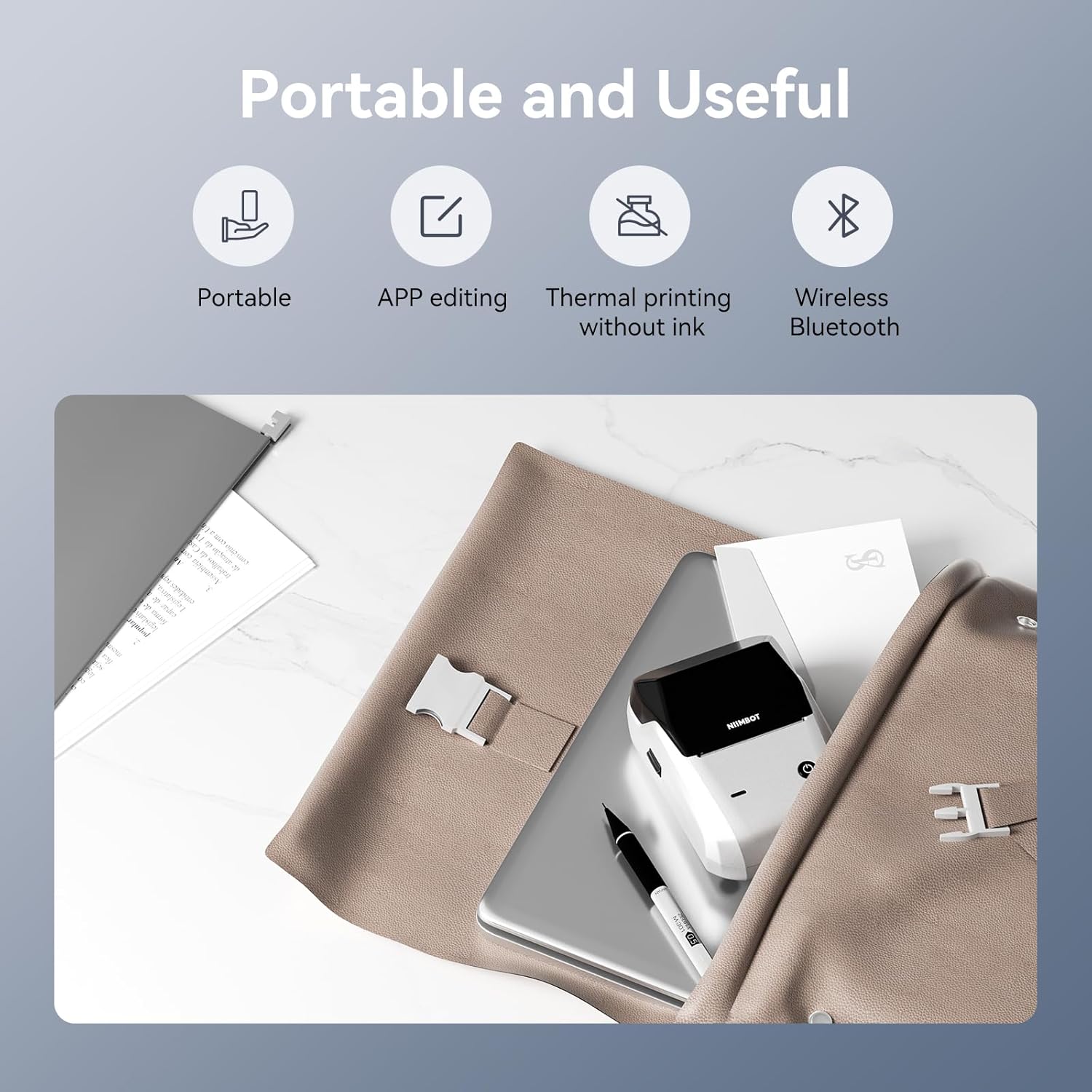
Pilt 2.2: läbiview of the NIIMBOT B1's portable and useful features.
3. Seadistamine
3.1 Etikettlindi laadimine
- Rotate the side latch to open the tape slot.
- Load the label tape into the slot, ensuring the label side faces upwards.
- Adjust the guide plate to fit the label roll snugly.
- Close the tape slot, leaving a small portion of the label tape extending for smooth feeding.

Image 3.1: Proper installation of label tape in the NIIMBOT B1.
3.2 Rakenduse installimine ja ühendamine
The NIIMBOT B1 requires the NIIMBOT app for smartphone operation.
- Download the NIIMBOT app from the App Store (iOS) or Google Play Store (Android). Otsi "NIIMBOT".
- Veenduge, et teie telefoni Bluetooth on lubatud.
- Open the NIIMBOT app and click "Connect" to search for nearby devices.
- Select your B1 printer from the list (e.g., B1-XXXXXX) to pair. If prompted for a pairing code, enter 0000 or 1234.
- Once connected, the app will automatically identify the label tape in the printer.

Image 3.2: NIIMBOT App download and connection process.
3.3 PC Connection (Windows)
For PC connectivity, you will need to download the driver from the official NIIMBOT websaidile.
- Külastage ametlikku NIIMBOT-i website and download the B1 printer driver for Windows 7/10.
- Install the driver on your PC.
- Connect the NIIMBOT B1 printer to your PC using the provided USB Type-C cable.
- Open the NIIMBOT desktop software to begin printing.

Image 3.3: Connecting the NIIMBOT B1 to a PC via USB.
3.4 Quick Start Video Guide
Watch this video for a quick visual guide on setting up and using your B1 Label Maker.
Video 3.4: A quick start guide demonstrating the initial setup and basic operation of the NIIMBOT B1 Label Maker.
4. Kasutusjuhised
4.1 Creating and Editing Labels
- In the NIIMBOT app, select a template or create a new label.
- Use the various editing tools to add text, images, icons, barcodes, QR codes, and other elements.
- Customize font styles, sizes, alignment, and other layout options.
- The app supports features like OCR (Optical Character Recognition) for converting images to text.

Image 4.1: The NIIMBOT App interface for creating and editing labels.
4.2 Siltide printimine
- After designing your label, click the "Print" button in the app.
- Adjust the number of copies and print density as needed.
- Confirm the print settings and initiate printing.
- The printer will automatically feed and print the labels. Gently tear off the printed labels.

Image 4.2: Smartphone printing process with the NIIMBOT B1.
4.3 Märgutulede tähendused
Understand the status of your printer through its indicator light:
- Välk sinine: Püsivara uuendamine on pooleli.
- Püsiv sinine: Printer is in standby mode.
- Vilgub roheline: Printer is actively printing.
- Püsiv roheline: Bluetooth is successfully connected.
- Punane välklamp: Printer is charging.
- Püsiv punane: Cover is open, out of paper, or low battery.

Image 4.3: Guide to the NIIMBOT B1 indicator light statuses.
4.4 Kasutamine Ntamples
The NIIMBOT B1 is versatile for various labeling needs:
- Kodukasutus: Kitchen labels, gift labels, kids' item labels, trip item labels.
- Ärikasutus: Beauty & personal care, DIY item labels, mail labels, perfume labels, bakery food labels.

Pilt 4.4: Näideamples of NIIMBOT B1 usage for home organization.

Pilt 4.5: Näideamples of NIIMBOT B1 usage for small businesses.

Pilt 4.6: Näideamples of labels for bakery and food products.
Video 4.7: Demonstration of the NIIMBOT B1 Label Maker's ease of use for various labeling tasks.
Video 4.8: Etteasteasing the multipurpose capabilities of the NIIMBOT B1 Label Maker for different applications.
5. Hooldus
5.1 Prindipea puhastamine
Prindipea regulaarne puhastamine tagab optimaalse prindikvaliteedi.
- Lülitage printer välja ja eemaldage toitekaabel.
- Avage etiketi lahter.
- Pühkige prindipead õrnalt vatitupsuga.ampisopropüülalkoholiga.
- Allow the print head to dry completely before closing the compartment and turning on the printer.
5.2 Aku hooldus
- Laadige printerit regulaarselt, isegi kui seda sageli ei kasutata, et säilitada aku seisukord.
- Avoid exposing the printer to extreme temperatures.
- Laadimiseks kasutage ainult kaasasolevat C-tüüpi kaablit.
6. Veaotsing
6.1 Levinud probleemid ja lahendused
| probleem | Võimalik põhjus | Lahendus |
|---|---|---|
| Printer ei lülitu sisse | Aku tühjenemas; toitenuppu pole piisavalt kaua all hoitud | Laadige printerit; vajutage ja hoidke toitenuppu 3 sekundit all. |
| Bluetoothi kaudu ei saa ühendust luua | Bluetooth off on phone; Printer not in pairing mode; App permissions | Ensure Bluetooth is on; Restart printer; Check app permissions for nearby devices. |
| Kehv prindikvaliteet | Dirty print head; Incorrect print density; Low battery | Clean the print head (see 5.1); Adjust print density in the app; Charge the printer. |
| Silte ei söödeta õigesti | Incorrect label installation; Guide plate not adjusted | Reinstall label tape correctly (see 3.1); Adjust the guide plate to fit the label roll. |
| Arvuti ei tuvasta printerit | Driver not installed; Faulty USB cable | Install the correct PC driver (see 3.3); Try a different USB cable. |
7. Tehnilised andmed
| Funktsioon | Detail |
|---|---|
| Mudeli nimi | B1 |
| Trükitehnoloogia | Termiline |
| Ühenduvus | Bluetooth, USB |
| Maksimaalne printimisresolutsioon | 203 dpi |
| Maksimaalne printimiskiirus (ühevärviline) | 15 mm/s |
| Maksimaalne meediaformaat | 2 tolli (50 mm) |
| Ühilduvad seadmed | Smartphone (Android & iOS), PC (Windows 7/10) |
| Kauba kaal | 1.1 naela (499 grammi) |
| Toote mõõtmed | 5.5" P x 3.5" L x 2.5" K |
| Aku | Vaja on 1 A akut (kaasas) |
| Konkreetsed kasutusalad | Labeling for Small Business Product Price/Address, School and Office Files Classification, Home Supplies Organization, Personal Item Identification, Name Tags and Warehouse |
8. Garantii ja tugi
8.1 Garantii teave
The NIIMBOT B1 Label Printer comes with a 1-year warranty coverage. Please retain your proof of purchase for warranty claims.
8.2 Klienditugi
For further assistance, technical support, or warranty inquiries, please contact NIIMBOT customer service through their official websaidil või tootepakendil olevas kontaktteabes.


