1. Sissejuhatus
This manual provides essential information for the safe and efficient use of your Google TV 7000 Series 4K Ultra HD LED Television. Please read these instructions thoroughly before operating the device and retain them for future reference.
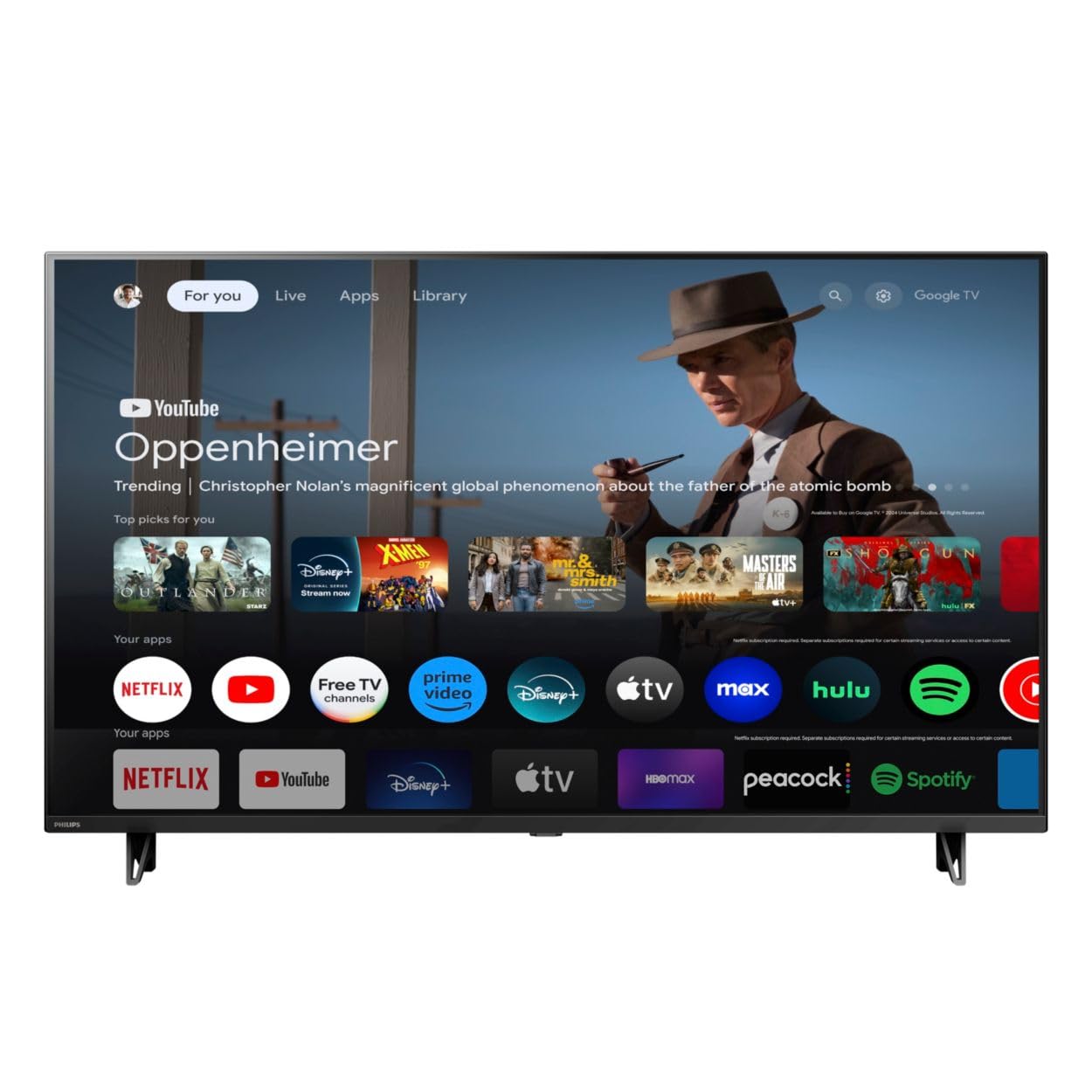
Esiosa view of the Google TV 7000 Series 4K Ultra HD LED Television, showcasing oma õhukese raami ja ekraani.
2. Seadistamine
2.1 Karbist väljavõtmine ja pakendi sisu
Eemaldage pakendist ettevaatlikult kõik esemed. Veenduge, et kõik komponendid on olemas:
- Google TV 7000 Series Television
- Kaugjuhtimispult
- Patareid kaugjuhtimispuldi jaoks
- Lauapealne alus
- Screws for tabletop stand
- Kiirjuhend
- Kasutusjuhend (see dokument)
2.2 Toite ühendamine
Connect the power cord to the TV's power input, then plug the other end into a wall outlet. Ensure the power outlet is easily accessible.
2.3 Väliste seadmete ühendamine
Your television supports various connectivity options:
- HDMI: Connect devices like Blu-ray players, game consoles, or set-top boxes to the HDMI ports. This model features Audio Return Channel (HDMI 2).
- USB: Use the USB port for media playback or connecting compatible accessories.
- Ethernet: Stabiilse juhtmega internetiühenduse loomiseks ühendage Etherneti kaabel LAN-porti.
- Kõrvaklappide väljund: Privaatseks kuulamiseks ühendage kõrvaklapid.
- Digitaalne heliväljund (optiline): Väliste helisüsteemidega ühendamiseks.
- CVBS+Audio L/R In: Vanemate analoogseadmete ühendamiseks.
2.4 Algseadistus
Esimesel sisselülitamisel juhendab teler teid esmase seadistamise protsessis. See hõlmab järgmist:
- Keele valik
- Connecting to a Wi-Fi network or using Ethernet
- Signing in with your Google account to access Google TV features and apps
- Scanning for available channels (ATSC, NTSC)
2.5 Paigaldusvalikud
You can place your TV on a tabletop using the included stand or mount it on a wall.
- Lauaalus: Attach the tabletop stand using the provided screws as per the quick start guide.
- Seinakinnitus: For wall mounting, use a VESA compatible mount (600 x 400 mm). Consult a professional for wall mounting to ensure safety and proper installation.
3. Kasutusjuhised
3.1 Kaugjuhtimispult üleview
The remote control allows you to navigate the Google TV interface, adjust settings, and control playback. It supports voice control for Google Assistant.
3.2 Põhifunktsioonid
- Võimsus: Teleri sisse- või väljalülitamiseks vajutage toitenuppu.
- Maht: Helitugevuse reguleerimiseks kasutage helitugevusnuppe.
- Kanalid: Use the channel buttons to switch between TV channels.
- Sisend: Valige soovitud sisendallikas (HDMI, USB jne).
3.3 Google TV liidese navigeerimine
Use the directional pad and 'OK' button on your remote to navigate the Google TV home screen. The home screen provides access to your installed apps, recommended content, and settings.
3.4 Nutikad funktsioonid
- Sisseehitatud Chromecast: Cast content from your compatible mobile devices or computer directly to your TV.
- Sisseehitatud Google'i assistent: Press the Google Assistant button on your remote to use voice commands for searching content, controlling smart home devices, getting information, and more.
- Voogesitusrakendused: Access popular streaming services like Netflix, YouTube, Discovery+, Tubi TV, and Prime Video directly from the Google TV interface.
3.5 Pildi ja heli seaded
Kohandage oma viewkuulamiskogemuse muutmine teleri seadete menüü kaudu:
- Pildi stiil: Choose from various preset picture modes or customize settings like brightness, contrast, color, and sharpness. Features include Dynamic contrast, Film mode, Blue stretch, and Custom Color management.
- HDR tugi: The TV supports HDR10 and HLG for enhanced contrast and color with compatible content.
- Mängurežiim: Optimize picture settings for gaming to reduce input lag.
- Heli stiil: Select sound presets or adjust bass and treble. Features include Dolby Audio and Auto Volume Leveling.
- Kuvasuhe: Adjust the screen aspect ratio (e.g., Automatic, 4:3, Movie Expand, Full).
3.6 Ühenduvus
Your TV offers various ways to connect to networks and devices:
- WiFi: Looge internetiühenduse loomiseks juhtmevaba ühendus oma koduvõrguga.
- Bluetooth: Connect compatible Bluetooth devices such as headphones or game controllers.
- Ethernet: Provides a stable wired internet connection.
4. Hooldus
4.1 Ekraani ja teleri korpuse puhastamine
- Enne puhastamist eemaldage teler alati vooluvõrgust.
- Pühkige ekraani ja teleri korpust õrnalt pehme, kuiva ja ebemevaba lapiga.
- Kangekaelsete plekkide korral dörtsige kergeltampLoputage lappi veega või spetsiaalse ekraanipuhastusvahendiga. Ärge kunagi pihustage puhastusvahendit otse ekraanile.
- Vältige abrasiivsete puhastusvahendite, vahade või lahustite kasutamist.
4.2 Tarkvaravärskendused
Your Google TV may receive automatic software updates to improve performance and add new features. Ensure your TV is connected to the internet to receive these updates. You can also manually check for updates in the settings menu.
4.3 Kaugjuhtimispuldi hooldus
Replace batteries when the remote control's response becomes sluggish. Do not mix old and new batteries or different types of batteries. Keep the remote control away from moisture and direct sunlight.
5. Veaotsing
Kui teil tekib teleriga probleeme, vaadake järgmisi levinud lahendusi.
| Probleem | Võimalik lahendus |
|---|---|
| Pole jõudu | Kontrollige, kas toitejuhe on kindlalt nii teleri kui ka seinakontakti ühendatud. Veenduge, et pistikupesa töötab. |
| Pilti pole, aga heli on olemas | Veenduge, et valitud on õige sisendallikas. Kontrollige välisseadmete ühendusi. |
| Heli pole, aga pilt on olemas | Kontrollige helitugevust ja vaigistuse olekut. Veenduge, et välised helisüsteemid on korralikult ühendatud ja sisse lülitatud. |
| Kaugjuhtimispult ei tööta | Vahetage patareid välja. Veenduge, et puldi ja teleri infrapunasensori vahel ei oleks takistusi. |
| Võrguühenduse probleemid | Taaskäivitage ruuter ja modem. Looge uuesti ühendus WiFi-võrguga või kontrollige Etherneti kaabli ühendust. |
| Picture quality issues (e.g., pixelation) | Check the signal strength for broadcast channels. For streaming content, ensure a stable internet connection. Adjust picture settings. |
5.1 Tehaseseadetele lähtestamine
If problems persist, a factory reset may resolve them. This will erase all personal settings and installed apps, returning the TV to its original factory state. Consult the on-screen menu for the factory reset option, usually found under System or Device Preferences in Settings.
6. Tehnilised andmed
Key technical specifications for the Google TV 7000 Series 4K Ultra HD LED Television:
| Funktsioon | Spetsifikatsioon |
|---|---|
| Ekraani suurus | 43 tolli |
| Kuvamistehnoloogia | LCD UltraHD Display, LED Backlight |
| Resolutsioon | 4K (2160p) |
| Värskendussagedus | 120 PMR (Picture Motion Rate) |
| Toetatud HDR-vorming | HDR10, HLG |
| Operatsioonisüsteem | Android 11 (Google TV) |
| Ühenduvustehnoloogia | Bluetooth, Ethernet, USB, WiFi |
| Helifunktsioonid | Dolby Audio, Auto Volume Leveling |
| Eriomadused | Chromecast Built-in, Google Assistant Built-in, Game Mode, Digital Noise Reduction, MPEG artifact reduction, Dynamic contrast |
| Toote mõõtmed (P x L x K) | 9.8" P x 37.9" L x 23.9" K |
| Kauba kaal | 14.99 naela |
| VESA kinnitusstandard | 600 x 400 mm |
| Tootja | Philips |
| Mudeli number | 43PUL7652/F7 |
| UPC | 609585254893 |
7. Garantii ja tugi
7.1 Garantii teave
This product comes with a Limited Warranty. Please refer to the warranty card included in your package or contact the manufacturer for specific terms and conditions regarding coverage and duration.
7.2 Klienditugi
For technical assistance, troubleshooting beyond this manual, or warranty claims, please contact the manufacturer, Philips, or your retailer. Have your model number (43PUL7652/F7) and serial number ready when contacting support.


