1. Toote lõppview
The POLONO P31S is a compact and portable thermal label printer designed for various labeling needs in home, office, and school environments. It connects wirelessly via Bluetooth to your smartphone or tablet, allowing you to design and print labels using the dedicated mobile application. This device features a built-in cutter and operates without ink, utilizing thermal printing technology for clear, durable labels.
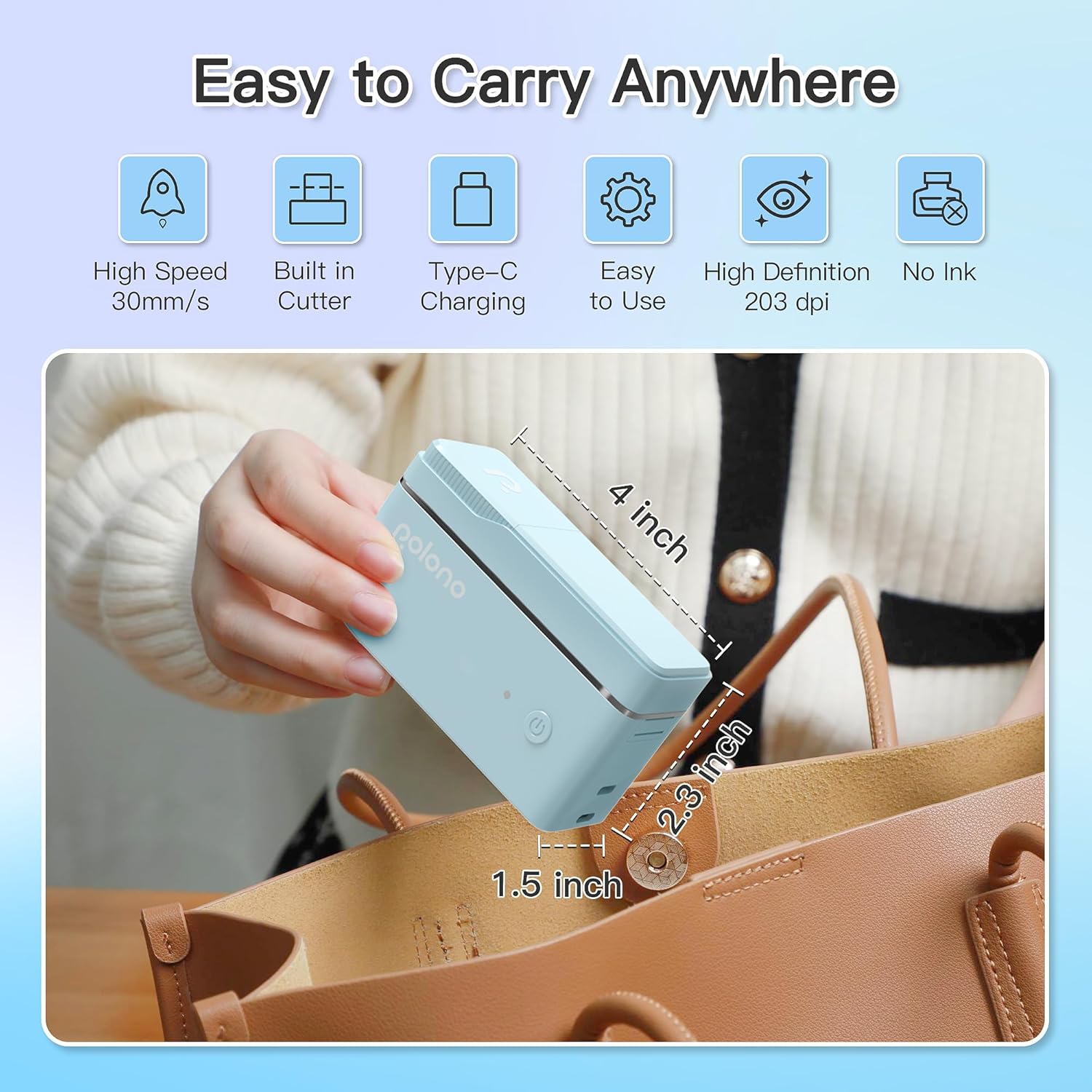
Joonis 1: POLONO P31S Label Printer highlighting its compact design and dimensions (approximately 4 inches long, 2.3 inches high, 1.5 inches wide).
Peamised omadused:
- Kaasaskantav ja kerge disain.
- Bluetooth connectivity for wireless printing.
- Thermal printing technology (no ink required).
- Built-in label cutter.
- Supports various label types including text, QR codes, barcodes, and images.
- Laetav aku.
2. Ohutusalane teave
Please read and understand all safety instructions before using the POLONO P31S label printer to prevent injury or damage to the device.
- Ärge võtke seadet lahti, parandage ega muutke seda.
- Hoidke seadet eemal veest, niiskusest ja äärmuslikest temperatuuridest.
- Use only POLONO-approved label tapes to ensure optimal performance and prevent damage.
- Vältige prindipea puudutamist kohe pärast printimist, kuna see võib olla kuum.
- Hoida lastele kättesaamatus kohas.
- Use the provided charging cable or a certified equivalent.
3. Pakendi sisu
Veenduge, et pakendis on kõik esemed olemas:
- POLONO P31S Label Printer
- Label Tape Roll (starter roll)
- USB laadimiskaabel
- Kasutusjuhend (see dokument)
4. Seadistamine
4.1 Seadme laadimine
Before first use, fully charge the label printer. Connect the provided USB charging cable to the printer's charging port and to a USB power adapter (not included) or a computer's USB port. The indicator light will show charging status.
4.2 Sildilindi paigaldamine
- Avage siltide sahtli kaas.
- Insert the label tape roll with the printing surface facing up, ensuring it is properly seated.
- Pull a small portion of the label tape out, extending it past the cutter blade.
- Sulgege sildikambri kaas kindlalt.

Joonis 2: Proper installation of POLONO P31S label tape. Ensure the green sticker on the tape is not removed or damaged, as it contains chip technology for optimal performance. Do not pull the label out directly; use the cutting blade.
4.3 App Download and Bluetooth Connection
- Download the "Labelnize" app from the Apple App Store or Google Play Store.
- Turn on the POLONO P31S label printer by pressing and holding the power button.
- Lubage Bluetooth nutitelefonis või tahvelarvutis.
- Open the "Labelnize" app. The app will prompt you to allow Bluetooth access. Grant permission.
- Within the app, search for available devices and select "P31S" to connect.
- Once connected, the app will indicate a successful connection, and you are ready to create labels.
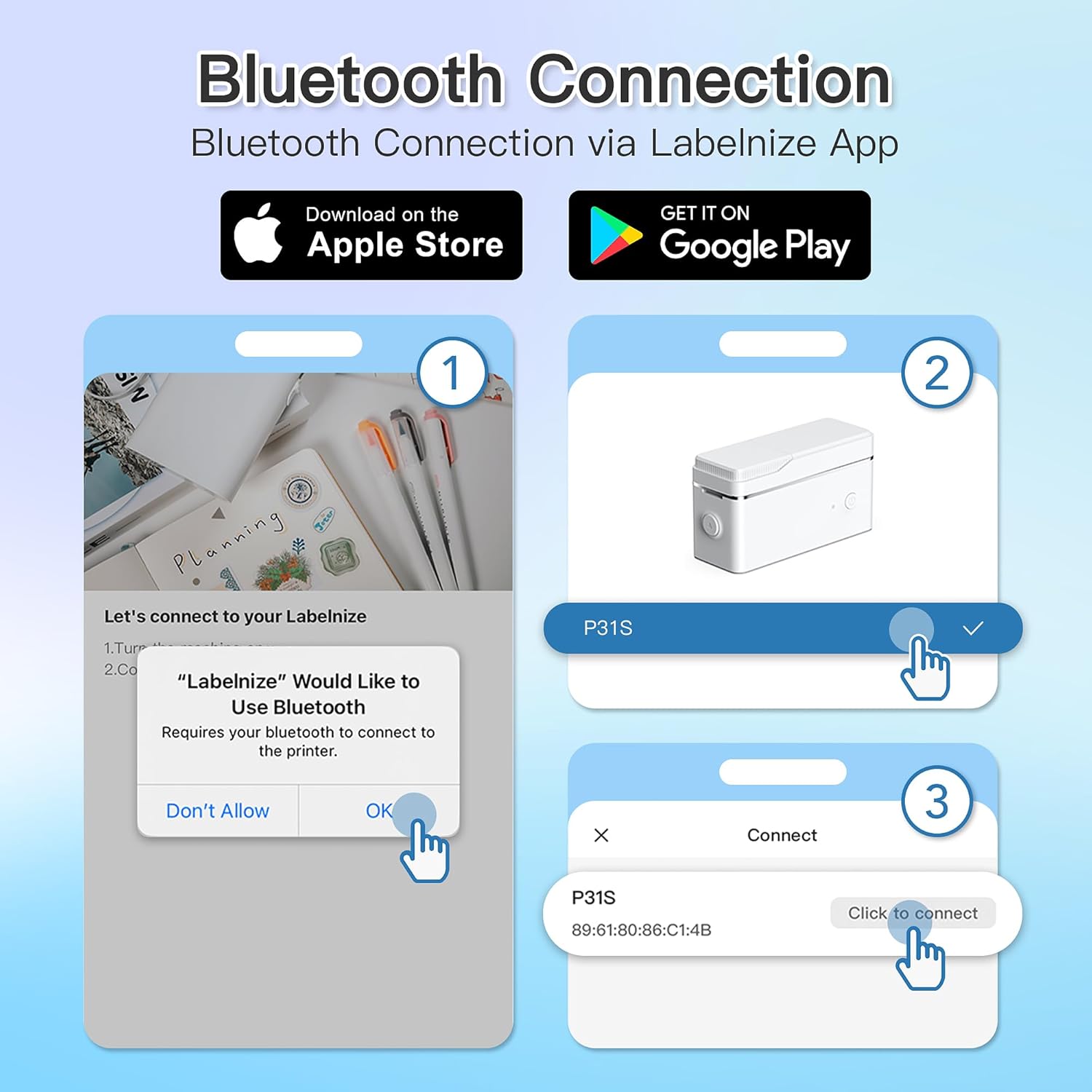
Joonis 3: Steps for Bluetooth connection via the Labelnize App. Download the app, allow Bluetooth access, select "P31S" from the device list, and click "Connect".
5. Kasutusjuhised
5.1 Creating Labels with the Labelnize App
The Labelnize app offers a variety of tools to design your labels:
- Tekst: Enter custom text, choose from over 90 fonts, adjust size, style (bold, italic), and alignment.
- Piirid: Select from over 95 border designs to frame your labels.
- Icons/Graphics: Access a library of over 670 tab icons and other graphics to enhance your labels.
- QR Code/Barcode: Generate QR codes or barcodes for various applications.
- Pildid: Sisesta pilte oma seadme galeriist.
- Mallid: Utilize pre-designed templates for common labeling tasks.

Joonis 4: The Labelnize app interface for creating labels, offering extensive customization options including borders, fonts, and icons. The app supports multiple languages.
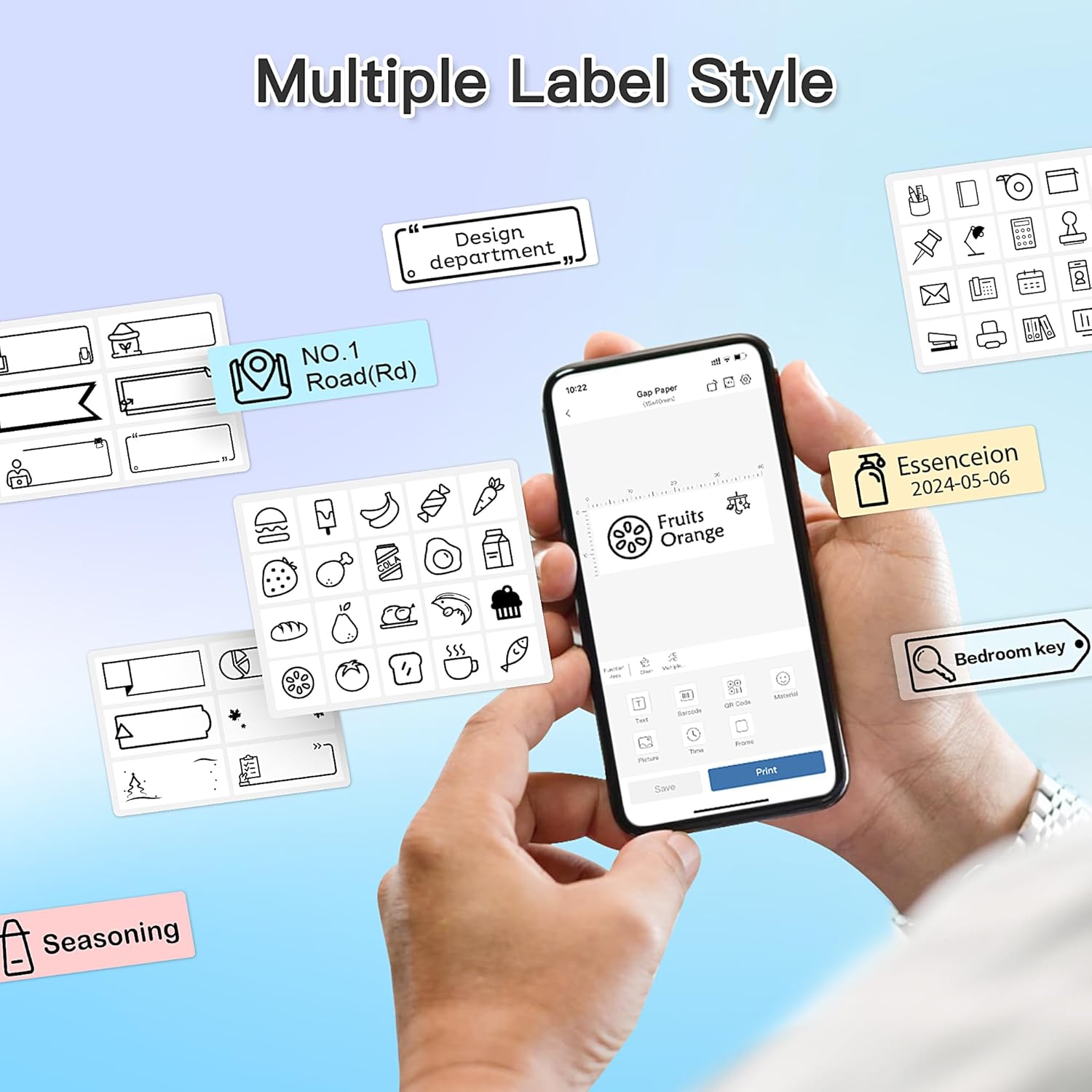
Joonis 5: Examples of diverse label styles achievable with the POLONO P31S, demonstrating the flexibility in design for different organizational needs.
5.2 Siltide printimine
After designing your label in the Labelnize app:
- Review oma sildi kujundus rakenduse ekraanil.
- Puudutage rakenduses nuppu „Prindi”.
- Confirm print settings (e.g., number of copies) if prompted.
- Printer söödab ja prindib sildi automaatselt.
5.3 Sisseehitatud lõikuri kasutamine
The POLONO P31S features a built-in cutter for clean and precise label separation. After printing, gently press the cutter button or lever (depending on model variation) to cut the label. Do not pull the label manually to tear it, as this may damage the printer or result in uneven cuts.
6. Hooldus
6.1 Prindipea puhastamine
To maintain print quality, clean the print head periodically:
- Lülitage printer välja ja eemaldage toitekaabel.
- Avage siltide sahtli kaas.
- Pühkige prindipead õrnalt vatitupsuga.ampisopropüülalkoholiga.
- Enne kaane sulgemist ja printeri sisselülitamist laske prindipeal täielikult kuivada.
6.2 Aku hooldus
- Charge the battery regularly, even if the printer is not used frequently, to prolong its lifespan.
- Vältige aku pikaajalist täielikku tühjenemist.
- Hoidke printerit jahedas ja kuivas kohas, kui seda ei kasutata.
7. Veaotsing
| Probleem | Võimalik põhjus | Lahendus |
|---|---|---|
| Printer ei lülitu sisse. | Aku on tühi või puudub toide. | Laadige printerit kaasasoleva USB-kaabli abil. |
| Bluetoothi kaudu ei saa ühendust luua. | Bluetooth is off, printer is off, or app issue. | Ensure printer is on, Bluetooth is enabled on your device, and restart the Labelnize app. Try re-pairing. |
| Kehv prindikvaliteet. | Dirty print head, incorrect label tape, or low battery. | Clean the print head (Section 6.1). Ensure you are using POLONO P31S compatible label tape. Charge the printer. |
| Sildi moos. | Improper tape installation or foreign object. | Turn off the printer, open the cover, carefully remove any jammed tape. Reinstall tape correctly. |
| Printer ei reageeri. | Ajutine tarkvaratõrge. | Restart the printer and the Labelnize app. |
8. Tehnilised andmed
| Funktsioon | Detail |
|---|---|
| Mudel | P31S |
| Trükitehnoloogia | Termiline |
| Ühenduvus | Bluetooth |
| Prindi eraldusvõime | 203 x 203 DPI |
| Maksimaalne printimiskiirus (ühevärviline) | 15 ppm |
| Maksimaalne meediumi suurus | Label rolls (2 inches / 24 millimeters) |
| Tindi värv | Must (termotrükk) |
| Toiteallikas | 1 liitiumpolümeer aku (kaasas) |
| Toote mõõtmed | 7.2 x 7.4 x 12.7 cm; 260 g |
| Kaasatud komponendid | Sildid |
9. Garantii ja tugi
For warranty information and technical support, please refer to the official POLONO webveebisaidilt või võtke ühendust nende klienditeenindusega. Hoidke ostutšekk ostutõendina garantiinõuete korral.
Ametlik Websait: www.polono.com (Märkus: See on kohatäide URL, palun kontrollige tegelikku ametlikku website for POLONO products.)


