1. Sissejuhatus
The Duex Float is a 15.6-inch portable touchscreen monitor designed to enhance productivity by providing an additional display for various devices. Its unique stacked configuration aims to improve ergonomic alignment and optimize workspace.
Põhifunktsioonide hulka kuuluvad:
- 15.6" Full HD IPS 1080P Touchscreen Display
- Stacked portable screen design for ergonomic viewing
- 360° rotation and 180° folding capabilities
- Built-in kickstand for independent use
- USB Type-C and HDMI connectivity for plug-and-play functionality
- Compatibility with Windows, Mac, Android, ChromeOS, and Nintendo Switch
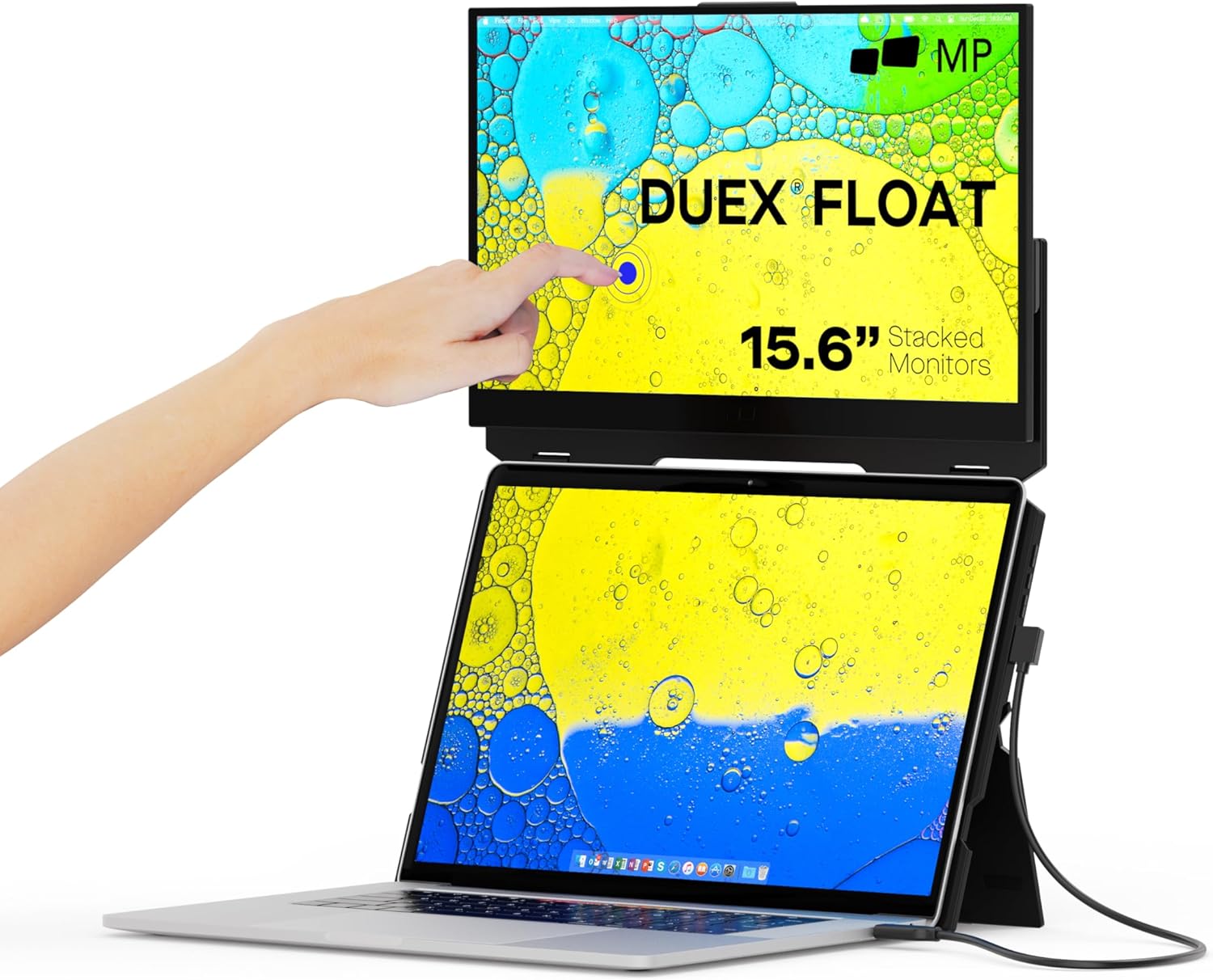
This manual provides detailed instructions for setting up, operating, and maintaining your Duex Float monitor.
2. Mis on karbis
Veenduge, et pakendis on kõik esemed olemas:
- Mobile Pixels Duex Float 15.6" Monitor x 1
- HDMI-kaabel x 1
- USB-C cable with USB adapter x 1
- Laptop Magnets x 4
3. Seadistamine
3.1 Füüsiline paigaldus
The Duex Float offers flexible installation options, including magnetic attachment to your laptop or independent use with its built-in kickstand.
Magnetkinnitus:
- Asetage magnetplaadid monitori poole ja eemaldage kleebised.
- Ensure the Duex Float is centered in the back of your laptop.
- Open your laptop monitor.
- Slide the Duex Float and extend the screen.

Sisseehitatud tugijala kasutamine:
The Duex Float features a built-in kickstand, allowing it to be used independently on any flat surface without needing to be attached to a laptop. Simply extend the kickstand from the back of the monitor to position it upright.

3.2 Ühenduvus
The Duex Float supports various connection methods for seamless integration with your devices.

USB-C ühendus:
Connect the Duex Float to your device using the provided USB-C to C cable. If your laptop has a USB-C port with DisplayPort Alternate Mode (DP Alt Mode), a single cable can provide both video and power. The Duex Float also features two USB-C ports with pass-through charging.
HDMI ühendus:
For devices without DP Alt Mode USB-C, or for gaming consoles like Nintendo Switch, use the HDMI cable for video output. You may need to use the USB-C cable for power delivery separately.

3.3 Driver Installation (MacOS)
For MacOS users, downloading specific drivers is required to enable touchscreen functionality. Please visit the official Mobile Pixels webuusimate draiverite allalaadimise ja installimisjuhiste saamiseks külastage veebisaiti.
4. Kasutusjuhised
4.1 Powering On/Off and Display Settings
Once connected, the Duex Float should automatically power on. Use the physical buttons on the side of the monitor to adjust brightness, contrast, and other display settings. The touchscreen can also be toggled on or off via these controls.

4.2 Viewing Modes and Ergonomics
The Duex Float supports multiple viewing modes to adapt to your workflow:
- Dual-screen Mode: Stacked above your laptop for an extended vertical workspace.
- Esitlusrežiim: Folded to face an audience for easy sharing.
- Töölaua režiim: Used independently with its kickstand as a standalone monitor.
The stacked configuration is designed for healthy ergonomic alignment, reducing neck and back strain by minimizing head movement.


4.3 Ekraani pööramine ja voltimine
The Duex Float supports 360° rotation and 180° folding, allowing you to freely adjust the angle and position of the screen to suit your needs.

4.4 OS-Specific Features (Mac)
On MacOS, you can use keyboard shortcuts (e.g., Command + F1) to toggle between mirroring your main screen and extending your display. This allows for quick switching between different display configurations.
5. Hooldus ja hooldus
5.1 Puhastamine
Ekraani puhastamiseks kasutage pehmet ja ebemevaba lappi. Kangekaelsete plekkide korral nühkige seda õrnaltampen the cloth with water or a screen-safe cleaning solution. Avoid harsh chemicals or abrasive materials that could damage the screen surface.
5.2 Säilitamine
When not in use, fold the Duex Float into its compact form to protect the screen and components. Store it in a cool, dry place away from direct sunlight and extreme temperatures.
6. Veaotsing
If you encounter issues with your Duex Float, refer to the following common problems and solutions:
- Ekraan ei lülitu sisse:
- Ensure the monitor is properly connected to your device via USB-C or HDMI.
- Verify that your device is powered on and outputting a signal.
- Check the power source if using a separate power adapter. - Touchscreen Not Responding (MacOS):
- Confirm that the necessary drivers for MacOS touchscreen functionality have been downloaded and installed from the Mobile Pixels websaidile. - Screen Flickering or Low Refresh Rate:
- This may indicate a compatibility issue with your device's graphics settings or a cable problem. Try adjusting your device's display settings or using a different cable.
- Veenduge, et teie seadme draiverid on ajakohased. - Unstable Attachment (Magnetic):
- Ensure the magnetic plates are securely attached to your laptop and the Duex Float is properly aligned. The built-in kickstand can also be used to provide additional support.
For further assistance, please contact Mobile Pixels customer support.
7. Tehnilised andmed
| Toote mõõtmed | 14.08 x 9.06 x 0.79 tolli |
| Kauba kaal | 4 naela |
| Seisuva ekraani suurus | 15.6 tolli |
| Kuvasuhe | 16:9 |
| Resolutsioon | 1920 x 1080 pikslit (FHD 1080p) |
| Pildi heledus | 250 niti |
| USB-pordid kokku | 1 (USB-C) |
| Ekraani pinna kirjeldus | Läikiv |
| Tootja | Mobiilipikslid |
| Mudeli number | 25882bcb-ad35-4b75-8e1d-3a031374d4b2 |
8. Garantii ja tugi
The Duex Float monitor comes with a standard manufacturer's warranty. For specific warranty details, registration, and technical support, please visit the official Mobile Pixels webveebisaidilt või vaadake tootega kaasasolevat garantiikaarti.
Lisateabe saamiseks või teiste toodetega tutvumiseks külastage Duex Store on Amazon.


