1. Sissejuhatus
This instruction manual provides guidance for the installation, setup, and operation of the MOES WiFi Light Switch and Zigbee Scene Switch Kit. The kit includes two WiFi light switches and one Zigbee scene switch, designed for smart home integration via the Tuya Smart Life App.
Olulised märkused:
- The Zigbee scene switch requires a MOES Zigbee Hub (sold separately) for functionality.
- The WiFi smart light switch supports 2.4GHz Wi-Fi networks only and requires a neutral wire for installation.
2. Toote komponendid
The MOES WiFi Light Switch and Zigbee Scene Switch Kit typically includes the following items:
- 2 x MOES WiFi Light Switches
- 1 x MOES Zigbee Scene Switch
- Mounting screws and double-sided tape (for scene switch)
- Kasutusjuhend (see dokument)

Pilt: Üleview of the MOES WiFi Light Switch and Zigbee Scene Switch Kit, showing two WiFi light switches and one Zigbee scene switch.
3. Installation of WiFi Light Switch
Ohutus ennekõike: Before beginning any electrical installation, ensure the power to the circuit breaker is turned OFF to prevent electrical shock.
- Lülitage toide välja: Leidke oma kaitselülitite paneel ja lülitage välja vahetatava lüliti toide. Veenduge, et toide on välja lülitatud, kasutades volüümiandurit.tage testija.
- Vana lüliti eemaldamine: Eemaldage ettevaatlikult olemasolev seinaplaat ja keerake vana lüliti seinakarbist lahti. Ühendage juhtmed lahti.
- Juhtmete tuvastamine: Identify the Live (Load), Neutral, and Ground wires. The MOES WiFi Light Switch requires a neutral wire. If you do not have a neutral wire, consult a qualified electrician.
- Uue lüliti ühendamine: Connect the wires from the wall box to the corresponding terminals on the MOES WiFi Light Switch. Refer to the wiring diagram provided with the product packaging for specific connections.
- Ühendage lüliti: Gently push the wired switch into the wall box and secure it with screws. Attach the new wall plate.
- Toite taastamine: Lülitage kaitselülitist toide uuesti sisse. Lüliti märgutuli peaks põlema.
4. Setup of WiFi Light Switch (Tuya Smart Life App)
- Laadige rakendus alla: Download the "Tuya Smart" or "Smart Life" app from your mobile device's app store (iOS or Android).
- Registreeru/Logi sisse: Ava rakendus ja registreeri uus konto või logi sisse olemasoleva kontoga.
- Lisa seade: Tap the "+" icon in the top right corner of the app to add a device. Select "Electrical" > "Switch (Wi-Fi)" or allow the app to auto-scan.
- Sidumisrežiimi sisenemine: For the WiFi light switch, press and hold the switch button for approximately 5-10 seconds until the indicator light blinks rapidly, indicating pairing mode.
- Ühendage Wi-Fi-ga: In the app, confirm the indicator is blinking rapidly. Enter your 2.4GHz Wi-Fi network name and password. The switch will connect to your network.
- Nimeta seade ümber: Once connected, you can rename the switch for easier identification (e.g., "Living Room Light").
5. Installation of Zigbee Scene Switch
The Zigbee scene switch is wireless and battery-powered, requiring no complex wiring.
- Aku paigaldamine: Open the back cover of the scene switch and insert a CR2032 3V battery, ensuring correct polarity.
- Paigaldamine: The scene switch can be placed on any flat surface or mounted to a wall using the provided double-sided tape. Ensure the chosen location is within range of your Zigbee Hub.

Image: Dimensions of the MOES Zigbee Scene Switch (86mm x 86mm) and details on battery type (CR2032 3V) and mounting with double-sided tape.
6. Setup of Zigbee Scene Switch (Tuya Smart Life App with Zigbee Hub)
Ensure your MOES Zigbee Hub is already set up and connected to the Tuya Smart Life App.
- Lisa seade: In the Tuya Smart Life App, navigate to your Zigbee Hub. Select "Add sub-device" or tap the "+" icon and choose "Sensor" > "Wireless Switch (Zigbee)".
- Sidumisrežiimi sisenemine: Follow the app instructions to put the Zigbee scene switch into pairing mode. This usually involves pressing and holding one of the buttons for a few seconds until an indicator light blinks.
- Ühenduse kinnitamine: The app will detect and add the scene switch. Rename it as desired.
7. Operating the WiFi Light Switch
- Käsitsi juhtimine: Press the physical button on the switch to turn connected lights on or off.
- Rakenduse juhtimine: Use the Tuya Smart Life App to remotely control the lights, set schedules (timers and countdowns), and create smart automations.
- Hääljuhtimine: Integrate the switch with voice assistants like Amazon Alexa or Google Assistant for hands-free control. Follow the integration steps within the Tuya Smart Life App or your voice assistant's app.
8. Operating the Zigbee Scene Switch
The 4-gang Zigbee scene switch allows for multiple actions from a single button, enabling up to 12 different scenes.
- Nuppude toimingud: Each of the four buttons supports three distinct actions: single click, double click, and long press.
- Stseenide loomine: In the Tuya Smart Life App, navigate to the scene switch settings. For each button and action (single click, double click, long press), you can assign a specific smart scene or automation. For example, a single click on Button 1 could activate a "Home Mode" scene, while a double click could activate "Away Mode."
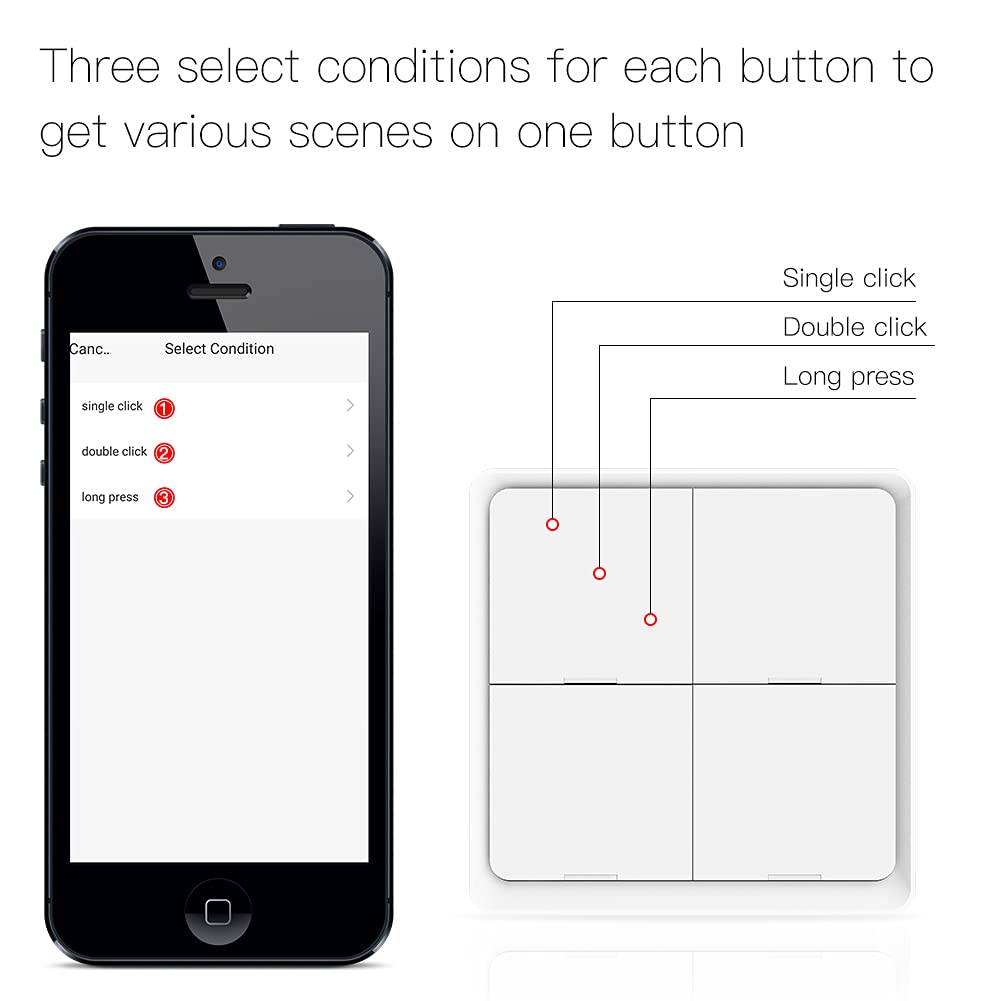
Image: Tuya Smart Life App interface showing options to configure single click, double click, and long press actions for a scene switch button.
This allows for customized control of various MOES smart devices or other compatible devices within your smart home ecosystem.
9. Tehnilised andmed
| Funktsioon | Spetsifikatsioon |
|---|---|
| Kaubamärk | MOES |
| Ühenduvusprotokoll | Wi-Fi (2.4GHz), Zigbee |
| Kontrollimeetod | Rakendus, kaugjuhtimispult, hääl |
| Operation Voltage (WiFi Switch) | Standardne majapidamisruumtage (e.g., 120V AC, specific voltage not provided, refer to product packaging) |
| Operation Voltage (Scene Switch) | 2.4 Volts (CR2032 3V battery) |
| Paigaldustüüp | Wall Mount (WiFi Switch), Surface Mount (Zigbee Scene Switch) |
| Värv | Valge |
| Materjal | Vask (kontaktmaterjal) |
| Artiklite arv | 3 (2 WiFi Switches, 1 Zigbee Scene Switch) |
10. Hooldus
- Puhastamine: Wipe the switches with a soft, dry cloth. Avoid using abrasive cleaners or solvents.
- Battery Replacement (Zigbee Scene Switch): When the scene switch's battery is low, replace it with a new CR2032 3V battery. The battery life is approximately 730 days under normal use.
- Püsivara värskendused: Periodically check the Tuya Smart Life App for available firmware updates for your devices to ensure optimal performance and security.
11. Veaotsing
- WiFi Light Switch Not Connecting:
- Veenduge, et teie WiFi-võrk on 2.4 GHz. 5 GHz võrke ei toetata.
- Verify the neutral wire is correctly connected.
- Confirm the switch is in pairing mode (rapidly blinking indicator light).
- Check your Wi-Fi password and router settings.
- Move the switch closer to your Wi-Fi router during setup if signal is weak.
- Zigbee Scene Switch Not Connecting:
- Ensure your MOES Zigbee Hub is powered on and connected to the app.
- Verify the scene switch has a fresh CR2032 battery installed correctly.
- Confirm the scene switch is in pairing mode.
- Ensure the scene switch is within range of the Zigbee Hub.
- Lüliti ei reageeri:
- For WiFi switches, check power supply and Wi-Fi connection.
- For Zigbee scene switches, check battery level.
- Restart the device by turning off power at the breaker for a few seconds, then turning it back on.
- Rakenduse juhtimise probleemid:
- Veenduge, et teie telefonil oleks aktiivne internetiühendus.
- Update the Tuya Smart Life App to the latest version.
- Log out and log back into your app account.
12. Garantii ja tugi
MOES products are designed for reliability and performance. For warranty information, technical support, or assistance with your MOES WiFi Light Switch and Zigbee Scene Switch Kit, please refer to the warranty card included with your product or visit the official MOES website. You may also contact MOES customer service through the contact information provided on their website or within the Tuya Smart Life App.


