Sissejuhatus
This manual provides detailed instructions for the setup, operation, and maintenance of your ATTACK SHARK M71 75% TKL Wireless Mechanical Keyboard. Please read this guide thoroughly to ensure proper use and to maximize your keyboard's performance and lifespan.

Image: The ATTACK SHARK M71 keyboard showcasing its 68% layout and key features like aluminum alloy body, three-mode connection, and RGB backlight.
Pakendi sisu
Veenduge, et pakendis on kõik esemed olemas:
- ATTACK SHARK M71 Wireless Mechanical Keyboard
- C-tüüpi kaabel
- 2.4G traadita vastuvõtja
- Keycap Puller / Switch Puller (Two-in-one tool)
- Complimentary 61 additional PBT OEM keycaps (different color layout)
- Kasutusjuhend

Image: A visual representation of the items included in the ATTACK SHARK M71 keyboard package, including the keyboard, cables, and extra keycaps.
Video: Unboxing the Blueberry version of the M71 keyboard, showing the package contents and a demonstration of its typing sound.
Toode läbiview
The ATTACK SHARK M71 is a 75% TKL wireless mechanical keyboard featuring a full aluminum CNC chassis, multi-mode connectivity, hot-swappable switches, and RGB lighting. Its compact design and robust construction are engineered for both gaming and productivity.
Peamised omadused:
- Full Aluminum CNC Body: Constructed from international standard 6063 aluminum alloy for durability and a premium feel.
- Kolme režiimiga ühenduvus: Supports Bluetooth 5.0/3.0, 2.4G wireless, and wired USB-C connections.
- Vahetatavad lülitid: Compatible with 3/5-pin switches, allowing for easy customization without soldering.
- Tihendi kinnitusstruktuur: Incorporates anti-static IPEX switch pads, PORON sound-absorbing cotton, and PET acoustic switch pads to enhance typing feel and reduce noise.
- RGB LED valgustus: Features customizable RGB backlighting and a side LED light strip.
- 4600 mAh aku: Pakub laiendatud traadita ühenduse kasutust.
- PBT OEM Keycaps: Durable keycaps with GMK-like characters.
Komponendid:
Familiarize yourself with the main components of your keyboard:
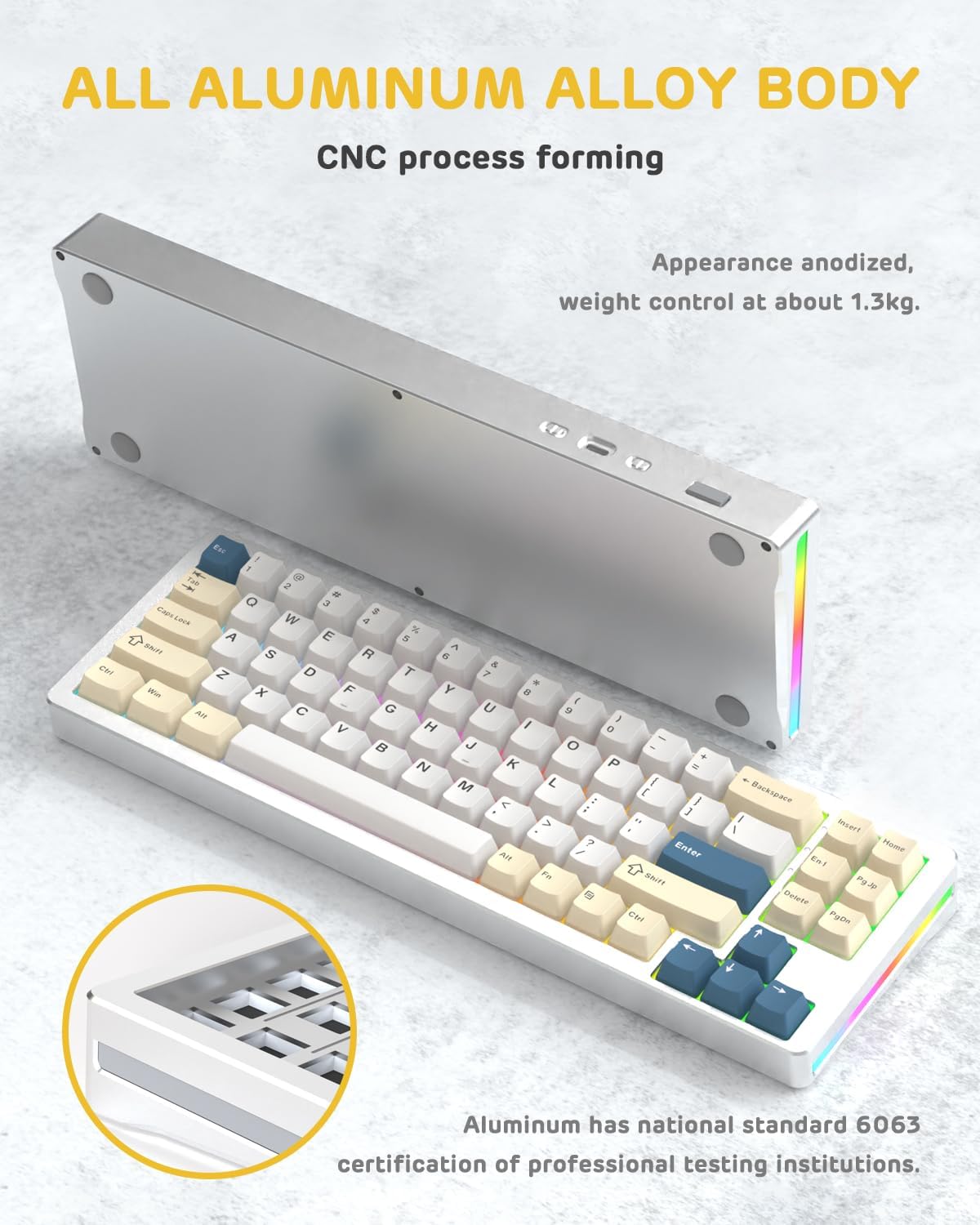
Pilt: Külg view of the M71 keyboard highlighting its full aluminum alloy body and CNC process forming.

Pilt: Plahvatanud view illustrating the multi-layered gasket mount structure, including the PBT keycaps, aluminum alloy upper cover, customized switch body, PC positioning board, PORON filled cotton, anti-static IPEX switch underpad, PET singing pad, PCB board, PORON shaft seat cushion, PET sound backing pad, wing light strip, and aluminum alloy base.
Seadistamine
1. Connectivity Modes:
The M71 keyboard supports three connection modes: Bluetooth, 2.4G wireless, and wired USB-C.
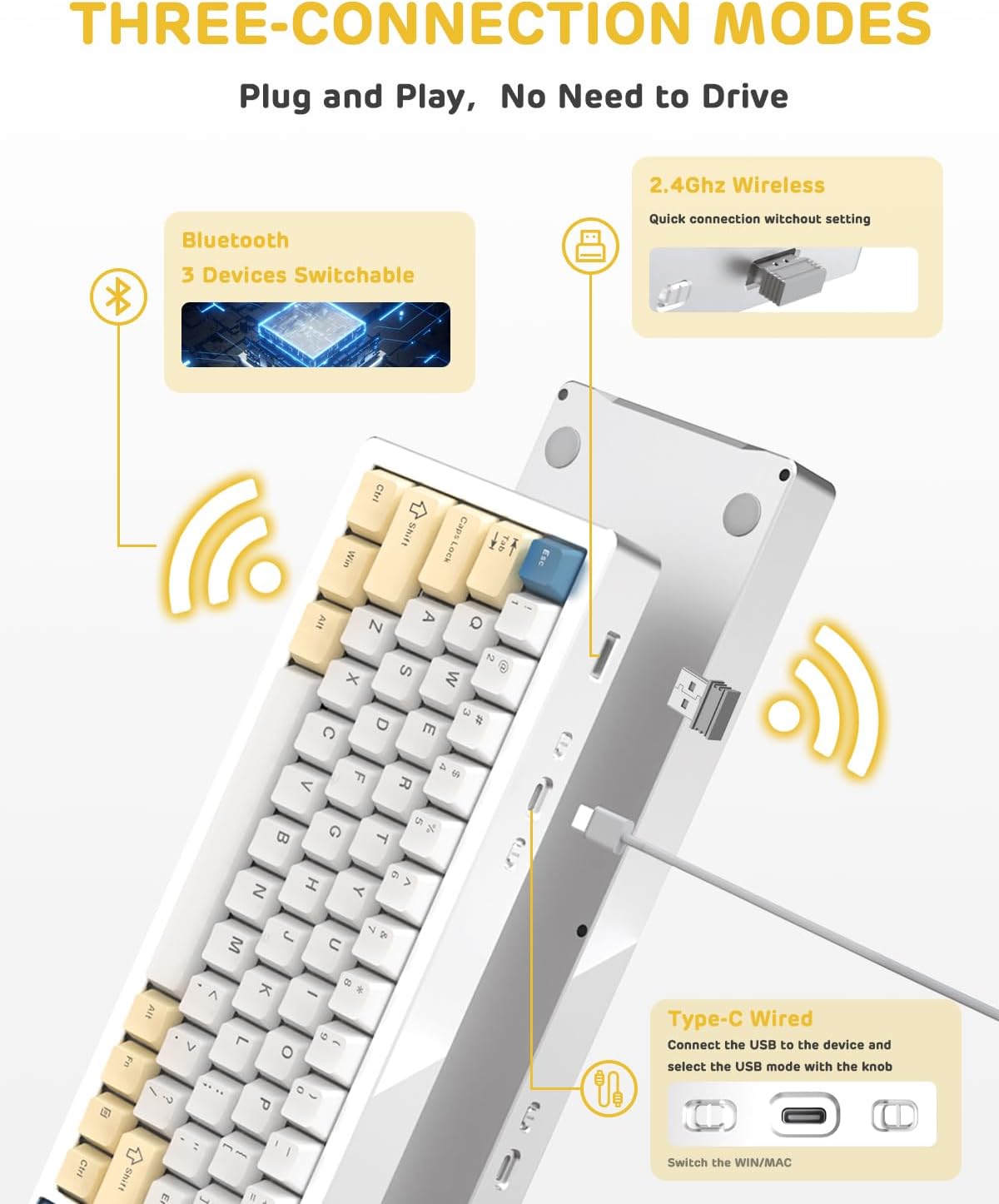
Image: A visual guide to the three connectivity options: Bluetooth for up to 3 devices, 2.4GHz wireless with a receiver, and wired Type-C connection.
Juhtmega ühendus:
- Connect the provided Type-C cable to the keyboard's USB-C port and to your computer's USB port.
- Ensure the mode switch on the keyboard is set to the wired (USB-C) position.
- Teie süsteem tunneb klaviatuuri automaatselt ära.
2.4G traadita ühendus:
- Leidke pakendist 2.4G traadita vastuvõtja (dongel).
- Ühendage 2.4G vastuvõtja arvuti vabasse USB-porti.
- Set the mode switch on the keyboard to the 2.4G wireless position.
- Klaviatuur peaks automaatselt ühenduma.
Bluetooth-ühendus:
- Set the mode switch on the keyboard to the Bluetooth position.
- Avage oma arvutis või seadmes Bluetoothi seaded ja otsige uusi seadmeid.
- The keyboard should appear as "ATTACK SHARK M71" or similar. Select it to pair.
- The keyboard can connect to up to 3 Bluetooth devices. Use Fn + 1/2/3 seotud seadmete vahel vahetamiseks.
2. Battery Charging and Status:
The M71 keyboard is equipped with a 4600mAh battery. To charge, connect the keyboard via the USB-C cable to a power source (e.g., computer USB port, USB wall adapter).

Image: A diagram showing how to check the battery level using Fn+ALT(R) and the visual indicators on the keyboard's side LED strip.
- Aku laetuse kontrollimiseks traadita režiimis vajutage Fn + ALT (Right). The side LED strip will indicate the charge level.
- Battery life is approximately 1-2 weeks with lighting enabled and up to 4 weeks with lighting disabled.
Kasutusjuhised
1. Multimeediumiklahvid:
The keyboard features 12 multimedia keys accessible via the Fn klahvikombinatsioonid:
- Fn + F1–F12: Access various multimedia functions (e.g., volume control, play/pause, calculator, email).
- Fn + 1/2: Control screen brightness.
2. RGB valgustuse juhtimine:
Customize the keyboard's RGB backlight and side LED strip:

Image: The M71 keyboard displaying its RGB backlight and side LED strip, along with a close-up of the PBT keycaps.
- Fn + Ctrl (Right): Switch between different side LED light strip modes.
- Fn + Tab: Toggle white light mode.
- Refer to the full user manual for additional lighting effect controls and customization options via the programmable software.
3. Programmable Software:
The keyboard supports a dedicated driver program for advanced customization. You can download the software from the official ATTACK SHARK website to personalize lighting effects, key assignments, and macros. The keyboard is compatible with Windows 2000/XP/Vista/7/8/10/11, Android, and iOS.
Hooldus
1. Puhastamine:
- Klaviatuuri pinna pühkimiseks kasutage pehmet ja kuiva lappi.
- For deeper cleaning, remove keycaps using the provided keycap puller and use compressed air to clear debris from between switches.
- Vältige tugevate kemikaalide või abrasiivsete materjalide kasutamist.
2. Hot-Swapping Switches:
The M71 keyboard features hot-swappable sockets, allowing you to change switches without soldering.

Pilt: Lähivõte view of the hot-swappable White Jade linear switches on the M71 keyboard, demonstrating how they can be easily removed and replaced.
- Lülitage klaviatuur välja või eemaldage see seadmest.
- Use the switch puller tool to carefully grip the switch and pull it straight up.
- Align the pins of the new switch with the holes on the PCB and press down gently until it clicks into place. Ensure pins are not bent.
- The PCB supports both 3-pin and 5-pin switches.
Video: A demonstration of the disassembly process for the M71 keyboard, showing how to remove keycaps and switches, revealing the gasket mount structure.
Veaotsing
| probleem | Võimalik lahendus |
|---|---|
| Klaviatuur ei reageeri traadita režiimis. |
|
| Võtmed ei registreeru või sisestatakse topelt. |
|
| RGB-valgustus ei tööta või on vale. |
|
| Bluetoothi sidumise probleemid. |
|
Tehnilised andmed
| Funktsioon | Detail |
|---|---|
| Mudel | M71 |
| Paigutus | 75% täiskõla (71 klahvi) |
| Ühenduvus | Bluetooth 5.0/3.0, 2.4G Wireless, USB-C Wired |
| Lülitid | Hot-swappable (3/5-pin compatible), Pre-lubed Linear White Jade Switch |
| Klahvistikud | PBT OEM Keycaps |
| Paigaldusstiil | Tihendi kinnitus |
| Šassii materjal | Full Aluminum CNC (6063 alloy) |
| Aku mahutavus | 4600 mAh |
| Valgustus | RGB Backlight, RGB LED Side Light Strip |
| Ühilduvus | Windows 2000/XP/Vista/7/8/10/11, Android, iOS, Mac |
| Toote mõõtmed | 13.78" P x 4.53" L x 1.22" K |
| Kauba kaal | 2.86 naela |
Garantii ja tugi
Garantiiteabe ja tehnilise toe saamiseks pöörduge ATTACK SHARK ametliku esindaja poole. webveebisaidilt või võtke otse ühendust nende klienditeenindusega. Hoidke ostutšekk ostutõendina alles garantiinõuete korral.
Tootja: RÜNNAKHAID
Müüja: Ajazz US
Esmakordse saadavaloleku kuupäev: 4. august 2023


