1. Sissejuhatus ja lõppview
The Wemo Smart Video Doorbell is designed for seamless integration with Apple HomeKit Secure Video, providing a convenient and secure method to monitor your home and communicate with visitors. This device offers a wide field of view and high-definition video quality, ensuring comprehensive coverage of your doorstep. It leverages your existing iCloud subscription for secure storage of motion-based recordings within the Apple Home App.
Key features include face recognition, dual-band Wi-Fi connectivity for reliable performance, and infrared technology for clear night vision. This doorbell is compatible exclusively with wired 16-24V AC doorbell systems.
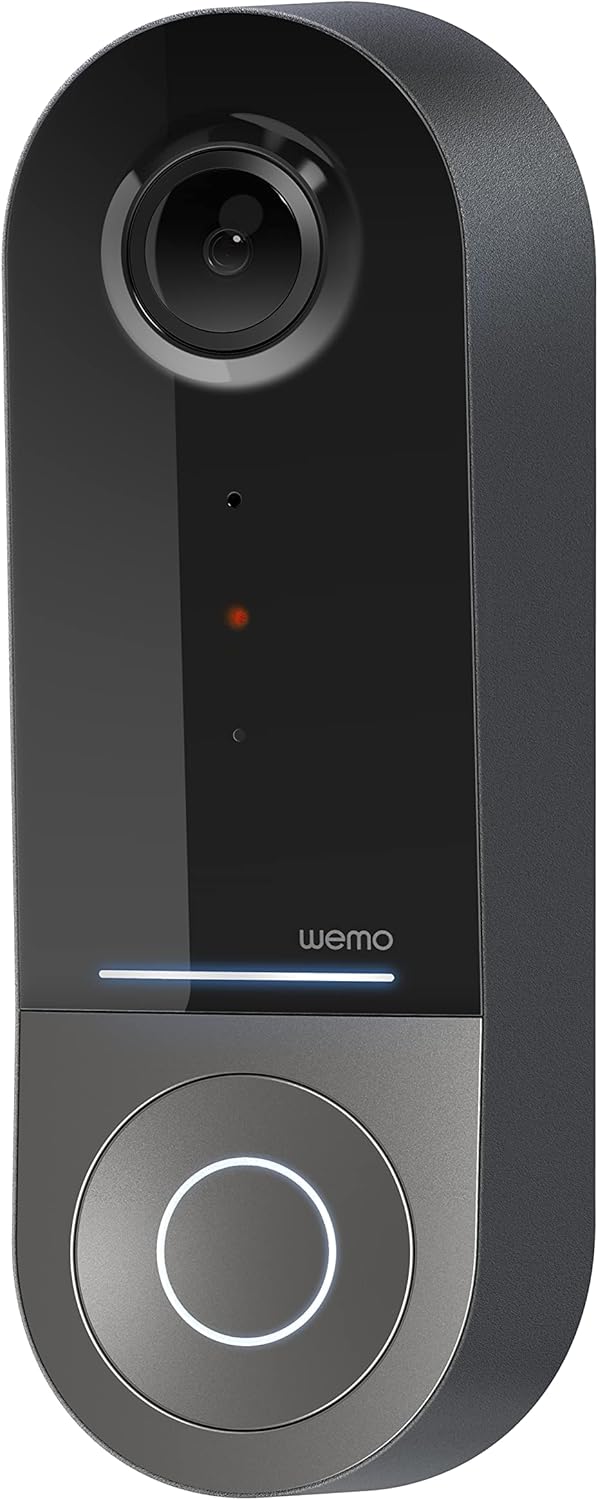
Figure 1: Wemo Smart Video Doorbell
2. Seadistamine ja installimine
2.1 Paigaldamiseelne kontroll-leht
- Ensure you have a wired doorbell system with 16-24V AC power.
- Download the Apple Home App on your iOS device.
- Confirm strong 2.4GHz and 5GHz Wi-Fi signal at your doorbell location.
2.2 Füüsiline paigaldus
- Lülitage toide välja: Before beginning installation, turn off power to your existing doorbell system at the circuit breaker.
- Eemaldage vana uksekell: Carefully remove your existing doorbell button.
- Paigaldage kinnitusklamber: Use the provided screws and screwdriver to securely attach the mounting bracket to your wall. If needed, use the left/right wedges to adjust the viewnurk.
- Connect power kit: Follow the instructions in the included Setup Guide to properly install the Power Kit with Connectors into your existing chime box. This is crucial for correct operation.
- Wire the Wemo Doorbell: Connect the existing doorbell wires to the terminals on the back of the Wemo Smart Video Doorbell.
- Mount the doorbell: Secure the Wemo Smart Video Doorbell onto the mounting bracket.
- Taasta võimsus: Lülitage toide kaitselülitist uuesti sisse.
2.3 Rakenduse seadistamine
- Open the Apple Home App on your iOS device.
- Tap the '+' icon to add a new accessory.
- Scan the HomeKit setup code provided with your Wemo Smart Video Doorbell.
- Follow the on-screen prompts to name your doorbell, assign it to a room, and configure HomeKit Secure Video settings, including motion detection and face recognition preferences.
3. Kasutusjuhised
3.1 Otseülekanne View ja teatised
- Access live video feed directly from the Apple Home App on your iPhone, iPad, or HomePod.
- Receive instant notifications on your iOS device when motion is detected or the doorbell is pressed.
- Utilize face recognition to receive specific alerts for known individuals.

Figure 2: Face Recognition with HomeKit Secure Video
3.2 Video salvestamine ja salvestamine
- HomeKit Secure Video stores 10 days of motion-based recording history in your iCloud account.
- Review recorded events directly within the Apple Home App.

Figure 3: iCloud Recording via Apple Home App
3.3 Kahesuunaline heli
- Engage in real-time two-way conversations with visitors through the Apple Home App.
3.4 Advanced Video Features
- Lai väli View: The camera offers a 178° vertical, 140° horizontal, and 223° diagonal field of view for extensive coverage.
- HD Resolution with HDR: Enjoy crystal clear 1200x1600 resolution video with HDR for optimal image quality in varying light conditions.
- Täiustatud öine nägemine: Infrared technology provides clear video even in low-light conditions.

Figure 4: Enhanced Night Vision
3.5 Kahe sagedusribaga WiFi-ühenduvus
- The doorbell utilizes both 2.4GHz and 5GHz Wi-Fi bands.
- The 2.4GHz band offers a longer range and better penetration through walls.
- The 5GHz band provides higher speeds for closer proximity connections.

Joonis 5: Kahe sagedusribaga WiFi-ühendus
4. Hooldus ja tõrkeotsing
4.1 Üldine hooldus
- Puhastage kaamera objektiivi regulaarselt pehme lapigaamp cloth to ensure clear video quality.
- Ensure the doorbell is free from obstructions that might block its field of view or microphone.
4.2 tõrkeotsing
- Ühenduvusprobleemid: If the doorbell frequently disconnects, ensure your Wi-Fi signal is strong at the installation location. Consider adjusting your router's band (2.4GHz for range, 5GHz for speed) or adding a Wi-Fi extender.
- Toiteprobleemid: Verify that your wired doorbell system provides the required 16-24V AC. Insufficient voltage can lead to intermittent operation or device resets. Consult a qualified electrician if you suspect voltage küsimusi.
- Rakenduse reageerimisvõime: If the Apple Home App is slow to connect or display the live feed, ensure your iOS device and HomeKit hub (e.g., Apple TV, HomePod) are updated and have a stable internet connection. Restarting the doorbell or your HomeKit hub may resolve temporary glitches.
5. Tehnilised andmed
| Kasutamine siseruumides/välistingimustes | Õues |
| Ühilduvad seadmed | HomePod, iPad, iPhone |
| Toiteallikas | Corded Electric (16-24V AC) |
| Ühenduvusprotokoll | WiFi (2.4 GHz ja 5 GHz) |
| Kontrolleri tüüp | Apple HomeKit |
| Paigaldustüüp | Seinakinnitus |
| Video jäädvustamise eraldusvõime | 1200x1600 (HD, HDR-enabled) |
| Värv | Must |
| Kauba mõõtmed P x L x K | 2.1 x 1.8 x 5 tolli |
| Kauba kaal | 13.7 untsi |
| Eriomadused | HD Resolution, Image Sensor, Night Vision, HDR |
6. Mis on karbis
- Nutikas video uksekell
- Seadistusjuhend
- Katteplaat
- Left/Right Wedge
- Kruvid ja kruvikeeraja
- Power Kit with Connectors
7. Ametlik tootevideo
Video 1: Official Wemo Video Doorbell overview, näitamaasing omadused ja disain.
8. Garantii ja tugi
For warranty information and technical support, please refer to the official WeMo webveebisaidilt või võtke otse ühendust nende klienditeenindusega. Hoidke ostutšekk garantiinõuete esitamiseks alles.


