1. Sissejuhatus
The Logitech Signature M650 for Business is a versatile wireless mouse designed to enhance productivity and comfort. It offers dual connectivity options, a SmartWheel for adaptive scrolling, and SilentTouch technology for quiet operation. Available in two sizes, it caters to various hand sizes for optimal ergonomic support.
Peamised omadused:
- Kahekordne ühenduvus: Connect via Logi Bolt USB receiver for secure connections or directly via Bluetooth Low Energy.
- SmartWheeli kerimine: Automatically switches between line-by-line precision and free-spin mode.
- SilentTouch tehnoloogia: Vähendab klõpsamismüra 90% võrra vaiksema töökeskkonna tagamiseks.
- Ergonoomiline disain: Contoured shape and soft thumb area for comfort, available in two sizes (M650 and M650 L).
- Kohandatavad nupud: Side buttons can be customized for various functions.
- Pikk aku tööiga: Kuni 24 kuud ühe AA-patareiga.
- Mitme platvormi ühilduvus: Töötab sujuvalt Windowsi, macOS-i, Linuxi, Chrome OS-i, iPadOS-i ja Androidiga.

Image: Logitech Signature M650 for Business Wireless Mouse and its packaging, showcasing the product and its box.
2. Seadistamine
2.1. Mis on karbis
Enne alustamist veenduge, et kõik komponendid on olemas:
- Logitech Signature M650 juhtmeta hiir
- Logi Bolt USB vastuvõtja
- 1 AA-patarei (eelinstallitud)

Image: The Logitech M650 mouse, a Logi Bolt USB receiver, and a 1-meter USB cable, representing the items included in the product packaging.
2.2. Aku paigaldamine
The mouse comes with one AA battery pre-installed. If you need to replace it:
- Avage hiire allosas asuv patareipesa kate.
- Sisestage uus AA-patarei, jälgides õiget polaarsust (+/-).
- Sulgege akupesa kaas kindlalt.
2.3. Hiire ühendamine
The Signature M650 offers two connection methods: Logi Bolt USB Receiver or Bluetooth Low Energy.
Option 1: Logi Bolt USB Receiver (Recommended for Secure Connections)
- Locate the Logi Bolt USB receiver, typically found inside the mouse's battery compartment or packaged separately.
- Ühendage Logi Bolti USB-vastuvõtja arvuti vabasse USB-porti.
- Turn on the mouse using the power switch on its underside. The mouse should automatically connect.

Image: The Logi Bolt USB receiver securely plugged into a laptop's USB port, demonstrating its compact size and integration.
2. variant: Bluetooth madala energiatarbega
- Lülitage hiir sisse selle all asuva toitelüliti abil.
- Press and hold the connect button on the underside of the mouse until the LED indicator starts blinking rapidly, indicating pairing mode.
- Avage oma arvutis või seadmes Bluetoothi seaded.
- Select "Logitech M650" from the list of available devices and follow the on-screen prompts to complete pairing.

Image: The Logitech M650 mouse positioned on a mousepad, with visual cues for both Bluetooth and Logi Bolt connectivity options.
3. Hiire kasutamine
3.1. SmartWheeli kerimine
The SmartWheel automatically adapts to your scrolling needs:
- Täppisrežiim: For detailed, line-by-line scrolling, gently scroll the wheel.
- Vaba keerutuse režiim: For rapid, long document or web page navigation, give the wheel a quick flick. It will spin freely.
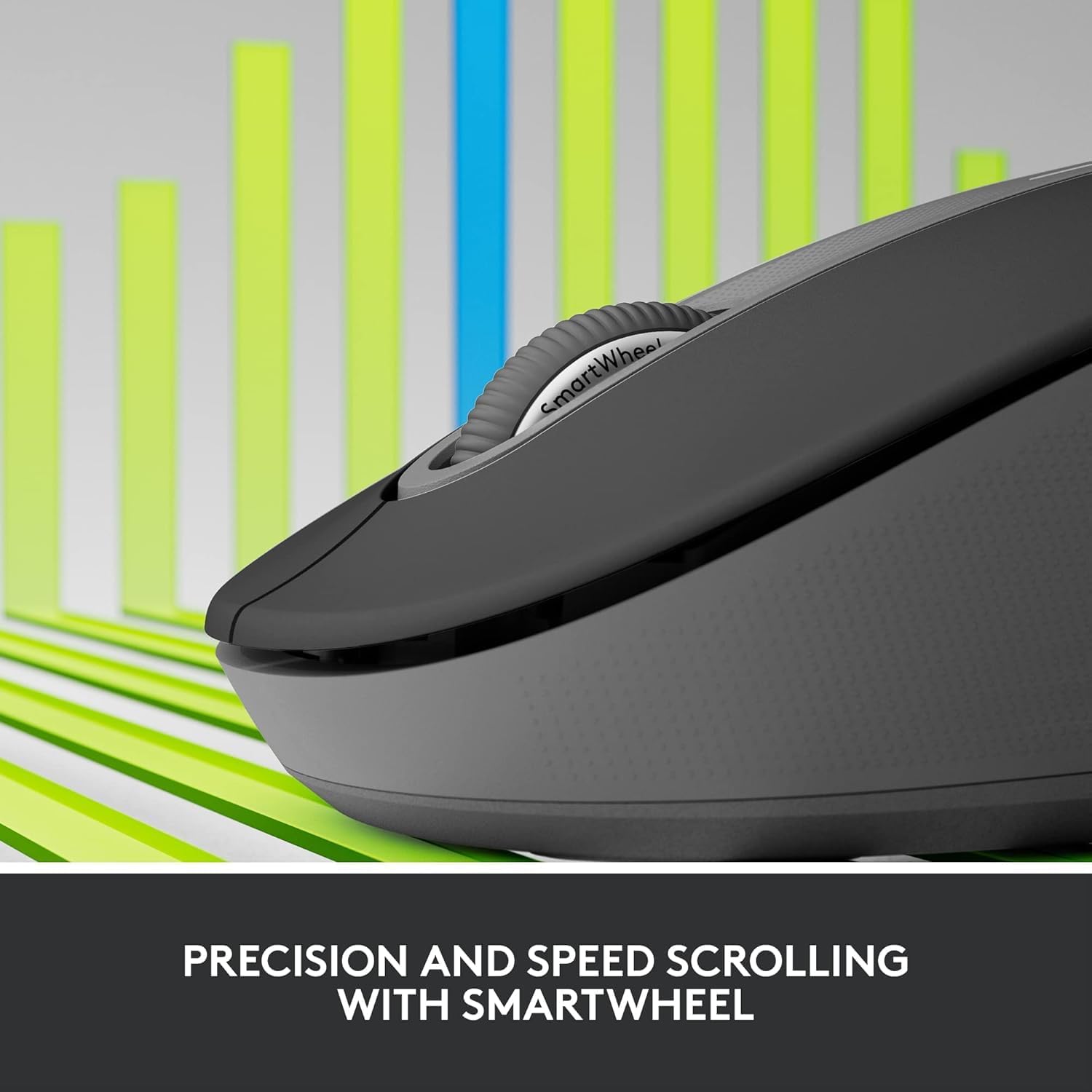
Image: A detailed close-up of the Logitech M650 mouse's SmartWheel, emphasizing its design for both precision and speed scrolling.
3.2. Kohandatavad külgnupud
The Signature M650 features two customizable side buttons. By default, these buttons may perform forward/back navigation in web browsers. To customize their functions, download and install the Logitech Options+ software from the official Logitech websaidile.
3.3. SilentTouch tehnoloogia
Experience a quieter workspace with SilentTouch technology, which significantly reduces the sound of clicks without compromising the tactile feel.
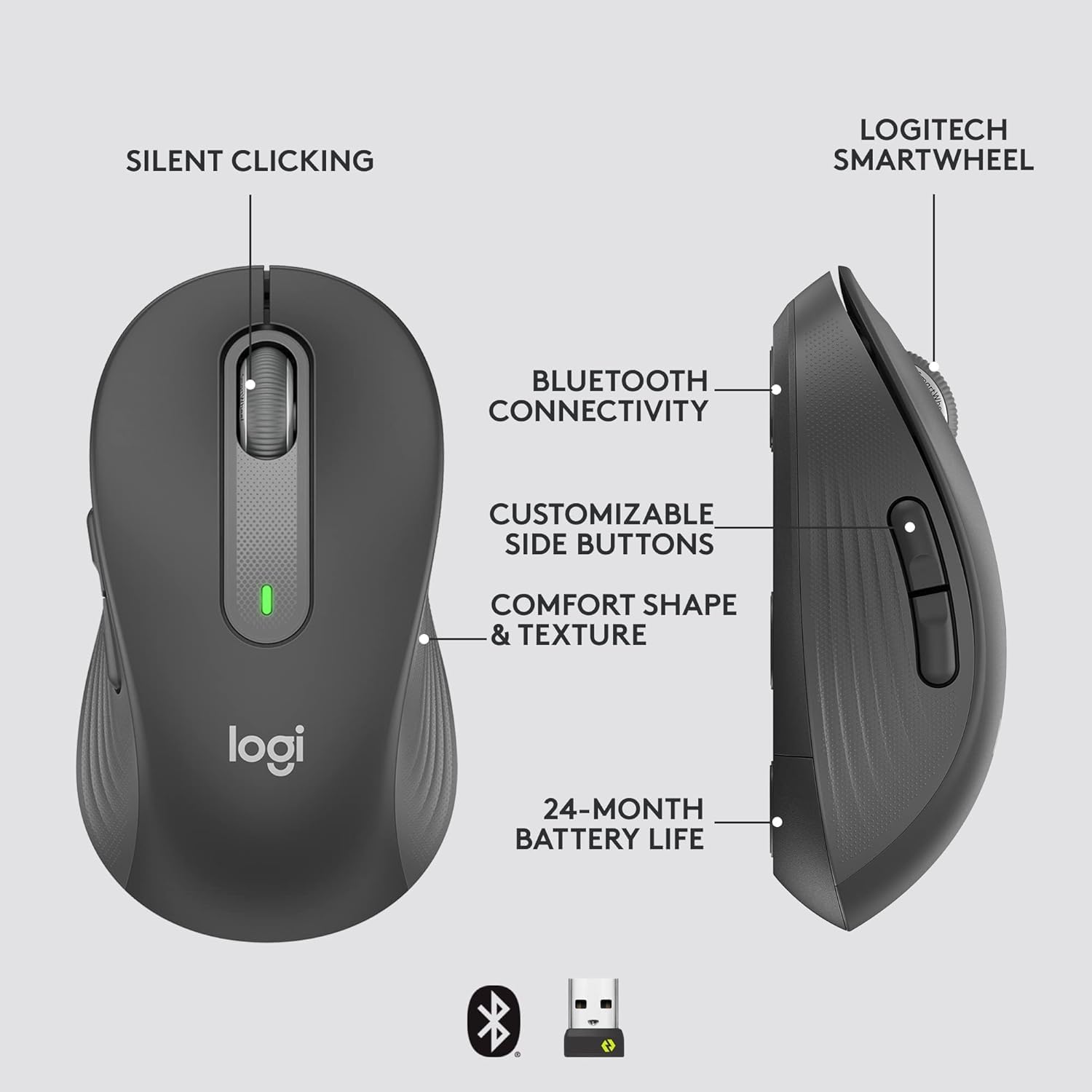
Image: An annotated diagram of the Logitech M650 mouse, highlighting key features such as Silent Clicking, Bluetooth Connectivity, Customizable Side Buttons, Comfort Shape & Texture, 24-Month Battery Life, and the Logitech SmartWheel.
4. Hooldus
4.1. Aku vahetamine
The mouse uses one AA battery. When the battery is low, the LED indicator on the mouse may flash. Replace the battery as described in Section 2.2.
4.2. Puhastamine
Hiire puhastamiseks kasutage pehmet ja ebemevaba lappi. Kangekaelse mustuse korral nühkige seda kergeltampLoputage lappi veega. Vältige tugevate kemikaalide või abrasiivsete materjalide kasutamist.
5. Veaotsing
5.1. Hiir ei reageeri
- Kontrollige akut: Veenduge, et aku on õigesti paigaldatud ja sellel on piisavalt laetud. Vajadusel vahetage aku välja.
- Toide sisse: Verify the mouse is turned on using the power switch.
- Ühenduse taastamine:
- Logi Bolt: Try plugging the receiver into a different USB port. Ensure no obstructions are between the mouse and receiver.
- Bluetooth: Go to your device's Bluetooth settings, remove the mouse, and re-pair it.
- Häired: Move the mouse closer to the receiver or device. Avoid using the mouse near other wireless devices that might cause interference.
5.2. Kursori ebakorrapärane liikumine
- Puhas andur: Veenduge, et hiire all asuv optiline andur oleks puhas ja prahist vaba.
- Pind: Use the mouse on a clean, non-reflective, and uniform surface. A mouse pad is recommended.
6. Tehnilised andmed
| Funktsioon | Spetsifikatsioon |
|---|---|
| Mudeli number | 910-006272 |
| Ühenduvus | Logi Bolt USB-vastuvõtja, Bluetooth madala energiatarbega |
| sensor Technology | Optiline |
| Aku tüüp | 1 x AA patarei (kaasas) |
| Aku tööiga | Kuni 24 kuud |
| Dimensions (M650) | 4.22 x 2.43 x 1.49 tolli (10.7 x 6.17 x 3.78 cm) |
| Kaal | 3.57 untsi (101.2 g) |
| Värv | Grafiit |
| Operatsioonisüsteemi ühilduvus | Windows, macOS, Linux, Chrome OS, iPadOS, Android |

Image: A visual comparison of the Logitech M650 and M650 L mouse sizes, indicating their respective lengths of 10.5cm and 11.5cm.
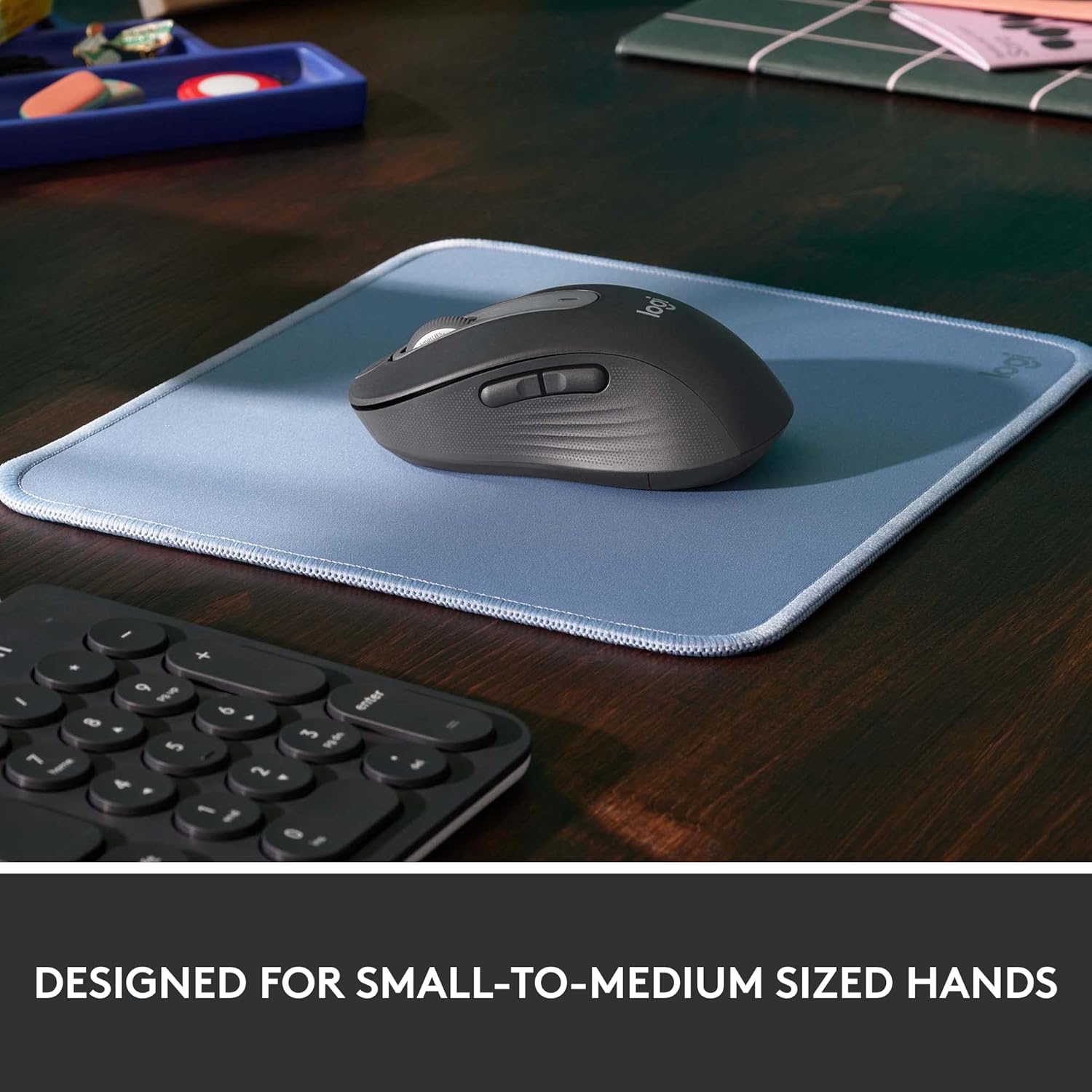
Image: The Logitech M650 mouse resting on a light blue mousepad, illustrating its ergonomic shape designed to fit comfortably in small to medium-sized hands.
7. Garantii ja tugi
Logitechi tooteid valmistatakse kõrgeimate kvaliteedistandardite kohaselt. Täpsema garantiiteabe saamiseks vaadake tootega kaasasolevat garantiikaarti või külastage Logitechi ametlikku tugilehte. websaidile.
For technical assistance, troubleshooting, or to download the latest software and drivers, please visit the Logitech Support page:


