Sissejuhatus
This manual provides essential information for setting up, operating, maintaining, and troubleshooting your Microsoft Surface Pro 8. Please read this guide thoroughly to ensure optimal performance and longevity of your device.
Mis on karbis:
- Surface Pro 8 seade
- Toiteallikas
- Vahelduvvoolu juhe
- Kiirjuhend (QSG)
- Normatiivdokumendid
Seadistamine
Follow these steps to set up your Surface Pro 8 for the first time.
- Laadige seadet: Connect the power supply to your Surface Pro 8 and a power outlet. Allow the device to charge for at least 30 minutes before initial use.
- Toide sisse: Press the power button located on the top edge of the device. The Microsoft logo will appear, followed by the Windows 11 setup screen.
- Initial Windows 11 Setup: Follow the on-screen prompts to select your language, region, connect to a Wi-Fi network, and set up your Microsoft account.
- Connect Accessories (Sold Separately): If you have a Surface Pro Signature Keyboard or Surface Slim Pen 2, attach the keyboard to the magnetic port at the bottom edge of the Surface Pro 8. The pen can be paired via Bluetooth or stored in the keyboard's charging slot.
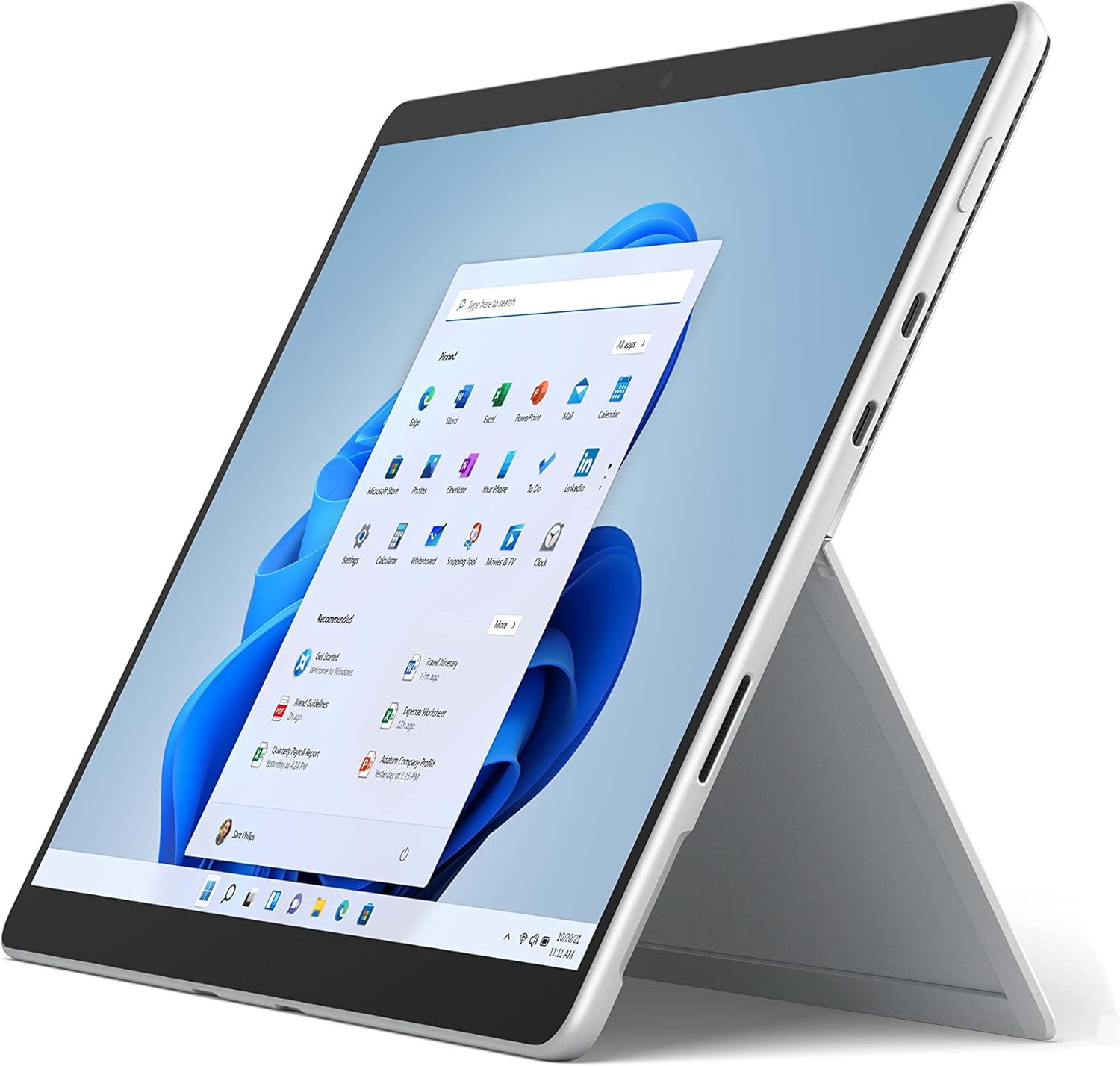
The image above shows the Microsoft Surface Pro 8 in tablet mode, with its 13-inch touchscreen displaying the Windows 11 Start menu. The device is silver with a black bezel, showcasing its sleek design and the intuitive user interface of Windows 11.

This image illustrates the Microsoft Surface Pro 8 alongside its optional accessories: the Surface Slim Pen 2 and the Surface Pro Signature Keyboard. The tablet is shown in a horizontal orientation, with the pen and keyboard positioned below it, highlighting the device's versatility and ecosystem.
Kasutusjuhised
The Surface Pro 8 offers flexible usage modes to suit various tasks.
Tahvelarvuti režiim:
Use the Surface Pro 8 as a standalone tablet for touch-based interactions. The 13-inch touchscreen supports multi-touch gestures for navigation and app control.
Sülearvuti režiim:
Attach the Surface Pro Signature Keyboard (sold separately) to transform your device into a laptop. The integrated kickstand allows for adjustable viewnurgad.

Pildil on külgmine proff.file of the Microsoft Surface Pro 8 with its integrated kickstand fully extended, supporting the device at an angle. This view highlights the thin design and the functionality of the kickstand for hands-free use.

This image shows the Microsoft Surface Pro 8 with the Surface Pro Signature Keyboard attached, viewed from the side. The device is propped up by its kickstand, demonstrating its laptop configuration, ready for typing and productivity.
Using the Surface Slim Pen 2 (Sold Separately):
The Surface Slim Pen 2 provides a natural writing and drawing experience. It can be used for note-taking, sketching, and navigating the interface. Tactile signals enhance the pen-on-paper feel in supported applications.

The image depicts a hand holding a black Surface Slim Pen 2, actively writing or drawing on the screen of the Microsoft Surface Pro 8. This illustrates the precision and natural feel of using the pen for creative or productive tasks on the device.
Windows 11 Features:
- Snap-paigutused: Organize your open windows efficiently.
- Vidinad: Access personalized information at a glance.
- Microsofti pood: Download and install applications.
Hooldus
Proper care ensures the longevity and performance of your Surface Pro 8.
Puhastamine:
- Kasutage pehmet ebemevaba lappi dampened with water or an approved screen cleaner to wipe the screen.
- Vältige karme kemikaale, abrasiivseid materjale ega aerosoolpihusteid.
- Enne puhastamist veenduge, et seade on välja lülitatud ja vooluvõrgust lahti ühendatud.
Aku hooldus:
- Vältige äärmuslikke temperatuure, kuna need võivad aku tööiga lühendada.
- Aku optimaalse seisukorra tagamiseks vältige aku pidevat täielikku tühjendamist või selle pikaajalist 100% laetuse juures hoidmist.
Tarkvaravärskendused:
Kontrollige regulaarselt Windowsi värskendusi ja installige need, et teie seadmel oleksid uusimad turvapaigad ja jõudluse täiustused. Minge aadressile Seaded > Windowsi värskendus.
Veaotsing
Siin on lahendused levinud probleemidele, millega võite kokku puutuda.
Seade ei lülitu sisse:
- Veenduge, et seade on laetud. Ühendage toiteallikas ja oodake enne sisselülitamist paar minutit.
- Perform a force restart: Press and hold the power button for 30 seconds, then release. Press it again briefly to turn on.
Ekraaniprobleemid:
- Kui ekraan ei reageeri, proovige seadet taaskäivitada.
- Adjust brightness settings in the Windows Action Center or Display Settings.
Ühenduvusprobleemid:
- For Wi-Fi issues, ensure Wi-Fi is enabled and try reconnecting to your network. Restart your router if necessary.
- For Bluetooth issues, ensure Bluetooth is enabled and try re-pairing your device.
For more detailed troubleshooting or persistent issues, visit the official Microsoft Surface support website or contact Microsoft customer service.
Tehnilised andmed
Key technical specifications for the Microsoft Surface Pro 8.
| Funktsioon | Spetsifikatsioon |
|---|---|
| Seisuva ekraani suurus | 13 tolli |
| Maksimaalne ekraani eraldusvõime | 2880x1920 pikslit |
| Protsessor | 4.2 GHz core_i5 (Intel Evo Platform) |
| RAM | 8 GB LPDDR4 |
| Kõvaketas | 128 GB SSD |
| Graafika kaasprotsessor | Intel Iris Xe graafika |
| Operatsioonisüsteem | Windows 11 |
| Traadita tüüp | 802.11ax |
| Kauba kaal | 1.96 naela |
| Toote mõõtmed | 12.22 x 9.06 x 1.97 tolli |
| Sadamad | 2x USB-C Thunderbolt 4, 3.5mm headphone jack, Surface Connect port |

See pilt annab lähivõtte view of the side of the Microsoft Surface Pro 8, highlighting its connectivity options. Visible ports include two USB-C Thunderbolt 4 ports and a 3.5mm headphone jack, demonstrating the device's modern and versatile input/output capabilities.

The image displays an internal view of the Microsoft Surface Pro 8, revealing its sophisticated engineering. Key components such as the Intel processor, cooling system, and battery are visible, illustrating the hardware that powers the device's performance.
Garantii ja tugi
Juriidiline vastutusest loobumine:
Some accessories and software sold separately. Available colors and materials may vary by market and configuration. Battery life varies significantly based on usage, network and feature configuration, signal strength, settings and other factors. See Surface.com for details. Requires Dolby encoded content and audio. Pen storage and charging available on select Keyboards. Tactile signals with Surface Slim Pen 2 can be experienced on some applications on Surface Delia running Windows 11. Surface Slim Pen 2 sold separately.
Toote garantii:
Your Microsoft Surface Pro 8 comes with a limited hardware warranty. Please refer to the regulatory documents included in your product packaging for specific terms and conditions, including warranty duration and coverage details. Proof of purchase may be required for warranty claims.
Klienditugi:
For technical assistance, warranty service, or additional product information, please visit the official Microsoft Support website or contact Microsoft customer service directly. Support resources include FAQs, troubleshooting guides, and contact options for live assistance.


