1. Sissejuhatus ja lõppview
The Logitech Rugged Combo 3 is a robust and versatile keyboard case designed for iPad (7th and 8th Generation) users, particularly in educational environments. It offers comprehensive protection and enhanced functionality, transforming your iPad into a powerful productivity tool.
This keyboard case is engineered for durability, meeting MIL SPEC 810G drop standards with 4.5 ft. drop protection, making it resilient against daily wear and tear. Its keys are pry-resistant and sealed, preventing damage and keeping out debris.
The Smart Connector technology ensures an instant, reliable physical connection to your iPad without the need for pairing or separate charging the keyboard, as it draws power directly from the iPad. The adjustable kickstand provides five versatile use modes, adapting to various tasks from typing to sketching.
Additionally, the case features a magnetic latch with integrated storage for a Logitech Crayon or Apple Pencil (1st gen), ensuring your stylus is always accessible. A large asset tagging window is also included for easy device management.
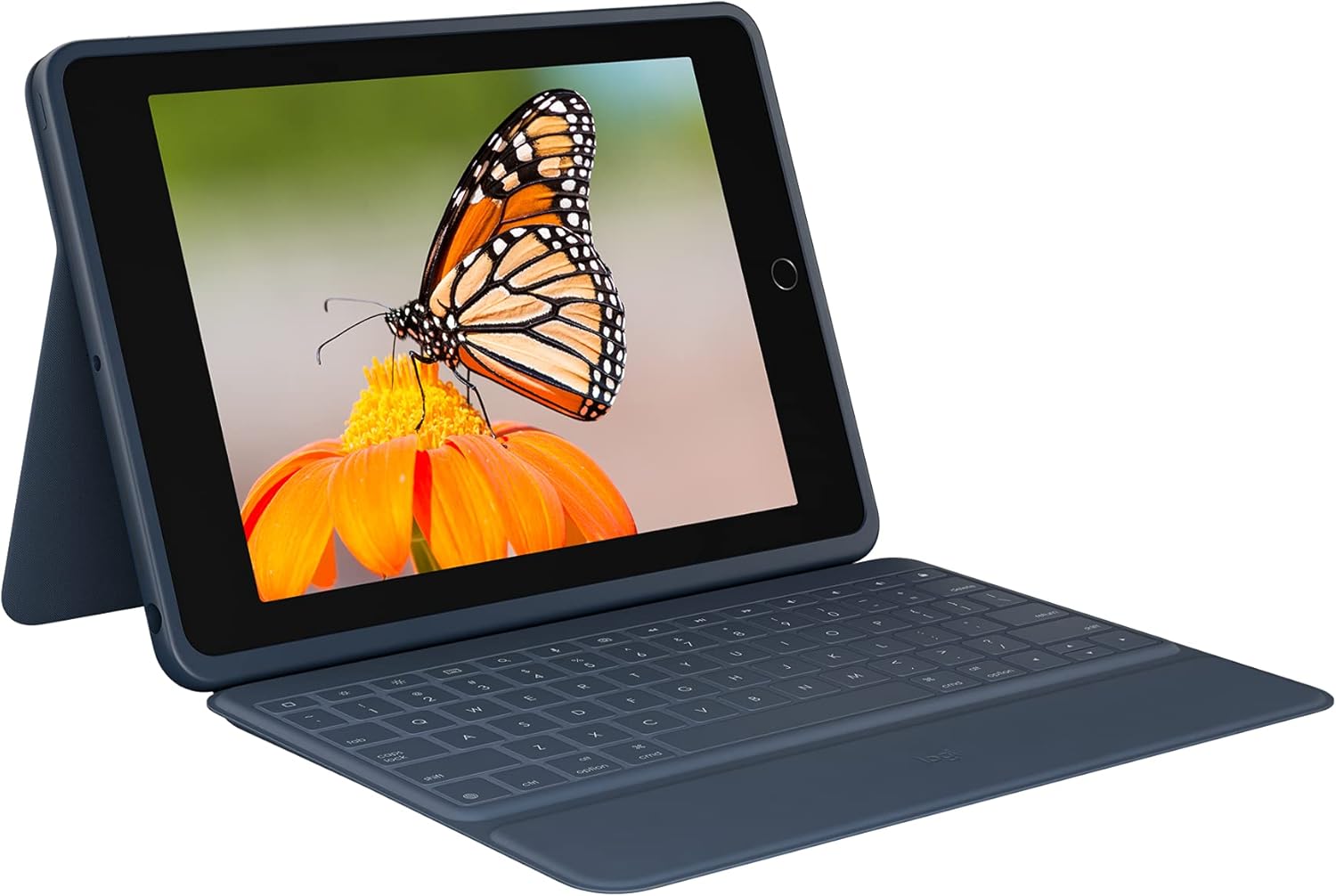
Figure 1.1: The Logitech Rugged Combo 3 with an iPad in typing mode, showcasing the integrated keyboard and adjustable stand.
2. Seadistamine ja ühendus
The Logitech Rugged Combo 3 utilizes Apple's Smart Connector technology for a seamless and instant connection to your compatible iPad. No Bluetooth pairing or separate charging is required for the keyboard.
2.1. iPadi ühendamine
- Align the iPad: Carefully align your iPad with the protective case portion of the Rugged Combo 3. Ensure the camera cutout and ports match the case openings.
- Paigale klõpsamine: Gently press the iPad into the case until it securely snaps into all corners. The durable design provides a snug fit.
- Connect the Smart Connector: Once the iPad is seated in the case, align the Smart Connector on the edge of the iPad with the corresponding pins on the keyboard. The magnetic connection will automatically snap into place, establishing the connection.
The keyboard will instantly power on and be ready for use. There is no need to manually turn the keyboard on or off, as it draws power directly from the iPad via the Smart Connector.

Figure 2.1: The Logitech Rugged Combo 3 in its closed position, providing full protection for the iPad.
3. Operating the Keyboard Case
The Rugged Combo 3 offers multiple modes of use and a full-sized keyboard for efficient interaction with your iPad.
3.1. Use Modes
The adjustable kickstand and foldable keyboard allow for five distinct use modes:
- Tüüprežiim: Mugavaks kirjutamiseks asetage iPad püsti, klaviatuur välja sirutatud.
- View Režiim: Fold the keyboard back and adjust the kickstand to an optimal angle for watching videos or presentations.
- Visandirežiim: Lower the kickstand to a shallow angle, ideal for drawing or writing with a stylus.
- Lugemisrežiim: Fold the keyboard completely behind the iPad, allowing you to hold the tablet like a book.
- Kaamera režiim: The design ensures the iPad camera remains unobstructed in all modes, allowing for easy photo and video capture.

Joonis 3.1: Külg view illustrating the adjustable kickstand, enabling various viewnurgad.
3.2. Klaviatuuri funktsionaalsus
The integrated keyboard provides a comfortable and responsive typing experience. It includes a full row of iPadOS shortcut keys for quick access to common functions:
- Avaleht: Naaseb avakuvale.
- Ekraani heledus: Reguleerib ekraani heledust.
- Otsi: Aktiveerib iPadi otsingufunktsiooni.
- Virtuaalne klaviatuur: Toggles the on-screen keyboard.
- Meedia juhtnupud: Esita/paus, eelmine lugu, järgmine lugu.
- Helitugevuse regulaatorid: Vaigista, helitugevus maha, helitugevus üles.
- Lukusta ekraan: Locks the iPad display.

Joonis 3.2: Ülalt-alla view of the keyboard, highlighting the dedicated iPadOS shortcut keys for enhanced productivity.
4. Hooldus ja hooldus
Logitech Rugged Combo 3 pikaealisuse ja optimaalse jõudluse tagamiseks järgige neid hooldusjuhiseid:
- Puhastamine: Kasutage pehmet, damp Korpuse ja klaviatuuri välispinna pühkimiseks kasutage lappi. Vältige tugevatoimelisi kemikaale või abrasiivseid materjale.
- Lekkekindlus: The keyboard features sealed keys designed to resist spills. In case of a spill, immediately wipe off any liquid and allow the keyboard to air dry before continued use.
- Peamised hooldused: The keys are pry-resistant, but avoid excessive force when cleaning or handling to prevent damage.
- Hoiustamine: When not in use, keep the case closed to protect both the iPad and the keyboard from dust and potential damage.

Figure 4.1: The keyboard's spill-resistant design helps protect against accidental liquid exposure.
5. Veaotsing
If you encounter issues with your Logitech Rugged Combo 3, refer to the following common troubleshooting steps:
5.1. Klaviatuur ei reageeri
- Check Smart Connector: Ensure the iPad is correctly seated in the case and the Smart Connector on the iPad is firmly connected to the keyboard. Remove and re-attach the iPad to ensure a proper connection.
- iPadi taaskäivitamine: Sometimes, a simple restart of your iPad can resolve connectivity issues.
- Puhas nutikas pistik: Inspect the Smart Connector pins on both the iPad and the keyboard for any debris or dust. Gently clean them with a soft, dry cloth.
5.2. Keys Not Functioning Correctly
- Kontrollige prahti: Veenduge, et võtmete alla ei oleks kinni jäänud võõrkehi.
- Spill Damage: If the keyboard has been exposed to a significant liquid spill, allow it to dry completely. If issues persist, contact support.
5.3. iPad Not Fitting Securely
- Kontrollige ühilduvust: Ensure your iPad model (7th or 8th Generation) is compatible with the Rugged Combo 3.
- Õige sisestamine: Make sure the iPad is inserted correctly and all corners are snapped into place.
6. Tehnilised andmed
| Funktsioon | Detail |
|---|---|
| Kaubamärk | Logitech |
| seeria | Vastupidav kombinatsioon 3 |
| Mudeli number | 920-009320 |
| Ühilduvad seadmed | iPad (7th Generation: A2200, A2197, A2198), iPad (8th Generation: A2270, A2428, A2429, A2430) |
| Ühenduvustehnoloogia | Nutikas pistik |
| Klaviatuuri kirjeldus | Membraan |
| Toiteallikas | iPad via Smart Connector (no battery required for keyboard) |
| Kauba kaal | 1.33 naela |
| Toote mõõtmed (PxLxK) | 10.24 x 7.44 x 0.94 tolli |
| Värv | Sinine |
| Materjal | Plastikust |
| Erifunktsioon | Foldable, 4.5 ft. Drop Protection (MIL SPEC 810G), Pry-resistant keys, Integrated stylus storage |
| Kaasatud komponendid | Keyboard case, Documentation |
7. Garantii ja tugi
For warranty information, technical support, or further assistance with your Logitech Rugged Combo 3, please visit the official Logitech support webveebisaidilt või võtke ühendust nende klienditeenindusega. Hoidke ostutšekk ostutõendina garantiinõuete korral.
Logitechi tugi: www.logitech.com/support


