1. Sissejuhatus
This manual provides essential information for the proper use and maintenance of your Zentality C-710 10-inch Dual SIM Tablet. Please read this guide thoroughly before operating the device to ensure optimal performance and longevity. Keep this manual for future reference.
2. Toote lõppview
The Zentality C-710 is a 10-inch Android tablet designed for communication and multimedia. It features dual SIM card support for cellular connectivity, a Quad-Core processor, 1GB RAM, and 16GB of internal storage. The device includes front and rear cameras, Bluetooth, and a vibrant IPS LCD display.
2.1 Seadme komponendid
Familiarize yourself with the tablet's physical features and controls.

1. pilt: Ees ja taga view of the Zentality C-710 Tablet, showing the screen, cameras, and rear casing.
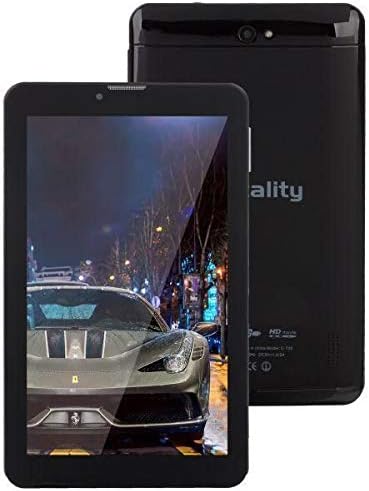
2. pilt: Esiosa view of the Zentality C-710 Tablet with the screen displaying an image, highlighting the display area.
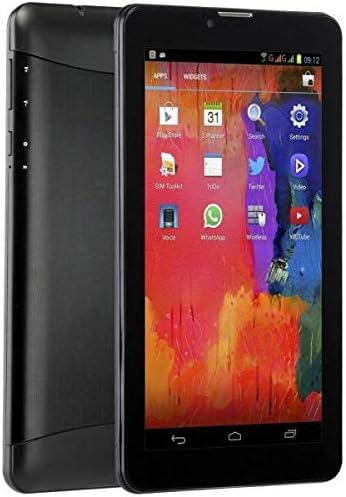
3. pilt: Külg view of the Zentality C-710 Tablet, illustrating the placement of physical buttons and ports.
3. Seadistamine
3.1 Aku laadimine
Before first use, fully charge the tablet's battery. Connect the provided charger to the tablet's charging port and plug it into a power outlet. The battery indicator on the screen will show charging status. A full charge typically takes several hours.
3.2 SIM-kaartide sisestamine
The Zentality C-710 supports dual SIM cards for cellular network access. Locate the SIM card slot(s) on the side or back of the tablet. Carefully insert your standard or micro SIM cards into the designated slots, ensuring they are correctly oriented as indicated by the diagram near the slot. Close the tray securely.
3.3 MicroSD-kaardi sisestamine
To expand storage, insert a microSD card (up to 32GB, not included) into the dedicated slot. Ensure the card is oriented correctly before gently pushing it in until it clicks into place.
3.4 Sisse-/väljalülitamine
To power on, press and hold the Power button until the Zentality logo appears. To power off, press and hold the Power button until the power options menu appears, then select 'Power off'.
3.5 Algseadistus
Upon first power-on, follow the on-screen prompts to select your language, connect to a Wi-Fi network, set up your Google account, and configure other basic settings.
4. Töötamine
4.1 Puuteekraani žestid
Navigate your tablet using standard Android touchscreen gestures:
- Puudutage: Valige üksus või avage rakendus.
- Puudutage ja hoidke: Avage kontekstimenüüd või liigutage ikoone.
- Pühkige: Kerige ekraane või loendeid.
- Näputäis: Suumige pilte sisse või välja ja web lehekülgi.
4.2 Wi-Fi-ga ühenduse loomine
Mine aadressile Seaded > Võrk ja internet > WiFi. Turn Wi-Fi on, then select your desired network from the list and enter the password if required.
4.3 Bluetooth-seadmetega ühenduse loomine
Mine aadressile Seaded > Ühendatud seadmed > Bluetooth. Turn Bluetooth on, then select 'Pair new device' and choose your device from the list to connect.
4.4 Making Calls (3G)
With an active SIM card, you can make and receive calls. Open the 'Phone' application, dial the number, and press the call button.
4.5 Kaamera kasutamine
Open the 'Camera' application. Tap the shutter button to take photos. Switch between front and rear cameras using the camera toggle icon. Adjust settings like flash and mode as needed.
4.6 Rakenduste haldamine
Download new applications from the Google Play Store. To uninstall an app, tap and hold its icon on the home screen or app drawer, then drag it to the 'Uninstall' option.
5. Hooldus
5.1 Tahvelarvuti puhastamine
Use a soft, lint-free cloth to clean the screen and body of the tablet. Avoid using harsh chemicals or abrasive materials, which can damage the display or finish. For stubborn smudges, slightly dampLoputage lappi veega või elektroonika jaoks mõeldud ekraanipuhastusvahendiga.
5.2 Aku hooldus
To prolong battery life, avoid extreme temperatures. Do not leave the tablet charging for extended periods after it's full. If storing the tablet for a long time, ensure the battery is charged to about 50%.
5.3 Tarkvaravärskendused
Regularly check for and install system updates to ensure your tablet has the latest features, security patches, and performance improvements. Go to Seaded > Süsteem > Süsteemivärskendus.
6. Veaotsing
6.1 Tahvelarvuti ei lülitu sisse
Ensure the battery is sufficiently charged. Connect the charger and wait a few minutes before attempting to power on again. If the issue persists, try a different charger or contact support.
6.2 WiFi-ühenduse probleemid
Check if Wi-Fi is enabled in settings. Restart your tablet and your Wi-Fi router. Ensure you are entering the correct password. If the problem continues, try forgetting the network and reconnecting.
6.3 Aeglane jõudlus
Close unnecessary background applications. Clear cache data from apps in Seaded > Rakendused ja teavitused > [Rakenduse nimi] > Salvestusruum ja vahemälu > Tühjenda vahemälu. Consider uninstalling unused apps or performing a factory reset as a last resort (back up your data first).
6.4 App Crashes
Ensure the app is updated to its latest version. Clear the app's cache and data (this will reset the app). If the issue persists, uninstall and reinstall the app.
7. Tehnilised andmed
| Funktsioon | Spetsifikatsioon |
|---|---|
| Kaubamärk | Zentality |
| Mudeli nimi | C-710 |
| Ekraani suurus | 10 tolli |
| Kuva tüüp | IPS LCD |
| Operatsioonisüsteem | Android |
| Protsessor | Neljatuumaline |
| Paigaldatud RAM-i maht | 1 GB |
| Mälu salvestusmaht | 16 GB |
| Cellular Network Technology | 3G |
| Number of SIM Cards | Kaks SIM-kaarti |
| Ühenduvuse tüüp | Mobiilside, Bluetooth |
| Tagakaamera eraldusvõime | 5 megapikslit |
| Esiosa Webkaamera eraldusvõime | 1.3 megapikslit |
| Aku mahutavus | 4000 mAh |
| Värv | Must |
| Kauba kaal | 940 grammi |
| Pakendi mõõtmed | 27.4 x 27 x 3.8 cm |
| Esmakordselt saadaval olev kuupäev | 23. juuli 2019 |
8. Garantii ja tugi
For warranty information and technical support, please refer to the documentation included with your purchase or visit the official Zentality webveebisait. Hoidke ostutõendit garantiinõuete esitamiseks.


