1. Sissejuhatus
This manual provides essential instructions for setting up, operating, and maintaining your PRITOM K7 7-inch Kids Tablet. Please read this guide thoroughly to ensure proper use and to maximize your child's learning and entertainment experience.
2. Mis on karbis
- 1 x PRITOM 7-inch Tablet PC
- 1x laadija
- 1 x kasutusjuhend
- 1 x USB kaabel
- 1 x OTG-kaabel
- 1 x Screen Film
- 1 x Silicone Kid-Proof Case
3. Seade üleview
The PRITOM K7 tablet is designed with a durable, kid-friendly silicone case that includes a built-in stand and handles for easy carrying and viewing. It features a 7-inch IPS HD display and dual cameras.
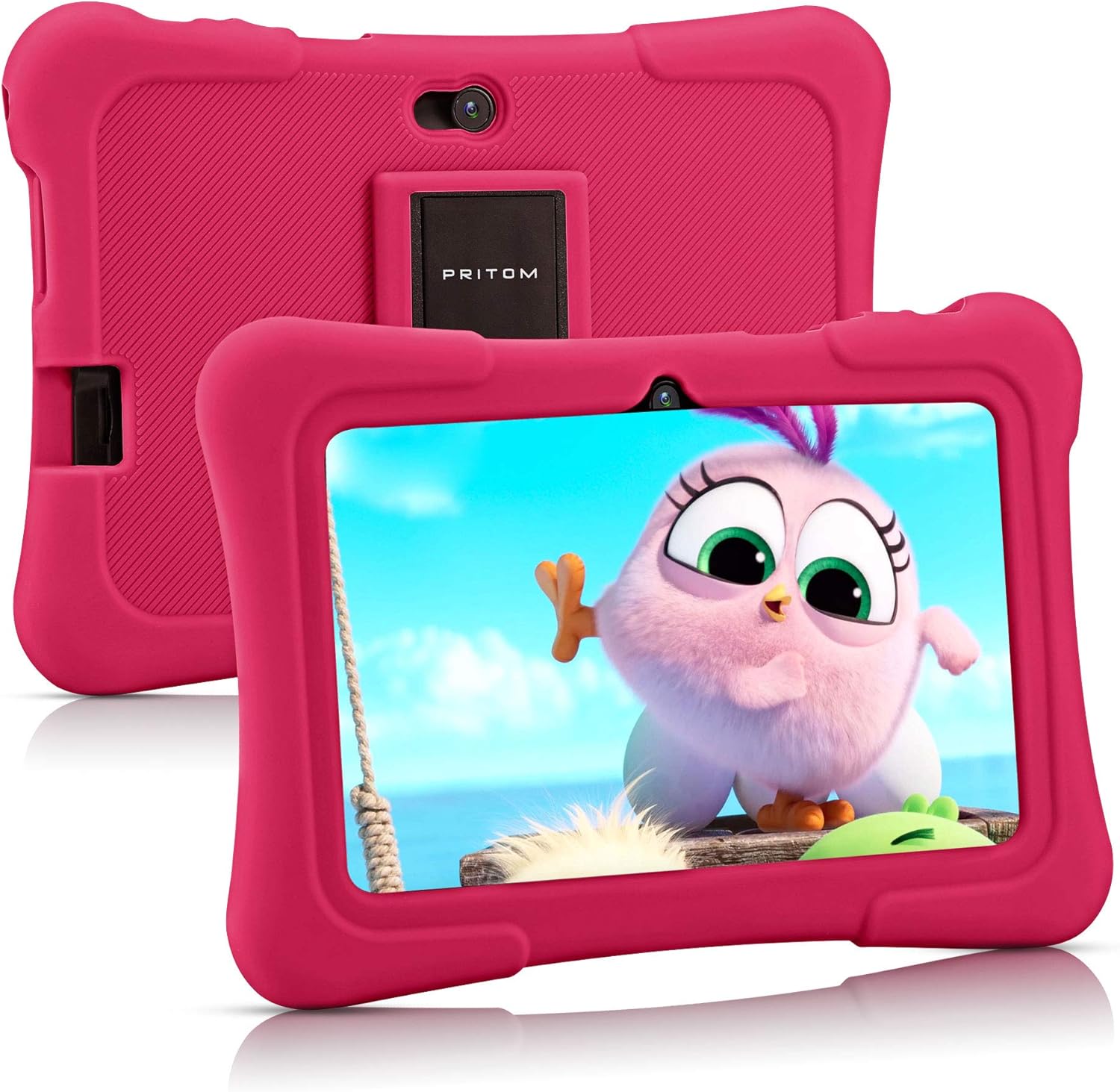
Image: PRITOM K7 7-inch Kids Tablet in its protective pink silicone case.

Image: Diagram illustrating the location of the power button, DC jack, Micro USB port, mic, 3.5mm earphone jack, volume buttons, Micro SD card slot, front camera, rear camera, and speaker.
4. Seadistamine
4.1 Esmane sisselülitamine
- Vajutage ja hoidke all nuppu Toitenupp (located on the top edge) for a few seconds until the screen lights up.
- Keele ja piirkonna valimiseks järgige ekraanil kuvatavaid juhiseid.
4.2 Wi-Fi-ga ühenduse loomine
- Avakuval puudutage ikooni Seaded ikooni.
- Valige Võrk ja Internet, siis Wi-Fi.
- Lülita WiFi sisse/välja On.
- Valige loendist soovitud WiFi-võrk.
- Sisestage parool, kui seda küsitakse, ja puudutage Ühendage.
4.3 Setting Up Parental Controls (iWawa Kids Software)
The PRITOM K7 comes with pre-installed iWawa Kid's software, offering a safe and controlled environment for children.
- Leidke ja puudutage iWawa app icon on the home screen.
- Follow the on-screen instructions to create a child profile. This typically involves setting up a password for parental access, defining screen time limits, and selecting age-appropriate content.
- Within the iWawa app, you can manage applications, set content filters, and monitor usage.

Image: The iWawa Kids Software interface, showing pre-installed educational and game applications.
5. Tahvelarvuti kasutamine
5.1 Navigeerimine
- Puuteekraan: Navigeeri ekraanil puudutades, libistades ja näpistades.
- Kodu: Naaseb avakuvale.
- Tagasi nupp: Naaseb eelmisele ekraanile.
- Hiljutiste rakenduste nupp: Kuvab hiljuti kasutatud rakendused.
5.2 Downloading Apps
Beyond the pre-installed iWawa apps, you can download additional applications from the Google Play Store.
- Exit the iWawa app (if active) by entering the parental password.
- Leidke ja puudutage Google Play pood icon on the main Android home screen.
- Otsi desired apps and follow the on-screen instructions to download and install them.
5.3 kaamera funktsionaalsus
The tablet features a front-facing and rear-facing camera for photos and videos.
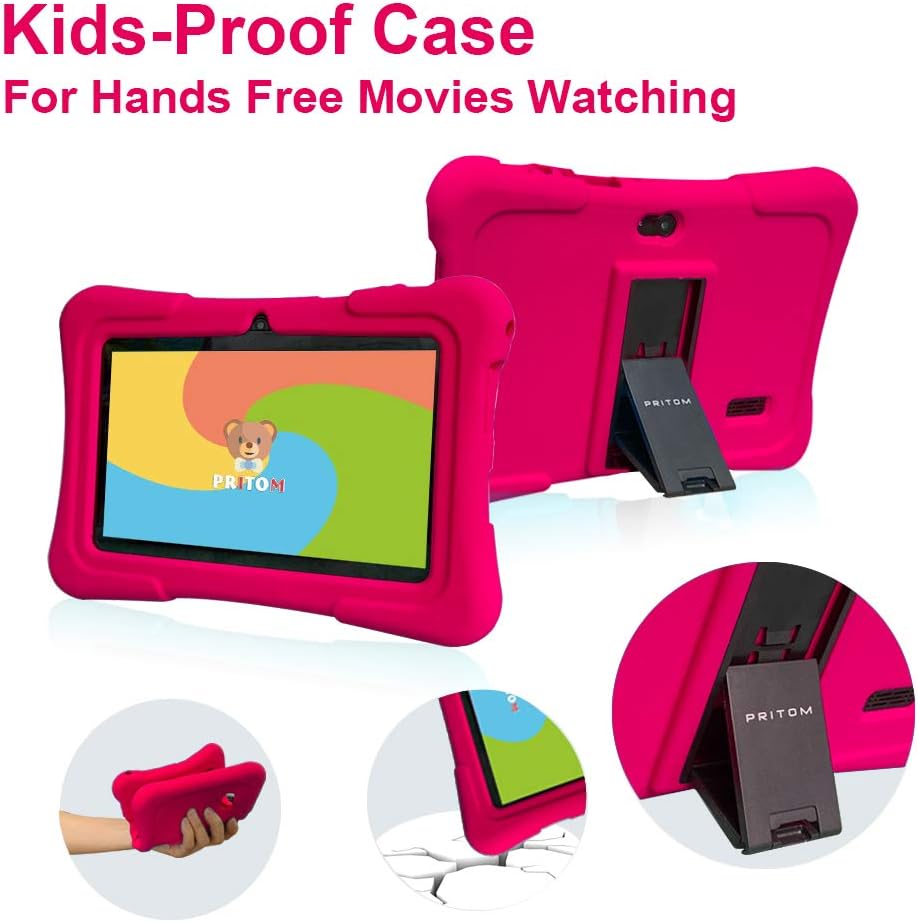
Image: The PRITOM K7 tablet displaying a family photo, highlighting its 7-inch IPS screen and camera capabilities.
- Puudutage valikut Kaamera rakenduse ikoon.
- Select between the front and rear camera using the toggle icon.
- Foto tegemiseks või video salvestamise alustamiseks/peatamiseks puudutage katiku nuppu.
5.4 Meedia taasesitus
The tablet supports various media formats for videos, music, and photos.
- Video: Use the pre-installed video player or download a third-party app from the Google Play Store.
- Muusika: Use the Music app to play audio files.
- Fotod: View images in the Gallery app.
Video: Üleview of the PRITOM 7-inch Kids Tablet, demonstrating its features and functionality, including the user interface and protective case.
Video: A short demonstration of the kids tablet, showcasing its design and some interactive elements.
Video: A brief look at the PRITOM Kids Tablet, highlighting its 7-inch screen and 32GB storage capacity.
6. Hooldus
6.1 Aku laadimine
Connect the provided charger to the tablet's DC jack or Micro USB port and plug it into a power outlet. The battery indicator on the screen will show charging status.
6.2 Salvestushaldus
The tablet has 32 GB of internal storage, expandable up to 512 GB using a Micro SD card.
- Locate the Micro SD card slot (refer to Device Overview diagramm).
- Gently insert a compatible Micro SD card until it clicks into place.
- Salvestusruumi haldamiseks minge aadressile Seaded > Salvestusruum.
6.3 Puhastamine
Use a soft, dry, lint-free cloth to clean the screen and exterior of the tablet. Avoid using harsh chemicals or abrasive materials.

Image: The PRITOM K7 tablet secured in its pink kid-proof silicone case, featuring a functional kickstand for hands-free viewing.
7. Veaotsing
- Tahvelarvuti ei lülitu sisse: Veenduge, et aku on laetud. Ühendage laadija ja proovige uuesti.
- Ekraan ei reageeri: Tehke pehme lähtestamine, hoides toitenuppu 10–15 sekundit all.
- Wi-Fi ühenduse probleemid: Kontrolli, kas WiFi on seadetes lubatud. Taaskäivita ruuter ja tahvelarvuti.
- Rakendused jooksevad kokku: Clear the app's cache (Settings > Apps > [App Name] > Storage > Clear Cache) or reinstall the app.
- Parental control issues: Verify the parental password and check settings within the iWawa app.
8. Tehnilised andmed
| Funktsioon | Detail |
|---|---|
| Ekraani suurus | 7 tolli |
| Ekraani eraldusvõime | 1024x600 pikslit (IPS HD) |
| Operatsioonisüsteem | Android 13 |
| Protsessor | Quad-Core (1.5 GHz Unisoc) |
| RAM | 2 GB SDRAM-i DDR3 |
| Sisemälu | 32 GB (laiendatav kuni 512 GB-ni Micro SD-kaardiga) |
| Kaamerad | Ees 2 MP, taga 0.3 MP |
| Ühenduvus | WiFi (802.11bgn), Bluetooth |
| Aku tööiga | Average 3 years (device lifespan) |
| Kauba kaal | 1.15 naela |
| Toote mõõtmed | 8.3 x 5.9 x 0.7 tolli |
9. Garantii ja tugi
For warranty information and customer support, please refer to the documentation included with your purchase or visit the official PRITOM webveebisait. Hoidke ostutõendit alles garantiinõuete esitamiseks.


