Sissejuhatus
This manual provides essential instructions for setting up, operating, maintaining, and troubleshooting your Microsoft Surface Pro 2017. The Surface Pro 2017 is a versatile 2-in-1 device designed to function as both a powerful laptop and a portable tablet, offering a seamless computing experience.
Please read this manual thoroughly to ensure proper use and to maximize the lifespan of your device. Keep this manual for future reference.
Mis on karbis
Upon unboxing your Microsoft Surface Pro 2017, verify that all components are present:
- Microsoft Surface Pro 2017 device
- Vahelduvvoolu adapter
Note: Additional accessories such as the Surface Pen, Type Cover, or Surface Dial are sold separately and may not be included with your device.
Seadistamine
1. Esmane sisselülitamine ja laadimine
- Ühendage toiteadapter: Plug the AC power adapter into a wall outlet and then connect the magnetic charging connector to the charging port on your Surface Pro. The LED indicator on the connector will illuminate when charging.
- Toide sisse: Press and hold the power button located on the top edge of the device for a few seconds until the Microsoft logo appears on the screen.
2. Windows Setup
Follow the on-screen prompts to complete the initial Windows setup. This process typically includes:
- Oma piirkonna ja keele valimine.
- Ühenduse loomine Wi-Fi võrguga.
- Litsentsilepingu aktsepteerimine.
- Microsofti konto loomine või sisselogimine.
- Setting up security features like Windows Hello (facial recognition) or a PIN.
3. Wi-Fi-ga ühenduse loomine
- During Windows setup, you will be prompted to connect to a network. Select your desired Wi-Fi network from the list and enter the password if required.
- If you need to connect later, go to Alusta > Seaded > Võrk ja Internet > Wi-Fi. Turn Wi-Fi on, select your network, and click Ühendage.
Kasutusjuhised
Basic Device Orientation and Controls
The Surface Pro 2017 features a 12.3-inch PixelSense display with multi-touch support. Key physical controls include:
- Toitenupp: Located on the top edge, used to turn the device on/off, sleep, or wake.
- Helitugevuse nupud: Asub küljel, kasutatakse helitugevuse reguleerimiseks.
- Tugijalg: Integrated on the back, allows for multiple viewnurgad.
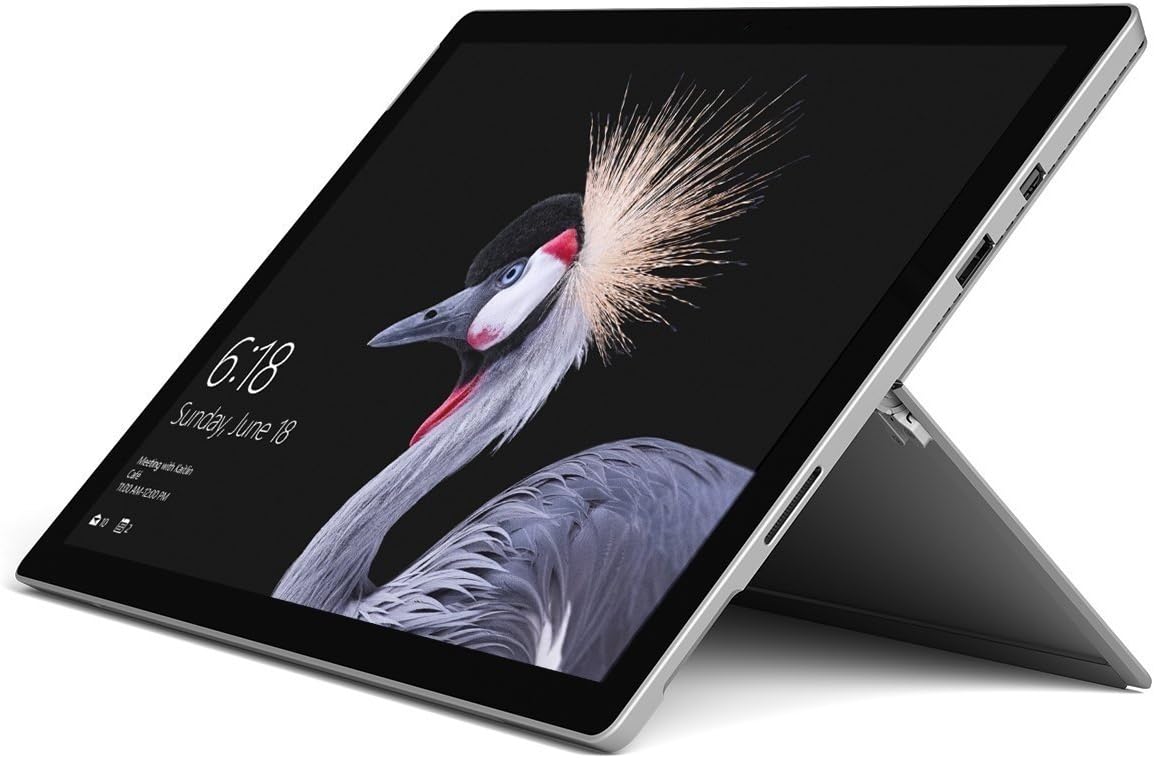
Image: Microsoft Surface Pro 2017 in laptop mode with its kickstand extended, showcasing the device's display.
Kickstandi kasutamine
The integrated kickstand allows you to position your Surface Pro at various angles for comfortable viewing, typing, or drawing. Gently pull the kickstand out from the back of the device until it reaches your desired angle.
Toitehaldus
- Puhkerežiim: Briefly press the power button to put the Surface Pro into sleep mode. Press it again to wake the device.
- Lülita välja: Mine aadressile Alusta > Võimsus > Sulgege.
- Taaskäivita: Mine aadressile Alusta > Võimsus > Taaskäivitage.
Välisseadmete ühendamine
The Surface Pro 2017 includes various ports for connecting external devices:
- USB 3.0 port: For connecting USB drives, keyboards, mice, and other compatible accessories.
- Mini DisplayPort: Väliste monitoride või projektorite ühendamiseks.
- microSD-kaardi lugeja: Salvestusruumi laiendamiseks või ümberpaigutamiseks files mälukaartidelt.
- Surface Connect Port: For power and connecting to Surface Dock accessories.
- 3.5 mm kõrvaklappide pesa: Heliväljundi jaoks.
Bluetooth: To connect Bluetooth devices (e.g., headphones, mice), go to Alusta > Seaded > Seadmed > Bluetooth ja muud seadmed. Ensure Bluetooth is turned on, then select "Add Bluetooth or other device" and follow the pairing instructions.

Pilt: Külgmine profile of the Microsoft Surface Pro 2017, highlighting the various ports available for connectivity.
Hooldus
Cleaning Your Surface Pro
- Ekraan: Kasutage kergelt pehmet ebemevaba lappi dampened with water or an approved screen cleaner. Avoid harsh chemicals or abrasive materials.
- Keha: Wipe the exterior with a soft, dry cloth. Do not allow liquids to enter openings.
- Pordid: Keep ports free of dust and debris. Use compressed air carefully if needed, holding the can upright.
Aku hooldus
- Vältige äärmuslikke temperatuure, kuna need võivad aku tööiga lühendada.
- Aku optimaalse seisukorra tagamiseks vältige aku pidevat täielikku tühjendamist või selle pikaajalist 100% laetuse juures hoidmist.
- Use only the official Microsoft AC power adapter or a compatible charger.
Tarkvaravärskendused
Regularly update your Windows operating system and device drivers to ensure optimal performance, security, and compatibility. Go to Alusta > Seaded > Värskendus ja turvalisus > Windows Update värskenduste kontrollimiseks ja installimiseks.
Veaotsing
Selles jaotises käsitletakse levinud probleeme, mis võivad teie Surface Pro 2017-ga kokku puutuda.
Device Will Not Turn On
- Veenduge, et seade on laetud. Ühendage toiteadapter ja oodake enne sisselülitamist paar minutit.
- Perform a two-button shutdown: Press and hold the volume-up button and the power button simultaneously for at least 15 seconds, then release both. Wait 10 seconds, then press the power button again to turn on the Surface.
Screen Not Responding to Touch
- Taaskäivitage seade.
- Veenduge, et ekraan on puhas ja prahist vaba.
- Check for available Windows updates, as driver updates can resolve touch issues.
WiFi-ühenduse probleemid
- Veenduge, et WiFi oleks sisse lülitatud Seaded > Võrk ja Internet > Wi-Fi.
- Restart your Surface Pro and your Wi-Fi router.
- Forget the network and reconnect: Go to Seaded > Võrk ja Internet > Wi-Fi, click on your network, then Unusta. Reconnect and enter the password.
Tehnilised andmed
| Funktsioon | Spetsifikatsioon |
|---|---|
| Mudeli nimi | Surface Pro 2017 |
| Kauba mudeli number | 7Y30 |
| Ekraani suurus | 12.3 tolli |
| Ekraani eraldusvõime | 2736 x 1824 pikslit |
| Protsessor | Intel Core m3-7Y30 (1 GHz Intel_Mobile_CPU) |
| RAM | 4 GB DDR4 SDRAM |
| Säilitamine | 128 GB SSD |
| Graafikakaart | Integreeritud (Intel) |
| Operatsioonisüsteem | Windows |
| Traadita tüüp | 802.11abg |
| Kauba kaal | 1.89 naela |
| Toote mõõtmed | 11.5 x 7.9 x 0.3 tolli |
| Värv | Hõbedane |
Garantii ja tugi
For detailed warranty information, please refer to the warranty card included with your purchase or visit the official Microsoft support webveebisait. Garantiitingimused võivad piirkonniti ja jaemüüjati erineda.
For technical support, driver downloads, and additional resources, please visit the official Microsoft Support websait: support.microsoft.com/surface