1. Sissejuhatus
Thank you for choosing the iggual QR Barcode Scanner. This device is designed for efficient and reliable scanning of both 1D and 2D barcodes, offering both manual and automatic scanning modes. It features an ergonomic design for comfortable use and broad compatibility with various operating systems. This manual provides essential information for setting up, operating, and maintaining your scanner.
Peamised omadused:
- Ergonomic design with a comfortable trigger button.
- Detects all common 1D and 2D barcodes, including QR codes.
- Supports manual and automatic scanning modes.
- Wired USB connectivity for reliable data transmission.
- Compatible with Windows XP/7/8/10, macOS, Linux, and Android.
2. Pakendi sisu
Palun kontrollige paki sisu, et kõik esemed oleksid olemas:
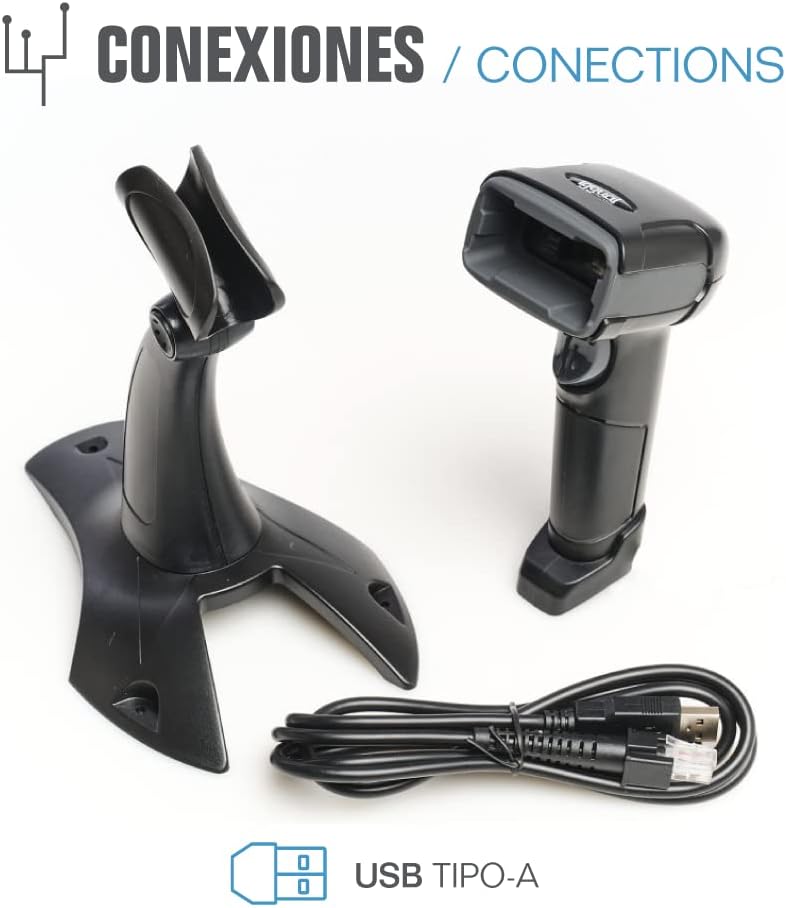
- iggual QR Barcode Scanner (Model IGG315651)
- USB-kaabel (tüüp A)
- Scanner Stand (Optional, depending on package)

Joonis 2.1: Package contents including the scanner, stand, and USB Type-A cable.
3. Toote lõppview
Familiarize yourself with the main components of your iggual barcode scanner:
- Skannimisaken: Ala, kus vöötkoode loetakse.
- Päästikunupp: Activates scanning in manual mode.
- USB-port: For connecting the scanner to your computer.
- LED indikaator: Provides visual feedback on scanning status.
- Piiks: Provides audible feedback on scanning status.

Joonis 3.1: The iggual barcode scanner with its optional stand, highlighting the LED indicator and beeper functionality.
4. Seadistamine
4.1 Skanneri ühendamine
- Connect the USB cable to the USB port on the scanner.
- Ühendage USB-kaabli teine ots arvuti või hostseadme vabasse USB-porti.
- The scanner will typically be recognized automatically by your operating system as a standard HID keyboard device. No special drivers are usually required.
4.2 Süsteemi ühilduvus
The iggual QR Barcode Scanner is compatible with a wide range of operating systems:
- Windows XP / 7 / 8 / 10
- macOS
- Linux
- Android

Joonis 4.1: Operating system compatibility for the iggual barcode scanner.
5. Kasutusjuhised
5.1 Skaneerimisrežiimid
The scanner supports two primary scanning modes:
- Käsitsi režiim: Press the trigger button to activate the scanner and read a barcode. Release the button after a successful scan.
- Automaatrežiim: The scanner continuously emits a scanning beam, reading barcodes as they are presented within its field of view without needing to press the trigger. Refer to the full product manual (if available from iggual.com) for instructions on switching between modes, usually done by scanning specific configuration barcodes.
5.2 Toetatud vöötkooditüübid
This scanner is capable of reading a wide range of 1D and 2D barcode symbologies, including:
- 2D-koodid: QR Code, Maxi Code, MicroPDF, PDF417
- 1D-koodid: Code 128, EAN-13, EAN-8, Code 39, UPC-A, UPC-E, Code 93, Interleaved 2 of 5, Codabar, MSI, RSS, etc.

Joonis 5.1: Scanner capabilities including 200 scans/second, 2D scanning, and supported code types.
5.3 Skannimisprotseduur
- Ensure the scanner is properly connected to your host device.
- Avage rakendus, kuhu soovite skannitud andmed kuvada (nt tekstiredaktor, arvutustabel või POS-tarkvara).
- Point the scanning window at the barcode you wish to read.
- If in manual mode, press and hold the trigger button. If in automatic mode, simply present the barcode.
- A successful scan will be indicated by a short beep and/or a flash of the LED indicator. The scanned data will appear in your active application.
- If the barcode is not read, adjust the distance and angle of the scanner relative to the barcode.
6. Hooldus
6.1 Puhastamine
- To clean the scanner's exterior, use a soft, damp riie.
- For the scanning window, use a lint-free cloth and a mild glass cleaner. Avoid abrasive materials or harsh chemicals that could scratch the surface.
- Ensure no liquid enters the scanner's housing.
6.2 Säilitamine
When not in use, store the scanner in a cool, dry place, away from direct sunlight and extreme temperatures.
7. Veaotsing
| Probleem | Võimalik põhjus | Lahendus |
|---|---|---|
| Arvuti ei tuvasta skannerit. | Loose USB connection, faulty USB port, or cable issue. | Ensure USB cable is securely connected. Try a different USB port or cable. Restart the computer. |
| Skanner ei loe vöötkoode. | Barcode damaged, incorrect scanning angle/distance, scanner in wrong mode, or dirty scanning window. | Check barcode integrity. Adjust scanning angle and distance. Ensure scanner is in the correct mode (manual/automatic). Clean the scanning window. |
| Skannitud andmed kuvatakse valesti. | Keyboard layout mismatch or corrupted data. | Ensure your computer's keyboard layout matches the scanner's default output (usually US English). If issues persist, consult the full product manual for advanced configuration. |
8. Tehnilised andmed
| Funktsioon | Detail |
|---|---|
| Mudel | IGG315651 |
| Mõõdud (P x L x K) | 160 x 80 x 100 mm (6.3 x 3.15 x 3.94 tolli) |
| Kaal | 120 g (0.26 naela) |
| Skaneerimise kiirus | 200 skannimist sekundis |
| Pildi andur | 640(H) x 480(V), 256 Grayscale |
| Ühenduvus | Wired USB (Type-A) |
| Toiteallikas | Juhtmega elektriline (USB-toitega) |
| Operatsioonisüsteemid | Windows XP/7/8/10, macOS, Linux, Android |
| Toetatud vöötkoodid | 1D & 2D (QR, Maxi Code, MicroPDF, Code, PDF417, RSS, etc.) |
Joonis 8.1: Physical dimensions of the iggual barcode scanner.
9. Garantii ja tugi
For warranty information, technical support, or to download the complete product manual with advanced configuration options, please visit the official iggual websaidil või võtke ühendust oma kohaliku edasimüüjaga.
Ametlik Websait: www.iggual.com


