1. Sissejuhatus
This manual provides instructions for the ROCCAT KONE Aimo Gaming Mouse. The KONE Aimo features an Owl-Eye Optical Sensor, customizable RGB AIMO LED illumination, and 23 programmable keys. It is designed for precision and ergonomic comfort during extended use.
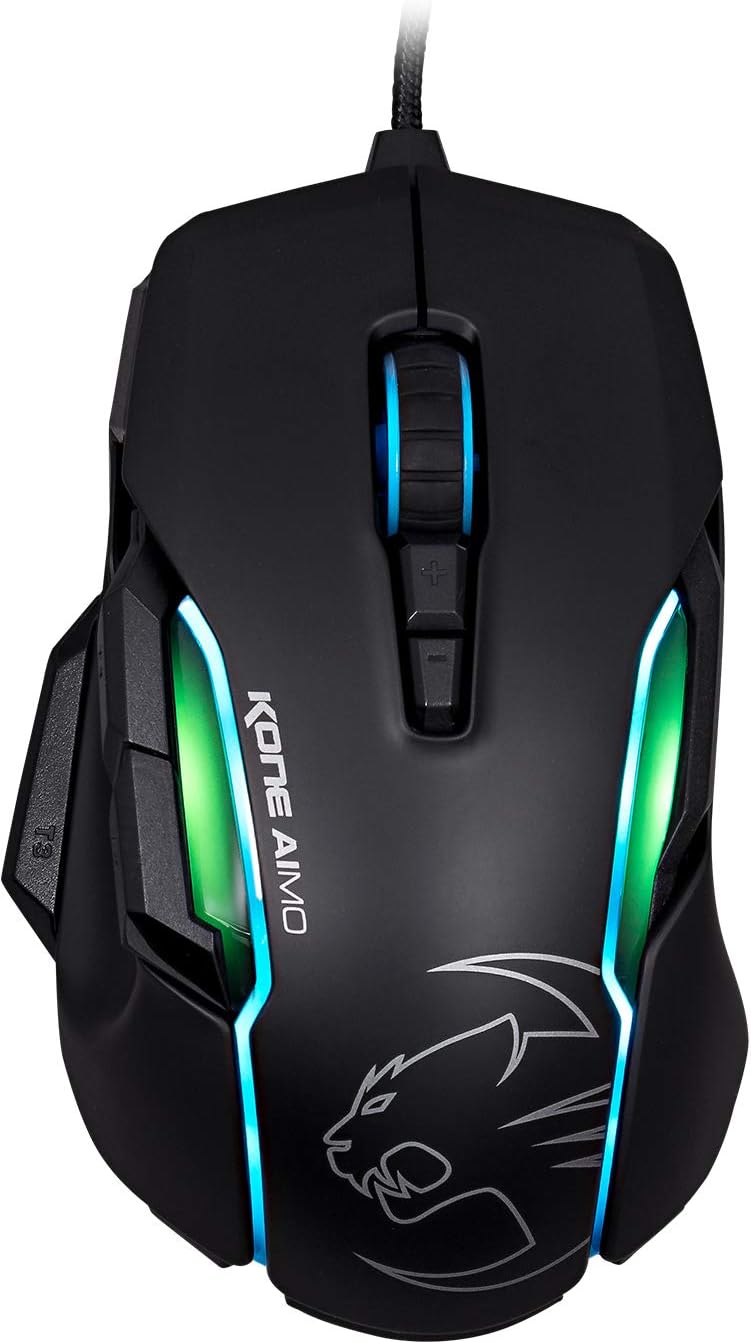
Joonis 1: Ülemine view of the ROCCAT KONE Aimo Gaming Mouse, showcasing its ergonomic shape and RGB lighting zones.
2. Pakendi sisu
Veenduge, et pakendis on kõik esemed olemas:
- KONE AIMO Mouse with Attached Braided USB Cable
- Kiirjuhend
- ROCCAT Stickers

Figure 2: Retail packaging of the ROCCAT KONE Aimo Gaming Mouse.
3. Seadistamine
- Ühendage hiir: Plug the USB cable of the ROCCAT KONE Aimo mouse into an available USB port on your computer.
- Draiveri installimine: Your operating system (Windows 7, 8, 8.1, 10) should automatically detect and install the necessary drivers.
- ROCCAT Swarmi tarkvara installimine: For full customization of DPI settings, button assignments, and AIMO lighting, download and install the ROCCAT Swarm software from the official ROCCAT website. This software allows you to create and manage profiles.

Figure 3: The ROCCAT KONE Aimo mouse in use on a mouse pad, connected to a computer.
4. Kasutusjuhised
4.1. Nuppude funktsioonid
The KONE Aimo features 23 programmable keys, including a tri-button thumb zone and a 4D tilting Titan wheel. These can be customized via the ROCCAT Swarm software.
- Vasak/parem klikk: Hiire standardfunktsioonid.
- Scroll Wheel (4D Titan Wheel): Scrolls vertically and can tilt horizontally for additional functions. Also acts as a clickable button.
- DPI reguleerimise nupud: Located above and below the scroll wheel, these buttons allow for on-the-fly DPI sensitivity changes. Settings are configured in the Swarm software.
- Thumb Buttons (T1, T2, T3): Three buttons located on the left side, easily accessible by the thumb. The bottom-most button (T3) is often defaulted to the Easy-Shift[+] function.
- Easy-Shift[+] Button: This exclusive ROCCAT feature doubles the number of programmable functions for other buttons when held down, effectively expanding the total programmable keys.

Joonis 4: üksikasjalik view of the programmable thumb buttons (T1, T2, T3) on the left side of the mouse.
4.2. AIMO Lighting System
The AIMO lighting system provides intelligent, reactive RGB illumination across four independently configurable LED light zones and the glowing mouse wheel. It can synchronize with other compatible ROCCAT devices and is programmable through the ROCCAT Swarm software.

Figure 5: The KONE Aimo mouse displaying its multi-zone RGB AIMO illumination.
4.3. Owl-Eye Optical Sensor
The mouse is equipped with the ROCCAT Owl-Eye Optical Sensor, a modified PixArt 3361 sensor, offering adjustable DPI from 100 to 12,000. This sensor provides precise tracking and responsiveness. A built-in tracking distance control unit monitors the lift-off distance for enhanced accuracy.

Figure 6: The bottom of the mouse, highlighting the Owl-Eye Optical Sensor.
4.4. Ergonoomika
The KONE Aimo features refined ergonomics designed for comfort during extended use. Its shape provides a natural fit for the hand, with a dedicated thumb rest area.

Figure 7: A hand gripping the KONE Aimo mouse, illustrating its ergonomic design.
5. Hooldus
- Puhastamine: Hiire pinna puhastamiseks kasutage pehmet ja kuiva lappi. Kangekaelse mustuse korral kasutage kergelt kuiva lappi.amp võib kasutada riiet, tagades, et niiskus ei satuks sisemistesse komponentidesse.
- Anduri hooldus: Keep the optical sensor on the underside of the mouse clean and free of dust or debris to ensure optimal tracking performance.
- Kaabli haldamine: Kahjustuste vältimiseks vältige punutud USB-kaabli järske painutusi ja liigset tõmbamist.
6. Veaotsing
- Hiir ei reageeri:
- Veenduge, et USB-kaabel oleks kindlalt töötavasse USB-porti ühendatud.
- Try a different USB port or another computer to rule out port or system issues.
- Taaskäivitage arvuti.
- Tracking Issues / Inaccurate Movement:
- Puhastage hiire allosas asuv optiline andur.
- Ensure you are using the mouse on a clean, suitable mouse pad or surface.
- Check DPI settings in the ROCCAT Swarm software.
- RGB Lighting Not Working / Incorrect:
- Verify that the ROCCAT Swarm software is running and updated.
- Kontrollige Swarmi tarkvara valgustusseadeid.
- Veenduge, et RGB-valgustust ei juhi ükski konflikti tekitav tarkvara.
- Nupud ei tööta:
- Check button assignments in the ROCCAT Swarm software.
- Ensure the software is not experiencing issues (try restarting it).
7. Tehnilised andmed
| Funktsioon | Detail |
|---|---|
| Kaubamärk | ROCCAT |
| Mudeli number | ROC-11-815-BK |
| Andur | Owl-Eye Optical Sensor (modified PixArt 3361) |
| DPI vahemik | 100 to 12,000 DPI |
| Programmeeritavad nupud | 23 (with Easy-Shift[+]) |
| Valgustus | RGBA AIMO LED Illumination (4 independent zones + scroll wheel) |
| Ühenduvus | USB (juhtmega) |
| Operatsioonisüsteemi ühilduvus | Windows 7, Windows 8, Windows 8.1, Windows 10 (32-bit and 64-bit versions) |
| Kauba kaal | 11.2 untsi (umbes 317.5 grammi) |
| Toote mõõtmed (PxLxK) | 5.12 x 2.95 x 1.57 tolli (ligikaudu 13 x 7.5 x 4 cm) |
8. Garantii ja tugi
For warranty information, technical support, and additional resources, please visit the official ROCCAT website or contact ROCCAT customer service. Keep your proof of purchase for warranty claims.
Võite külastada ka ROCCATi pood Amazonis toote kohta lisateabe saamiseks.


