Sissejuhatus
This manual provides essential information for setting up, operating, maintaining, and troubleshooting your Microsoft Surface Pro 3. The Surface Pro 3 is a versatile device designed to function as both a tablet and a laptop, powered by the Windows 10 operating system.
It features a 12-inch high-resolution screen, ample internal storage, dual HD cameras, and robust connectivity options, including a full-size USB 3.0 port. Its integrated kickstand allows for comfortable viewing in various positions, and the magnesium frame ensures a lightweight and durable design.
Ohutusteave
- Ärge jätke seadet äärmuslike temperatuuride, otsese päikesevalguse ega kõrge õhuniiskuse kätte.
- Vältige seadme maha kukkumist või tugevate löökide saamist.
- Kasutage ainult Microsofti poolt heakskiidetud toiteadaptereid ja tarvikuid.
- Hoidke seadet vedelikest eemal. Vedelikuga kokkupuutel lülitage seade kohe välja ja pöörduge professionaalse abi poole.
- Ärge proovige seadet ise lahti võtta ega parandada. See võib tühistada garantii ja põhjustada kahjustusi.
- Seadme kasutamisel tagage korralik ventilatsioon, et vältida ülekuumenemist.
Seadistamine
1. Karbist lahtivõtmine ja esmane ülevaatus
Carefully remove the Surface Pro 3 and all accessories from the packaging. Inspect the device for any visible damage. Retain the packaging for future transport or service needs.
2. Sisselülitamine ja algseadistus
- Ühendage toiteplokk Surface Pro 3 ja pistikupessa.
- Vajutage seadme ülaservas asuvat toitenuppu.
- Windows 10 esmase seadistamise (sh keele valik, võrguühendus ja kasutajakonto loomine) lõpuleviimiseks järgige ekraanil kuvatavaid juhiseid.
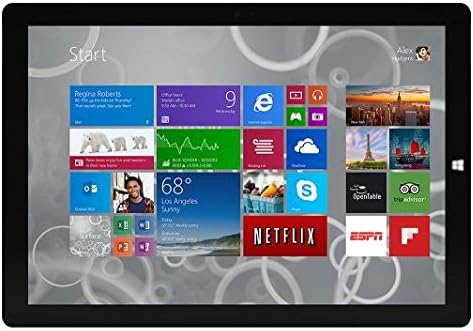
Figure 1: Windows 10 Start Screen during initial setup.
This image shows the Microsoft Surface Pro 3 screen displaying the Windows 10 Start menu, characterized by a grid of live tiles representing various applications and services. This is typically seen during the initial setup or when navigating the operating system.
3. Attaching Accessories (Sold Separately)
The Surface Pro 3 is compatible with various accessories, such as the Surface Type Cover keyboard and the Surface Pen, which are sold separately.
- Surface Type Cover: Align the magnetic connector of the Type Cover with the bottom edge of the Surface Pro 3 until it clicks into place.
- Surface'i pliiats: The Surface Pen can be magnetically attached to the side of the Surface Pro 3 for storage. For initial pairing, follow the instructions provided with the pen.
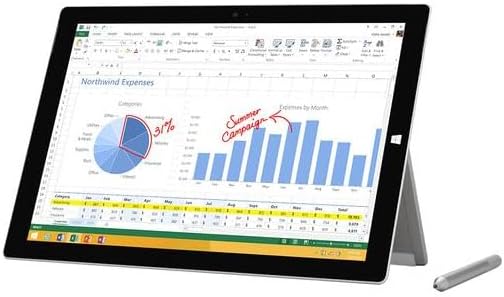
Figure 2: Surface Pro 3 with optional Surface Pen.
This image illustrates the Microsoft Surface Pro 3 in use, displaying an Excel spreadsheet on its screen. A Surface Pen is positioned next to the device, highlighting its compatibility for precise input and navigation.
4. Expanding Storage with a MicroSD Card
You can expand the internal storage of your Surface Pro 3 using a microSD card (sold separately).
- Locate the microSD card slot on the side of the Surface Pro 3, typically behind the kickstand.
- Insert the microSD card into the slot until it clicks into place.
- The device will automatically detect the card. You may need to format it if it's a new card or if prompted by the system.

Figure 3: MicroSD card slot.
This close-up image shows the microSD card slot on the side of the Microsoft Surface Pro 3, with a microSD card partially inserted, demonstrating how to expand the device's storage.
Kasutusjuhised
1. Windows 10 navigeerimine
- Menüü Start: Rakenduste, sätete ja toitevalikute avamiseks klõpsake vasakus alanurgas Windowsi ikooni.
- Puuteekraan: Kasutage navigeerimiseks, suumimiseks ja kerimiseks žeste.
- Edge Browser: Utilize the pre-installed Edge browser for web browsing, which includes features for marking up web lehekülgi.

Figure 4: Using the Surface Pro 3 for productivity.
This image depicts the Microsoft Surface Pro 3 in an active use scenario, showcasing a note-taking application open on its screen. The display features handwritten notes, diagrams, and sketches, illustrating the device's capability for creative and productive tasks.
2. Using the Integrated Kickstand
The multi-position kickstand allows you to adjust the viewing angle for optimal comfort, whether you are typing, watching videos, or drawing.
- Gently pull the kickstand out from the back of the device.
- Adjust it to your desired angle. The kickstand offers a wide range of positions for versatility.
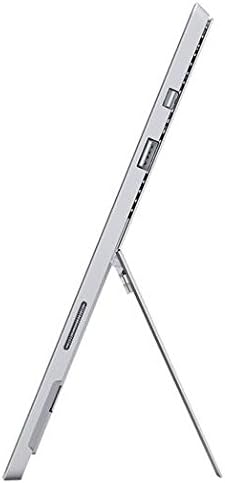
Figure 5: Adjustable kickstand.
See pilt annab külgvaate view of the Microsoft Surface Pro 3, clearly showing its integrated kickstand extended to support the device at an angle, demonstrating its versatile viewvõimeid.
3. Kaamera funktsionaalsus
The Surface Pro 3 is equipped with 5.0MP front and rear cameras.
- Open the Camera application from the Start Menu.
- Switch between front and rear cameras as needed for photos or video calls.

Figure 6: Front camera.
This close-up image focuses on the front-facing camera and associated sensors located at the top edge of the Microsoft Surface Pro 3 screen.
4. Ühenduvus
The full-size USB 3.0 port allows for connecting various peripherals and transferring data.
- Insert USB devices (e.g., flash drives, external hard drives, printers) into the USB 3.0 port.
- The device also supports Wi-Fi (802.11a/b/g/n/ac) for wireless internet connectivity.
Hooldus
1. Cleaning Your Surface Pro 3
- Kasutage pehmet ebemevaba lappi dampveega või spetsiaalselt elektroonika jaoks mõeldud ekraanipuhastusvahendiga.
- Vältige karmide kemikaalide, abrasiivsete puhastusvahendite või aerosoolpihustite kasutamist.
- Pühkige õrnalt ekraani ja välispindu.
2. Tarkvaravärskendused
Kontrollige ja installige regulaarselt Windowsi värskendusi, et teie seadmel oleksid uusimad turvapaigad ja jõudluse täiustused.
- Mine aadressile Seaded > Värskendus ja turvalisus > Windows Update.
- Klõpsake nuppu „Kontrolli värskendusi” ja installige kõik saadaolevad värskendused.
3. Salvestushaldus
To maintain optimal performance, manage your device's storage space.
- Kustuta regulaarselt mittevajalikud files ja rakendused.
- Utilize cloud storage services or external drives for large files.
- Consider using the Disk Cleanup tool in Windows to remove temporary files.
Veaotsing
Selles jaotises käsitletakse levinud probleeme, mis võivad teie Surface Pro 3-ga kokku puutuda.
Seade ei lülitu sisse
- Ensure the power supply is securely connected to both the device and a working power outlet.
- Proovige teist pistikupesa.
- Sundväljalülitamiseks vajutage ja hoidke toitenuppu 10–15 sekundit all, seejärel vajutage seda uuesti taaskäivitamiseks.
WiFi-ühenduse probleemid
- Kontrollige, kas Windowsi seadetes on WiFi lubatud.
- Taaskäivitage oma WiFi-ruuter.
- Unusta võrk ja loo uuesti ühendus, sisestades parooli uuesti.
- Käivitage Windowsi võrgu tõrkeotsing.
Aeglane jõudlus
- Sulgege taustal töötavad mittevajalikud rakendused.
- Kontrollige ja installige kõik ootel olevad Windowsi värskendused.
- Veenduge, et teil oleks piisavalt vaba salvestusruumi.
- Käivita viirusekontroll.
For more detailed troubleshooting or issues not covered here, please refer to the official Microsoft Support websaidil või võtke ühendust klienditeenindusega.
Tehnilised andmed
| Funktsioon | Detail |
|---|---|
| Mudel | Microsoft Surface 1631 Pro 3 |
| Operatsioonisüsteem | Windows 10 |
| Ekraani suurus | 12 tolli |
| Ekraani eraldusvõime | 2160 x 1440 |
| Protsessor | Intel Core i3 1.5 GHz |
| RAM | 4 GB |
| Sisemälu | 128 GB Flash Storage |
| Graafika kaasprotsessor | Intel HD Graphics |
| Kaamerad | 5.0MP Front and Rear |
| Traadita tüüp | 802.11b, 802.11a, 802.11g |
| Sadamad | Full-size USB 3.0 |
| Kauba kaal | 1.8 naela |
| Toote mõõtmed | 11.5 x 0.36 x 7.93 tolli |
| Värv | Hõbedane |
Garantii ja tugi
Your Microsoft Surface Pro 3 comes with a standard manufacturer's warranty. For detailed warranty terms and conditions, please refer to the documentation included with your purchase or visit the official Microsoft support websaidile.
For technical assistance, troubleshooting guides, driver downloads, and service requests, please visit the Microsoft Surface Support lehel.


