Sissejuhatus
This manual provides comprehensive instructions for the setup, operation, maintenance, and troubleshooting of your Logitech M510 Wireless Mouse. Designed for comfort and efficiency, the M510 offers precise control and convenient features for your computing needs.
The Logitech M510 is a comfortable wireless computer mouse featuring a USB Unifying Receiver, back/forward buttons, and side-to-side scrolling. It operates on 2 AA batteries and is compatible with Personal Computers and Macbooks running operating systems like Windows 10.
Pakendi sisu
- Logitech M510 juhtmeta hiir
- Logitechi ühendav vastuvõtja
- 2 AA-patareid (eelinstallitud või kaasas)
Seadistamine
1. Aku paigaldamine
The Logitech M510 mouse requires two AA batteries for operation. These are typically included with your purchase. If not already installed, follow these steps:
- Leidke hiire alumisel küljel patareipesa kate.
- Sahtli avamiseks libistage või tõstke kaant üles.
- Sisestage kaks AA-patareid, veendudes, et positiivsed (+) ja negatiivsed (-) klemmid joonduvad õigesti sahtlis olevate indikaatoritega.
- Sulgege akupesa kaas kindlalt.
2. Unifying-vastuvõtja ühendamine
The Logitech M510 uses a Logitech Unifying Receiver for wireless connectivity. This small USB receiver allows you to connect multiple compatible Logitech devices to your computer using a single USB port.
- Locate the Logitech Unifying Receiver. It is often stored inside the battery compartment of the mouse for safekeeping during transport.
- Plug the Unifying Receiver into an available USB port on your computer (desktop, laptop, or Macbook).
- Your computer should automatically detect the receiver and install the necessary drivers. This may take a few moments.
- Once the drivers are installed, the mouse should be ready for use. If not, ensure the mouse's power switch (if present) is in the 'ON' position.

Pilt: Ülalt-alla view of the Logitech M510 Wireless Mouse alongside its compact USB Unifying Receiver.
Hiire kasutamine
The Logitech M510 Wireless Mouse is designed for intuitive use with several programmable buttons and comfortable ergonomics.
Põhifunktsioonid
- Vasakklõpsu nupp: Peamine nupp üksuste valimiseks, avamiseks fileja tarkvaraga suhtlemine.
- Paremklõpsu nupp: Teine nupp kontekstimenüüdele ja lisavalikutele juurdepääsuks.
- Kerimisratas: Kerige dokumentides üles või alla ja web lehekülgi. Kerimisratas toimib ka keskmise hiireklõpsu nupuna.
- Side-to-Side Scrolling: Tilt the scroll wheel left or right to scroll horizontally in applications that support this feature.
Advanced Features (Programmable Buttons)
The M510 features two thumb buttons (back/forward) on the left side, which can be customized using Logitech Options software (available for download from the Logitech website). By default, these buttons perform browser navigation functions.
- Tagasi nupp: Navigeerib tagasi sisse web brauserid või file uurijad.
- Edasi nupp: Liigub edasi web brauserid või file uurijad.
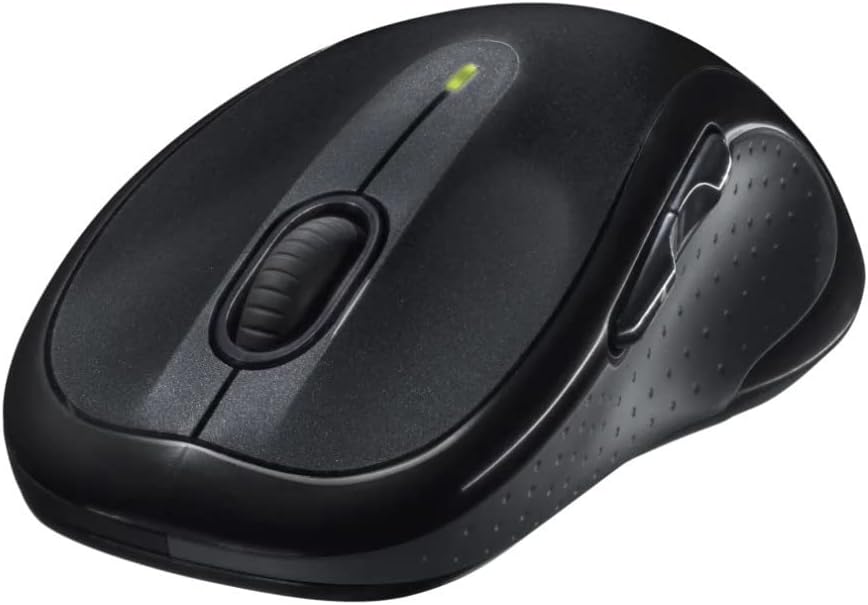
Pilt: Nurk view of the Logitech M510 Wireless Mouse, highlighting its ergonomic shape and side buttons.
Hooldus
Hiire puhastamine
To ensure optimal performance and hygiene, regularly clean your Logitech M510 mouse:
- Disconnect the mouse from your computer by removing the Unifying Receiver.
- Kasutage kergelt pehmet ebemevaba lappi dampened with water or a mild cleaning solution (e.g., isopropyl alcohol) to wipe down the surface of the mouse.
- For crevices and around buttons, use a cotton swab or a soft brush.
- Avoid getting liquid into the internal components or the optical sensor.
- Allow the mouse to dry completely before re-connecting.
Patarei vahetus
The Logitech M510 has an average battery life of 18 months. When the battery indicator light (if present) flashes or mouse performance degrades, it's time to replace the batteries.
- Lülitage hiir välja, kasutades selle all asuvat toitelülitit.
- Avage patareipesa kaas.
- Eemaldage vanad AA patareid.
- Insert two new AA batteries, observing the correct polarity (+/-).
- Sulgege patareipesa kaas.
- Lülitage hiir uuesti sisse.
Veaotsing
| Probleem | Võimalik põhjus | Lahendus |
|---|---|---|
| Hiir ei reageeri | Low or dead batteries; Unifying Receiver not connected; Mouse power off; Driver issue. | Replace batteries; Ensure Unifying Receiver is securely plugged into a USB port; Turn mouse power switch to 'ON'; Reinstall Logitech Options software or check device manager for driver issues. |
| Kursori liikumine on aeglane või ebaühtlane | Interference; Dirty optical sensor; Mouse used on unsuitable surface; Low battery. | Move mouse closer to receiver; Clear obstructions; Clean optical sensor; Use a mouse pad or suitable surface; Replace batteries. |
| Külgmised nupud ei tööta | Software not installed or configured; Application does not support custom buttons. | Download and install Logitech Options software from the official Logitech website to customize button functions. Ensure the application you are using supports these functions. |
| Unifying Receiver not recognized | Faulty USB port; Driver issue. | Try a different USB port; Restart your computer; Download and install the Logitech Unifying Software to re-pair the mouse with the receiver. |
Tehnilised andmed
| Funktsioon | Detail |
|---|---|
| Kaubamärk | Logitech |
| Mudeli number | 910-001822 |
| seeria | M510 |
| Ühenduvustehnoloogia | Radio Frequency, USB (via Unifying Receiver) |
| Liikumise tuvastamise tehnoloogia | Laser |
| Värv | Tumehall |
| Kauba kaal | 4.6 untsi (umbes 130 grammi) |
| Toote mõõtmed (PxLxK) | 4.38 x 2.5 x 1.75 tolli (umbes 11.13 x 6.35 x 4.45 cm) |
| Toiteallikas | Akutoitel |
| Nõutavad patareid | 2 AA patareid (kaasas) |
| Keskmine aku tööiga | 18 kuud |
| Riistvara platvorm | Personal Computer, Macbook |
| Operatsioonisüsteemi ühilduvus | Windows 10 (and likely earlier versions, macOS) |
| Eriomadused | Battery Life Indicator, Power Saving Mode, Programmable Buttons, Wireless |
| Esmakordselt saadaval olev kuupäev | 7. juuni 2010 |

Pilt: Ülalt-alla view of the Logitech M510 Wireless Mouse showing its approximate dimensions (4.4" length, 2.5" width).
Garantii ja tugi
Garantii teave
Logitech products typically come with a limited hardware warranty. For specific warranty terms and conditions applicable to your Logitech M510 Wireless Mouse, please refer to the warranty card included with your product or visit the official Logitech websaidile.
Klienditugi
For further assistance, technical support, or to download the latest software (such as Logitech Options or Unifying Software), please visit the official Logitech support websait:
Samuti võite leida kasulikke ressursse, KKK-sid ja kogukonnafoorumeid nende lehelt. websaidile.


