Sissejuhatus
This manual provides essential information for the setup, operation, and maintenance of your Iomega 100MB USB Powered Zip Drive. This external storage device is designed for reliable data backup and transfer, offering 100MB of digital storage capacity and compatibility with both PC and Mac desktop computers.
Seadistamine
Follow these steps to set up your Iomega Zip Drive:
- Pakkige seade lahti: Carefully remove the Iomega Zip Drive and its USB cable from the packaging.
- Ühendage USB-kaabel: Locate the USB port on your computer (PC or Mac). Connect the smaller end of the provided USB cable to the USB port on the Iomega Zip Drive. Connect the standard USB Type A end of the cable to an available USB port on your computer. The drive is USB powered, so no external power adapter is required.
- Draiveri installimine (vajadusel): In most modern operating systems (Windows XP/Vista/7/8/10, macOS), the drive should be recognized automatically. If prompted, allow your operating system to install the necessary drivers. Older operating systems may require manual driver installation from a provided CD (not included with this product) or the Iomega support websaidile.
- Ühenduse kinnitamine: Pärast ühendamist peaks draiv ilmuma arvuti salvestusruumis eemaldatava salvestusseadmena. file Explorer (Windows) või Finder (macOS).
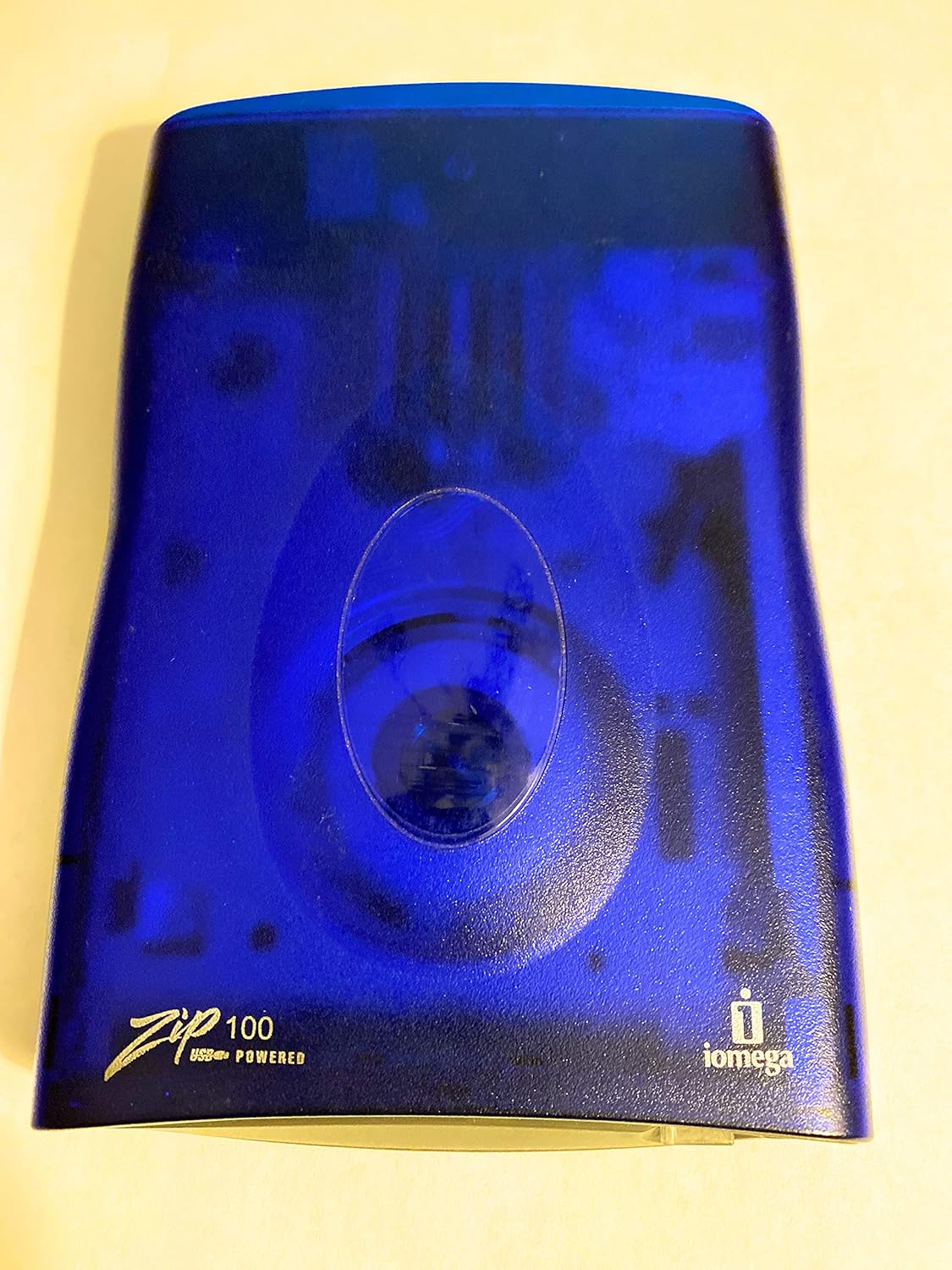
Image: The Iomega 100MB USB Powered Zip Drive, featuring its distinctive blue translucent casing and "Zip 100 USB Powered" branding.

Image: The USB cable used to connect the Iomega Zip Drive to a computer, providing both data transfer and power.
Kasutusjuhised
The Iomega Zip Drive functions like any other removable storage device. Here are basic operating procedures:
- Inserting a Zip Disk: Gently insert a 100MB Zip disk into the drive's slot until it clicks into place. Do not force the disk.
- Andmetele juurdepääs: Once a disk is inserted and recognized, you can access its contents through your computer's file management system (e.g., "My Computer" or "This PC" on Windows, or the desktop/Finder sidebar on macOS). The drive will appear as a new removable disk drive.
- Ülekandmine Files: Lohistage files or folders to and from the Zip drive icon. You can also use copy and paste functions. The drive utilizes a USB 1.1 interface for data transfer.
- Andmete salvestamine: To save new files or modifications to a Zip disk, ensure the disk is inserted and the drive is active. Save your work directly to the Zip drive's assigned letter or icon. The built-in 100MB cache memory assists in quick access to frequently used files.
- Ejecting a Zip Disk: Before removing a Zip disk, always safely eject it from your operating system.
- Windows: Right-click on the drive icon in "My Computer" or "This PC" and select "Eject."
- MacOS: Drag the drive icon to the Trash, or click the Eject icon next to the drive name in Finder.
Hooldus
Proper maintenance ensures the longevity and optimal performance of your Iomega Zip Drive:
- Puhastamine: Use a soft, dry, lint-free cloth to wipe the exterior of the drive. Do not use liquid cleaners or abrasive materials. Keep the disk slot free of dust and debris.
- Hoiustamine: Store the drive in a cool, dry place away from direct sunlight, extreme temperatures, and high humidity. When not in use, disconnect it from your computer.
- Käitlemine: Handle the drive and Zip disks with care. Avoid dropping the drive or exposing it to strong vibrations.
- Ketta hooldus: Keep Zip disks in their protective cases when not in use to prevent dust and scratches.
Veaotsing
If you encounter issues with your Iomega Zip Drive, consider the following:
- Draivi ei tuvastatud:
- Veenduge, et USB-kaabel oleks kindlalt ühendatud nii draivi kui ka arvutiga.
- Proovige draiv arvuti teise USB-porti ühendada.
- Taaskäivitage arvuti.
- Verify that the necessary drivers are installed. For older operating systems, you might need to manually install drivers.
- Disk Not Reading/Writing:
- Ensure the Zip disk is inserted correctly and fully into the drive.
- Try a different Zip disk to rule out a faulty disk.
- Check if the disk is write-protected (some Zip disks have a small switch).
- Clean the drive's read/write heads using a specialized Zip drive cleaning disk (if available).
- Aeglane andmeedastus:
- The Iomega Zip Drive uses USB 1.1, which has a slower transfer rate compared to newer USB standards. This is normal operation.
- Ensure no other high-bandwidth USB devices are connected to the same USB hub.
- Compatibility Issues with Mac:
- While compatible with Mac, some users report issues with very old or very new macOS versions. Ensure your operating system has the necessary drivers or support for USB 1.1 devices.
- Check Iomega's official support resources for specific Mac OS compatibility information.
Tehnilised andmed
| Funktsioon | Detail |
|---|---|
| Kaubamärk | Iomega |
| Mudeli nimi | Z100USBS (ZIP100) |
| Ühenduvustehnoloogia | USB |
| Riistvara liides | USB tüüp A |
| Mälu salvestusmaht | 100 MB |
| Kirjutamise kiirus | 2 (MB/s, typical for Zip 100) |
| Erifunktsioon | Portable, USB Powered |
| Toote mõõtmed | 9 x 8 x 4 tolli |
| Kauba kaal | 13.6 untsi |
| UPC | 742709323027 |
Garantii ja tugi
For information regarding warranty coverage, technical support, or service for your Iomega Zip Drive, please refer to the original product documentation or visit the official Iomega support webveebisait. Konkreetsed garantiitingimused võivad piirkonniti ja ostukuupäevast olenevalt erineda.
It is recommended to register your product with Iomega (if applicable) to receive updates and support notifications.


