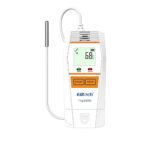
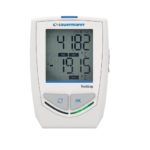
Elitech T-log B100EH Temperature and Humidity Data Logger

KASUTUSJUHEND
Mida sisaldab
- Temperature (Humidity} Data Logger x 1
- Kasutusjuhend x 1
- Kinnitustunnistus x 1
- Certificate of Quality x 1
LÕPPVIEW
Tlog series data loggers are used to monitor and record the temperature (humidity} for foods, pharmaceuticals, and other products during their storage and transport, and in each stage of cold chain logistics, such as refrigerated containers/trucks, cooler bags, cooling cabinets, medical cabinets, freezers, and laboratories,
Tlog series features a USB port, LCD screen and two buttons designed to prevent accidental touches. You can view device status and parameters by button press, or customize various parameters, such as start/stop modes, multiple thresholds, storage modes, etc. You can also view automatically generated PDF report without using the Elitechlog software.
Its Tlog 8100 series are Bluetooth versions that allow operations without opening package via the Elitech app. Such as parameter configuration, data viewing, Bluetooth print, etc. that provides simple, practical, and convenient experiences.

USB-andmelogerid

Bluetoothi andmesalvestajad

KASUTAMINE
1. Download & Install Software
Laadige alla ja installige Elitech USA tasuta tarkvara Elitechlog (macOS ja Windows): www.elitechustore.com/pages/download
või Elitech UK: www.elitechonline.co.uk/software või Elitech BR: www.elitechbrasil.com.br.
2. Parameetrite seadistamine
First, connect the data logger to the computer via USS cable, wait until the U icon shows on the LCD, then Configure via Elltechlog software: If you do not need to change the default parameters (In Appendix), please click Quick Reset under Summary menu to synchronize local time before usage; If you need to change the parameters, please click the Parameter menu, enter your preferred parameters, and cllck Save P;uameter button to complete the configuration, Womlngl For first time user or ofter battery replacement:
To ovoid time or time zone errors, please make sure you click Quick Reset or Sa11e Parameter before usage to configure your loco/ time into the logger.
3. Alustage logimist
Press B utton:
Press and hold the left button for S seconds until the icon ► shows on the LCD, indicating the logger starts logging,
Automaatne käivitus:
Kohene algus: The logger starts logging after plugged out from the computer.
Ajastatud algus: The logger starts counting after removed from the computer, and will automatically start logging when the set date/time comes.
Märkus. If the ► icon keeps flashing, it means the logger configured with start delay; it will start logging a?er the set delay time elapses. I
4. Mark Events
Double click the left button to mark current temperature and time, up to 10 groups. After events marked, the LCD wlll display l§iE , currently marked groups and !El ,
5. Lõpeta logimine
Press B utton: Press and hold the right button for S seconds until the ■ icon shows on the LCD, indicating the logger stops logging,
Automaatne seiskamine: Kui salvestatud punktid jõuavad maksimaalse mälumahuni, peatub logija automaatselt.
Kasutage tarkvara: Open Elitechlog software, click Summary menu, and Stop Lauln1 button.
Note: stop via Press Button is the default. If set as disabled, this function will be invalid, please open ElitechLog software and click Stop Logging button to stop It.
6. Laadige andmed alla
Connect the data logger to your computer via USS cable, wait until the icon U shows on the LCD, then download:
Without software: A PDF report will generate automatically. Please find and open the removable storage device Tlog and save the POF report to your computer for viewing.
Vla ElltechLo1 software: The logger wlll auto-upload data to Elitechlog, then please click Export to select your desired file eksportimiseks vormingus. Kui andmete automaatne üleslaadimine ebaõnnestus, klõpsake käsitsi Laadi alla ja korrake ülaltoodud toimingut.
7. Re-use the Logger
To reuse a stopped logger, please connect it to the computer, and make sure you have saved or exported the data;
Next reconfigure the logger by repeating the operation In 2. Conff1ure Parameters*. After finished, please follow 3. Start Logging to restart the logger for new logging,
Womlng! “All previous logging data inside the logger will be deleted after re-configuration os to make space for the new logging. If you forgot to sove/export data, please check and manage the logger in the History menu of ElitechLog software.
8. Repeat Start
Simply press and hold the left button to quickly restart the stopped logger without any configuration.
Please backup data before Repeat Start, by repeating 6. Download Data. Wrthout ElitechLot Software.
Rakenduse töö
1. Turn ON Bluetooth
Press and hold the left and right button for more than 5 seconds until both LED indicators flash and the icon $ flashes on the top right of the LCD,
2. Installige rakendus
Use your mobile browser to scan the QR code below or find Elitech app (the App) on your App Store to download and install it, then register a new account and log in.

3. Parameetrite seadistamine
(1) Click the icon ::= on the top left and select Data logger.
(2) Click the Start menu on the bottom left for parameter configuration, and then click Next on the top right for further operation.

(3) Press and release the right button of the logger, the app will highlight this logger. Click it to view üksikasjad.
(4) Confirm the parameters and click OK on top right to complete the configuration.

4. View Andmed
1) In Nearby menu page, click llil on the top right to refresh the device list. Press the right button of the logger;,the app will highlight and top this logger. Click the logger and select Read data.

2) After data is read, you may view It In the graph and detailed list.Click the Icon on the top right to stop the logger that Is logging. Under Data mend, click Cienerate Report to export your report In the desired format (PDF, Excel), click Print to print the report via the connected Bluetooth printer.

5. Scan Bar Code for parameter configuration and data viewing
Switch to Nearby Menu, then click the icon on top right to scan the bar code at the back of the logger for a further operation (Configure, Read Data).

6. Bulk Operation
1) Switch to Nearby menu, click the sub menu Record or Stopped, and then cllck Hon the top right to refresh the device 11st.
2) Hold one logger In the 11st. and you may switch to multi-select status (IDS APP click m on the top right). Check the loggers and then click Delete, C onfigure or Read Data to handle several loggers simultaneously.

Olekunäit

2. LCD ekraan

3. LCD-liides

4. LCD-LED Indication

Patarei vahetus

Hoiatus!
- Palun hoidke oma puuraidurit toatemperatuuril.
- Loggeri esmakordsel kasutamisel kasutage süsteemi aja sünkroonimiseks ja parameetrite konfigureerimiseks tarkvara ElitechLog.
- Kui logija salvestab, ärge eemaldage akut.
- The LCD screen will be automatically off o?er 15 seconds of inactivity. Press the button again to turn on the screen.
- Parameter configuration on ElltechLog software wl/1 clear previously recorded data Inside the logger. Please save all history doto before you apply new configurations.
- To ensure the humidity accuracy, please ovoid contact with unstable chem/col solvents or compounds, especlafly ovoid fang-term storage or exposure to the environments with high concentrations of ketene, acetone, ethanol, isoproponol, toluene, etc.
- Do not use the logger for long-distance transport if the battery icon is fess thon ho/f os .
- Before using the Bluetooth data logger, please turn on its Bluetooth function first.
Parameetrite vaikekonfiguratsioonid

Telefono 56 4859 0213
Correo: cotiza@lacecalibracion.com
Direcci6n: Av. Adolfo L6pez Mateos #16, CP 54D50,
Tlalnepantla de Baz
Dokumendid / Ressursid
 |
Elitech T-log B100EH Temperature and Humidity Data Logger [pdfKasutusjuhend T-log B100EH, Tlog_100.E.H.EH.EC.EL.B.BE.BH.BEH, T-log B100EH Temperature and Humidity Data Logger, T-log B100EH, Temperature and Humidity Data Logger, and Humidity Data Logger, Humidity Data Logger, Data Logger |