
Sissejuhatus
This manual provides comprehensive instructions for the HP 14-inch Laptop, Model 2026 Essential. It covers initial setup, daily operation, maintenance tips, and troubleshooting common issues. Please read this manual thoroughly to ensure proper use and longevity of your device.

Joonis 1: HP 14-inch Essential Laptop highlighting key features like Intel Processor N150, 4GB LPDDR5 RAM, 628GB storage, Windows 11 Pro, HD anti-glare display, Intel Graphics, Wi-Fi 6, Microsoft Copilot Key, HD camera, integrated digital mics, and stereo speakers.
1. Seadistamine
1.1 Karbist väljavõtmine ja pakendi sisu
Carefully unpack your HP 14-inch Laptop and verify all components are present.
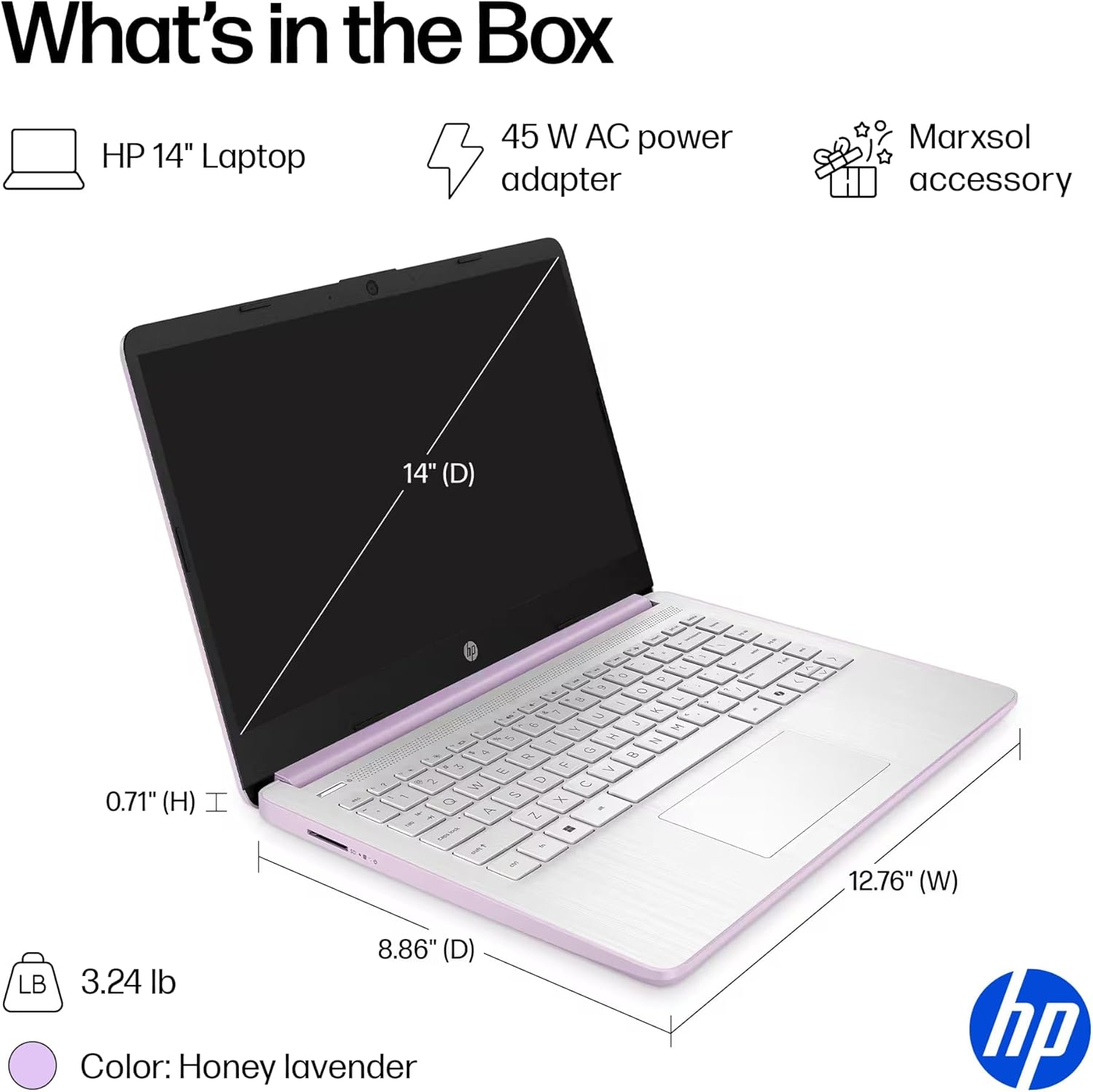
Joonis 2: The package includes the HP 14-inch Laptop, a 45W AC power adapter, and the Marxsol accessory bundle. The laptop dimensions are 12.76" (W) x 8.86" (D) x 0.71" (H) and it weighs 3.24 lbs.
Teie pakett peaks sisaldama:
- HP 14-tolline sülearvuti
- 45 W vahelduvvoolu toiteadapter
- Marxsol Accessory Bundle:
- 6-in-1 USB-C Docking Station Hub
- 500GB External Drive
- USB Extension Cord
- HDMI kaabel
- Hiirepadi
- Juhtmeta hiir

Joonis 3: The Marxsol accessory bundle includes a 6-in-1 USB-C Docking Station, Wireless Mouse, Mouse Pad, USB Extension Cable, HDMI Cable, and a 500GB External Drive.
1.2 Toite ühendamine
Connect the AC power adapter to the laptop's AC Smart pin port and then plug the adapter into a power outlet. The battery will begin charging automatically. It is recommended to fully charge the battery before first use.
1.3 Esialgne käivitamine ja Windows 11 Pro seadistamine
Press the power button to turn on the laptop. Follow the on-screen instructions to complete the initial setup of Windows 11 Pro. This process typically involves selecting your region, language, connecting to a Wi-Fi network, and creating a user account.

Joonis 4: The laptop comes pre-installed with Windows 11 Pro and includes Microsoft Office 2024.
2. Sülearvuti kasutamine
2.1 Toide sisse/välja ja puhkeolek
- Toide sisse: Vajutage klaviatuuril asuvat toitenuppu.
- Toide välja: Klõpsake nuppu Start, seejärel nuppu Toide ja valige "Lülita välja".
- Puhkerežiim: Sulgege kaas või klõpsake nuppu Start, seejärel nuppu Toide ja valige "Unerežiim".
2.2 Klaviatuur ja puuteplaat
The laptop features a full-size English keyboard and a multi-touch touchpad.
- Puuteplaadi žestid: Refer to Windows 11 settings for customizable touchpad gestures (e.g., two-finger scroll, pinch-to-zoom).
- Funktsiooniklahvid: Kasutage Fn key in combination with the function keys (F1-F12) for quick access to features like volume control, screen brightness, and Wi-Fi toggle.
2.3 Connecting Peripherals (Ports)
Teie sülearvuti on varustatud erinevate portidega väliste seadmete ühendamiseks.
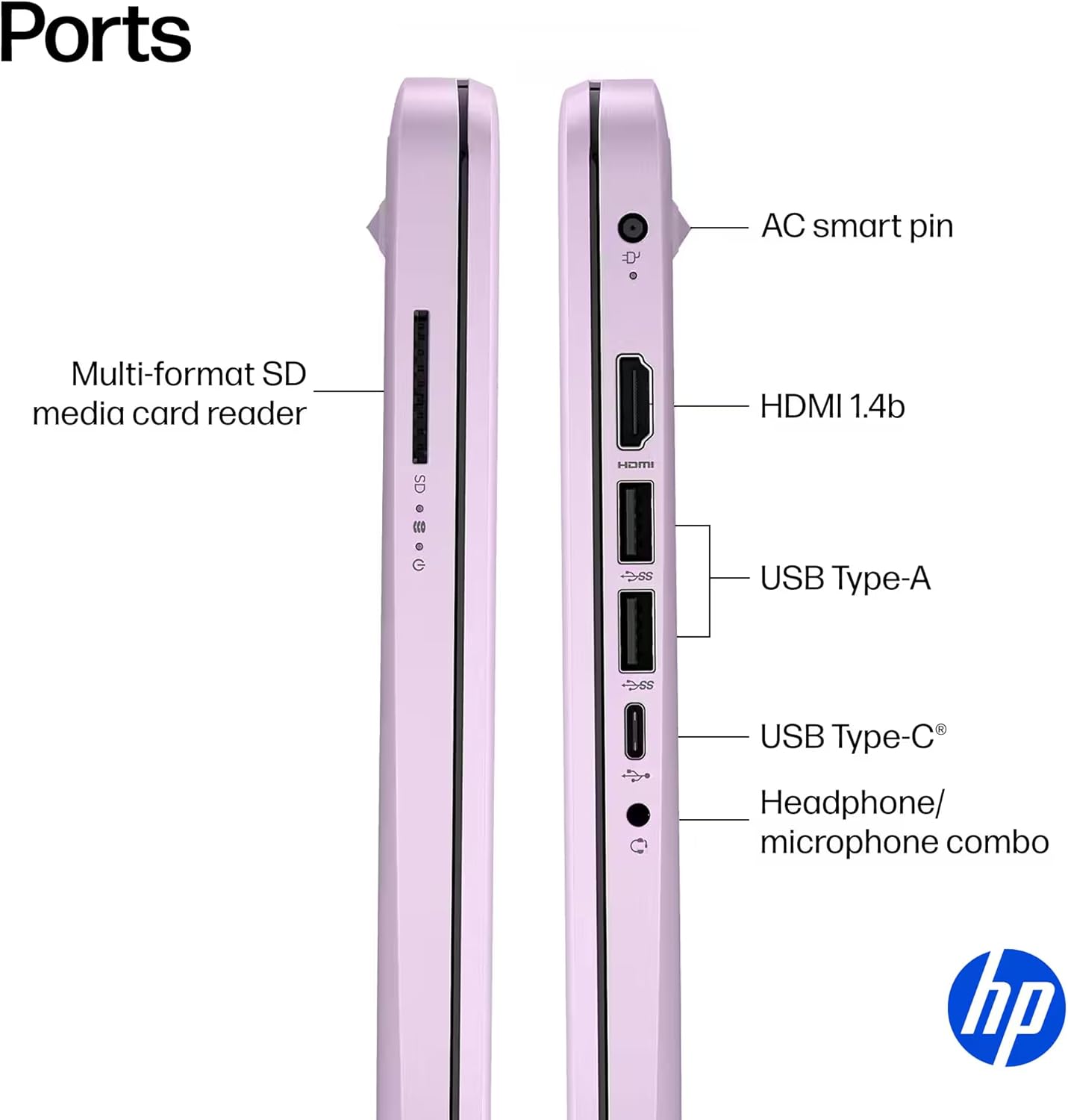
Joonis 5: Külg view of the HP 14-inch laptop showing available ports.
- USB Type-C (signaalikiirus 5 Gbps): Ainult andmete edastamiseks.
- USB Type-A (signaalikiirus 5 Gbps): For connecting USB devices like external drives, keyboards, and mice.
- HDMI 1.4b: Väliste kuvarite või projektorite ühendamiseks.
- Kõrvaklappide/mikrofoni kombineeritud pesa: Kõrvaklappide või mikrofoniga peakomplekti ühendamiseks.
- Mitmeformaadiline SD-mälukaardilugeja: SD-kaartide lugemiseks.
- Vahelduvvoolu nutikas pistik: Toiteadapteri ühendamiseks.
2.4 Traadita ühenduvus
The laptop supports Wi-Fi 6 (802.11ax) and Bluetooth 5.4 for high-speed wireless connections.
- WiFi: Traadita võrguga ühenduse loomiseks klõpsake tegumiribal WiFi-ikoonil, valige oma võrk ja sisestage vajadusel parool.
- Bluetooth: To pair Bluetooth devices, go to Windows Settings > Bluetooth & devices, and follow the pairing instructions.
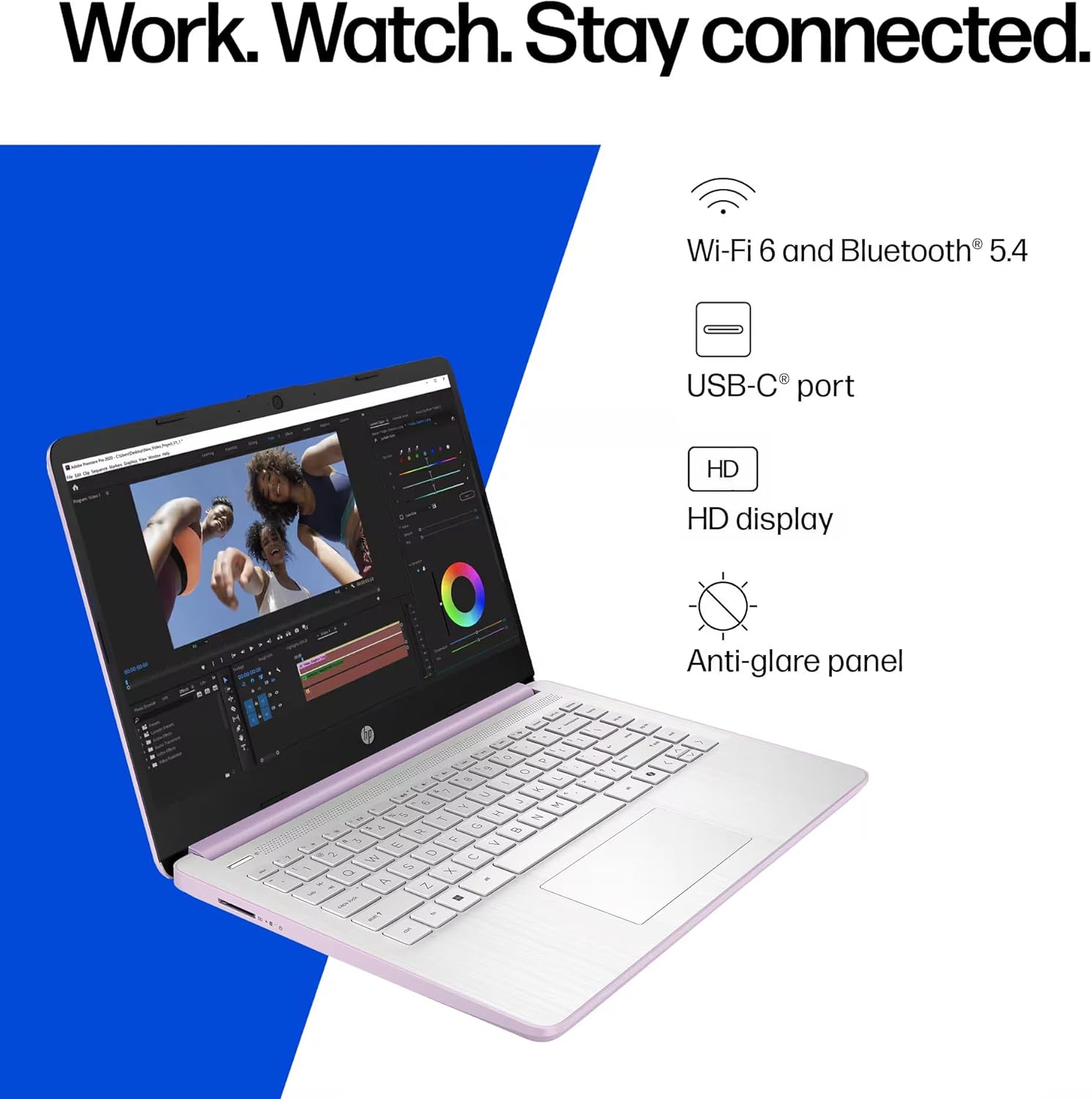
Joonis 6: The laptop offers Wi-Fi 6 and Bluetooth 5.4 for robust wireless connectivity, alongside a USB-C port, HD display, and anti-glare panel.
2.5 Microsoft Copilot Key
The dedicated Microsoft Copilot key provides instant access to AI assistance. Press this key to launch Copilot and interact with it for various tasks, information, and creative assistance.

Joonis 7: The Microsoft Copilot key on the keyboard provides quick access to AI features.
3. Hooldus
3.1 Aku hooldus
- To maximize battery lifespan, avoid frequently discharging the battery completely.
- Hoidke sülearvutit jahedas ja kuivas kohas, kui seda pikka aega ei kasutata.
- The laptop features a 3-cell, 41 Wh Li-ion battery, providing up to 9 hours of usage.
3.2 Sülearvuti puhastamine
- Ekraan: Kasutage kergelt pehmet ebemevaba lappi dampveega või ekraanipuhastusvahendiga. Ärge pihustage vedelikku otse ekraanile.
- Klaviatuur ja korpus: Kasutage pehmet ja kuiva lappi. Kangekaelse mustuse korral kergelt kuiva lappi.amp võib kasutada lappi, veendudes, et vedelik ei satuks avadesse.
- Pordid: Hoidke pordid tolmust ja prahist vabad. Vajadusel kasutage suruõhku, hoides purki püsti.
3.3 Tarkvaravärskendused
Regularly update your Windows 11 Pro operating system and drivers to ensure optimal performance, security, and compatibility.
- Mine aadressile Seaded > Windowsi värskendus värskenduste kontrollimiseks ja installimiseks.
- Ensure your antivirus software is up-to-date.
4. Veaotsing
This section addresses common issues you might encounter with your HP 14-inch Laptop.
4.1 Toiteprobleemid
- Sülearvuti ei lülitu sisse:
- Veenduge, et vahelduvvooluadapter oleks kindlalt ühendatud nii sülearvuti kui ka töötava pistikupesaga.
- Veenduge, et pistikupesa töötab, ühendades sellega teise seadme.
- Kui aku on täiesti tühi, laske sellel enne sisselülitamist vähemalt 30 minutit laadida.
- Aku ei lae:
- Kontrollige toiteadapterit ja kaablit kahjustuste suhtes.
- Ensure the AC adapter is correctly seated in the laptop's charging port.
- Try restarting the laptop.
4.2 Kuvamisprobleemid
- Ekraan on tühi või must:
- Veenduge, et sülearvuti on sisse lülitatud ja mitte puhkeolekus.
- Connect an external monitor via HDMI to check if the issue is with the laptop's display or graphics output.
- Reguleerige ekraani heledust funktsiooniklahvide abil.
- Vilkuv ekraan:
- Värskendage oma graafika draivereid.
- Check display settings in Windows for refresh rate compatibility.
4.3 Ühenduvusprobleemid (Wi-Fi/Bluetooth)
- Wi-Fi-ga ei saa ühendust luua:
- Ensure Wi-Fi is enabled (check function keys or Windows settings).
- Taaskäivitage ruuter ja modem.
- Forget the network in Windows settings and try reconnecting.
- Värskenda võrgu draivereid.
- Bluetooth-seade ei paaristu:
- Veenduge, et Bluetooth oleks lubatud nii sülearvutis kui ka seadmes.
- Place the Bluetooth device in pairing mode.
- Remove previously paired instances of the device from Windows settings and try pairing again.
For further assistance, refer to the HP support websaidil või võtke ühendust klienditeenindusega.
5. Tehnilised andmed
Detailed technical specifications for the HP 14-inch Laptop (Model 2026 Essential).
| Funktsioon | Kirjeldus |
|---|---|
| Mudeli nimi | 2026 Essential HP 14 Laptop |
| Protsessor | Quad-Core Intel Processor N150 (Up to 3.6 GHz Max Turbo Frequency, 6 MB Intel Smart Cache, 4 cores, 4 threads) |
| Graafika | Integreeritud Intel Graphics |
| Operatsioonisüsteem | Windows 11 Pro |
| Kaasas tarkvara | Microsoft Office 2024 |
| Mälu (RAM) | 4GB LPDDR5 RAM |
| Säilitamine | 128GB UFS (Universal Flash Storage) + 500GB External Drive |
| Ekraan | 14-inch diagonal, HD (1366 x 768), micro-edge, anti-glare, 250 nits, LED |
| Ühenduvus | Wi-Fi 6 (802.11ax) and Bluetooth 5.4 combo |
| Heli | HD-heli stereokõlaritega |
| Webnukk | HP True Vision 720p HD-kaamera koos ajutise mürasummutuse ja integreeritud kahe massiivi digitaalmikrofonidega |
| Sadamad |
|
| Aku | 3-cell, 41 Wh Li-ion battery, Up to 9 hours usage |
| Mõõdud (L x S x K) | 12.76 x 8.86 x 0.71 tolli |
| Kaal | 3.24 naela |
| Värv | Honey Lavender |

Joonis 8: Intel Processor N150 specifications, highlighting its 4 cores, 4 threads, 6 MB cache, and up to 3.6 GHz Turbo Boost frequency.
6. Garantii ja tugi
Garantiiteabe saamiseks lugege tootega kaasasolevat dokumentatsiooni või külastage ametlikku HP tugilehte. webHP pakub mitmesuguseid tugiressursse, sh draivereid, tarkvaravärskendusi ja tõrkeotsingu juhendeid.
If you encounter issues that cannot be resolved using the troubleshooting steps in this manual, please contact HP Customer Support for assistance. Have your product model number (2026 Essential HP 14 Laptop) and serial number ready when contacting support.
Veebitugi: Külastage support.hp.com