1. Sissejuhatus
This manual provides detailed instructions for the setup, operation, and maintenance of your Logitech POP Mouse. The POP Mouse is a compact, wireless mouse designed for multi-device use with customizable features.

Image: The Logitech POP Mouse in Graphite, showcasintänu oma kompaktsele ja ergonoomilisele disainile.
2. Pakendi sisu
- Logitech POP juhtmevaba hiir
- 1x AA Battery (pre-installed)
- Kasutaja dokumentatsioon

Image: The Logitech POP Mouse and a single AA battery, representing the items included in the product package.
3. Seadistusjuhised
3.1. Aku paigaldamine
- Gently remove the top cover of the mouse. The cover is magnetically attached.
- Sisestage kaasasolev AA-patarei, jälgides õiget polaarsust (+/-).
- Pange ülemine kate tagasi, veendudes, et see kindlalt oma kohale klõpsatab.
3.2. Ühenduse loomine Bluetoothi kaudu
- Lülitage hiir sisse, kasutades allosas asuvat toitelülitit.
- Press and hold one of the Easy-Switch buttons (1, 2, or 3) on the bottom of the mouse until the LED indicator starts blinking rapidly. This indicates pairing mode.
- On your device (computer, tablet, or phone), open Bluetooth settings.
- Sidumisprotsessi lõpuleviimiseks valige saadaolevate seadmete loendist „Logitech POP Mouse”.
- The LED indicator will glow solid for a few seconds, then turn off, confirming a successful connection.

Image: The underside of the POP Mouse, highlighting the Easy-Switch buttons for multi-device pairing.
4. Kasutusjuhised
4.1. Põhifunktsioonid
- Vasak klõps: Esmane valik ja interaktsioon.
- Paremklõps: Avab kontekstipõhised menüüd.
- Kerimisratas: Liigub dokumentides vertikaalselt ja web lehekülgi.
4.2. SilentTouch tehnoloogia
The POP Mouse features SilentTouch Technology, which significantly reduces click noise, providing a quieter user experience without compromising tactile feedback.

Image: A hand operating the POP Mouse, illustrating the quiet operation provided by SilentTouch Technology.
4.3. SmartWheeli kerimine
SmartWheel lülitub automaatselt kahe režiimi vahel:
- Täppisrežiim: For detailed, line-by-line navigation.
- Speed Scroll Mode: For rapid scrolling through long documents or web lehekülgi.

Image: A user's hand demonstrating the use of the SmartWheel for efficient navigation.
5. Kohandamine
5.1. Customizable Top Button (Emoji Button)
The top button, located below the scroll wheel, is customizable. By default, it can be configured to open an emoji menu or assign other shortcuts.
- Download and install the Logitech Options+ Software from the official Logitech websait (logitech.com/optionsplus).
- Open the Logitech Options+ Software.
- Select your POP Mouse from the detected devices.
- Navigeeri nuppude kohandamise sätete juurde.
- Assign your desired function to the top button, such as an emoji shortcut, Snip Screen, Mic Mute, or Voice-to-Text.
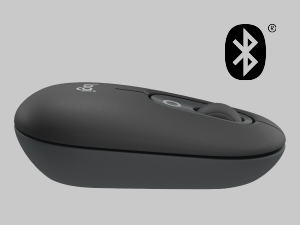
Image: A visual representation of the customizable top button on the POP Mouse, showing its function to access an emoji menu on a connected computer.
6. Mitme seadme ühenduvus
The Logitech POP Mouse can connect to up to three different devices simultaneously using Bluetooth. You can easily switch between these devices.
6.1. Seadmete vahetamine
To switch between paired devices, press the Easy-Switch button (1, 2, or 3) on the bottom of the mouse corresponding to the desired device. The LED indicator will briefly light up to confirm the selected channel.
6.2. Logitech FLOW (Advanced Feature)
For seamless control across multiple computers, install Logitech Options+ Software on all devices. With Logitech FLOW enabled, you can move your mouse cursor across screens as if they were a single desktop, even copying and pasting text, images, and files nende vahel.
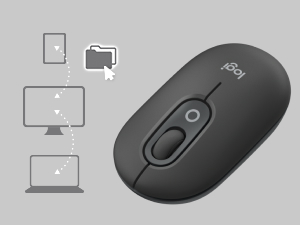
Image: A diagram showing how the POP Mouse can control multiple devices, illustrating the FLOW feature for cross-device interaction.
7. Hooldus
7.1. Aku vahetamine
The POP Mouse operates on a single AA battery with an estimated life of up to 24 months. When the battery is low, the LED indicator on the bottom of the mouse may flash. Replace the battery by following the steps in Section 3.1.
7.2. Puhastamine
Hiire puhastamiseks kasutage pehmet ja ebemevaba lappi. Kangekaelse mustuse korral nühkige seda kergeltampLoputage lappi veega. Vältige tugevate kemikaalide või abrasiivsete materjalide kasutamist.
8. Veaotsing
| Probleem | Lahendus |
|---|---|
| Hiir ei lülitu sisse. | Ensure the power switch on the bottom of the mouse is in the 'ON' position. Check and replace the AA battery if necessary. |
| Hiir ei ühendu Bluetoothi kaudu. |
|
| Cursor movement is erratic or unresponsive. |
|
| Custom button not working. | Ensure Logitech Options+ Software is installed and running on your computer, and the button is correctly configured. |
9. Tehnilised andmed
| Funktsioon | Detail |
|---|---|
| Mudeli number | 910-007165 |
| Ühenduvus | Bluetooth 5.1 |
| Wireless Range | Kuni 10 meetrit (32.81 jalga) |
| sensor Technology | Logitech High Precision Optical Tracking |
| Nuppude arv | 4 (Left/Right click, Scroll wheel click, Top customizable button) |
| Aku tüüp | 1 x AA patarei |
| Aku tööiga | Kuni 24 kuud (võib kasutusest olenevalt erineda) |
| Mõõdud (PxLxK) | 14.12 x 2.34 x 1.38 tolli (35.86 x 5.94 x 3.51 cm) |
| Kaal | 2.89 untsi (82 g koos akuga) |
| Operatsioonisüsteemi ühilduvus | Windows 10 või uuem, macOS 10.15 või uuem, iPadOS, Chrome OS, Android |

Image: Technical drawing displaying the length, width, and height measurements of the Logitech POP Mouse.
10. Garantii ja tugi
Garantiiteabe ja tehnilise toe saamiseks külastage Logitechi ametlikku tugilehte website or refer to the user documentation included in your product package.
- Veebitugi: support.logi.com
- Toote registreerimine: Registering your product can help you receive faster support and updates.